Set Up the Customers 1st Integration
Here's how to create an API user in Customers 1st, install the app, select a warehouse location, and ensure that products and inventory are synchronized between the point-of-sale system and the online store.
With the Customers 1st app, you can connect the Customers 1st (C1st) point-of-sale system to your Shoporama online store. The app does two things: product information is synchronized across both systems, and inventory is updated in both directions. If you sell an item in-store, it’s deducted from the online store, and if you sell it online, it’s deducted from the point-of-sale system. The app is free and developed by Shoporama.
The app links one store in Customers 1st to one inventory location in Shoporama, and it only transfers products and inventory. Orders, customers, gift cards, and loyalty points remain in their respective systems. The name, price, item number, and barcode are included when the app creates an item, but any subsequent changes are not carried over. Descriptions, images, and categories are never included. The app never deletes items.
Before you begin: item numbers and inventory location
The setup itself takes just a few minutes. What takes time is getting the item numbers in place, because the app links products to these numbers.
- The administrator account for the store in Customers 1st. You’ll need it to create an API user. The app uses one API key per store.
- A user with full access in Shoporama. Only this user can install and remove apps. See Roles and Permissions.
- The same SKU in both systems. TheSKU in Shoporama must be the same as the SKU in Customers 1st. The app links only by SKU, not by barcode.
- One SKU per variant. For products with variants, the variant’s SKU is linked, so each variant must have its own. See Synchronizing Inventory with Variants.
- Maximum of 25 characters. Customers 1st allows a maximum of 25 characters in the SKU for new items. Items with longer SKUs will not be created in Customers 1st.
- One warehouse location for the store. The app links the store to a single warehouse location in Shoporama. Online orders are fulfilled from the default location, so if the online store sells items from the store’s inventory, the store’s location must be set as the default location. See Warehouse Locations.
Correct the SKUs before saving the key
If a product has different SKUs in the two systems, it will not be linked. During the first synchronization, the app will instead create each of them in the other system, resulting in duplicates. The app does not delete products, so you’ll need to clean up the duplicates yourself.
Do not use two integrations at the same time
Customers 1st has its own Shoporama integration. If it’s enabled in the store, disable it in Customers 1st before installing the app; otherwise, inventory will be synced twice. The app will warn you about this in the “Connection” status box.
Step 1: Create an API user in Customers 1st
The app communicates with Customers 1st via an API key, which you obtain by creating an API user. Customers 1st refers to this key as an API token. The steps are also outlined in the help article “How to Create an API Key in Customers 1st.”
- Log in to Customers 1st using the store’s administrator account.
- Click the gear icon in the lower-left corner to open Settings, and select the API tab.
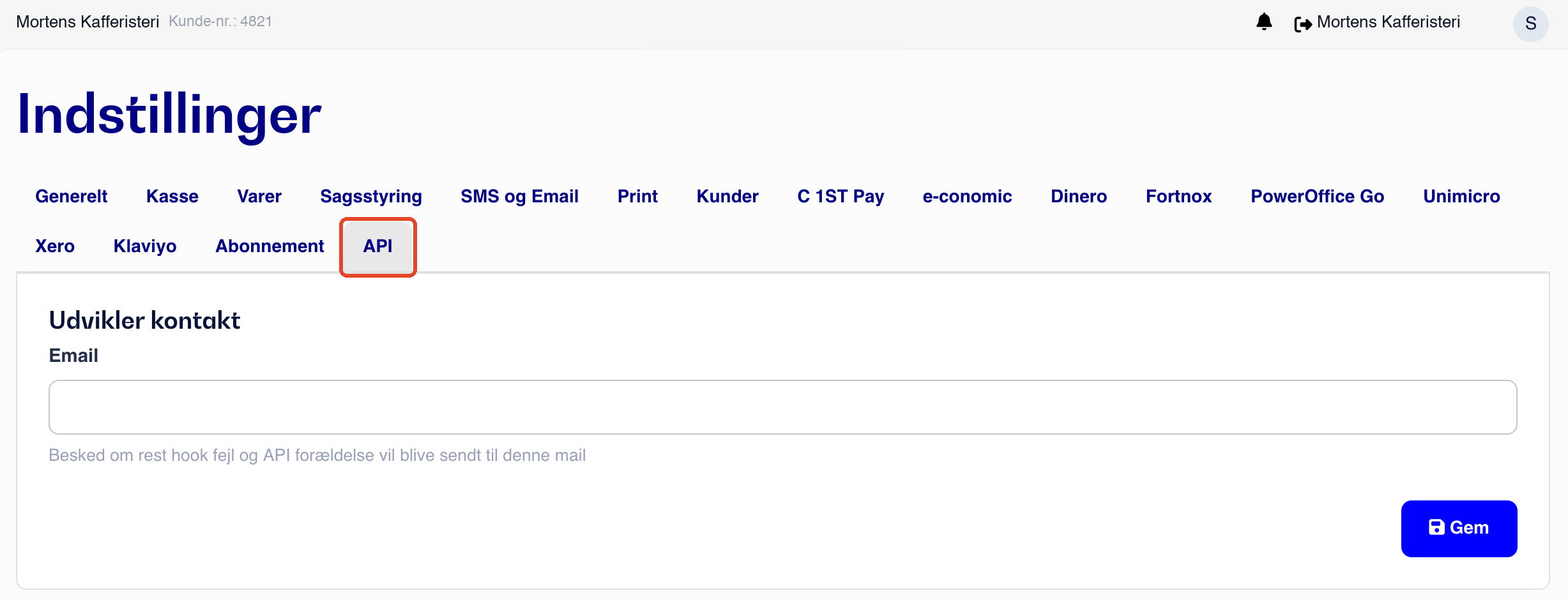
- Scroll down to the API Users section and click + User.

- Enter a Name, such as Shoporama, so you can later see what the user is used for, and an Email address. Customers 1st uses the email address to notify you of changes to their API.
- Check the box next to “I confirm that my use of the API complies with the fair usage policy.”
- Click Show API Token and copy the token immediately. It will only be displayed once. This is the API key you’ll need in Step 3. If you didn’t copy it, create a new API user.
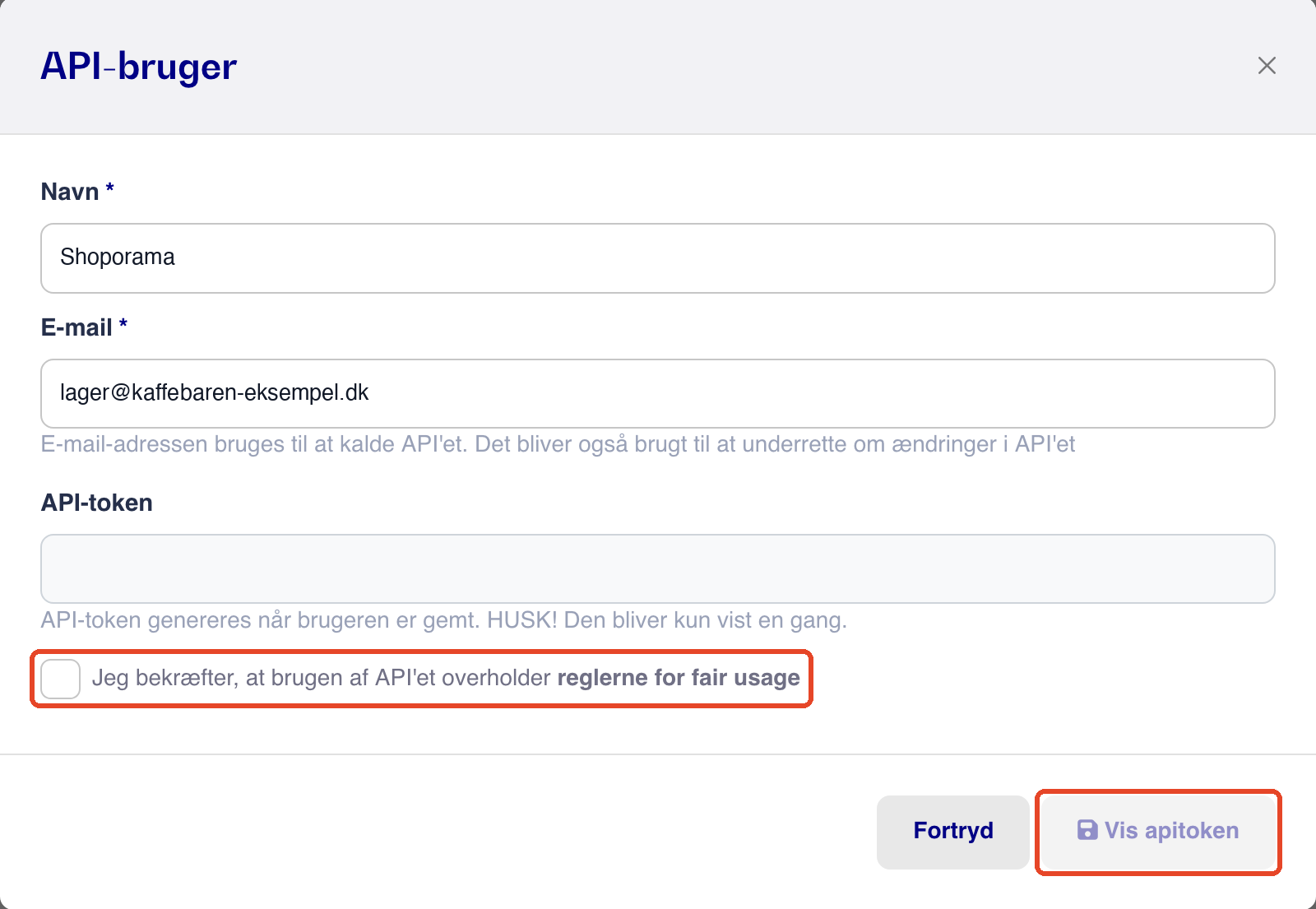
If you don’t see the “API” tab, ask Customers 1st if it’s included in your subscription. If you have multiple stores in Customers 1st, create the key in the store that will be connected to the online store.
Step 2: Install the app in Shoporama
- Go to Integrations → Apps.
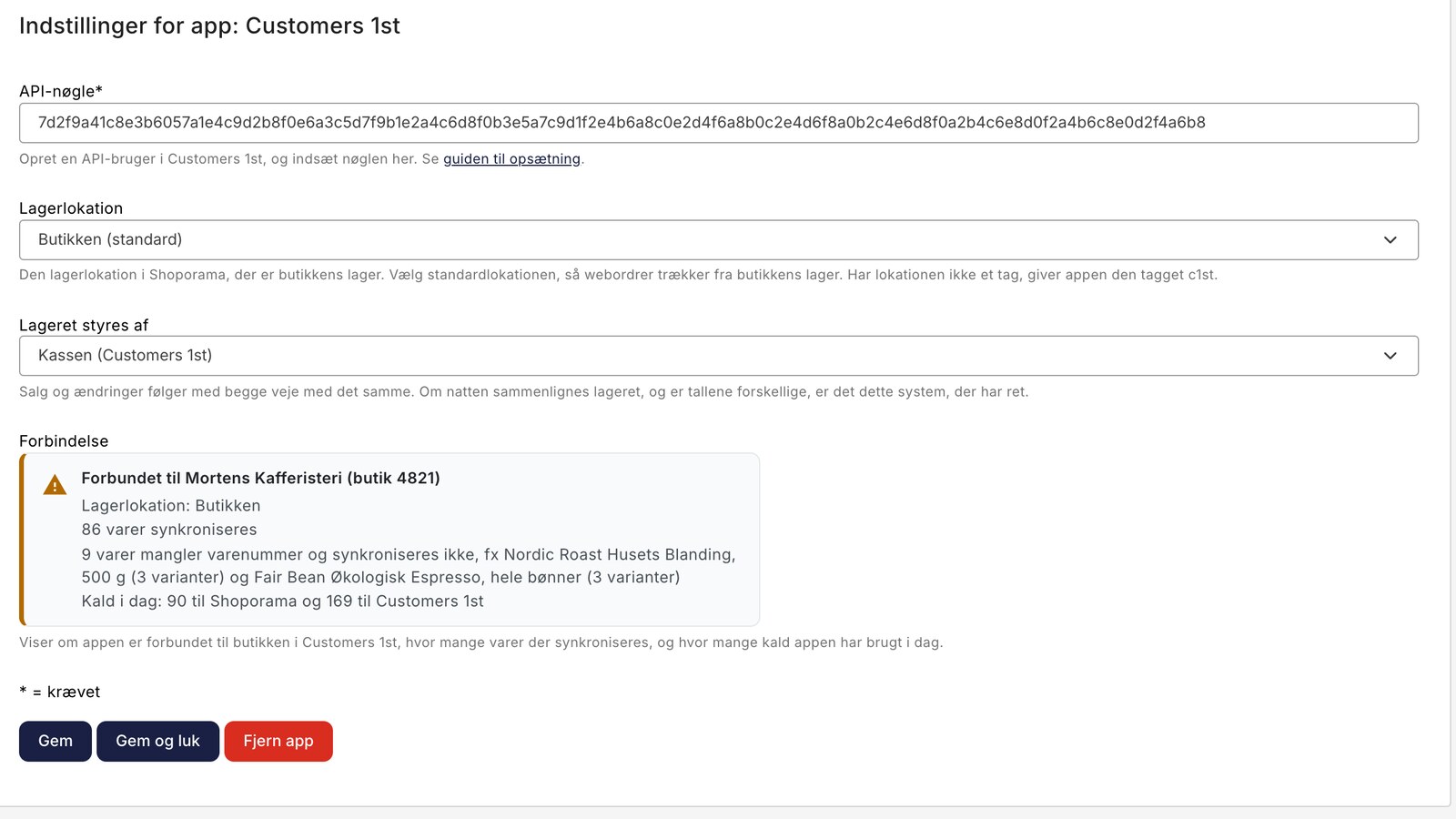
- Find Customers 1st—for example, by searching in the “Search in apps” field—and click “Install.” The “App Settings: Customers 1st ” page opens. Later, you can find it by clicking the “Settings” button on the app card under “Installed Apps.”
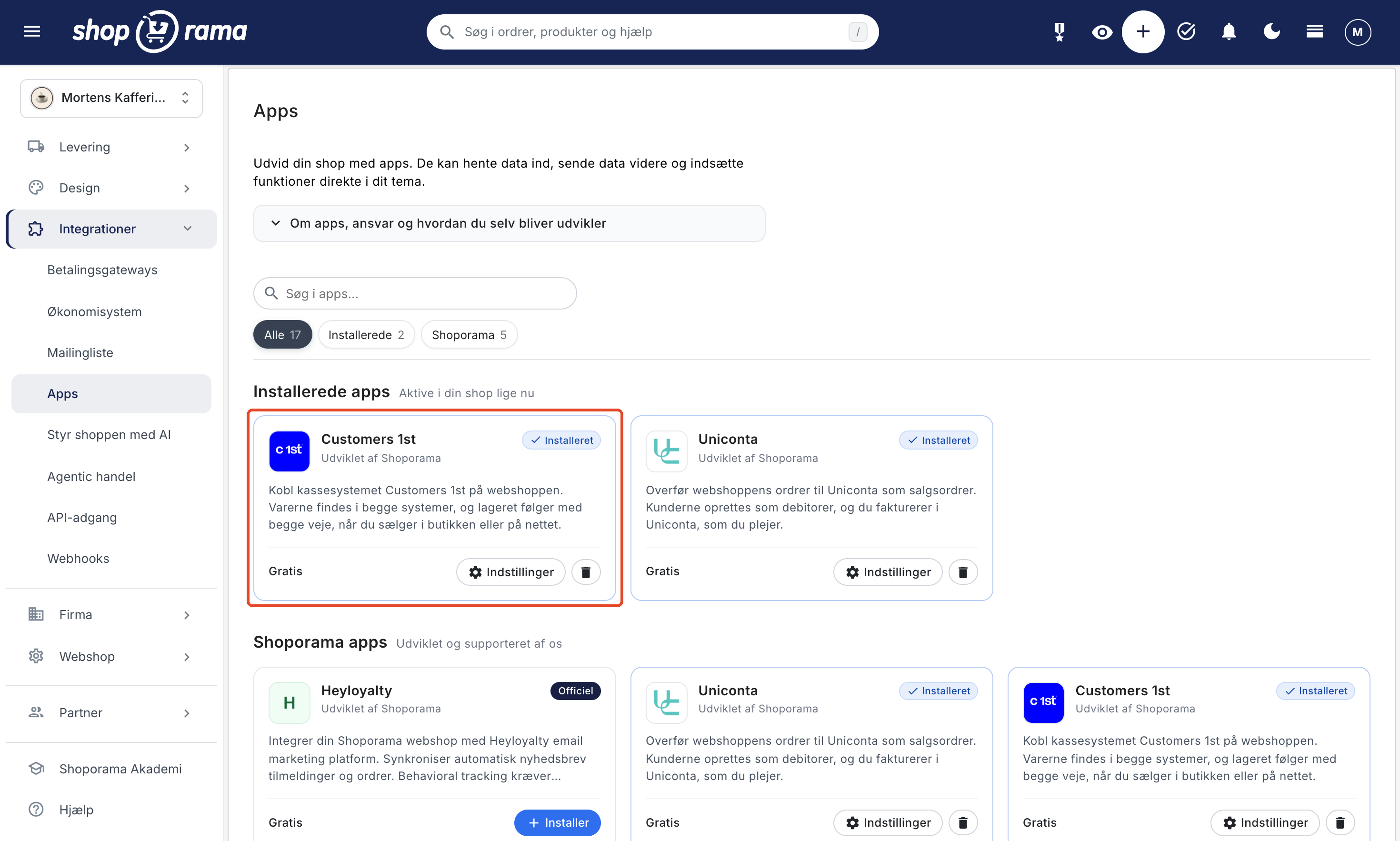
Learn more about apps in the App Store.
Step 3: Fill in the settings
- API key: Enter the key from Step 1. This field is required.
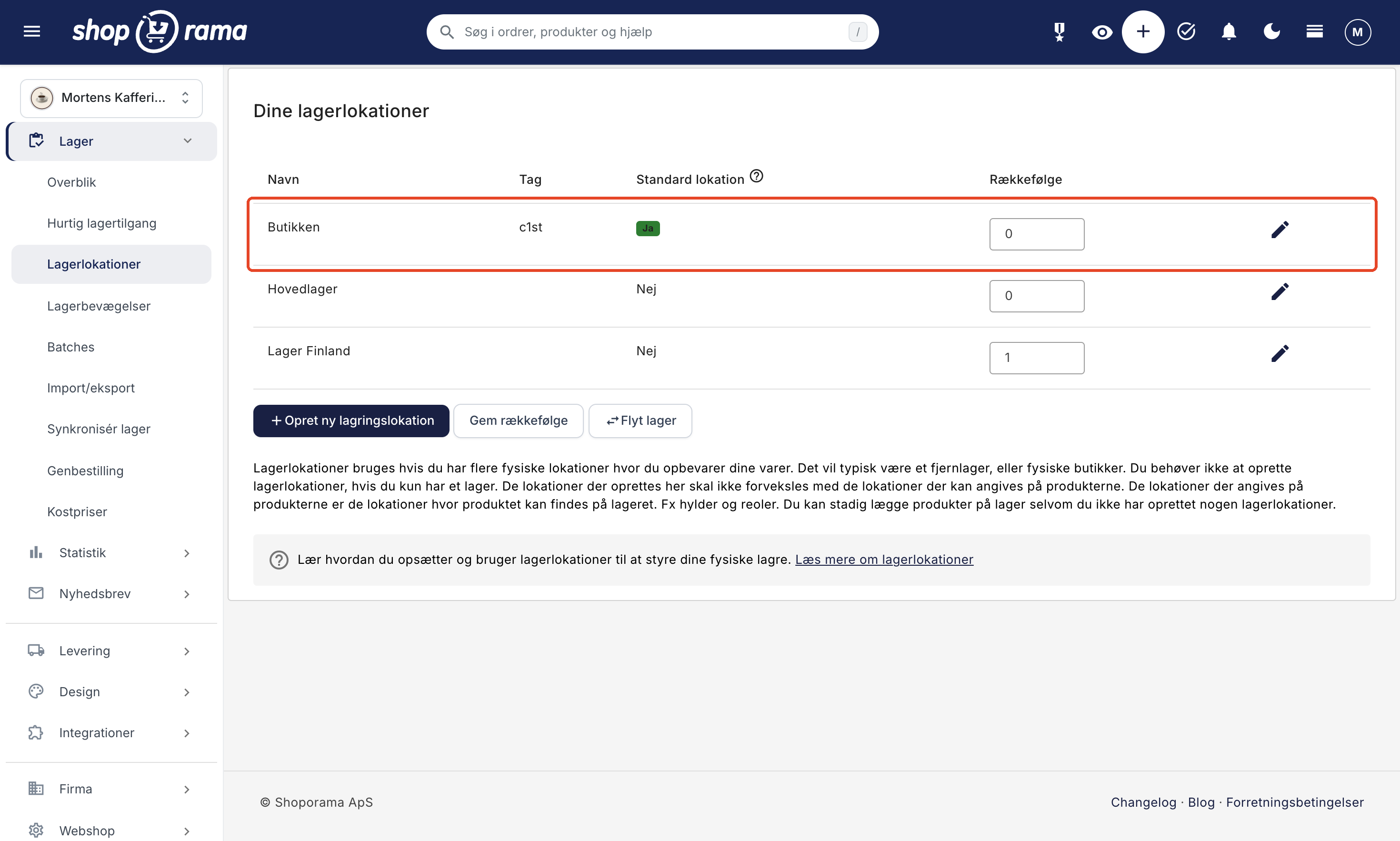
- Warehouse Location: The Shoporama warehouse location that serves as the store’s inventory. The list shows the default location at the top, with “(default)” after the name. Select this if the online store ships from the store’s inventory. If the location does not have a tag, the app will assign it the tag c1st, or c1st-2, etc., if c1st is already taken. If you have just created the location or changed the default location, it may take up to 10 minutes for the list to reflect the change.
- Inventory is managed by: the POS (Customers 1st), which is the default, or the online store (Shoporama). Sales and changes are synchronized in both directions immediately, regardless of which option you choose. This choice determines which system takes precedence when the app updates the inventory for linked items during the first synchronization and when it compares inventory levels overnight. Select the system where the inventory counts are correct today.
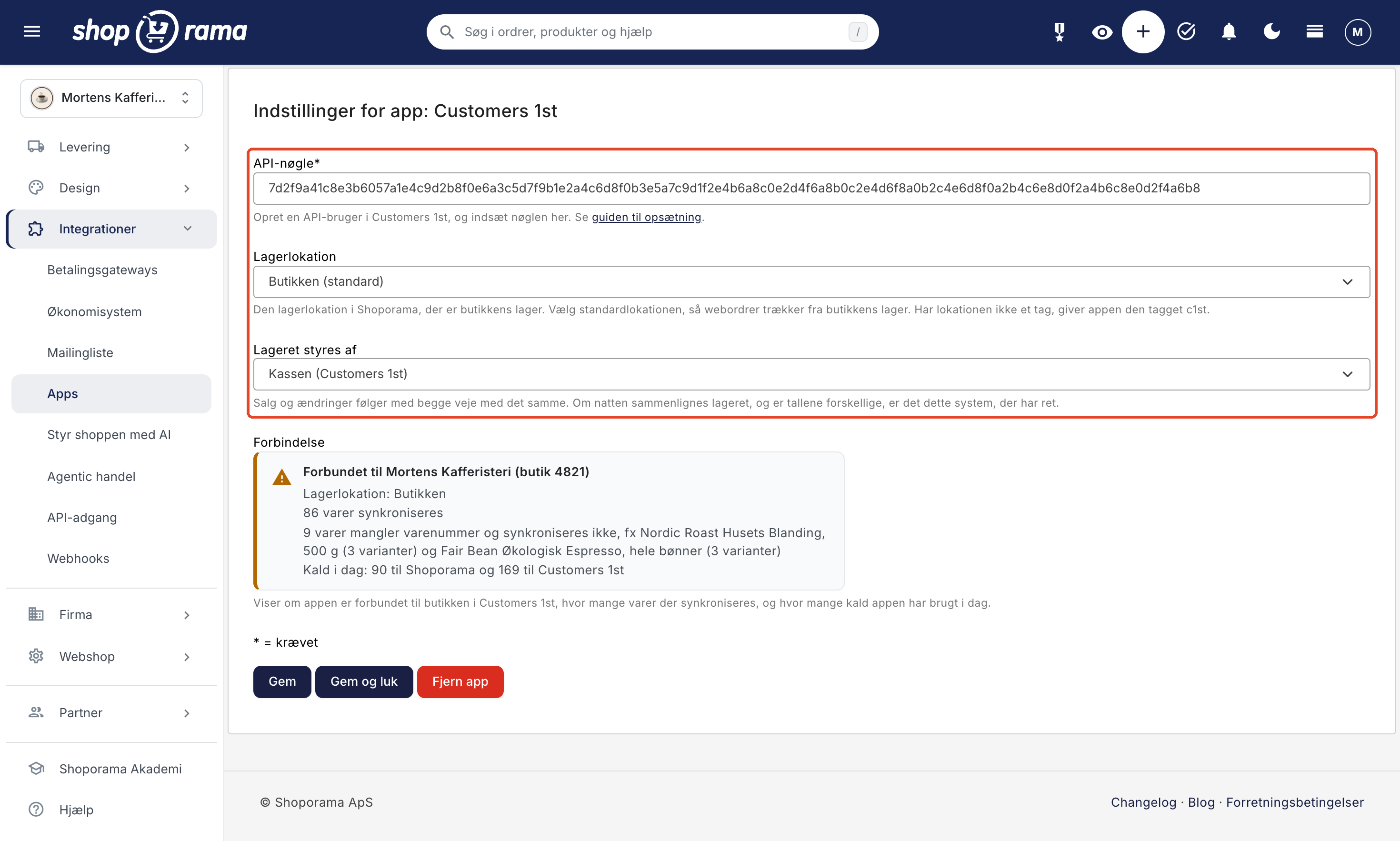
If you want to see which location is the default or set the store’s location as the default, go to Inventory → Inventory Locations. Click the pencil icon next to the location, check the “Default Location” box, and click Save. If you’ve already saved the app, click Save in the app again afterward.
Click Save in the app’s settings. The app connects to Customers 1st, and the first synchronization begins.
Step 4: Wait for the first synchronization
The first synchronization starts automatically within about 5 minutes after you save the API key and runs in the background. You don’t need to stay on the page. It does three things:
- Links all products that have the same product number in Shoporama and Customers 1st.
- Creates any missing products in the other system. See the section below on how products are linked and created.
- Updates the inventory for the linked products based on the system you selected in “Inventory Managed By.” Products created by the app inherit their inventory from the system they came from.
The “Connection” box at the bottom of the settings shows the progress. Reload the page to see the latest status. In our test, 96 items took 20 seconds.
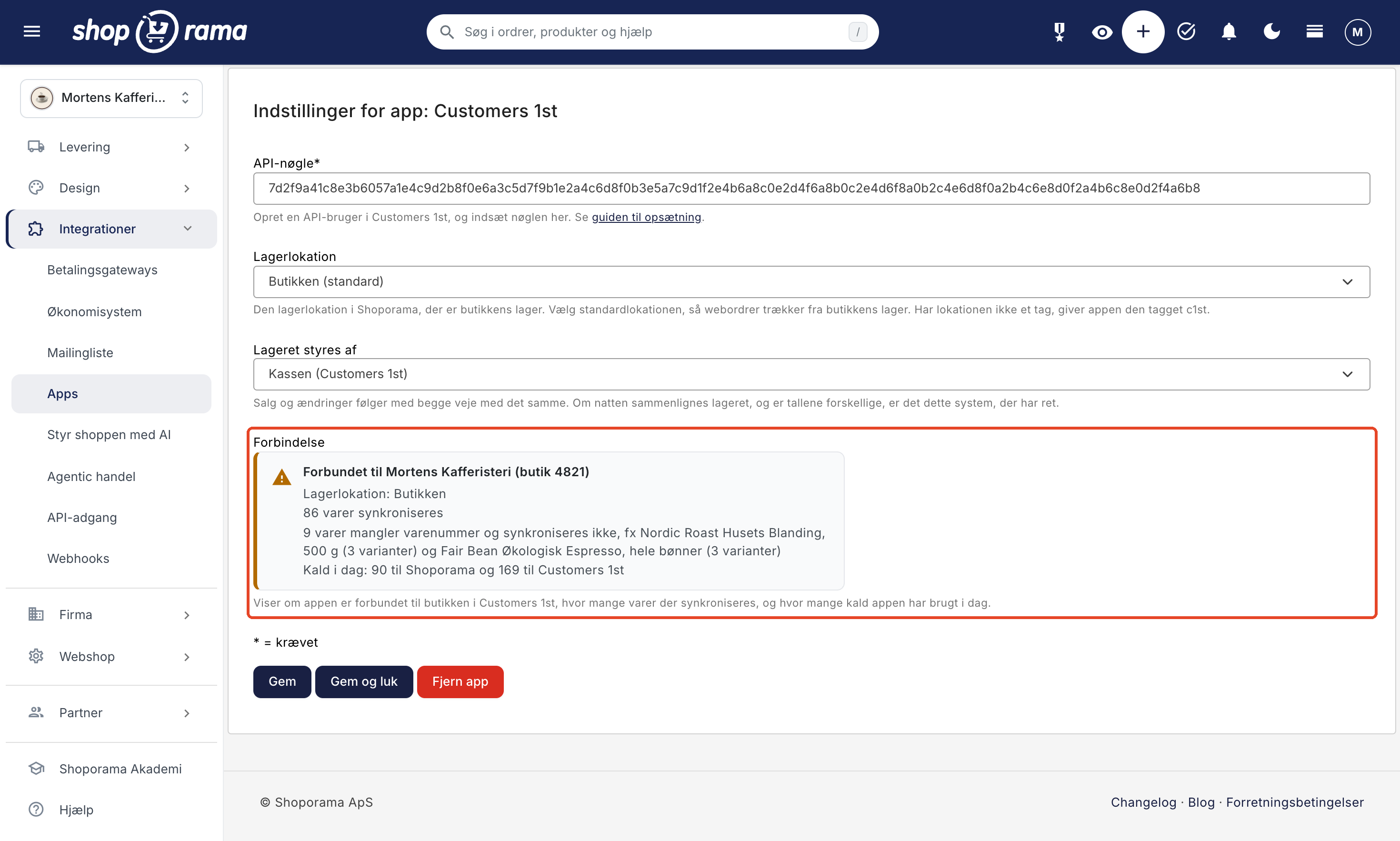
Here’s what might appear in the “Connection” box:
- Items will be synced in a few minutes. The first sync is waiting to start.
- Items are now being synced (40 of 96). It’s in progress.
- 86 items are being synchronized. The first synchronization is complete, and 86 items have been synced. Variants are counted separately.
- Connecting to Customers 1st. Please reload the page in a moment. The app is connecting.
- Not connected. Paste the API key from Customers 1st and save. There is no key in the API Key field.
- Customers 1st rejected the API key. Check that the key was copied in its entirety. Copy the key again from Customers 1st, paste it, and save.
- No connection to Customers 1st (HTTP 500). Customers 1st did not respond as expected. The number in parentheses may be different. Wait a moment, then click Save again. If the message persists, please contact support@shoporama.dk.
- The app did not respond. Try reloading the page. Reload the page in a moment.
- Shoporama has no warehouse locations. Create a location under Warehouse → Warehouse Locations, and save the app again.
- The “Store” warehouse location is missing a tag, and the app was unable to assign one. Assign a tag to the location under Warehouse → Warehouse Locations, and click Save in the app again.
- Connected, but the app was unable to register changes in Customers 1st. Try saving again. Click Save again.
The box may also display a warning. In that case, it will show a yellow warning icon:
- The store is not the default location, so web orders are fulfilled from the Main Warehouse and not from Customers 1st. The names are your own locations. Set the store’s location as the default location if the online store sells from the store’s inventory, and click Save in the app again. Otherwise, the warning will not disappear until nighttime.
- Customers 1st’s own Shoporama integration is also enabled. Disable it in Customers 1st; otherwise, inventory will be deducted twice. Disable the integration in Customers 1st and click Save in the app again, and the warning will disappear.
Items That Cannot Be Linked
If the app cannot link or create some of your products, the number and two examples will appear in the “Connection” box, just below the number of products being synced. Three possible messages may appear:
- 9 items are missing an item number and will not be synced, e.g., ... Assign an item number to the item in Shoporama—or a unique number for each variant if the item has variants—and save the item. If the item already exists in Customers 1st, use the same item number as there; otherwise, the app will create it again. An item with variants is counted here as a single item, with the number of variants in parentheses.
- Two products have item numbers longer than 25 characters, for example... Customers 1st allows a maximum of 25 characters in the item number for new products. Shorten the item number in Shoporama and save the item; it will then be created in Customers 1st. Here, each variant is counted separately, and the examples are the item numbers.
- One item could not be created in Customers 1st, e.g., ... The app tried to create the item, but was unsuccessful. Please email support@shoporama.dk with the item number, and we’ll look into it.
Once the item is linked or created, it disappears from the line, and the quantity decreases.
How to link and create items
The app links an item in Shoporama to an item in Customers 1st when they have the same item number. The barcode (EAN) is not used for linking. For items with variants, it is the variant’s item number that is linked, not the main item’s.
From Shoporama to Customers 1st
If an item is missing in Customers 1st, the app creates it with a name, item number, barcode, price including tax, cost price, and the location’s inventory as the initial stock. A new item in Shoporama is transferred to Customers 1st when you save it, or at the latest overnight.
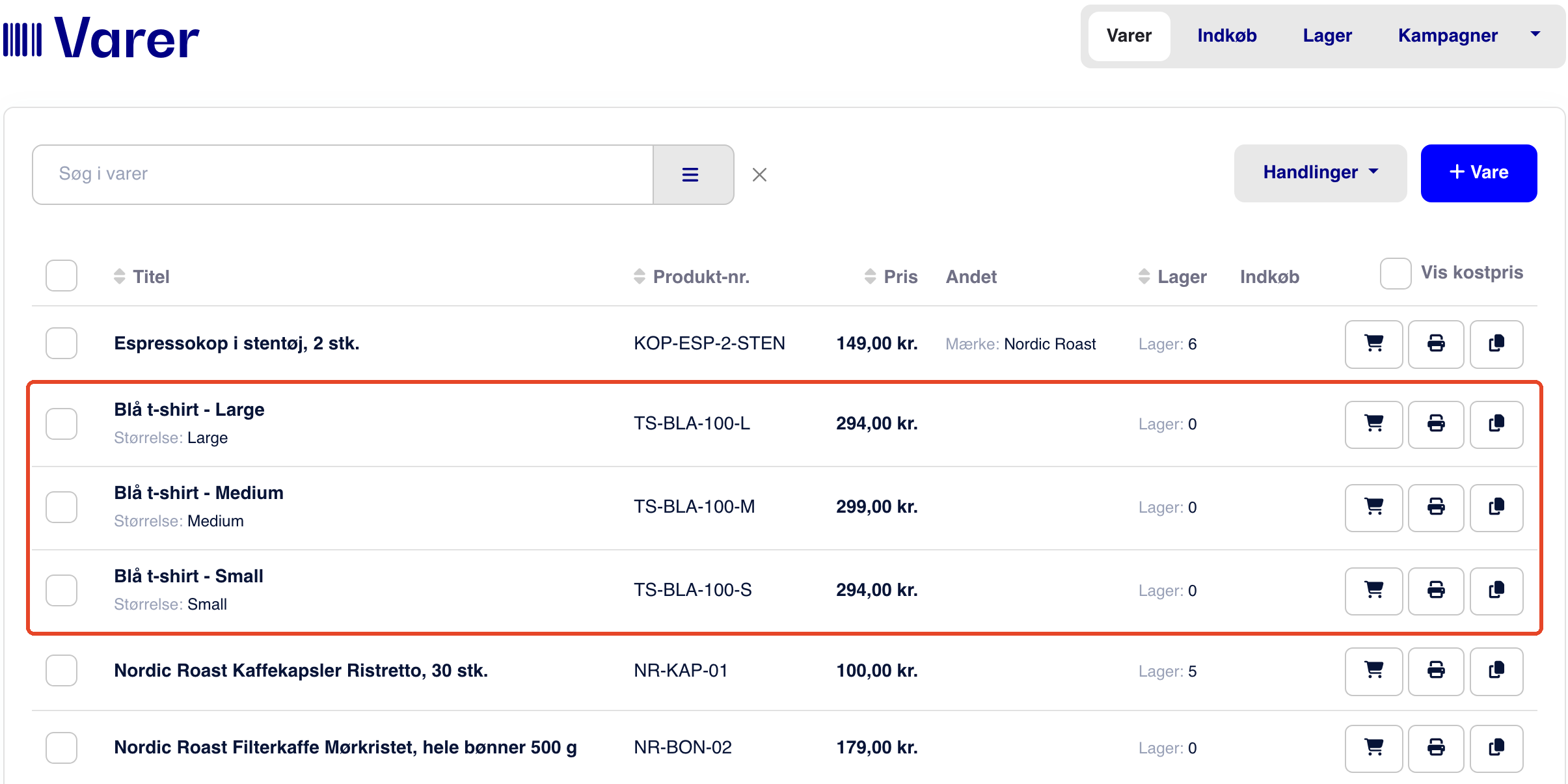
- Variants are each treated as a separate item in Customers 1st with the name “Item Name – Value” and the variant’s value as the size, e.g., Blue T-shirt – Large. Each variant has its own item number in Customers 1st.
- Barcodes: If the barcode already exists for another item in Customers 1st, the item will be created without a barcode.
- Tax-Exempt Items: Check the tax status of tax-exempt items in Customers 1st once the app has created them.
From Customers 1st to Shoporama
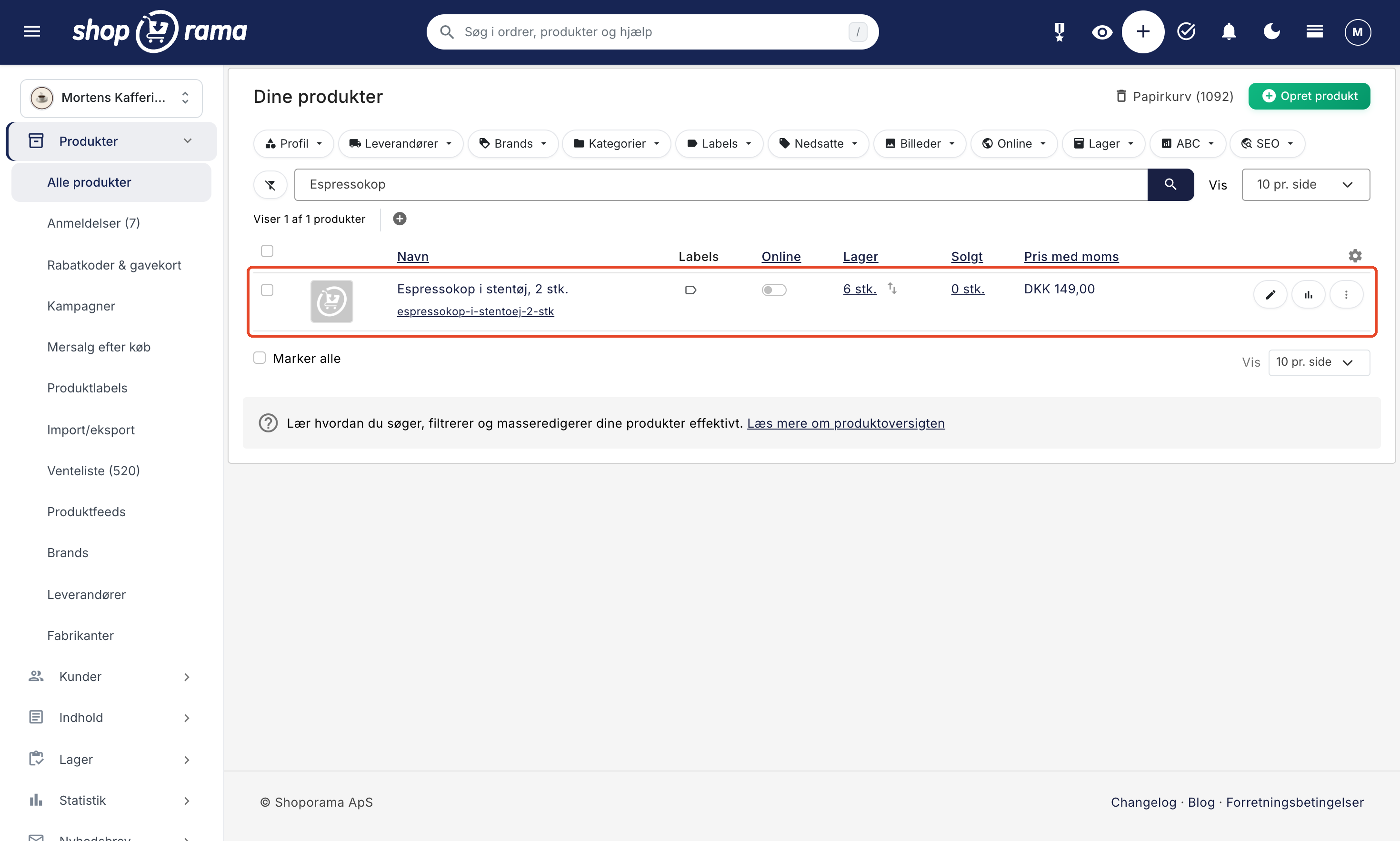
If an item is missing in Shoporama, the app creates it as a single item without variants, using the name, item number, barcode, price, cost price, brand, and stock level from Customers 1st. The item is offline, so customers cannot see it. Add images, a description, and a category yourself, and make it live when it’s ready. A new item in Customers 1st is transferred to Shoporama immediately, or by the end of the night at the latest.
If a product is to have variants on the online store, create it in Shoporama first. The variants will then be transferred to Customers 1st when you save, and will be grouped together there. If you create them in Customers 1st first, each variant will become its own product on the online store. See Product Profiles and Variants.
The following items from Customers 1st are not created in Shoporama:
- System items such as gift cards, credit notes, and deposits.
- Items without both a price and stock level, e.g., Miscellaneous Sales.
- Items for which the online store flag is turned off in Customers 1st.
The “webshop” flag only determines whether a product is created in Shoporama. If the product ID already exists in both systems, the products are linked, and the inventory is synchronized regardless of the flag.
When you edit an item afterward
- Item number: If you correct the item number for a linked item or variant in Shoporama, the item in Customers 1st will receive the new item number when you save the item, or otherwise overnight. A new item will not be created.
- Price, name, description, images, and categories are not updated automatically. Update them in both systems.
- Deletions are not carried over. If you delete an item in one system, it will remain in the other.
How inventory is synchronized
Inventory is updated in both directions immediately, typically within a few seconds to a couple of minutes. A sale at the register updates the inventory on the online store, and a sale on the online store updates the inventory at the register.
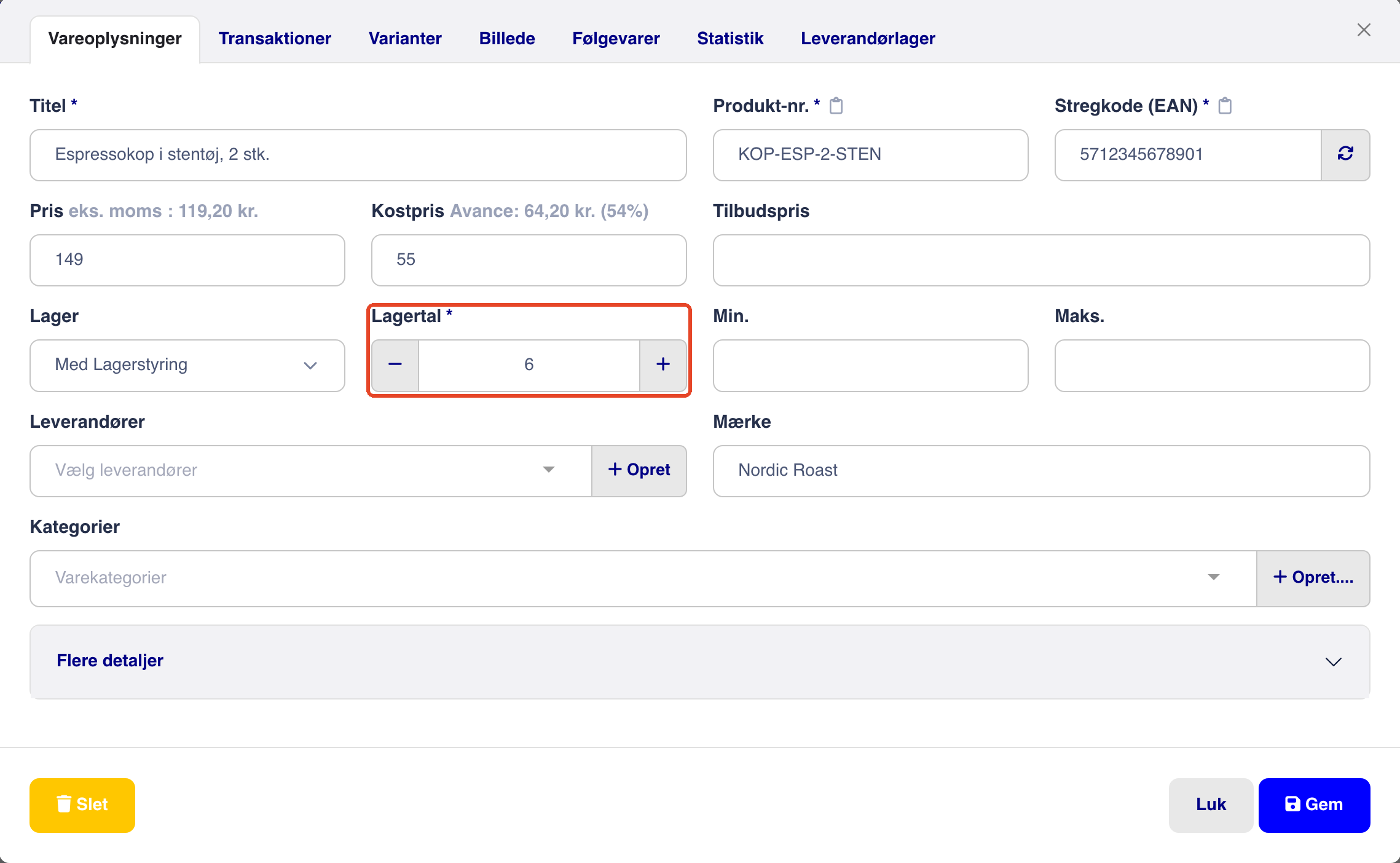
From Shoporama, all changes at the store location are tracked: web orders and cancellations, returns and credits, corrections in the admin panel, and inventory entries. From Customers 1st, point-of-sale sales, goods received, inventory counts, and corrections made directly to the item are tracked.
- Simultaneous sales are not lost. The app sends the change—for example, −1—rather than a new inventory count. If the register and the online store sell the same item at the same time, both sales are deducted. In our test, the stock level went from 5 to 3 in both systems after one sale at the register and one online at the same time.
- Available. The number from Customers 1st is the available quantity—that is, inventory minus what’s reserved.
- Store location only. The app synchronizes inventory at the location you’ve selected. If you have multiple locations, the online store’s total inventory may therefore be larger than the inventory at the register. View inventory by location in the Inventory Overview.
- Items without inventory management. If an item is not managed in Customers 1st, it will be linked, but its inventory will not be synced.
Online orders are deducted from the default location
If the store’s location is the default location, a sale on the online store will be deducted from the checkout’s inventory. If it is not, an online sale will not affect the checkout’s inventory, and the “Connection” box will display a warning. If you sell in multiple countries with one location per country, orders from a country with its own location will be fulfilled from that location. See Selling in Multiple Countries and in Multiple Languages.
Returns: Track Them in One Place
Returns, credits, and order corrections return the item to the location from which the order was fulfilled. If you issue a credit for a web order in Shoporama, the item will therefore also be returned to the store’s inventory. Do not also add it to the store’s inventory, as it will then be counted twice.
Inventory is reconciled overnight
At night, the app compares inventory levels in both systems. Changes that haven’t been synced yet are sent, and if the numbers still differ, the app adjusts the other system based on what you’ve selected in “Inventory is managed by.” That same night, the app also identifies new items that weren’t added during the day.
- Cash Register (Customers 1st): The cash register’s figures are correct. A correction made in Shoporama at the store location that hasn’t been synced to Customers 1st may be overwritten overnight. Therefore, it’s best to correct the inventory at the cash register.
- Online Store (Shoporama): The online store’s figures are correct. A correction made at the register that hasn’t been synced to Shoporama may be overwritten overnight.
You can change the “Inventory Managed By” setting at any time. This does not trigger a new initial synchronization.
Price and API Calls
The app is free. It uses Shoporama’s API, and its calls to Shoporama do not count toward the API calls included in your subscription, so they do not cost extra. The app can use up to 20,000 calls per day. A sale at checkout costs 1–2 calls. The “Connection ” box shows today’s calls to both systems.
Remove the app
Click “Remove App” at the bottom of the “App Settings: Customers 1st” page and confirm. This requires a user with full access.
- The app’s connection to Customers 1st will be removed, and the link between the items will be lost. Inventory will no longer be synchronized.
- Products and inventory will remain in both systems.
- If you reinstall the app, the products will be linked again by product number without creating duplicates.
The app does not do the following
- Does not transfer orders. Sales at the register do not become orders in Shoporama, and online orders do not become sales in Customers 1st. Only inventory is synchronized.
- Does not synchronize customers, gift cards, store credits, or loyalty points.
- Does not update products. The name and price are only transferred when the app creates the product. Descriptions, images, and categories are never transferred.
- Does not delete products. Deletions in one system are not carried over to the other.
- Does not link multiple stores to a single online store. The app links one online store to one store in Customers 1st using one API key and one inventory location.
- Does not link based on barcodes. Products without a product number are not linked.
Frequently Asked Questions
Why can’t I see the products from Customers 1st in the online store?
The app creates them offline as simple products without variants, so customers won’t see them until you’ve added images, a description, and a category and made them live. You’ll find them under Products → All Products. Items without an SKU, items with the online store flag turned off, system items such as gift cards, and items without both a price and stock are not created at all.
What happens if the same item is sold in-store and online at the same time?
Both sales will be processed. The app sends the change rather than a new stock count, so one sale does not override the other. However, it can take anywhere from a few seconds to a couple of minutes for a sale to be deducted in the other system, so it’s not entirely impossible to sell the last item twice.
What should I select under “Inventory is managed by”?
Select the system where the inventory levels are correct today. Sales are synced both ways regardless of your selection.
How does the app handle items with variants?
First, create items with variants in Shoporama. The variants will then be linked in Customers 1st, while an item from the register is always entered without variants.
A customer returns a web order. Does the item go back into the POS system?
Yes, if the order was fulfilled from the store’s location. Register the return in Shoporama, and do not add the item to inventory in the POS system as well.
Does the price update when I change it?
No. Update the price in both places.
Why has my inventory location been tagged as c1st?
The app identifies the store’s location by its tag. If the location doesn’t have a tag when you save it in the app, the app assigns it the tag “c1st,” or “c1st-2,” etc., if “c1st” is already taken. If the location already has a tag, the app uses that one.
What happens if I switch to a different store or location?
A new initial synchronization will begin when you save, whether you’re using a new API key for a different store or a different warehouse location.
Read more
Related articles
Warehouse locations
Learn how to organize your inventory across multiple locations in Shoporama.
Synchronizing stock with variants
Guide to stock syncing products with variants in Shoporama.
Product Profiles and Variants
Guide to product profiles and variants in Shoporama. Understand how profiles, attributes and variants are related.
Inventory Overview: Your inventory status all in one place
View quantities, variants, warehouse locations, cost prices, and inventory value for your entire product range in a single table. Here’s how to...
App Store
Learn how to use Shoporama's App Store to extend the functionality of your online store with apps from Shoporama and third-party developers.
Related features
Customers First
Customers 1st (C1st) is an online point-of-sale system for brick-and-mortar stores. Learn what it’s used for and how to connect it to your online...
Customers 1st Integration
Shoporama's free "Customers 1st" app ensures that products are available in both systems and that a sale in the store updates the inventory on the...
The inventory is now synchronized between Customers 1st and the online store
New at Shoporama: a free app connects Customers 1st to the online store. The products are available in both systems, and a sale at the checkout...
Online Store with Customers 1st
Connect your online store to the Customers 1st point-of-sale system using Shoporama's free app. The products are available in both systems, and...