Plan Black Friday now: Deals that turn themselves on and off
Plan your deals well in advance and let the system turn them on and off at the exact time. Set the start and end date, go home and wake up to a running Black Friday sale.
You know the situation. It's approaching midnight on Black Friday night. You're sitting in front of the screen, ready to hit "Save" on 300 products. The next morning, you forgot to stop the promotion and a bestseller is 40% off all weekend without anyone noticing.
That's all over now. With date-based promotional pricing, you set a start and end date for a promotion and Shoporama automatically activates and deactivates it. You can plan your promotions weeks or months in advance and sleep soundly on May 1, August 1 and the entire Black Friday weekend.
What is date-driven promotional pricing?
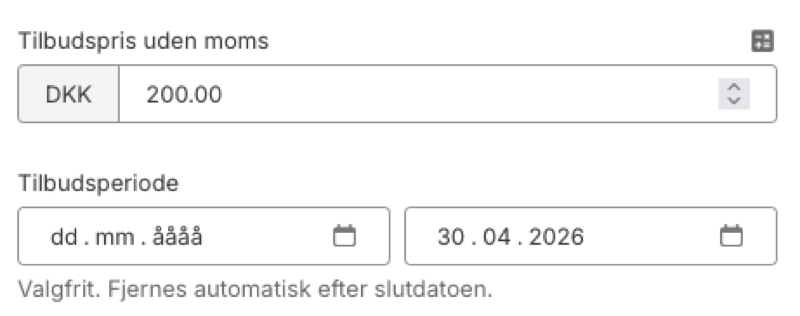
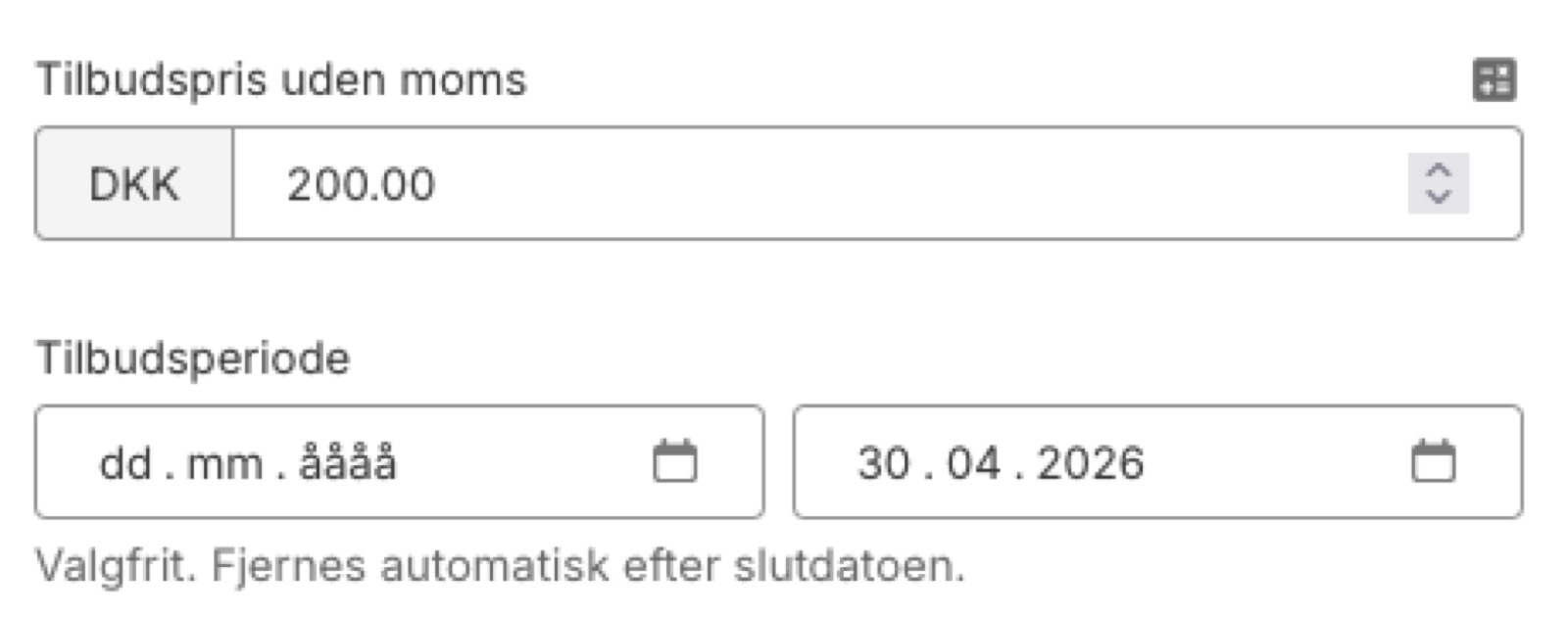
Date-based promotional pricing is a new feature on the product page in Shoporama. Next to the "Offer price" field, you can now fill in a "Valid from" and "Valid to" date. The system will then take care of that:
- The offer price is automatically activated on the start date.
- The offer automatically ends the day after the end date.
- The dates are sent to Google Shopping, Channable and other feed buyers.
- The price history is updated so that you comply with the Omnibus directive.
Both dates are optional. If you only set an end date, the offer is activated immediately and ends automatically. If you only set a start date, the offer is activated on that date and runs until you remove it yourself.
How to set the start and end date
- Go to a product under Products.
- Fill in the Offer price field as usual.
- In the Offer period field next to it, select a start date and an end date.
- Click Save (or press Cmd+S).
That's all there is to it. If the start date is in the future, the offer is "scheduled" and will be activated automatically when the day comes. If the start date is today or in the past, the offer is active immediately.
Plan Black Friday and seasonal sales in advance
The biggest win is that you can sit down on a quiet Monday in August and plan Black Friday for November. You'll fill in prices and dates in one go and then forget about it. Here are some examples of campaign flows that date-driven pricing fits:
- Black Friday and Cyber Monday: plan the whole weekend (Friday to Monday) weeks in advance, spread across your categories.
- Mother's Day, Father's Day, Valentine's Day: fixed calendar days so you can plan the whole year in January.
- Seasonal rotation: summer sale August 1-31, so fall items are full price from September 1.
- Product launches: new version is launched, old version is automatically discounted on the same date.
- Holiday protection: promotions run uninterrupted while you are on vacation.
Automatically in your Google Shopping feed
When you set both the start and end date of an active offer, Shoporama automatically sends the time range to Google Shopping. Google itself uses it to display the crossed out pre-price, calculate campaign badges and schedule when the ad can show the offer.
This means you don't have to manually sync between Shoporama and Merchant Center. Channable, PriceRunner and other feed takers read the same default field automatically, so the entire chain from your admin to the Google search result is synchronized. You can read more about the setup in our guide to the Google Shopping feed.
The Omnibus directive is there from the start
The EU Omnibus Directive requires you to show the lowest price from the last 30 days as the "pre-price" when promoting an offer. Shoporama's price log automatically records every price change, both those you make manually and those the system makes when an offer is activated or deactivated. This means your pre-price is always legally correct and you can document the price history if the Consumer Ombudsman or your accountant asks.
Read more in our article on price history and the Omnibus Directive.
Overview in the product list
To make it easy to manage many campaigns at the same time, the product list has two new features:
- Filters in the "Select discounted products" menu: now you can also filter on "Only scheduled offers" (those starting later) and "Offers expiring soon (within 7 days)".
- "Offer period" column: activate it under "Customize view" for a quick overview. Scheduled offers are shown with a blue badge and number of days to start. Offers expiring soon are shown with a yellow badge.
You can also sort the product list by Offer Period by clicking on the column header. Combine this with the filter to see for example "all offers expiring within 7 days, sorted by end date".
Need to put offers on many products at once? Select them in the list and click Table edit. Add the columns "Offer valid from" and "Offer valid to" via "Select fields" and fill in the dates directly in the table. This way you can plan an entire Black Friday campaign on hundreds of products in one screen.
Difference between offer price, discount code and promotion
Shoporama has several ways to offer discounts. Date-based promotional pricing is the easiest if you just want to reduce the price of selected products for a period of time:
- Offer price: another price displayed as discounted directly on the product. Now with a start and end date.
- Discount code: a code the customer enters when ordering, e.g. "SUMMER25".
- Promotion: rule-based discount, e.g. "buy 3 pay for 2" or "20% off the entire brand".
Frequently asked questions
Where do I find the date fields?
Go to a product under Products. Right next to the "Offer price" field you will find the "Offer period" with two date fields. If you leave them empty, the offer will behave as before.
What happens if I forget to set an end date?
The offer will continue until you remove it yourself. If you want to make sure it stops, you should always set both a start and an end date at the same time.
Can I schedule offers several months in advance?
Yes, you can. That's the whole point. You can schedule the Black Friday campaign in August and forget about it. Customers won't see anything until the start date and the offer automatically stops on the end date.
Can I extend an offer that is performing well?
Yes, open the product and change the end date to a new date further ahead. You don't need to touch the offer price itself.
Can I stop an offer earlier than planned?
Yes, you can. Open the product, change the end date to yesterday or remove the offer price completely. Then it will stop the next time the system runs, at the latest at the next 24-hour shift.
Can I import dates via CSV?
Yes, you can. Add the columns "Offer valid from" and "Offer valid to" in your CSV import. Handy when you're planning hundreds of products at a time, for example for Black Friday or seasonal sales.
Can I set the time range on many products at once?
Yes, you can. Select the products in the list and select "Table edit". Add the columns "Offer valid from" and "Offer valid to" under "Select fields" and fill in the dates directly in the table. Perfect for planning an entire campaign of 50 or 500 products in the same view.
Do the dates also apply to variants?
Yes, they do. The time window is set on the main product and applies to all variants with an offer price. Each variant can have its own promotional price, but the start and end dates are common.
Do I need to worry about the Omnibus Directive?
No, you don't. The price log automatically records every price change, whether you change manually or the system does it via the offer period. Your previous price is always the lowest price in the last 30 days, as required by law.
Do customers see anything in the meantime?
No, they won't. A scheduled offer is completely hidden from customers until the start date. The price is shown as normal and there are no "coming soon" messages or anything else that reveals the scheduled offer.
Exactly when does the offer change?
Shoporama turns deals on and off automatically during the night after the day shift. For most campaigns this is accurate enough, but if you're running flash sales with minute timing, you should manually check the offer around the shift.
Ready to give it a try? Open a product, set an offer price, choose the dates and go home. Shoporama takes care of the rest.
Related articles
Price history and the Omnibus Directive
Shoporama automatically logs price changes and calculates the correct pre-price according to the Omnibus Directive (EU 2019/2161). The default...
Set up Google Shopping Feed
Guide til at opsætte Google Shopping Feed i Shoporama: kategorier, custom labels, produkt-id og katalogmatch samt lands- og sprogfeeds.
Create a discount code
Complete guide to creating and managing discount codes in Shoporama - percentage discount, fixed amount, free shipping, restrictions and more.
Product overviews
Shoporama product overview guide: Search, filter, sort and mass edit your products efficiently from the product list.
More from the blog
Nyt: Se med det samme hvilke pakkeshop-pakker der snart udløber
En ikke-afhentet pakkeshop-pakke koster dig returfragt, ekstra håndtering og en ærgerlig kunde. Nu viser Shoporama direkte i ordrelisten om en...
06. juli 2026
Nu klarer din webshop panten helt af sig selv
Sælger du øl, sodavand, eller andre drikkevarer med pant? Efter reglerne skal panten opkræves, og varens pris skal samtidig vises uden pant. Det...
04. juli 2026
Shoporama Symposium 2026: Oplæg, netværk, og cowork i Odense
Shoporama Symposium 2026 løber af stablen den 27. og 28. august i Odense. Glæd dig til to dage med oplæg, netværk, cowork, og masser af inspiration...
01. juli 2026