Sell tickets in your own online store, in the same shopping cart as your products
Now you can sell tastings, classes, concerts, and trips on specific dates in your own online store, in the same shopping cart as your products. Customers receive tickets with QR codes via email; you check guests in using your phone; and trips and classes can be paid for with a deposit now and the balance later.
Many stores sell more than just merchandise. A coffee roaster holds tastings on Fridays, a yarn shop offers knitting classes, a wine shop hosts dinners, and a small travel agency organizes trips with room for 30 people. Until now, this required a separate ticketing portal alongside the online store, or a single product listing per date with inventory set to the number of seats.
Now Shoporama can sell tickets. An event is a product in your online store, just with dates instead of inventory. Each date has a set number of seats; the customer selects a date on the product page, and each participant receives their own ticket with a QR code.
Same shopping cart and same payment process as your other products
The customer can add a ticket for Friday’s tasting and a bag of coffee to the same cart and pay in a single transaction. The order is processed just like your other orders; the payment goes through your own payment solution, and the order is booked just like the others.
There is no separate fee per ticket sold. The tickets are regular orders in your store, so your subscription and the fees charged by your payment solution are the same as for everything else you sell. The customer stays in your online store the entire time and sees your products while ordering the ticket.
Example: Coffee Tasting Every Friday
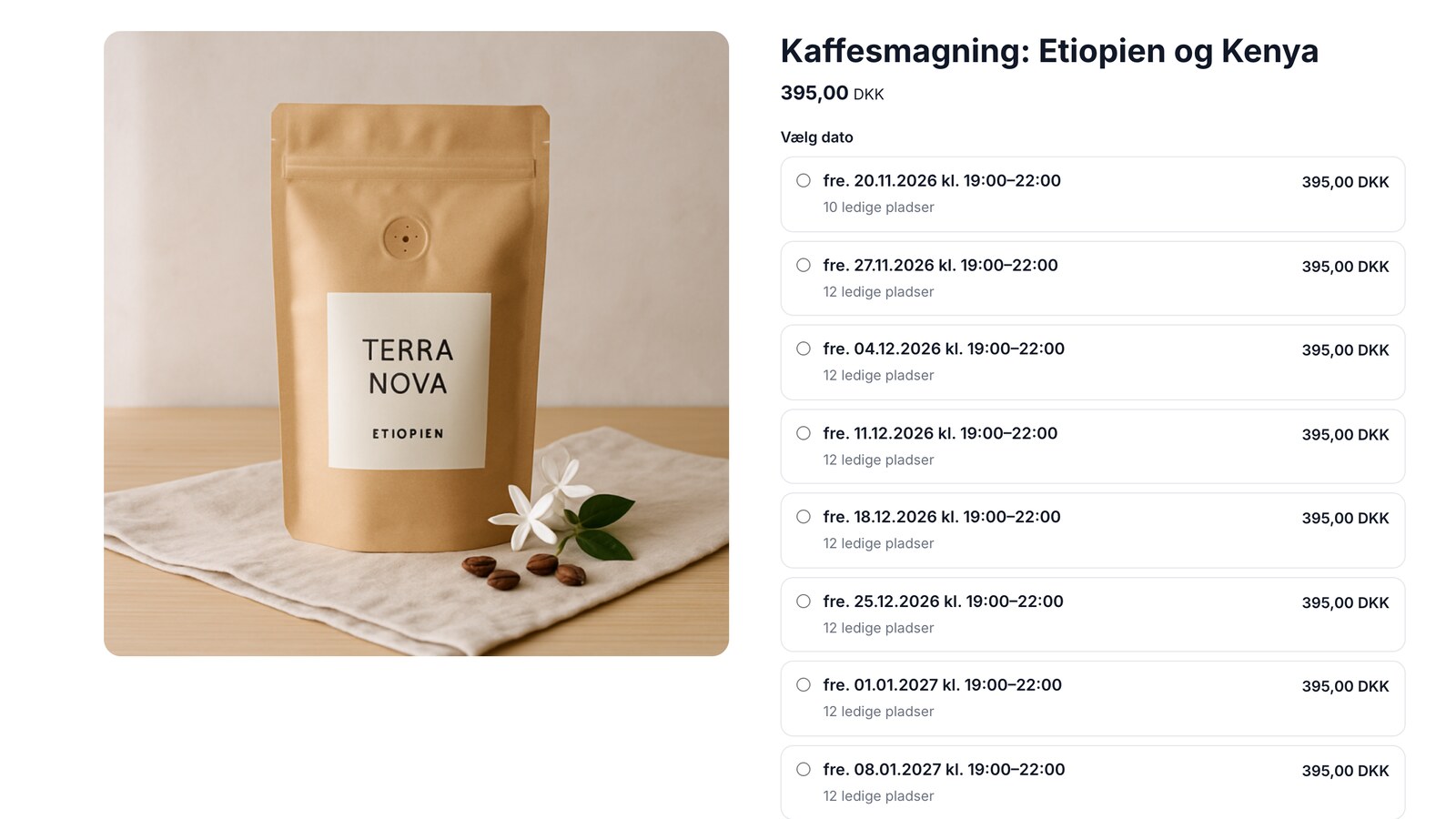
A coffee roastery will hold tastings every Friday from 7:00 PM to 10:00 PM throughout the winter, with space for 12 people and a price of 395 kr. The roastery creates a product profile with “Tickets” enabled and adds the item “Coffee Tasting: Ethiopia and Kenya” to it. For the item , they click “Repeat…” and enter the first Friday at 7:00 PM, a duration of 3 hours, every week, 8 times, and 12 seats per date. The eight Fridays are now listed in the table, and once the item is saved, they’re available for sale.
In the store, the customer sees all the Fridays listed with prices and available spots. When there are five or fewer spots left, it says, for example, “Only 4 spots left.” The customer selects a Friday, adds two tickets and a bag of the evening’s coffee to the cart, and enters the two names at checkout, since the store has selected “Name per participant.” Once the order is paid for, the tickets are emailed with a QR code for each ticket and as a PDF. 48 hours before the event, the customer receives a reminder with the time and location.
If a Friday is sold out, the message “Add me to the list” appears, and the customer can sign up for the waitlist using their email address. If someone cancels or the store adds more seats, the first people on the list automatically receive an email. The seat goes to whoever books first.
Example: Travel agency with departure dates and deposits
A travel agency sells a hiking week for 8,995 DKK per person. Each departure is a date with 30 spots, a designation such as “Week 22,” and flight times in the info field. A departure during peak season has a surcharge of 1,500 DKK per ticket, so the price is correct in the date selector. The agency requests the name and date of birth for each participant and disables the QR codes, so the customer receives a booking confirmation with the date and participants instead of a ticket to scan. The “Terms and Conditions” field lists the tour operator, the Travel Guarantee Fund number, and a link to the standard information form.
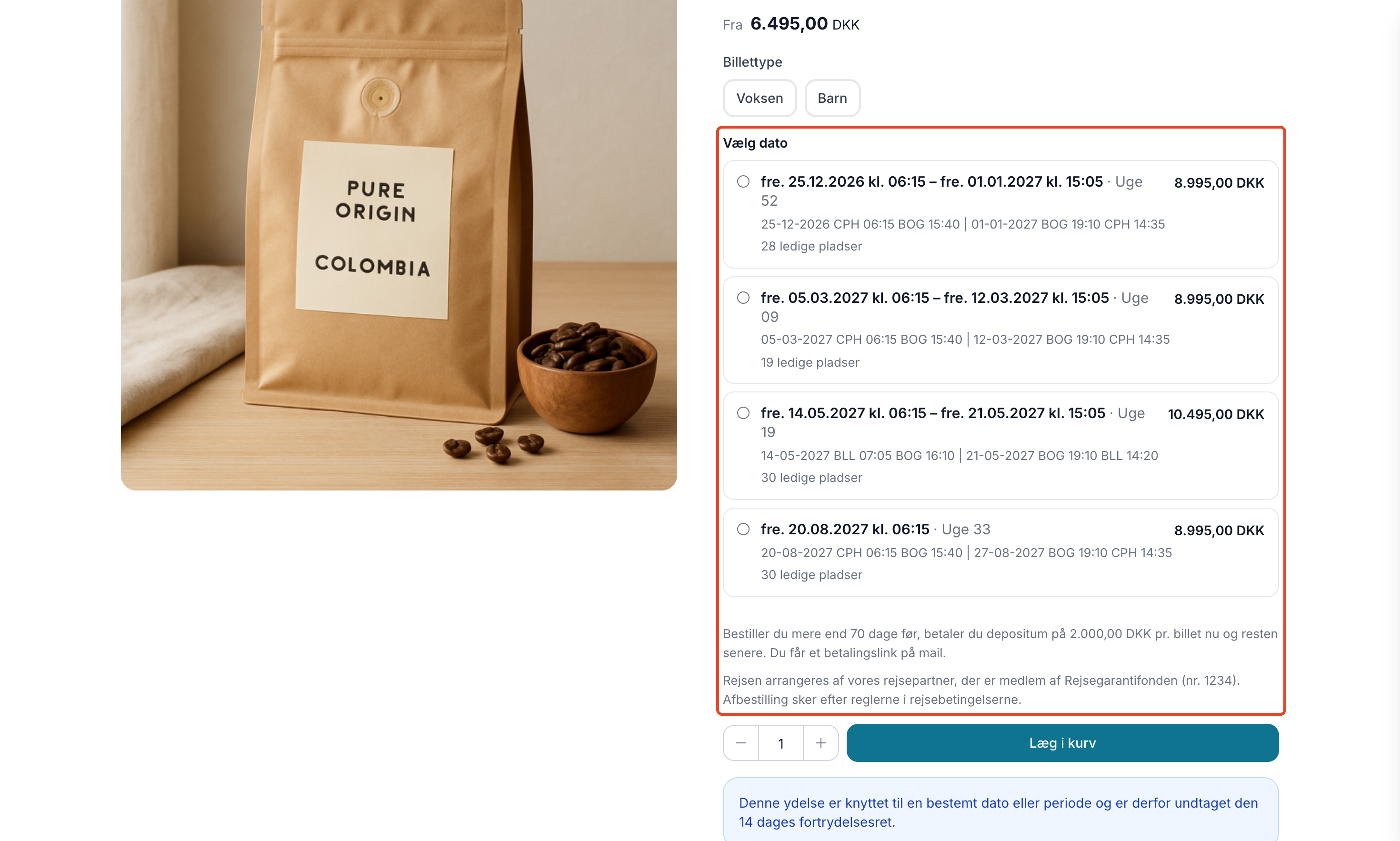
For two people, the total is 17,990 kr., which is a lot of money to pay several months before departure. That’s why the profile also has “Installment Payment” (deposit and balance) enabled, with the “Travel” option selected. If a couple books 100 days before departure, the calculation looks like this:
- Now they pay the deposit: 2 × 2,000 DKK = 4,000 DKK.
- The remaining balance is 2 × 6,995 DKK = 13,990 DKK.
- 70 days before departure, they’ll receive a payment link via email. The deadline is 14 days, and a reminder will be sent 3 days before the deadline.
If they book later than 70 days before departure, the entire amount is paid immediately. The deposit and the remaining balance will be processed as two separate orders, each with its own invoice and the correct VAT, so the bookkeeper will receive two standard invoices. If the remaining balance hasn’t been paid, you can see it on the order, and at the door, the scanner will highlight it in orange.
QR Codes and Check-In at the Door
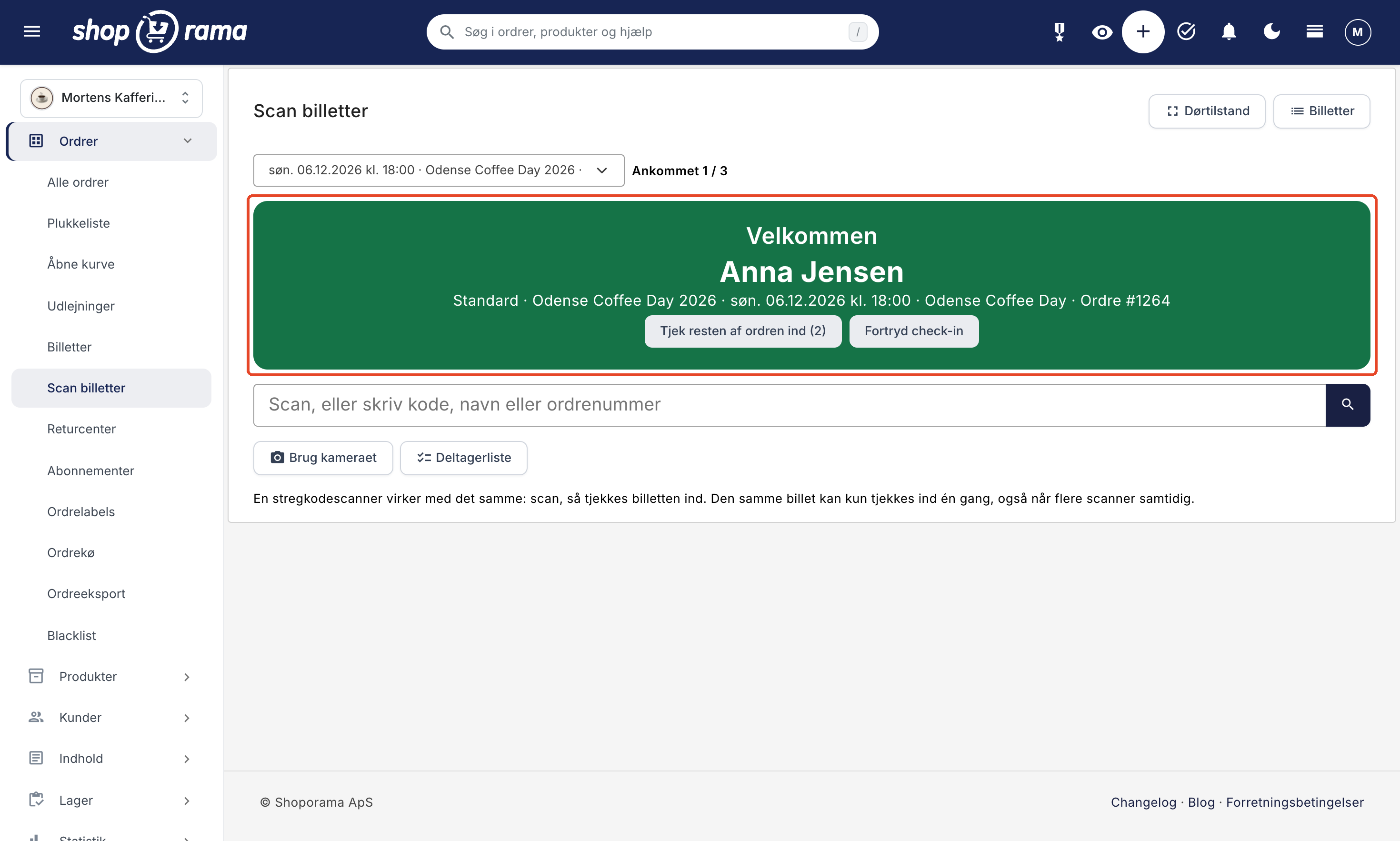
At the door, open “Scan Tickets” in the admin panel on a phone or tablet. There’s no app to install. You can scan using your phone’s camera, a USB or Bluetooth barcode scanner, or by entering a code, a name, or an order number. The result fills the screen so it’s visible from a distance:
- Green means “Welcome.” The screen resets itself after a few seconds, ready for the next guest.
- Orange means the ticket has already been checked in, or that the balance hasn’t been paid. If the balance is missing, you can choose to check in anyway.
- Red indicates, for example, a ticket for a different date, an unpaid order, a canceled ticket, or an unknown code. In the case of an incorrect date, an unpaid order, or a canceled date, you can still check in if your user has permission to modify orders.
The same ticket can only be checked in once, even if two volunteers are scanning at different entrances at the same time. If you scan one person from a group, you can check in the rest of the order with a single tap. Assign volunteers the “Door Staff” role, and they’ll only be able to scan and view the participant list—they won’t see any orders.
Overview, Participant List, and Cancellations
Under Orders → Tickets, you’ll find all upcoming dates with sold tickets, seats, check-in status, and the waitlist. The participant list for a date can be viewed on your phone, printed, and exported to Excel (CSV) with the participants’ names, ticket type, the purchaser’s email and phone number, and birthday (if you’ve requested it).
If you cancel a date using the “Cancel” button and notify participants on the date’s page, all participants will receive an email, and the tickets will no longer grant access. You can refund the money by crediting the orders as usual.
What the tickets cannot do
- No seat assignments. The tickets are for events with open seating. There are no numbered seats to choose from.
- No ticket marketplace. Customers find the event in your online store. Shoporama is not a portal that markets it for you.
- Only in the built-in themes. The date picker, attendee fields, and deposit feature work in Montana, MontanaB2B, Delaware, and DelawareDK. If you’re using your own theme, please email support@shoporama.dk.
- The scanner requires an internet connection. There is no offline mode, and tickets cannot be added to Apple or Google Wallet.
- No automatic refunds. If you cancel a date, you must credit the orders yourself.
- The deposit requires payment of the full price. If the customer uses a discount code, a gift card, or points, the entire amount is paid immediately.
- Available only in the online store. Tickets are not sold through the POS system.
How to Get Started
Start with the article on tickets, which shows how to enable tickets on a profile and enter the dates. The article on scanning tickets covers check-in at the door and the role of door staff, and the article on partial payment explains deposits and final payments. Feel free to make a test order in your own store before putting your first event up for sale.
Related articles
Tickets: Sell events, classes, and trips on specific dates
Set up ticket sales with dates, seats, and ticket types. Customers select a date on the product page and receive a ticket with a QR code for each...
Installment Payment: Pay a deposit now and the rest later
Here's how to let customers pay a deposit when they book and the remainder later via an automatic payment link. For trips, courses, rentals, and...
Scan tickets: Check in at the door
Check guests in using a barcode scanner, your phone's camera, or the guest list, and grant door staff their own access by assigning them the "Door...
More from the blog
Rent out equipment through your own online store with daily rates and a calendar
Now you can rent out tents, draft beer systems, trailers, and other equipment online through your own web store, adding them to the same shopping...
15. november 2026
How to Display the Free Shipping Bar and Suggestions in Your Own Theme
The free shipping bar and suggestions for items that qualify for free shipping are now built into the default themes. If you’re building your own...
13. november 2026
Address suggestions at checkout: The customer selects the address, and the ZIP code and city are filled in automatically
Now, six of the built-in themes can suggest Danish addresses as the customer types. The customer selects their address from the Danish Address...
10. november 2026