Installment Payment: Pay a deposit now and the rest later
Here's how to let customers pay a deposit when they book and the remainder later via an automatic payment link. For trips, courses, rentals, and pre-ordered items, with a sample calculation, deadlines, and two invoices with the correct sales tax.
With installment payments, the customer pays a deposit at the time of ordering and the remainder later. Shoporama sends a payment link for the remaining balance a few days before the due date, reminds the customer of the deadline, and keeps track of what has been paid. This is ideal for travel, courses, rentals, and pre-ordered items, where the customer books well in advance and doesn’t have to pay the entire amount at once.
You enable installment payments on a product profile, and it works for tickets, rentals, and regular products. Below, you can read how to set it up, how the amounts are calculated, what the customer sees, and what happens behind the scenes.
Installment payments are neither a deposit nor installment payments
In the admin panel, the feature is called “Installment Payments” (deposit and balance). It has nothing to do with bottle or can deposits, where the customer pays an amount on top of the price and gets it back when the packaging is returned.
It’s also not the same as installment plans offered by, for example, Anyday or ViaBill. With those services, the customer pays in installments to a financing provider, who then pays you. With Shoporama’s installment plan, the customer pays you directly through your own payment solution: first the deposit, and later the balance. You can read more about the terms “installment payment ” and “balance payment ” in the glossary.
How to enable installment payments
- Go to Webshop → Product Profiles, and open the profile where your trips, courses, rental items, or pre-ordered items are listed.
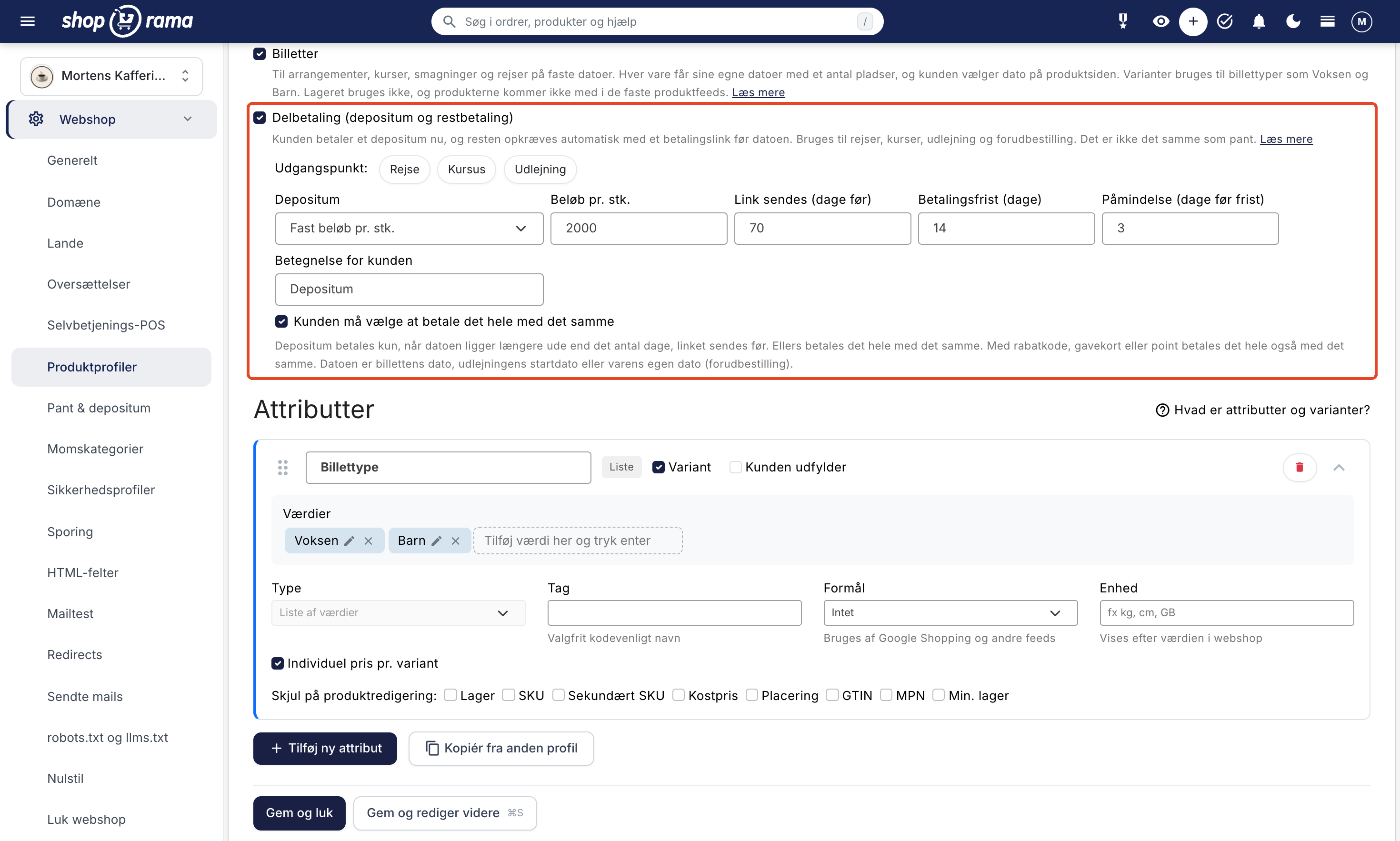
- Check the box next to “Installment Payment” (deposit and balance). The fields for the installment payment appear directly below the checkbox.
- Click one of the buttons next to “Default:”—that is, “Trip,” “Course,” or “Rental”—and adjust the amounts if they don’t match your business.
- Save the profile. Installment payments now apply to all products in the profile.
Installment payments can be combined with tickets, rentals, and standard profiles, but not with add-on profiles or financial products such as gift cards.
The default settings
The buttons next to “Default” fill in the fields with these values:
| Starting Point | Deposit | Link Sent | Payment due date | Reminder |
|---|---|---|---|---|
| Trip | 2,000 DKK per person | 70 days in advance | 14 days | 3 days before the deadline |
| Course | 500 kr. per person | 21 days before | 7 days | 2 days before the deadline |
| Rental | 25% of the price | 14 days before | 7 days | 2 days before the deadline |
The buttons only fill in the amount and number of days. The label and the checkbox for paying the entire amount immediately remain as they are.
The fields
- Deposit: Select “Fixed amount per person,” e.g., 2,000 DKK per person, or “Percentage of the price,” e.g., 25%. Enter the amount in the “Amount per person” or “Percentage” field.
- Link sent (days before): how many days before the date the customer receives the payment link for the remaining balance. This number also determines whether a deposit is required at all (see next section).
- Payment Deadline (days): How many days the customer has to pay after the link is sent. However, the deadline is never later than the day before the date.
- Reminder (days before deadline): when the customer receives a reminder if the remaining balance has not been paid. Enter 0 if no reminder should be sent. The reminder is sent only if it falls after the day the link was sent.
- The customer may choose to pay the full amount immediately: by checking the box, the customer can select “Pay the Full Amount Now ” at checkout instead of paying a deposit.
- Customer label: the text the customer sees in the cart, at checkout, and in emails. If the field is left blank, “Deposit” is used. For example, you can enter “Prepayment.”
What date is used for the calculation?
Everything related to the installment plan is calculated based on one date per item:
- Tickets: the date on the ticket the customer selects. Learn more about tickets.
- Rentals: the first day of the rental period. If you change the rental period using “Edit Period ” on the order before the payment link is sent, the link, due date, and reminder will be recalculated based on the new date. Read more about rentals.
- Other items, such as pre-orders: the date you enter for the product (see below).
A deposit is only due when the date is further in the future than the number of days specified in “Link Sent (days before).” If there is less time remaining, the customer pays the full amount immediately. Based on the “Travel” template, a customer who books 100 days before departure pays the deposit, while a customer who books 50 days before pays the full amount for the trip.
Pre-ordered items: Delivery date
If an item is in a profile with installment payments but is neither a ticket nor a rental, the product is assigned the “Installment Payment” card in the admin panel. Here, you enter the delivery date—for example, the day a pre-ordered item is delivered. If no date is specified, the customer pays the full amount at the time of booking.
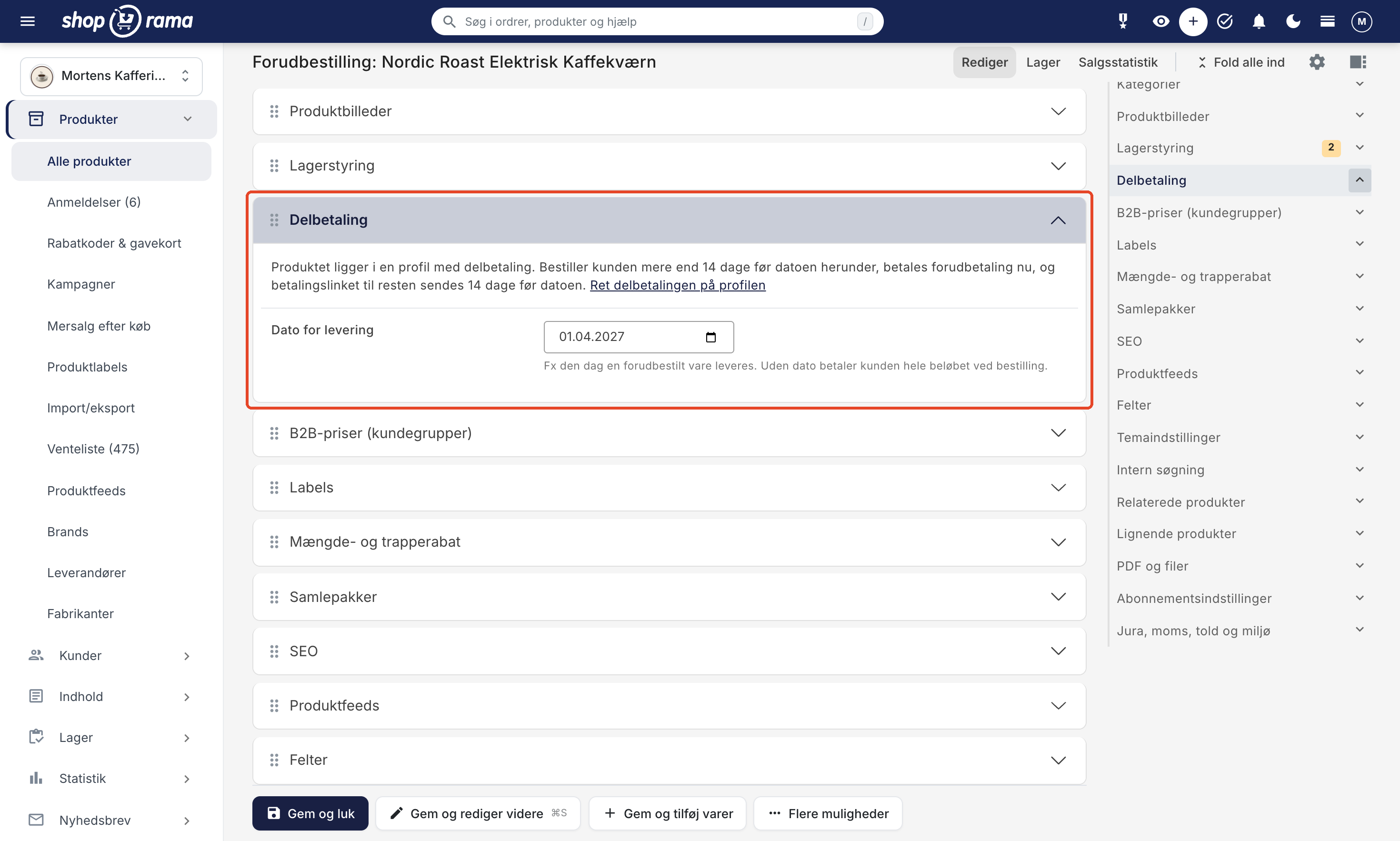
A pre-ordered item is usually not in stock yet, so it must be available for purchase even if out of stock. Enable “Allow Negative Stock” in the “Inventory Management” card for the product. Otherwise, the “Buy” button will not appear, and the customer will not be able to order the item.
A calculation example
Trip with a fixed deposit
A trip costs 8,995 DKK per person, and the profile uses the “Trip” template. The customer books the trip for 2 people on March 1, 2027, and the departure date is June 9, 2027—100 days later.
- Total: 2 × 8,995 DKK = 17,990 DKK
- Payable now: 2 × 2,000 DKK = 4,000 DKK
- Balance due: 2 × 6,995 DKK = 13,990 DKK
- The payment link will be sent 70 days before departure, on March 31, 2027.
- The deadline is 14 days later, on April 14, 2027.
- A reminder will be sent 3 days before the deadline, on April 11, 2027, if the customer has not paid.
As the departure date approaches
If the customer books on April 20, 2027, instead, there are 50 days until departure. Since this is less than 70 days, the customer pays the full amount of 17,990 DKK immediately, and there is no remaining balance.
Percentage of the Price
If the deposit is set at 25% of the price, and the item costs 7,995 DKK, the customer pays 1,998.75 DKK now and 5,996.25 DKK later.
If the deposit is equal to or higher than the price—for example, a fixed deposit of 2,000 DKK on an item priced at 1,500 DKK—the customer simply pays the full price.
Multiple items in the same cart
- Items without installment payments and shipping costs are paid in full immediately. Only items with installment payments are split into installments.
- If the customer has multiple dates in the cart—for example, two courses—the entire remaining balance is combined into a single backorder. The link is sent after the earliest date.
When does the customer pay the full amount immediately?
In these cases, the full amount is paid at the time of ordering, even if the item is in a profile with installment payments:
- The date is closer than when the link is sent (days before), or the item has no date.
- The customer uses a discount code, a gift card, or points, or the price has been reduced by a promotional discount.
- The cart contains a subscription.
- The customer pays via EAN.
- The customer selects a payment method such as invoice, bank transfer, or “other.”
- The customer selects “Pay the full amount now ” at checkout. The customer can only do this if you’ve enabled it in your profile.
- The theme does not support installment payments (see Themes at the bottom).
Vipps MobilePay Express does not appear in the cart when installment payments are enabled, because Express always charges the full amount.
Here’s what the customer sees
On the product page
- Tickets: The date selector indicates the deposit, e.g., “If you book more than 70 days in advance, you’ll pay a deposit of 2,000.00 DKK per ticket now and the rest later. You’ll receive a payment link via email.”
- Pre-ordered items: Next to the “Buy” button, it says, for example, “Pay 25% as a prepayment now and the rest later. You’ll receive a payment link via email on March 1, 2027.” The text appears only when the installment plan applies to an order placed today.
- Rentals: The payment plan appears in the cart once the customer has selected the rental period.
In the shopping cart and checkout
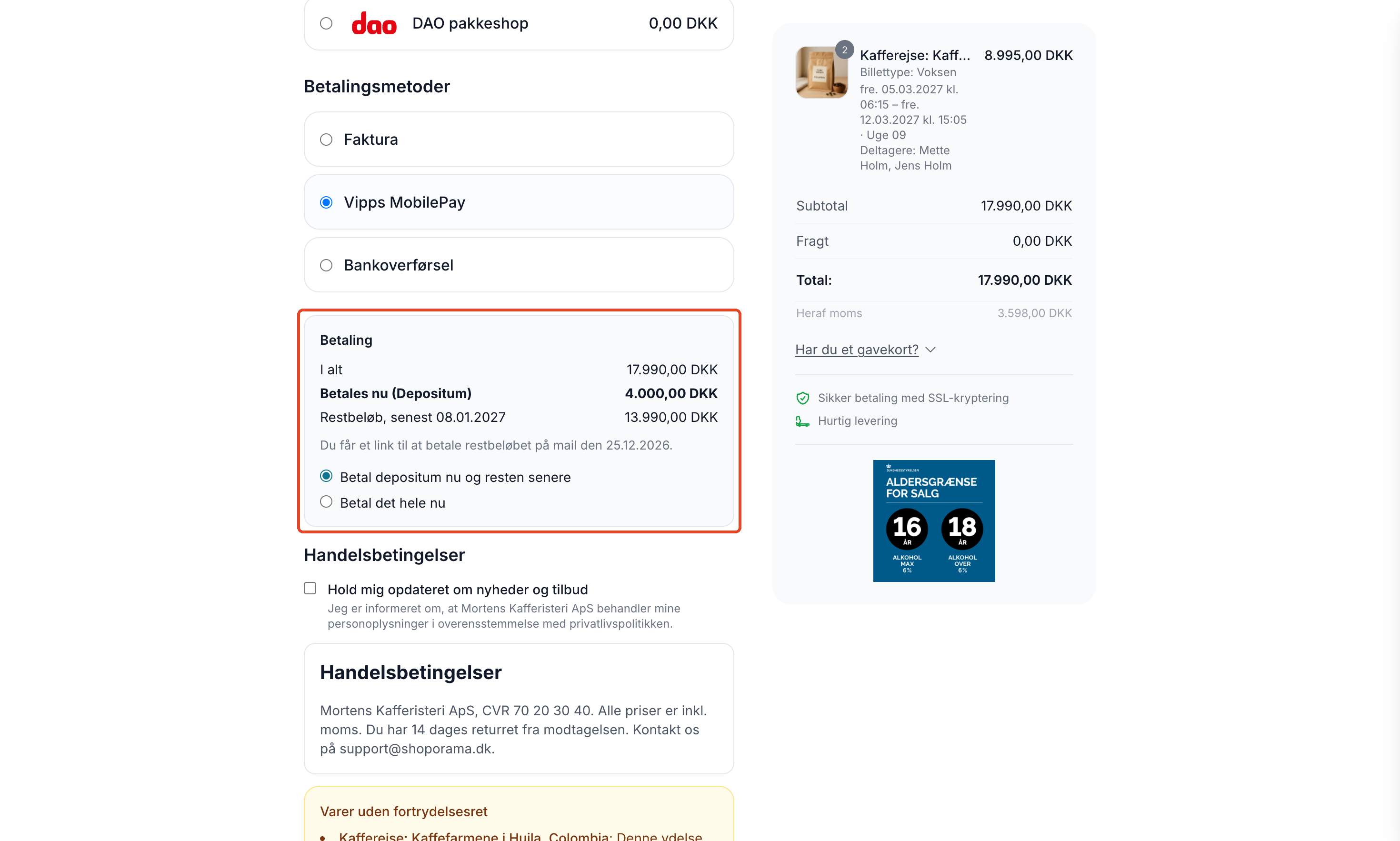
The shopping cart and checkout display a box labeled “Payment” with “Total,” “Pay Now (Deposit),” and the remaining balance with the due date, e.g. , “Remaining Balance, due by January 8, 2027.” Below that, it states when the link will be sent, e.g., “You will receive a link to pay the remaining balance via email on 12/25/2026.”
If you’ve enabled this option, the customer can choose between “Pay the deposit now and the rest later” and “Pay the full amount now” at checkout. If the customer selects a payment method such as invoice or bank transfer, the box immediately changes to “With the selected payment method, the full amount is paid now instead of a deposit.” If using a discount code, gift card, or points, the text reads: “With a discount code, gift card, or points, the full amount is paid now instead of a deposit.”
On the thank-you page and order page
After payment, the thank-you page and the customer’s order page display the “Deposit Paid” box, the remaining balance with the due date, and the date the payment link will be sent. With the “Pay the Rest Now” button, the customer can pay the remaining balance immediately instead of waiting for the link. Once the link is sent, the button says “Pay the remaining balance,” and when everything is paid, it says “The full amount has been paid.” Next to each item, the full price per unit is listed so the customer can see what the deposit covers.
In emails
- The order confirmation shows the deposit on the item lines along with the full price per unit.
- On the day the link is to be sent, the customer receives the email “Pay the remaining balance for order #…” with the deposit, the remaining balance, the deadline, and the “Pay the remaining balance” button.
- If the remaining balance has not been paid by the reminder date, the customer receives the email “Reminder: Pay the remaining balance for order #…”.
If you sell tickets with a deposit, the ticket email and the ticket page will also state that the remaining balance must be paid before the event.
What happens behind the scenes: two orders
An order with a deposit is split into two regular orders. Therefore, payment, invoicing, and bookkeeping work the same way as for all your other orders.
Order 1: The booking
The booking is the order the customer places at checkout. The line items are priced at the deposit amount, so the order total reflects the amount the customer pays now. Once the deposit is paid, the order receives the “Pending” status, and the deposit is debited immediately—otherwise, a reservation on a payment card could expire long before the due date. The “Pending” status also keeps the order off the picking list until the balance is paid.
Order 2: Backorder
On the day the link is to be sent, Shoporama automatically creates the balance order. It contains one line per item with the label “Balance:” followed by the item’s name, and the line is labeled “Balance” in the admin panel. The customer receives the email with the payment link immediately and a reminder on the reminder date. The backorder is not automatically canceled, and it does not receive the store’s standard payment email. The customer only receives emails regarding the remaining balance.
The remaining balance is fixed at the time of the order. If you change the price of the item afterward, it does not affect the remaining balance.
The term “backorder” here refers to the order with the remaining balance. It is not the same as a backorder in the sense of an item that is out of stock.
When the remaining balance is paid
The backorder is marked as “Shipped,” so it is invoiced, posted, and debited like other orders. The booking reverts to “New” status, so you can process it like your other orders.
Sales Tax and Bookkeeping
The deposit and remaining balance always add up to the exact total price, including VAT. Each order receives its own invoice with the correct VAT, so your accounting software—such as e-conomic, Dinero, or the built-in Billy integration—receives two standard invoices.
Statistics
The remaining balance counts toward revenue, but not as a separate order. A booking with a deposit therefore counts as a single order, and the revenue is the full price once the balance is paid.
Partial Payment in Admin
The “Deposit and Balance” tab
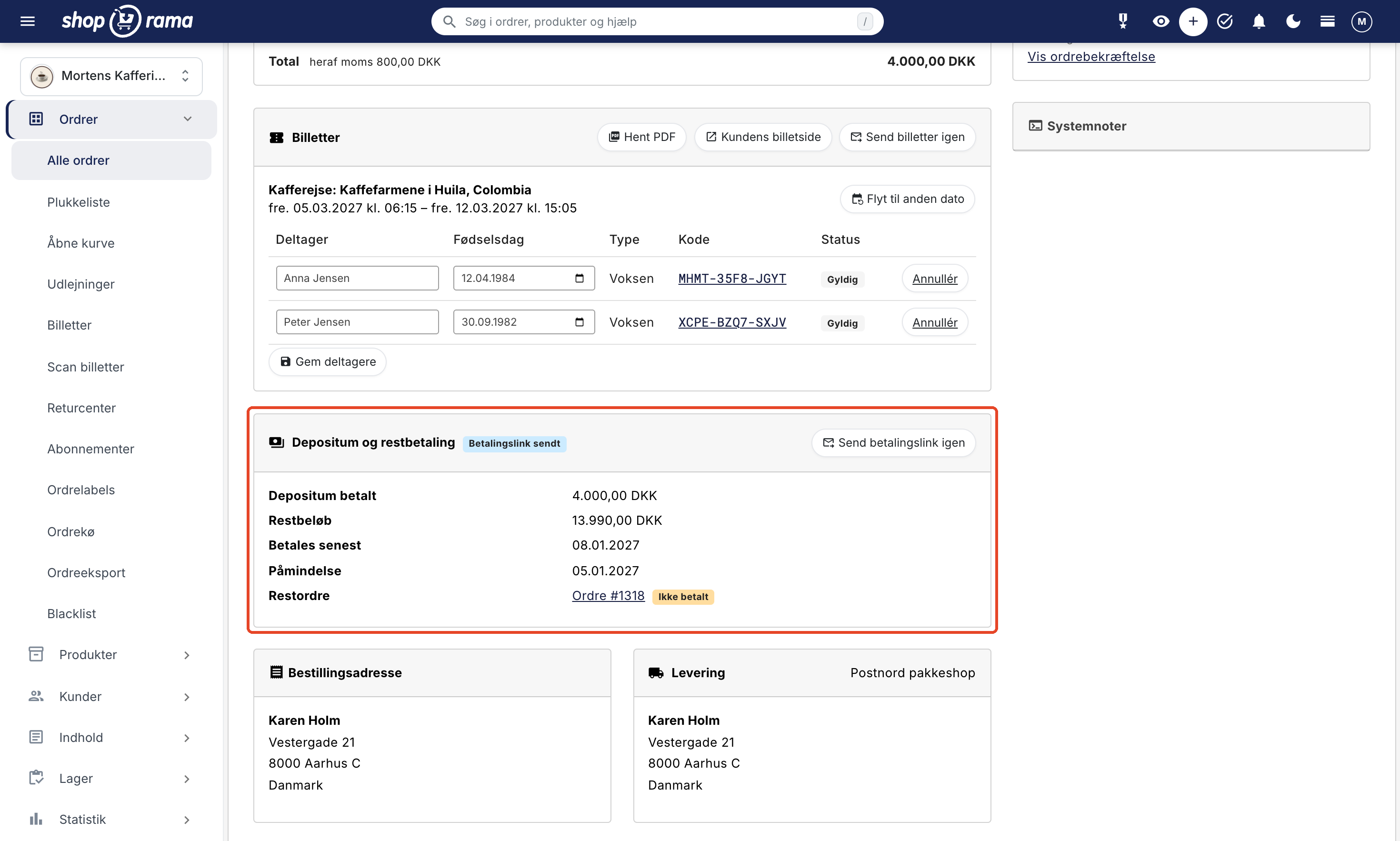
The booking shows the “Deposit and Balance” card:
- Status: Scheduled, Payment link sent, Paid, Overdue, Requires action, or Canceled.
- Deposit Paid and Balance Due.
- Payment link sent (until the remaining payment order is created), Due by, and Reminder.
- Balance Order: a link to the balance order marked as Paid or Unpaid, or the date the balance order is automatically created.
With “Create Remaining Payment Order Now,” you can create the remaining payment order ahead of time and send the payment link to the customer immediately—for example, if the customer would like to pay now. If the link has been sent but not paid, you can resend it using “Resend Payment Link.” The outstanding balance order itself states “This order is the remaining balance for order #…” with a link back to the booking.
Order List
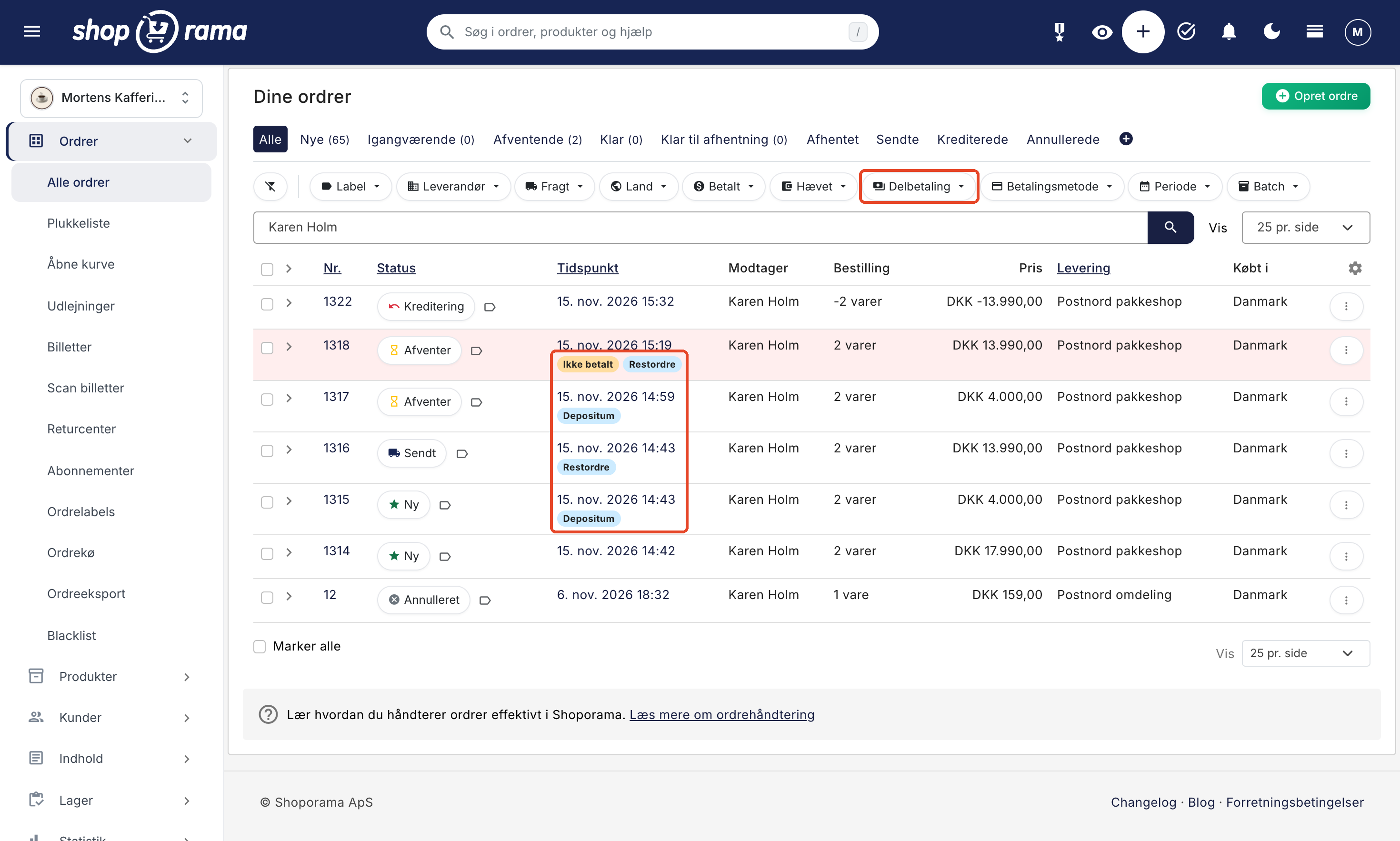
In the order list, the booking is labeled “Deposit,” and the remaining balance order is labeled “Remaining Balance Order.” Using the “Installment Payment” filter, you can find “Awaiting Final Payment”—that is, bookings where the remaining balance hasn’t been paid yet—and “Overdue” or “Requires Action.” The filter only appears when the store has an installment payment profile.
Action Required
Under “Action Required,” you’ll receive a notification in two situations:
- "1 remaining balance has not been paid on time": The customer has received the link, but the deadline has passed. Contact the customer, resend the link, or cancel the booking. The customer can still pay using the link, and the message will then disappear.
- "1 booking with a deposit requires action": The booking has been credited before the balance was paid—for example, before the balance order was created—or it has been canceled after the balance was paid. Decide on the remaining balance and the remaining order; see the section on cancellation and crediting below.
The “View Orders ” button opens the order list showing the relevant orders.
Home Page: Next 7 Days
The “Next 7 Days ” module on the admin homepage shows which days Shoporama will send payment links for the remaining balance and to how many customers, e.g., “Payment links for the remaining balance will be sent to 3 customers.” Click on the line to view the bookings awaiting final payment. The module is not displayed on the front page by default. Click " Customize " and then " Add Module " to enable it.
Tickets and Check-In
If only the deposit has been paid, the ticket scanner displays the orange message “The remaining balance has not been paid” when the ticket is scanned. You can still let the guest in by selecting “Check in anyway.” Learn more about scanning tickets at the entrance.
Cancellation and Credit
- If the deposit is never paid: the booking is treated like your other unpaid orders—for example, with automatic cancellation—and no outstanding order is created.
- You cancel the booking before the remaining balance is paid: an unpaid outstanding order is automatically canceled.
- You create a credit memo for the booking before the remaining balance is paid: the card on the order immediately receives the status “Action Required,” and the booking appears under “Action Required.” No outstanding order is created automatically, and an outstanding order that has already been sent is not canceled. You decide for yourself: cancel the outstanding order or leave it as is if you have only credited part of the booking.
- The remaining balance has already been paid: if the customer is due a refund, you must credit the outstanding order yourself. If you cancel the booking, it will appear under “Action Required” so you don’t forget.
A cancellation does not result in a refund. If the customer is to receive a refund of the deposit or the remaining balance, create a credit memo for the order to which the amount pertains. Read more in Credit Memos and Refunds. Whether the deposit is refunded upon cancellation is determined by your own terms and conditions. For tickets, seats become available again when the booking is canceled or when the tickets are credited via a credit memo.
Restrictions
- The remaining balance is not automatically charged to a saved card. The customer always pays via the link.
- Discounts are not applied to the deposit or the remaining balance. When using a discount code, gift card, points, or promotional discount, the full amount is paid now.
- The booking is not automatically canceled if the remaining balance is not paid on time. You decide that yourself.
- POS, Headless, carts created via the API, and Vipps MobilePay Express always charge the full price.
- Bundle packages do not require a deposit. They are paid in full at the time of booking.
Themes
Installment payments work in the Montana, MontanaB2B, Delaware, and DelawareDK themes. They display the payment plan on the product page, in the cart, at checkout, on the thank-you page, and in emails. See also Which themes are available on Shoporama?
If your store uses a different theme, the profile displays the warning “Your theme does not show the payment plan at checkout, so customers pay the full amount immediately,” and customers pay the full amount at the time of ordering. If you’re using your own theme and want to offer installment payments, please email support@shoporama.dk.
Frequently Asked Questions
Can the customer pay for the entire trip right away if they prefer?
Yes. If you’ve checked the box for “Customer may choose to pay the full amount immediately,” the customer can select “Pay the full amount now” at checkout. If the customer has already paid a deposit, they can use the “Pay the rest now” button on the thank-you page and the order page.
What should I do if a customer doesn’t pay the remaining balance on time?
The order will appear under “Action Required” and in the “Partial Payment” filter under “Overdue” or “Requires Action.” Contact the customer, use “Resend Payment Link,” or cancel the booking. Shoporama does not cancel the booking automatically, and the customer can still pay using the link after the deadline.
Can I offer a discount code and still collect a deposit?
No. If the customer uses a discount code, a gift card, or points, or if a promotion reduces the price, the full amount must be paid immediately. The discount is not split between the deposit and the remaining balance.
How does a booking with a deposit appear in the accounting records?
As two separate invoices: one for the deposit and one for the remaining balance, each with its own sales tax. Together, they add up to exactly the full price and the full sales tax, so you don’t have to recalculate anything.
Can the remaining balance be automatically charged to the customer’s card?
No. The customer always receives a payment link via email and pays on their own. However, the customer receives a reminder, and you can resend the link from the order.
A customer has two courses in the same cart, each with its own date. Will they receive two payment links?
No. The entire remaining balance is combined into a single outstanding order, and the link is sent after the course that starts first.
Does the outstanding order count as an additional order in my statistics?
No. The backorder counts toward revenue but not toward the number of orders, so a booking still counts as one order.
I’m selling a product on pre-order. Why can’t the customer add it to the cart?
The item is probably not in stock yet. Enable “Allow Negative Stock” in the “Inventory Management” tab for the product, and enter the “Delivery Date ” in the “Installment Payment” tab so the deposit is calculated based on that date.
Why has the Vipps MobilePay button disappeared from the cart?
Vipps MobilePay Express always charges the full amount, so the button is hidden in the cart when the cart is to be paid with a deposit. Instead, the customer proceeds to checkout and pays the deposit using the payment methods available there.
Related articles
Tickets: Sell events, classes, and trips on specific dates
Set up ticket sales with dates, seats, and ticket types. Customers select a date on the product page and receive a ticket with a QR code for each...
Action Required
"Action Required" lists the items in your store that require your attention, such as errors in the order queue, payments that weren't processed,...
Credit notes and refunds
Complete guide to credit notes and refunds in Shoporama, including partial refunds, full credit notes and transfer to accounting systems.
Pant og depositum: Sådan opkræver du pant i din webshop
Guide til Shoporamas indbyggede pant-funktion: Opret pant-typer, sæt pant på produkter og varianter, og se hvordan pant håndteres i kurv, retur,...
Product Profiles and Variants
Guide to product profiles and variants in Shoporama. Understand how profiles, attributes and variants are related.
Scan tickets: Check in at the door
Check guests in using a barcode scanner, your phone's camera, or the guest list, and grant door staff their own access by assigning them the "Door...
Rental: Rent tents, trailers, and equipment through your online store
Here's how to rent out tents, draft beer systems, trailers, and other equipment on Shoporama. The customer selects a time period on a calendar and...
Related features
Installment Payments
Installment payments are when a customer pays for a purchase in several installments. See the difference between installment plans from Anyday or...
Rent out equipment through your own online store with daily rates and a calendar
Rent out items online from your own web store: price per day, available dates on a calendar, sales and rentals in the same shopping cart, and...
Balance Due
The balance payment is the payment of the remaining amount after the customer has paid the deposit. Shoporama handles the collection of the...
Sell tickets in your own online store, in the same shopping cart as your products
Sell tastings, classes, and trips in your own online store: tickets and merchandise in the same shopping cart, QR tickets via email, check-in using...
Buy tickets: dates, seats, and check-in at the door
Learn how to sell tickets in Shoporama: enable the "Tickets" feature on a profile, add dates with available seats, test the purchase process, view...
Ticket Sales
Ticketing System in Your Own Online Store
Sell tickets for tastings, classes, concerts, and trips through your own online store. Dates with available seats, QR tickets, check-in via phone,...