Rent out equipment through your own online store with daily rates and a calendar
Now you can rent out tents, draft beer systems, trailers, and other equipment online through your own web store, adding them to the same shopping cart as your other items. Customers select their dates from a calendar and see the price for the entire rental period right away. You can see every day what’s going out and what’s coming back, and the statistics show how much your equipment is being used.
Many stores have items that can generate revenue more than once. A wine shop has a draft beer system, a garden center has a trailer, a bike shop has cargo bikes for the weekend, and a party rental company has tents in two sizes. Until now, this has required back-and-forth emails, a calendar on the wall, or a separate rental system alongside the online store.
Now you can rent items out online directly from the online store you already have. A rental in your online store is a regular product with a price per day. The customer selects the dates on the product page, sees the price for the entire period right away, and pays in the same shopping cart as your other items. Shoporama automatically calculates how many items are available each day, so customers can’t select dates when everything is already rented out.
Example: A party tent rented online from Friday to Sunday
A party rental company owns two 6 × 12 m party tents and one 6 × 18 m tent. The tent is a single item in a product profile with “Rental” enabled, and the size is a variant with its own quantity. The price of the item, 1,200 DKK, is the price for one day, and the stock quantity is the number of tents the party rental business owns. A rental never reduces the stock.
On the product page, the customer selects the size and clicks on Friday and then Sunday under “Select Rental Period.” Days that have been rented out or have passed are crossed out. Both the first and last days count toward the rental period, so Friday through Sunday is 3 days, and below the calendar, the price for the entire period is shown: 3 × 1,200 DKK = 3,600 DKK.
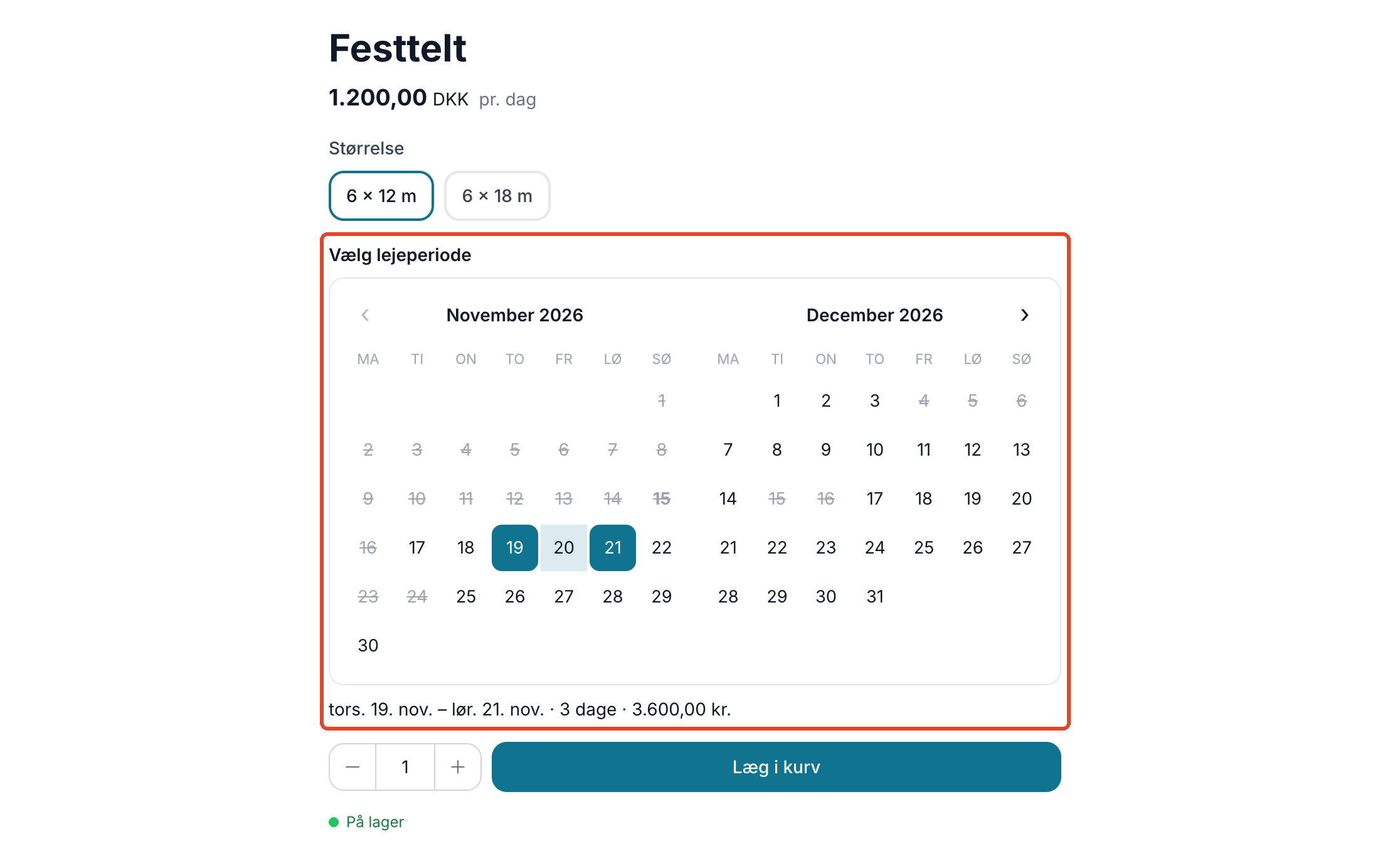
In the same shopping cart, the customer adds a draft beer system for 450 kr. per day for the same weekend—totaling 1,350 kr.—and a couple of packs of disposable cups, which are standard items. The customer pays once; the cups are deducted from inventory as usual; and the rental period is listed in the cart, in the order confirmation, and on the invoice.
The party rental company also has a trailer that is only rented out for a minimum of 2 days at a time. Therefore, they enter “2” in the “Minimum Rental Period” field for the item. If the customer selects only Saturday, the message “The period must be at least 2 days” appears. Saturday through Sunday costs 2 × 300 DKK = 600 DKK.
How to Avoid Double Bookings
Simply enter the number of units you own as the stock quantity. Shoporama reviews the period day by day and identifies the busiest day. If the party rental business has 3 draft beer systems, and 2 are rented out on Saturday and 1 on Sunday, a new customer can still rent 1 from Friday to Sunday because there are at most 2 out on the same day. If all three are out on Saturday, that day is marked as unavailable.
Each tent size is counted separately, and availability is checked again in the cart and at checkout. Unpaid orders hold the items, and if you cancel an order, they become available again. If two customers pay for the last available unit at exactly the same moment, both can receive the order. This is rare, and you’ll see it listed as “Overbooked” under Orders → Rentals.
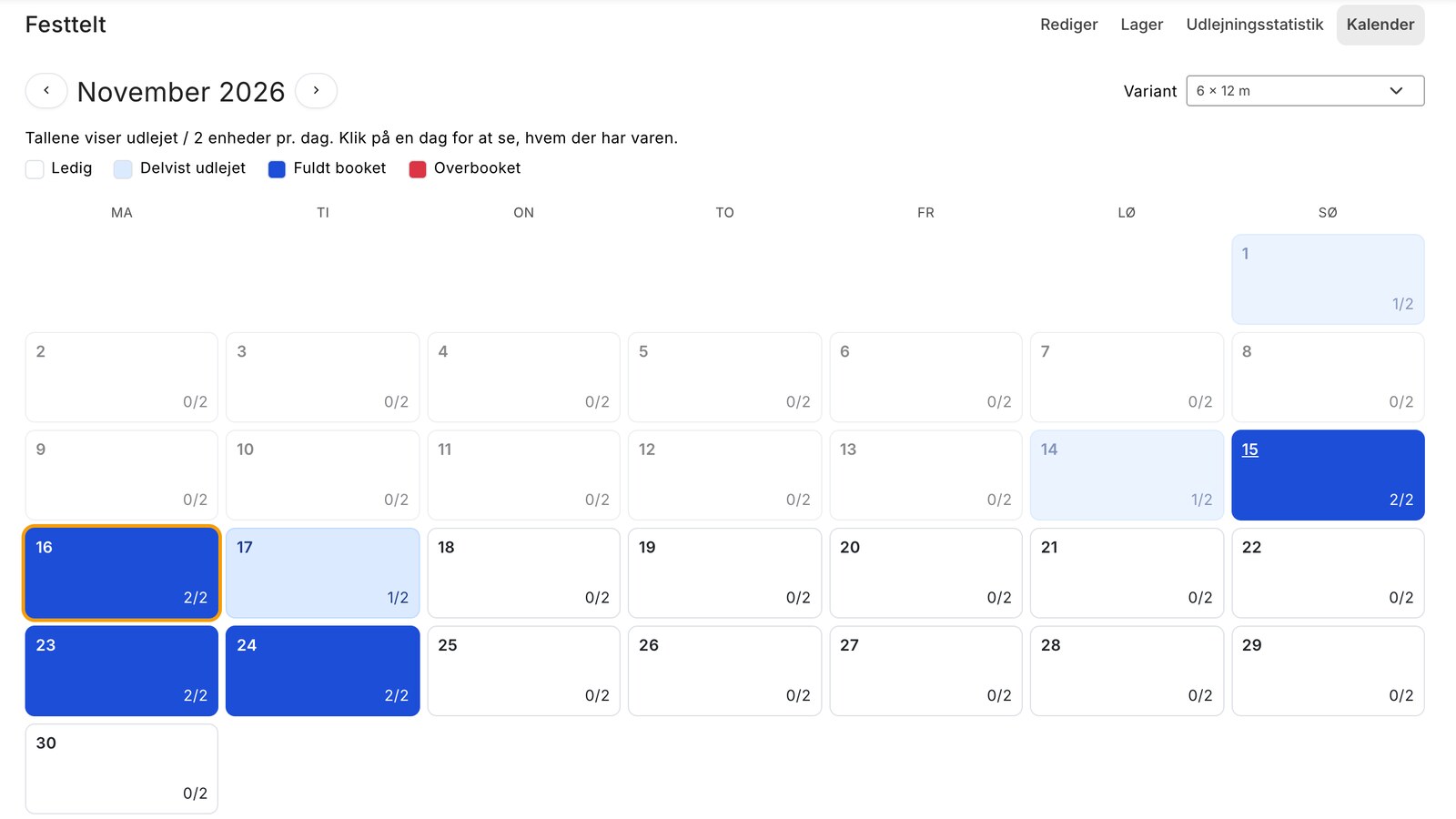
Each rental item has a “Calendar” tab in the admin panel, where each day is listed, for example, as “1/2,” meaning 1 out of 2 is rented out. If you select Rental Calendar under the gear icon → Buttons in the product row of the product overview, a small number on the button shows how many rentals are currently out or on their way.
Friday morning: What needs to go out, and what’s coming back?
Under Orders → Rentals, select a day to see three boxes: Going Out, Coming Back, and Out. For each rental, you’ll see the item, quantity, rental period, order number, customer’s name and phone number, and delivery address. If the order hasn’t been paid, a yellow label says “Unpaid,” so you’ll know before the tent is loaded. Click Print to take the list with you in the car.
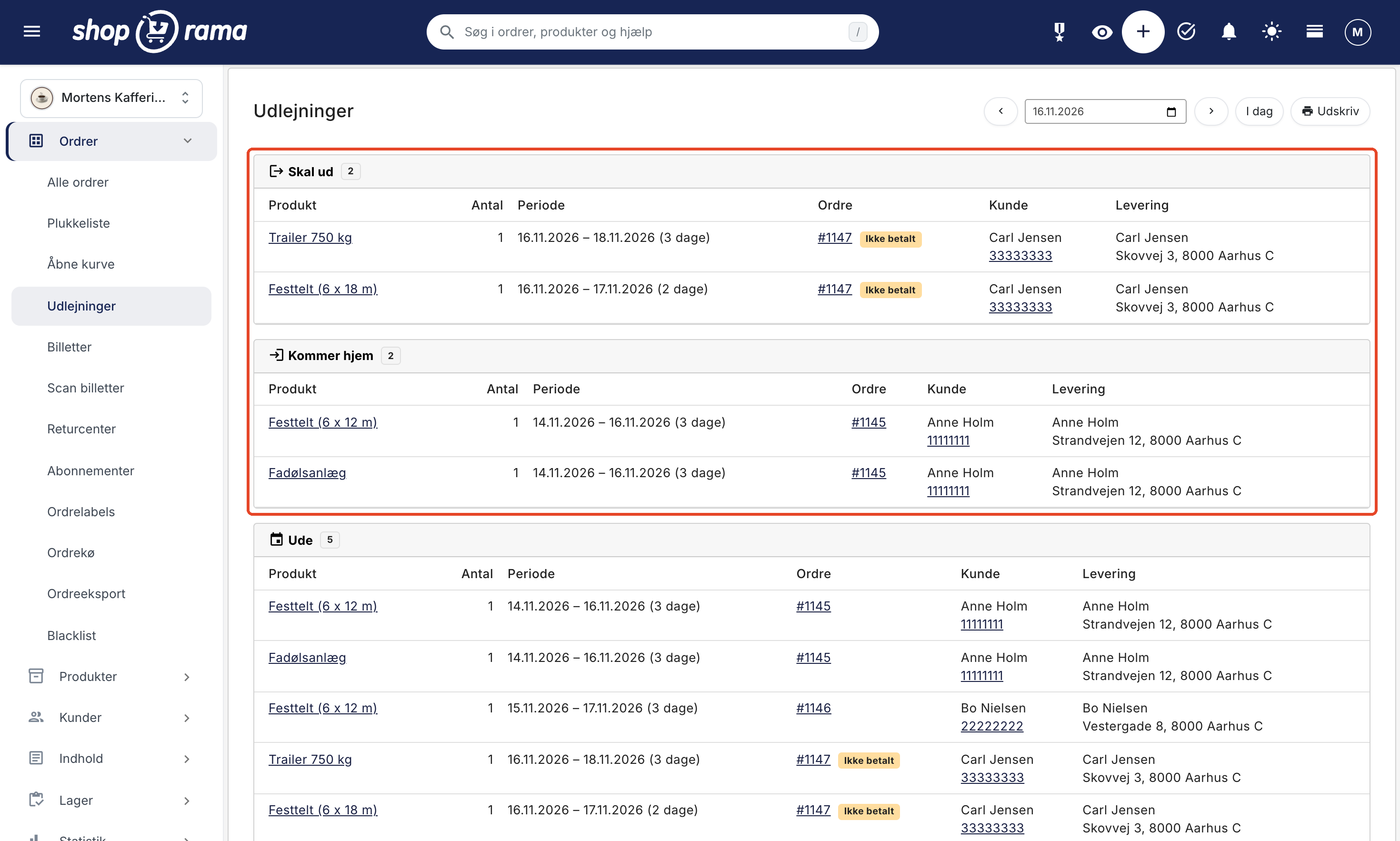
The rental period is also listed on the picking list and the delivery slip. If you take a booking over the phone, create the order in the admin system and add the item. Set the dates using “Edit Period” below the order line, and do the same if a customer wants to reschedule their rental. You adjust the price on the line yourself.
Payment upon booking, or pay part now and the rest later
On the rental profile, “Charge payment upon booking” is enabled by default because a reservation on a credit card typically expires after about 7 days. If a customer orders the tent in February for a confirmation ceremony in May, the reservation may have expired by the time the tent is needed. With this checkbox selected, the amount is charged as soon as the order is paid. The entire order is charged, including any cups in the same cart, so be sure to state in your terms and conditions that rental orders are paid upon booking, including any items in the same cart.
If you want to make it easier to book early, you can enable installment payments on the rental profile and click the “Rental” button next to “Starting Point.” If the customer rents the tent only from Friday to Sunday, it will look like this:
- At the time of booking, the customer pays 25% of the rental fee: 900 DKK out of 3,600 DKK.
- 14 days before the rental period, the customer receives a payment link via email for the remaining 2,700 DKK.
- The deadline is 7 days—that is, one week before the rental period begins—and a reminder is sent 2 days before the deadline.
If there are 14 days or fewer until the rental period begins, and the customer uses a discount code, a gift card, or points, or if the price has been reduced as part of a promotion, the entire amount is paid immediately. The same applies if the customer pays by invoice or bank transfer. Shipping and regular items are always paid in full at the time of order.
The partial payment is part of the rental fee and not a security deposit that the customer will receive back. In the shopping cart, at checkout, and in emails, Shoporama refers to the first payment as “Deposit,” unless you specify otherwise. For example, enter “Prepayment” in the “Description for the Customer” field on the profile so the customer doesn’t expect to get the money back.
The “Unpaid” label under Orders → Rentals disappears once the customer has paid the first installment. If the remaining balance is outstanding, you’ll see the order listed as “Pending” until the rest is paid. If the deadline has passed, the booking will appear under “Action Required.” Shoporama does not cancel it automatically, so you decide whether to send out the tent.
How often are the draft beer systems used?
An item that’s rented out only generates revenue when it’s out on rental. Under Statistics → Rentals, you’ll find four key metrics: Utilization Rate, Revenue, Rentals, and Average Rental Period. The Utilization Rate shows what percentage of the possible days your items have been rented out. The table shows each item and size separately, and the “Per Unit” column shows the average revenue generated by each item. Items that have never been rented out are listed as 0%.
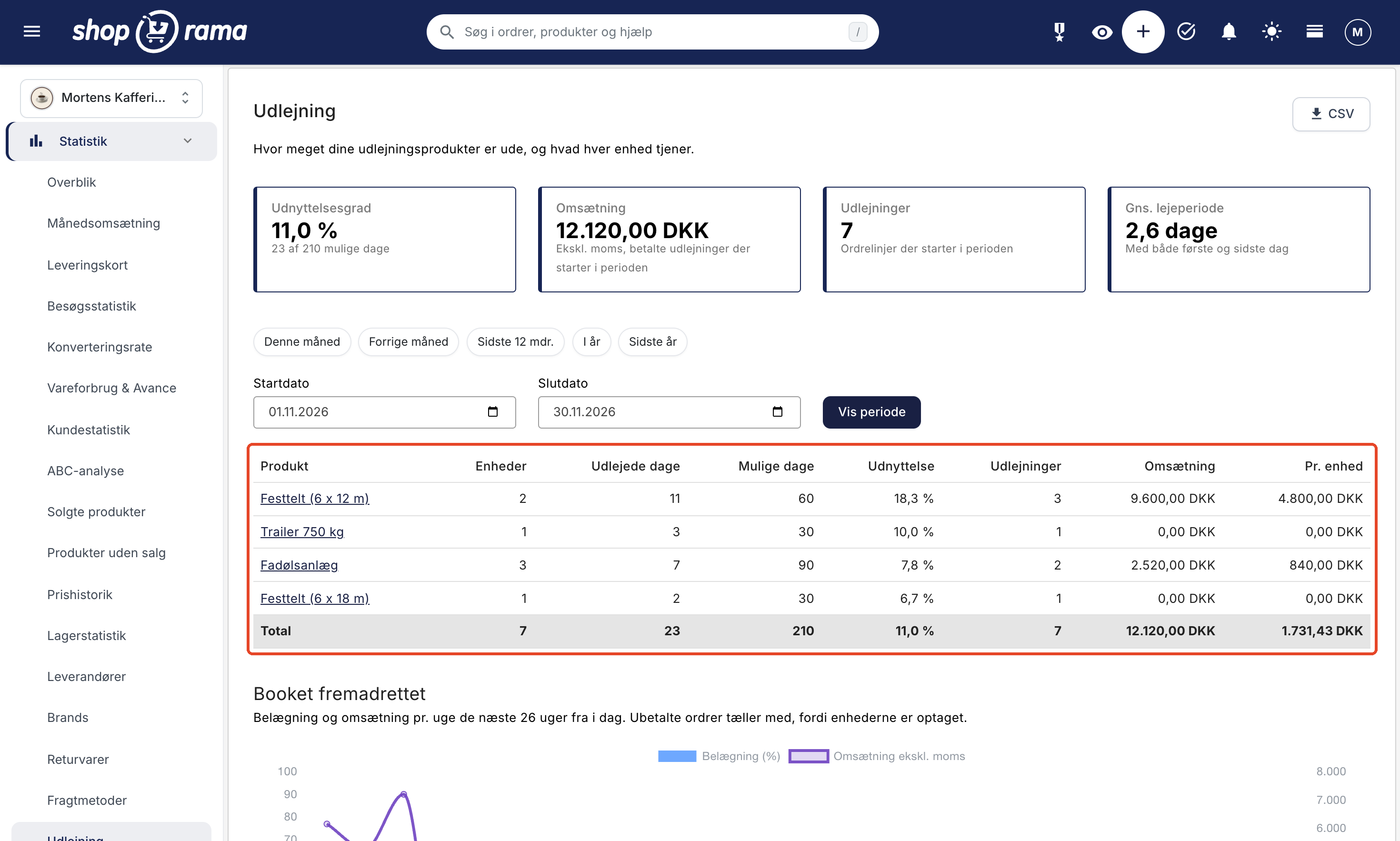
Let’s say that the party rental company’s three draft beer systems were rented out for a total of 41 days in June, spread across 15 rentals, most of them on weekends. Each system is counted separately, so two systems rented out for an entire weekend equals 6 days. That is the number in the “Days Rented” column. June has 30 days, so the 3 systems have 3 × 30 = 90 possible days, and the utilization rate is 41 out of 90, or 45.6%. If all rentals are paid for, revenue is 14,760 DKK excluding VAT, or 4,920 DKK per unit, and the average rental period is 2.7 days.
If you can turn down customers on weekends, a fourth system would be worthwhile. If it costs, for example, 8,000 DKK excluding VAT, the rental fee will cover that cost after 23 days (360 DKK excluding VAT per day). If the systems are idle on weekdays, that’s where there’s room for more.
The “Future Bookings” graph shows occupancy and revenue per week for the next 26 weeks, so you can see well in advance when the season is filling up. You’ll find the figures for a single item on the “Rental Statistics ” tab for that item, where you can also select “Next 30 Days ” and “Next 90 Days.”
This feature is not included in the first version
- Only full days. There are no hourly rentals. If you sell courses or events on fixed dates, these are tickets, not rentals.
- No security deposit. Shoporama cannot charge an amount that the customer gets back when the item is returned in good condition.
- No rest day between two rentals. The return date counts as a rental day, so a tent can be rented out again the very next day. If you need a day for cleaning, you can extend the period by one day using “Adjust Period.” The customer can see the new period on their order, so be sure to let them know.
- Price is per day only. There is no weekend rate or weekly rate.
- No tracking of individual items. Shoporama knows how many trailers are out, but not which ones.
- Available only in the web store. Rentals cannot be sold at the POS. Use an order in the admin panel and the “Edit Period” feature instead.
- Available only in Montana and Delaware. The date picker and installment payment options work in the Montana, MontanaB2B, Delaware, and DelawareDK themes. If you’re using a different theme or your own custom theme, please email support@shoporama.dk.
- The period cannot be changed in the cart. The customer must remove the line item and add the item to the cart again.
- Not in Google Shopping. Rental items are not included in Google Shopping or the other regular product feeds. They are included in the online store’s search and sitemap.
How to Get Started with Rentals
Start with the article on rentals, which walks you through the setup process from creating a profile to your first order. If you’d rather go step by step, follow the tutorial in Shoporama Academy. If you’re wondering whether this is right for your business, read more about online stores for rentals. Feel free to place a test order in your own store before renting out your first item, and cancel it afterward so the dates become available again.
Related articles
Rental: Rent tents, trailers, and equipment through your online store
Here's how to rent out tents, draft beer systems, trailers, and other equipment on Shoporama. The customer selects a time period on a calendar and...
Installment Payment: Pay a deposit now and the rest later
Here's how to let customers pay a deposit when they book and the remainder later via an automatic payment link. For trips, courses, rentals, and...
Product Profiles and Variants
Guide to product profiles and variants in Shoporama. Understand how profiles, attributes and variants are related.
Statistics and analytics in Shoporama
Get an overview of Shoporama's built-in statistics tools: dashboard, revenue, profit margin, ABC analysis and much more. Learn how to use data to...
More from the blog
Sell tickets in your own online store, in the same shopping cart as your products
Now you can sell tastings, classes, concerts, and trips on specific dates in your own online store, in the same shopping cart as your products....
15. november 2026
How to Display the Free Shipping Bar and Suggestions in Your Own Theme
The free shipping bar and suggestions for items that qualify for free shipping are now built into the default themes. If you’re building your own...
13. november 2026
Address suggestions at checkout: The customer selects the address, and the ZIP code and city are filled in automatically
Now, six of the built-in themes can suggest Danish addresses as the customer types. The customer selects their address from the Danish Address...
10. november 2026