Customer Overview: Find and Manage Your Registered Customers
The Customer Overview lists all customers with profiles. Learn what the columns mean, how to search and sort, create orders, log in as a customer, and delete, copy, and export customers.
The Customer Overview lists all customers who have created a profile in your online store. You can find it in the menu under Customers, Registered Customers. The page itself is titled "Customers."
From here, you can search for a customer and see how many orders they’ve placed, how much revenue they’ve generated, and when they last logged in. You can also edit their information, create an order for them, and log in to the store as that customer. In addition, you can download the entire customer database as a spreadsheet or import new customers from a file.
Registered customers are not the same as guest customers
Shoporama has two customer lists, and it’s important to understand the difference before you wonder why a customer isn’t on the list:
- Registered customers are those with a real profile—that is, an email address and a password they can use to log in. These are the ones you’ll find in the customer overview.
- Guest customers are those who have made a purchase without creating a profile. They are listed under Customers, Guest Customers, where they are grouped by their email address. See the article on guest customers.
A customer is registered when they sign up in the store, check the “Create account for faster checkout in the future ” box during checkout, are added via a file import, are created as a user under a business account, or when you create the customer yourself using the “Create Customer ” button in the customer overview.
How to Read the Columns in the Overview
The table has one column per piece of information, and several of them are clickable:
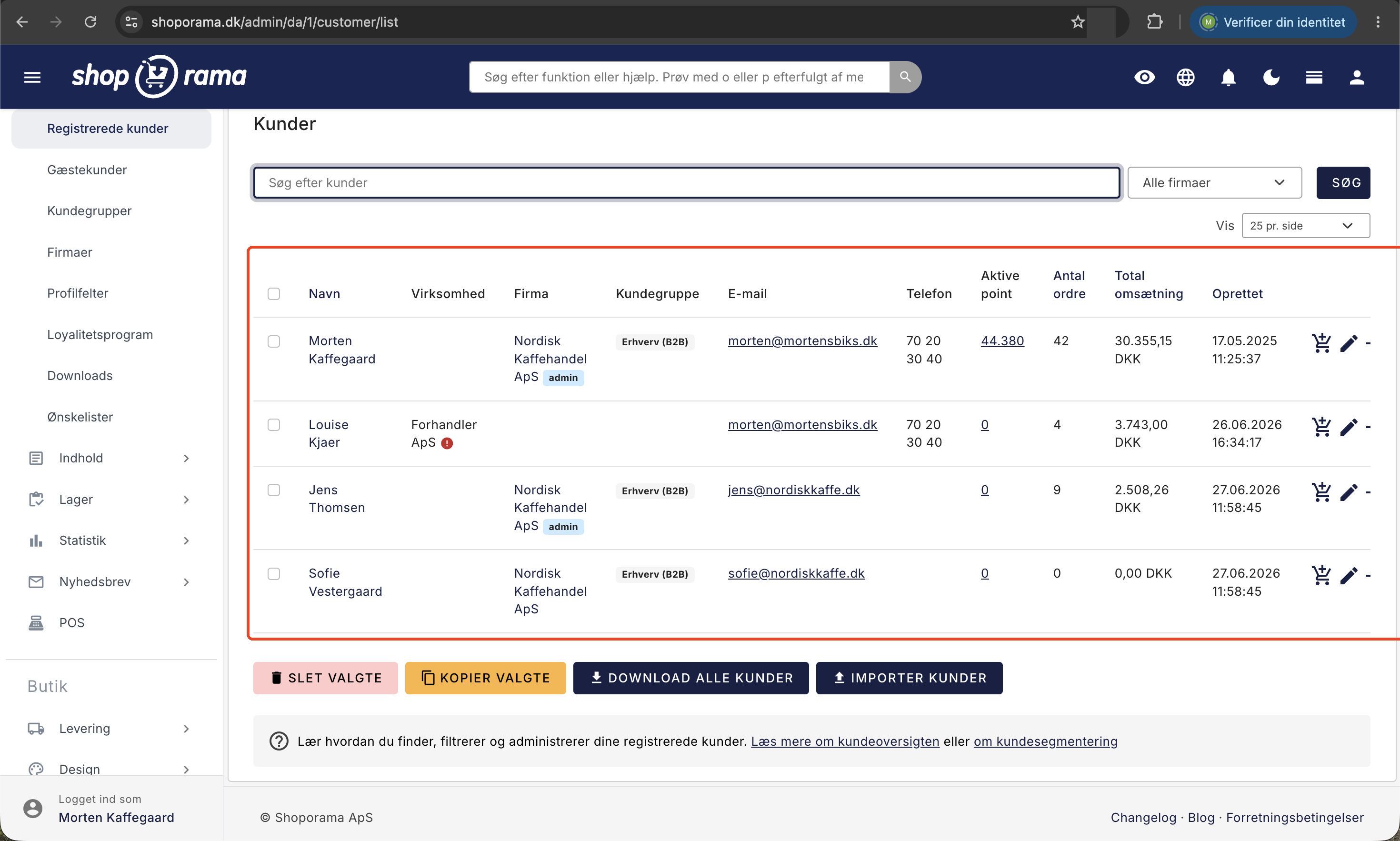
- Name: The customer’s name. Click the name to edit the profile.
- Company: If the customer is associated with a company account—because you’re using B2B with multiple users per company—the company account’s name appears here. The name links directly to the company, and if there’s a small “admin” icon, the customer has the role of Company Admin in the company account. If the customer is not part of a company account, the company name the customer entered on their profile will be displayed. If you’ve enabled VAT number validation and the customer has a VAT number, there will also be a small icon showing whether the number has been verified in the EU’s VIES registry: green for valid, red for invalid, and a gray question mark if it has not yet been verified.
- Customer group: the group under which the customer is actually making the purchase. If the customer does not have their own group but belongs to a company with a group, the company’s group is displayed and used.
- Email: Click to open a new email to the customer in your email program.
- Phone: The customer’s phone number as listed on their profile.
- Active points: The customer’s balance in the loyalty program and a link to the customer’s points overview. This column is always displayed; if you do not run a loyalty program, it will simply show 0 for all entries.
- Number of Orders: The number of orders associated with the profile.
- Total Revenue: The sum of the order totals for the orders associated with the profile, displayed in the store’s currency. The order total includes shipping and sales tax.
- Created: the date and time the profile was created.
- Last login: when the customer last logged into the store or used it while logged in, displayed as “right now,” “3 hours ago,” “2 days ago,” and so on. Hover over the time to see the exact date and time. If a dash appears, no login has been recorded for the customer yet. Read more in the section on Last Login further down.
Please note one thing about the two number columns: an order is only counted if it’s linked to the profile. This happens when the customer was logged in while placing the order, when the customer created their profile during checkout, or when you created the order yourself from the customer overview. If the same person has also shopped as a guest, those orders are listed under “Guest Customers” and are not included here. The numbers are a good indicator of who shops the most, but they are not accounting figures.
Search for Customers
The search field at the top is labeled “Search for customers,” and you can search by clicking the “Search” button. The search looks for your keyword across multiple fields at once:
- name, email, and phone number
- address, ZIP code, and city
- company name and CVR or VAT number on the customer’s profile
- name and CVR or VAT number on the company account to which the customer may belong
- the customer’s ID number, if you enter the number exactly
You don’t need to type the entire word. If you search for “jens,” you’ll find both “Jens Hansen” and “jensen@eksempel.dk.” And because the company account name is also searched, you can find all users associated with a specific company by searching for the company name. However, the search does not include the “Personal ID” field, so you cannot find a customer here using your own customer number from the accounting department.
If you’re using B2B companies, there’s also a drop-down list next to the search field, which is set to “All Companies” by default. If you select a company, the list is filtered to show only that company’s users, and the filter remains active while you browse and sort. The drop-down list appears only if you have at least one company.
If you’ve created customer groups, there’s also a drop-down list set to “All Customer Groups.” If you select a group, you’ll only see customers in that group, including those who are part of the group through their company. Both filters remain active while you browse and sort.
Sorting and Number per Page
Five of the column headers are links you can use to sort by: Name, Number of Orders, Total Revenue, Created, and Last Login. Click once to sort, and click the same header again to reverse the order. A small triangle in the header shows the current sort order of the list. If you don’t sort manually, customers are listed in the order they were created, with the oldest first.
The first click on “Last Login” places the customers who have logged in most recently at the top. Click again, and those who have been inactive the longest will appear at the top. Customers without a recorded login appear last when the most recent are at the top, and first when the oldest are at the top. If you’ve searched for something or selected a company or customer group from the drop-down lists, only that selection will be sorted. The sorting order will remain the same even if you later search for something new or change the filter.
Above the table on the right is the “Display” option with choices of 25, 50, 100, or 250 per page. This setting is saved for next time and is shared with the order list and the guest customer list; so if you set it to 250 here, you’ll also see 250 rows in the order list.
Last Login: When was the customer last logged in?
The “Last Login” column shows when the customer last logged into the store or used it while logged in. If you hover your mouse over the header, a brief explanation appears. The time is updated in three situations:
- Login with email and password. The time is updated every time the customer logs into the store.
- Login via a login link, for example from the welcome email or the password reset email.
- Using the store while logged in. The store remembers the customer’s login for 90 days, so many customers do not re-enter their password. When a customer who is already logged in uses the store, the time is also updated, but no more than once per hour. The time may therefore be up to one hour prior to the customer’s most recent click.
In practice, “Last Login” means “last active as a logged-in customer” and not just “the last time the customer entered their password.” It’s also not the same as the customer’s most recent purchase, since a customer can easily browse without placing an order.
It doesn’t count when you use “Log in as this customer” in the store yourself. Neither the login itself nor the pages you view afterward affect the customer’s timestamp, so you can assist a customer without altering the figure. The same applies when a company administrator in MontanaB2B logs in as a colleague under “My Company.”
Shoporama has been recording “Last Login” since the feature was introduced in the fall of 2026, and there are no records from before that time. A customer who hasn’t been logged in since then will therefore show a dash until the customer logs in or uses the store while logged in again. A dash means “not recorded,” not necessarily that the customer has never logged in.
Here’s a real-life example: a business customer with their own pricing hasn’t placed an order in two months. If it says “2 days ago” under “Last Login,” the customer is still active, and perhaps it’s just a price or a missing item—a quick call can resolve it. If it says “3 months ago,” the account has been forgotten, and it’s time to remind the buyer that it exists.
This column is exclusively about your customers. To see when your own employees last logged into the admin panel, go to Company → Users.
You can do this directly from the list
At the far right of each row are three icons.
Create Order
The shopping cart icon is labeled “Create Order.” It creates a new, empty order for the customer and takes you directly to the order, where contact information, billing address, and any shipping address are already filled in from the profile. This is the quickest way to process an order when a regular customer calls or emails an order. The order is linked to the customer, so it’s included in the customer’s order history. Read more in the article about creating orders from the customer overview.
Edit
The pencil icon is labeled “Edit” and opens the customer’s profile, where you can edit the name, address, shipping address, customer group, company affiliation, and any profile fields you’ve created yourself. You can also set a new password for the customer there.
Log in as this customer in the store
The third icon is labeled “Log in as this customer in the store ” and opens your online store in a new tab, where you’re logged in as the customer. This is invaluable when a customer says, “I can’t see my prices,” because you’ll see exactly what the customer sees, including customer group prices, order history, and wish lists. The customer won’t be logged out of their own session when you do this. However, everything you do in that tab is done as the customer, so don’t complete a purchase unless you intend to, and close the tab when you’re done.
Points and Companies
The number in the Active Points column is also a link. It leads to the customer’s points overview, where each entry includes the date, order, amount, points, status, and note, and where you can use “Assign Points,” “Approve Selected,” and “Delete Selected.” The statuses are “Approved,” “Pending,” “Revoked,” and “Expired.” Read more about this in the article on the loyalty program. If the customer is associated with a company account, the company name in the “Company” column links to the corresponding company account, where you manage the company’s users, their roles as “Member” or “Company Admin,” and the company’s general information.
Create a single customer manually
The “Create Customer” button is located at the top right of the page and again below the table. This is the way to go when you only need to add a single customer, and a file import would be like using a sledgehammer to crack a nut. This is typically the case when a regular customer calls in an order and would like to be able to log in afterward, or when you’re setting up a new business account and need to link it to a customer group with its own prices.
The setup process itself only asks for what’s necessary:
- An email address is the only required field. The address must be unique within your store, as this is what the customer uses to log in.
- Name is optional and can be filled in later.
- “Send welcome email ” is a checkbox that is turned off by default. If you check it, the customer will receive an email with a password that works immediately.
When you click “Create Customer,” you’ll be taken directly to the customer’s profile, where the rest of the information goes: address, country, phone number, customer group, company affiliation, alternate shipping address, and your own profile fields. So you don’t have to fill out two long forms—just one quick step, and then you’re on the regular editing page.
If the email address you enter is already in use by another customer, the customer won’t be created. Instead, you’ll see a red message with a link directly to the existing customer, so you can proceed from there instead of having to search for them. This is the same rule that applies to file imports, where a recognized email address updates the existing customer rather than creating a new one.
If you do not select the welcome email, the customer will not have a password and therefore cannot log in yet. The customer can request a new password themselves using the “Forgot Password” option in the store, or you can set one for the customer in their profile. This is the correct sequence if you’re creating a number of customers at once and plan to grant them access later.
Bulk Actions: Delete or Copy Multiple Customers
There is a checkbox at the far left of each row. The checkmark in the table header selects all rows on the page at once, and you can do the same using the keyboard by pressing Cmd + A on Mac or Ctrl + A on Windows. Once you’ve selected some customers, you can use the buttons below the table. The two buttons that all shops have are:
- "Delete Selected " deletes the selected customers. You’ll first be asked, "Delete the selected customers? This action cannot be undone." When the profile is deleted, the customer’s point entries, wish lists, and the contents of your own profile fields for that customer will also be deleted. The customer’s orders will remain, as they store the name and address exactly as they appeared when the order was placed.
- "Copy Selected " creates a new customer with the same address. The name will have "(copy)" added to it, and the email will be assigned a temporary address, because two profiles in the same store cannot have the same email address. Correct the email address on the new profile afterward. This is useful when a company needs to have multiple buyers at the same address.
If you’ve created customer groups, there’s also a “Customer Group” button where you can select a group and click “Add Selected.” If you’ve set up a shipping carrier, you can use Dan Shipping Labels to create a shipping label for each selected customer. Read more in “Print Shipping Labels Without an Order.”
Download and Import Customers
The last two buttons below the table work with the entire customer database.
“Download All Customers” retrieves a CSV file—that is, a spreadsheet with semicolons separating the fields—containing all of the store’s registered customers. The file contains ID, your own customer number, email, name, company name, CVR or VAT number, address, ZIP code, city, phone number, country, shipping address, creation date, last login, active points, and your own profile fields. Note that the entire customer database is included, not just the results you’ve viewed on the screen.
"Import Customers " takes you to the upload page, where you can import customers from a file in the same format. If the email address already exists, the existing customer record will be updated instead of creating a new one, and you can choose to send a welcome email to those who are added. See the article on importing customers for details on fields and pitfalls.
Who can edit, delete, and import customers?
When the company administrator assigns a role to a user under Company → Users, that role determines what the user can do in the customer overview:
- Full Access and Employee can do everything on the page. For the Employee role, however, the options “Delete Selected” below the table and “Import Customers” require the “Deletion and Bulk Import” add-on, and “Download All Customers” requires the “Data Export” add-on.
- Order Management, Marketing, and Bookkeeping can view customers and their profiles, but cannot create, edit, copy, or delete them. They also cannot log in to the store as the customer or use “Download All Customers.” However, Order Management can create an order for a customer using the “Create Order” icon.
The buttons are still there, but without access, the user receives a message stating that the role does not have access. When customers are deleted or imported, or when the “Download All Customers” button is clicked, this is recorded in the activity log so the company administrator can see who did it and when. Read more in “Roles and Permissions” and “Activity Log.”
How to Get the Most Out of the Overview
The customer overview isn’t just a directory. It’s also a handy sales tool, and here are four ways to use it:
- Find your most valuable customers. Sort by Total Revenue with the highest amounts first, and set the number of records per page to 250. Now you have your list of top loyal customers. You can assign them to a customer group with better prices or call them before launching a campaign.
- Take a phone order in 30 seconds. Search for the customer by name or phone number, click on the shopping cart, and the order will appear with the addresses already filled in. No typos in the address, and the customer receives their order confirmation as usual.
- Resolve support issues without guesswork. If a business customer writes that the prices are incorrect, log in as that customer and see for yourself. The “Customer Group” and “Company” columns immediately show whether the customer is even in the correct group. Learn more about customer groups and B2B pricing.
- Find the customers who have drifted away. Sort by “Last Login,” and click again so the oldest entries appear at the top. Customers without a recorded login appear first with a dash, followed immediately by those who have been inactive the longest. If they’re loyal customers, you can call them or send them a personalized offer—provided they’ve agreed to receive marketing from you. The list becomes more valuable the longer time passes, because the timestamps aren’t filled in until customers log in.
Frequently Asked Questions
I can’t find a customer I know has shopped with me. Where is she?
She likely made a purchase without creating a profile. Look under Customers, Guest Customers, where customers without profiles are grouped by their email address. That list only includes paid orders with the status “Shipped,” so if the order hasn’t reached that stage yet, she won’t be on the list. In that case, search for her email in the order list, where all orders are included regardless of status.
How do I manually create a new customer?
Use the “Create Customer” button in the top right corner. You only need to enter an email address, and you’ll be taken to the customer’s profile, where you can fill in the rest. If you need to add many customers at once, “Import Customers” is faster, and if a company needs to add another buyer with the same address, “Copy Selected” is the shortcut.
The customer didn’t receive an email when I created her account. Why?
The “Send Welcome Email” checkbox is turned off by default so you don’t accidentally send an email to a customer you’re just adding to the system. Check the box when you create the customer if she needs a password right away. If the customer has already been created, you can set a password on her profile or ask her to use the “Forgot Password” option in the store.
I’m getting a message saying the email address is already in use. What should I do?
Two profiles in the same store cannot share an email address, since that’s what the customer uses to log in. The message includes a link to the customer who already has that address, so click on it and check if it’s the same person. If two people in the same company need separate access, they must each have their own email address, or they must be set up as two users under the same company account.
Can I use “Total Revenue” for accounting purposes?
No. This figure is the sum of the order totals for all orders linked to the profile, regardless of the order’s status, so both canceled orders and orders that were never paid for are included. Use it as a guide to see who shops the most, and retrieve the figures for bookkeeping from the order list, statistics, or your accounting software.
A customer asks to be deleted. What happens to her orders?
When you delete the profile, the profile, her point entries, her wish lists, and the content in your own profile fields for her will disappear. The orders remain because they contain their own copy of the name and address as they appeared at the time of ordering. This is also what you need, since accounting documents must be able to be traced back.
Will the customer be logged out when I use “Log in as this customer in the store”?
No. The customer’s own session is not interrupted. You’ll get your own tab where you’re logged in as the customer. Keep in mind, however, that everything you do in that tab is done as the customer, so do not complete a purchase unless you intend to. Close the tab when you’re done. Your visit does not count as the customer’s login, so the “Last Login” column remains unchanged.
There’s a dash under “Last Login.” Has the customer never been logged in?
Not necessarily. “Last Login” has only been recorded since the fall of 2026, so a customer who hasn’t logged in since then will have a dash. If you created the customer yourself without sending a welcome email, the customer won’t know their password until they request a new one via the “Forgot Password” link, in which case the dash is entirely expected.
The customer says she hasn’t logged in for weeks, but it says “1 day ago.” How is that possible?
The store remembers the customer’s login for 90 days. If she’s visited the site on a computer or phone where she’s still logged in, that counts—even if she didn’t enter her password and even if she didn’t make a purchase. The last login is not the same as the last purchase. However, your own visit via “Log in as this customer” in the store does not count.
Can I get a list of customers who haven’t visited in six months?
There isn’t a filter for a specific date, but you can get far by sorting. Sort by “Last Login” so the triangle points upward. This will place the customers who’ve been away the longest at the top, right after those with no recorded login. If you need a precise list, download “Download All Customers.” The file includes a “last_login” column, which you can sort and filter by in your spreadsheet.
Can I import “Last Login” into my own customer system?
Yes. The easiest way is to use the “last_login” column in “Download All Customers.” If your system automatically retrieves customers, the timestamp is also available in the REST API, where the customer list can be sorted by “Latest Login.” The timestamp is read-only. It cannot be changed via import or the API.
Why doesn’t the “Company” column show the company name that the customer entered themselves?
Because the customer is associated with a company account. The “Company” column displays the company account, if one exists, and otherwise the company name the customer entered in their profile. A company account is a real account in the store that multiple users can be associated with, and where the company name, CVR, and EAN are managed in one place. If the customer is associated with a company account, that information is inherited from the company.
Can I send a newsletter to the customers on the list?
Not directly from here. The customer overview is a directory, not a subscription list, and a profile does not in itself constitute consent for marketing. Subscriptions are handled under “Newsletter ” or in your mailing list integration. If you need to use customer data in another system, you can retrieve it using “Download All Customers.”
What does the green or red icon next to a company name mean?
It’s the result of a lookup in the EU’s VAT number registry, VIES, and it only appears if you’ve enabled VAT number validation in your store’s settings. Green means the number is valid, red means the number was rejected, and a gray question mark means the number hasn’t been checked yet. The number is checked when the customer’s profile is saved. The icon appears only for customers who aren’t associated with a business account; otherwise, the “Company” column displays the business account.
Can I search by customer number?
Yes, if you’re referring to Shoporama’s own ID number for the customer. If you enter the number, the search will find that exact customer. However, if you’ve entered your own customer number from your accounting system in the “Custom ID” field, you cannot search for it. Instead, search by name, email, phone number, or address, where a partial match is sufficient.
Related articles
Guest Customers: What They Are and How to Use the List
Guest customers are those who have made a purchase without creating a profile. See what the list in the admin panel shows, how to sort and export...
Create orders directly from the customer overview
Create orders directly from your customer overview with customer details automatically populated.
Loyalty programme
Complete guide to the Shoporama loyalty program - setting up the points system, earning, redemption and customer communication.
Import Customers via CSV
How to import customers into your online store using a CSV file: which columns Shoporama reads, how duplicates are handled via email, and what to...
Kundegrupper og B2B-priser: giv forskellige kunder forskellige priser
Firma-konti med flere brugere og roller
B2B sales in Shoporama
How to sell to businesses (B2B) and public institutions (B2G) in Shoporama with CVR, EAN and differentiated VAT.