Set Up Uniconta Integration
Here's how to install the Uniconta app, create a user in Uniconta, and have orders from your online store transferred as sales orders, including customer information, item lines, and sales tax.
With the Uniconta app, your online store orders are automatically converted into sales orders in Uniconta. The customer is created as a customer account, and item lines, discounts, and shipping are included. You invoice the order in Uniconta as usual. The app is free, and setup consists of two parts: a little preparation in Uniconta and the app itself in Shoporama.
What you’ll need
- An Uniconta account where you can create users and enable features.
- Access to Uniconta’s API. According to Uniconta, API access (OData) costs extra for a regular standard user, while a server user is charged only once. Ask your Uniconta reseller what’s right for you and how much an additional user costs.
- A user with full access in Shoporama. Only this user can install apps.
Step 1: Find your company ID
The company ID is located in the top right corner of Uniconta, in parentheses after the company name. For example, if it says Shoporama ApS(135799), the company ID is 135799.

Step 2: Create a user for the online store
The app logs into Uniconta with its own user account. Do not use your own login: if you change your password, the transfers will stop. If your reseller has created a server user for integrations, ask if the app can log in with that account.
- Go to Company, User Rights, Manage Users.
- Click Add User and select Standard User.
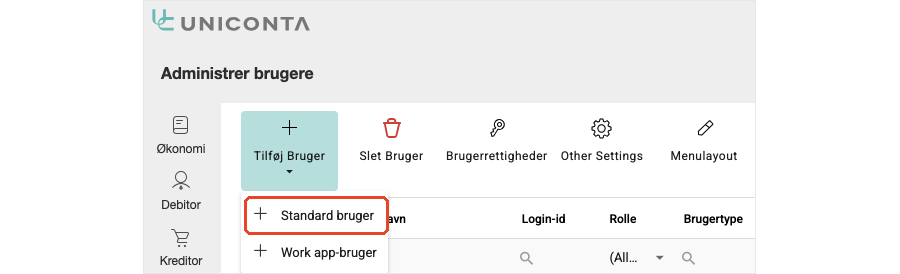
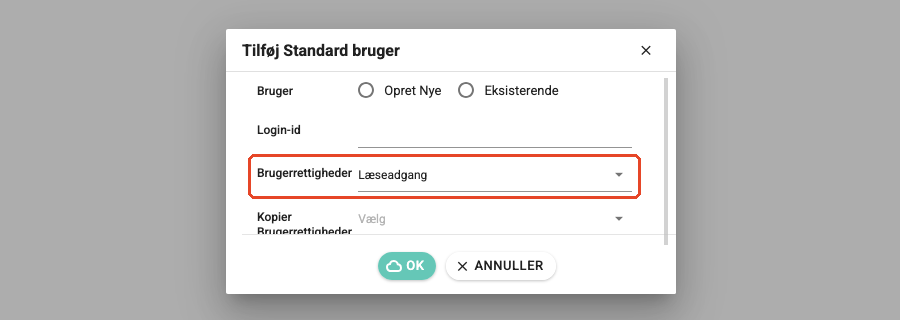
- Select Create New and enter a Login ID, such as webshop. This is the username you’ll need to use in Shoporama.
- Change the User Permissions from Read Access to a permission that grants write access. With read access, the app cannot create customers or sales orders.
- Click OK, and assign the user a password as you normally do when creating users in Uniconta. If you have any questions, contact your Uniconta reseller. You’ll need the user’s login ID and password in step 4.
Step 3: Enable Orders and Shipping Address
Sales Orders is a feature you must enable in Uniconta if you are not already using it.
- Go to Company, Maintenance, Enable/Disable Functions.
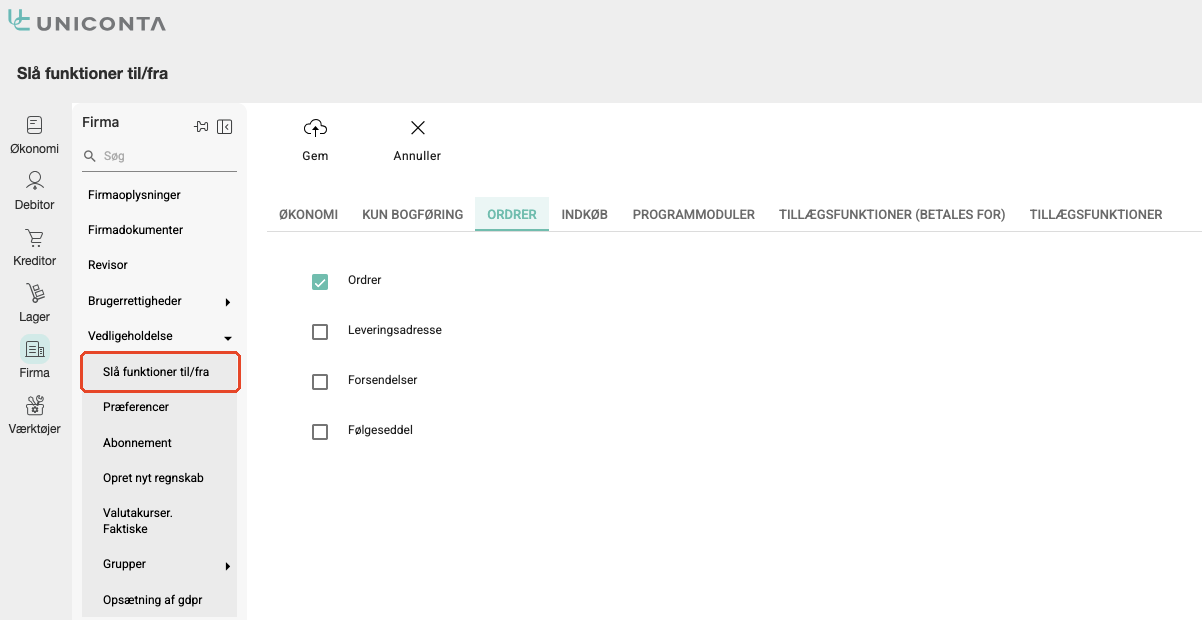
- Select the Orders tab and check the boxes next to Orders and Shipping Address.
- Click Save, then log out and log back in to Uniconta. Only then will the change take effect.
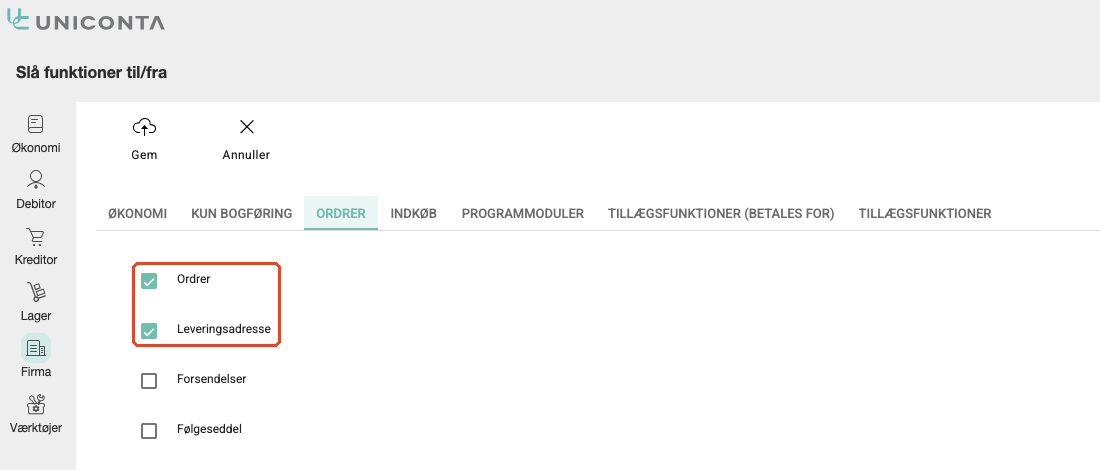
Don’t forget the Delivery Address
Without the checkmark, Uniconta won’t save the shipping address on the sales order, and it can’t be added later. Enable it before you install the app.
Step 4: Install the app in Shoporama
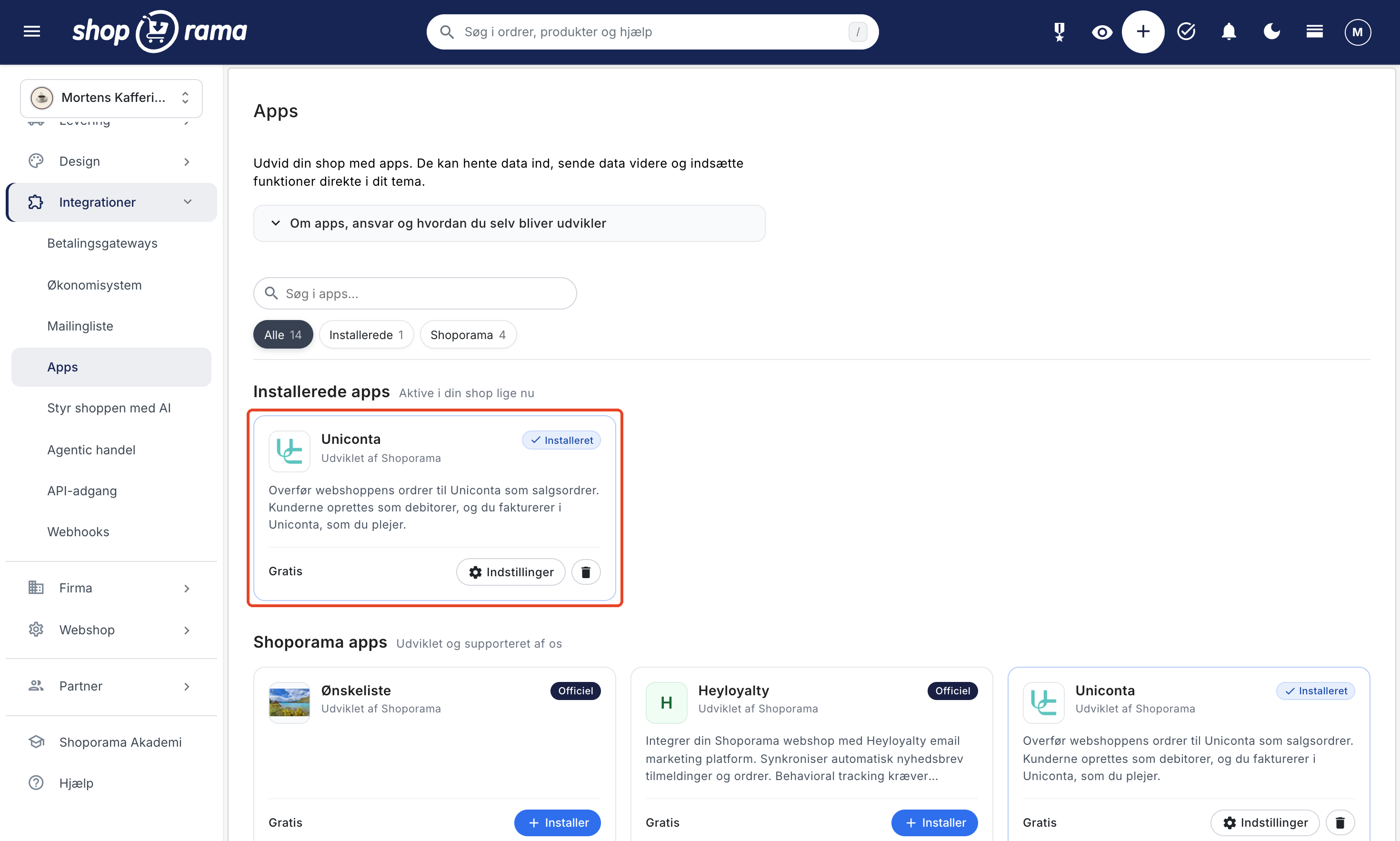
- Go to Integrations, Apps. Uniconta is located here and not under Accounting System, where Dinero and Billy are set up.
- Find Uniconta and click Install. The App Settings: Uniconta page opens. Later, you’ll find it via the Settings button on the app card under Installed Apps.
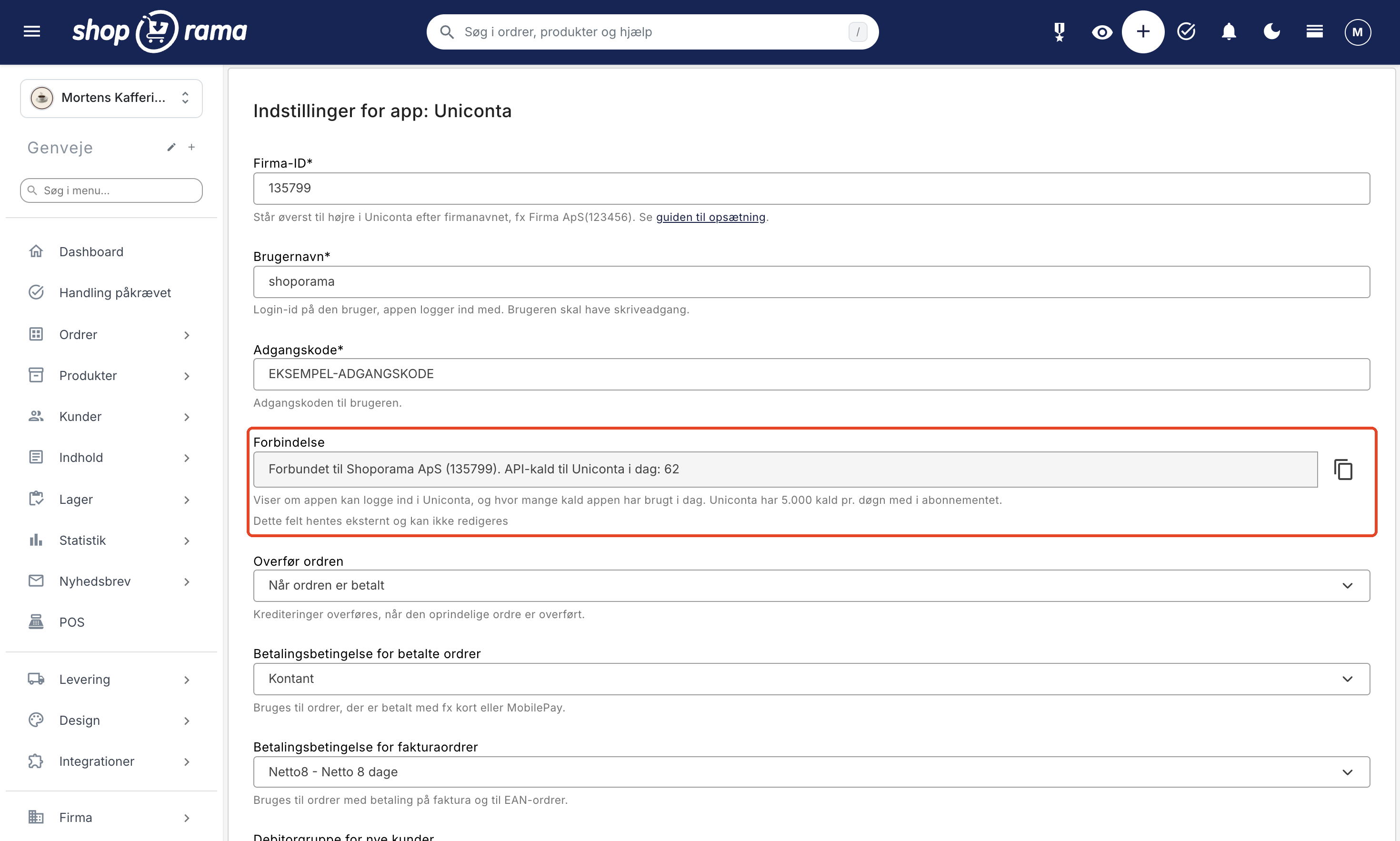
- Enter the Company ID, Username, and Password using the information from steps 1 and 2, then click Save.
- The Connection field now displays " Connected to " and the name of your accounting system. If an error appears, check the three fields again.
Step 5: Select the settings
Once your login is saved, the app retrieves your payment terms, customer groups, and tax codes from Uniconta so you can select them from the lists. If the lists are empty, save your login first and then reload the page.
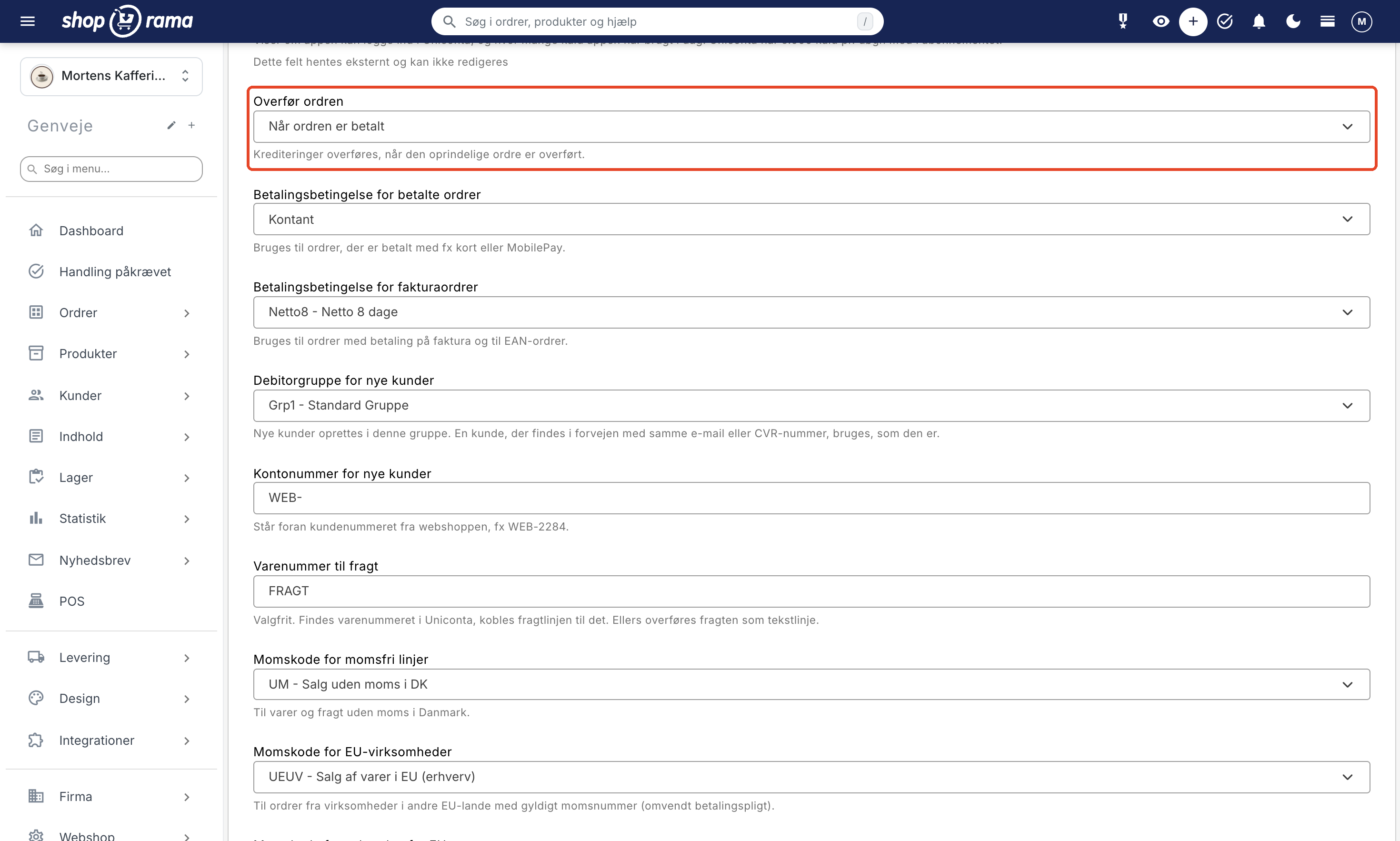
- Transfer the order: when the order is paid (default), when it is created, or when it is shipped.
- Payment terms for paid orders: Used for orders paid by, for example, card or MobilePay. Typically “Cash.”
- Payment terms for invoice orders: Used for orders with payment by invoice and for orders with an EAN number, e.g., Netto 8 days.
- Customer group for new customers: the group in which new customers are created.
- Account number for new customers: Prefix added to the customer number from the online store. For example, with “WEB-,” customer 2284 is assigned the account “WEB-2284.” If the customer makes a purchase without creating an account, the order number is used, e.g., “WEB-O4783.”
- Item number for shipping: optional. If the item number exists in Uniconta, the shipping line is linked to it. Otherwise, the shipping cost appears as a text line.
- VAT code for tax-exempt lines, for EU companies, and for sales outside the EU: the codes assigned to lines without VAT. The defaults are UM, UEUV, and U3L.
- Create missing item numbers in Uniconta: disabled by default. If you enable this, items not found in Uniconta will be created as services without inventory.
- Include cost price: disabled by default. If you enable this, the cost price from the item in the online store will be included on the line item so that the contribution margin matches in Uniconta.
Click Save when you’re done. From now on, new orders will be transferred automatically.
Find the sales orders in Uniconta
Sales orders are located under Accounts Receivable, Sales, Sales Orders.
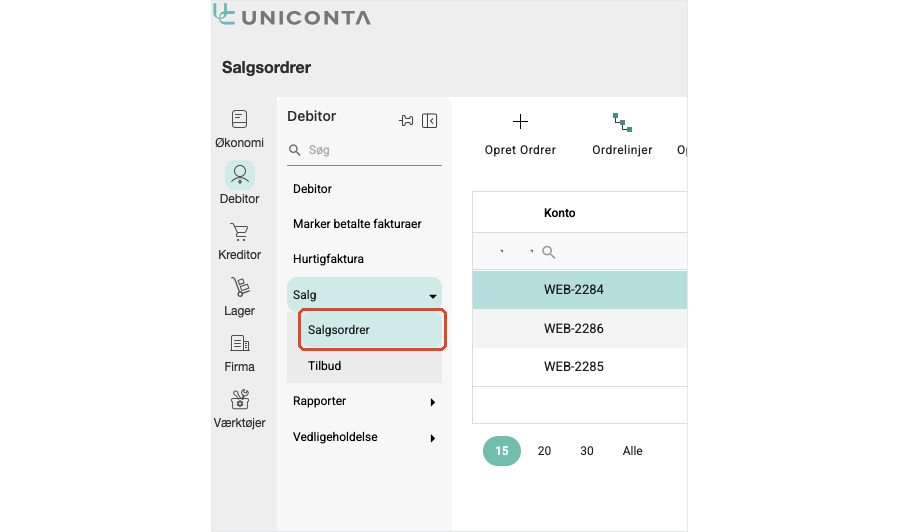
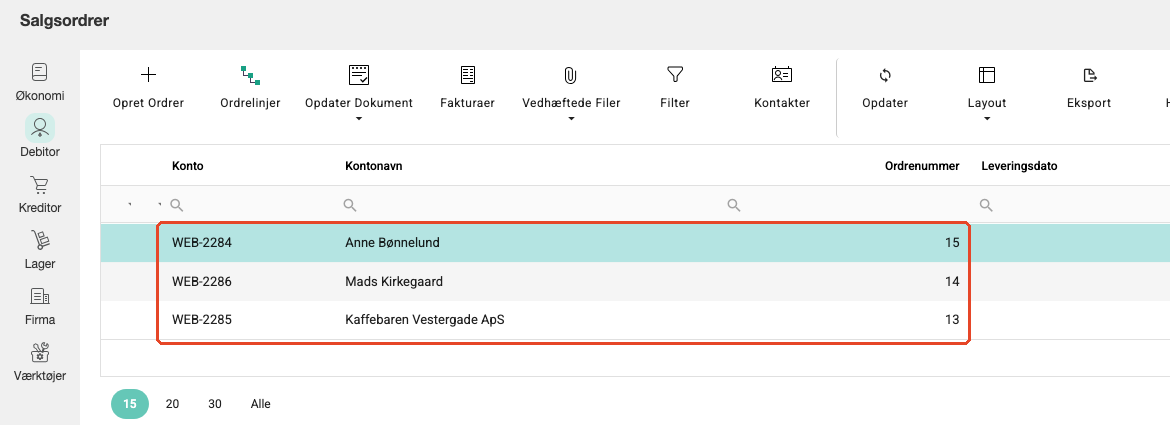
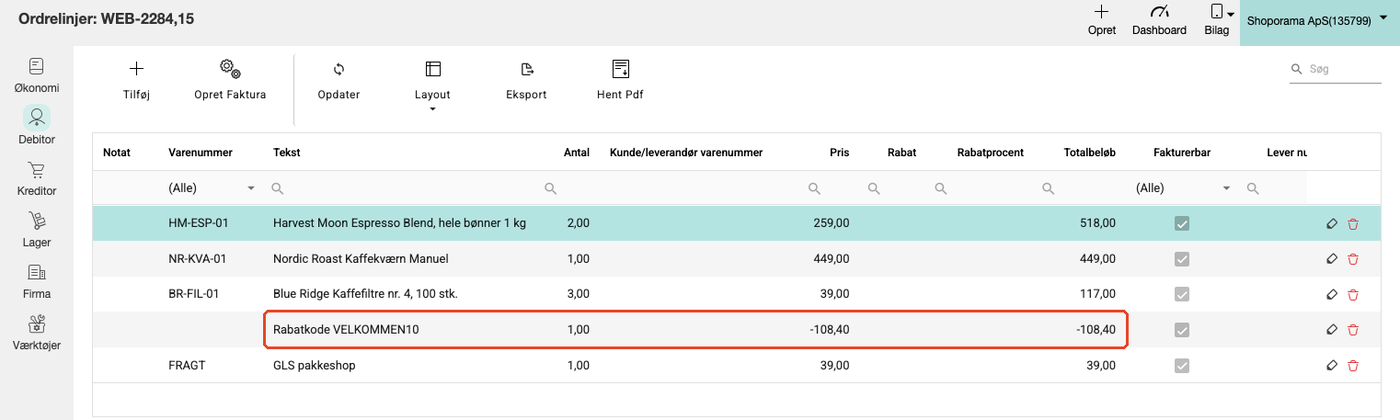
Select the sales order from the list and click “Order Lines” at the top to view the line items. The item number from the online store appears in the “Item Number” field, and discount codes and shipping are listed as separate lines.
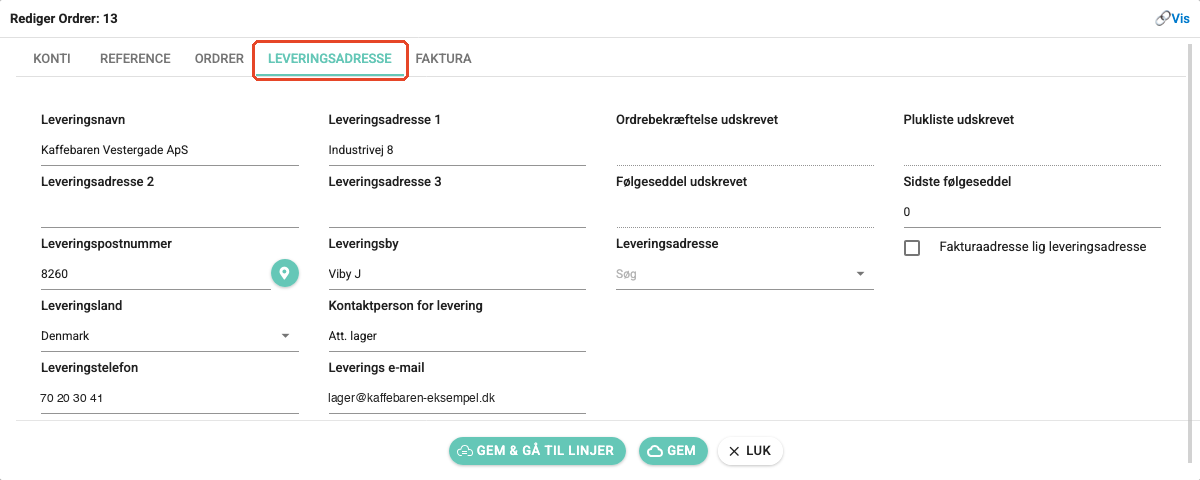
Click the pencil icon next to the sales order to open it. The online store’s order number appears in the “Your Ref.” field on the “Reference” tab, and the shipping address appears on the “Shipping Address” tab.
What is transferred?
- Customer: If the customer already exists with the same CVR number or email address, that customer record is used. Otherwise, a new one is created with name, address, email, phone number, CVR number, and EAN number. Companies in other EU countries with a valid VAT number are assigned the EU VAT zone. See “Reverse Charge” and “VAT Number Check.”
- Sales order: the online store’s order number in your reference field, the payment method and the customer’s comment in the remarks field, the payment terms, the currency and exchange rate, and the shipping address.
- Item lines: item number, item name with variant, quantity, and price. Prices for consumer orders include VAT; prices for business orders do not.
- Discounts: discount code, promotional discount, and points discount, each as a separate negative line item. If the order contains items with different VAT rates, the discount is split according to the VAT rates.
- Shipping: one line with the name of the shipping method, even when shipping is free.
Once the lines are saved, the app compares the total in Uniconta with the order total. This ensures that nothing has been left out along the way.
When is an order transferred?
- At the time you selected in “Transfer Order.” The transfer typically takes place within a few minutes.
- Only once. If the order’s status changes afterward, nothing further happens in Uniconta.
- Canceled orders are not transferred.
- Orders from before you installed the app are not transferred automatically. If you want to include a specific one, use the label “uniconta-pending” as described below.
- A credit will be transferred once the original order has been transferred. It becomes a sales order with a negative quantity, and when you invoice it in Uniconta, it becomes a credit memo. See also Credit Memos and Refunds.
View the order status in Shoporama
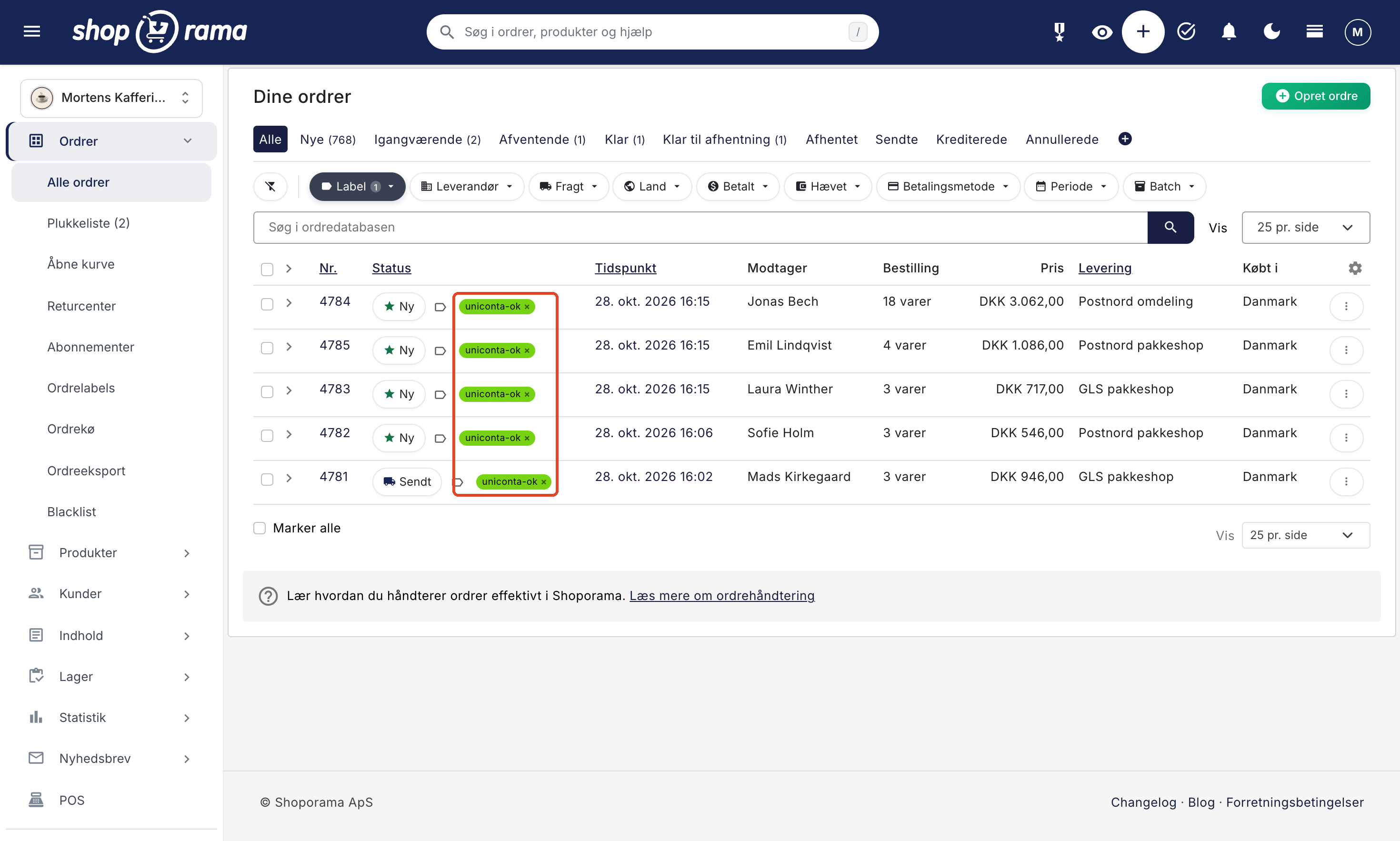
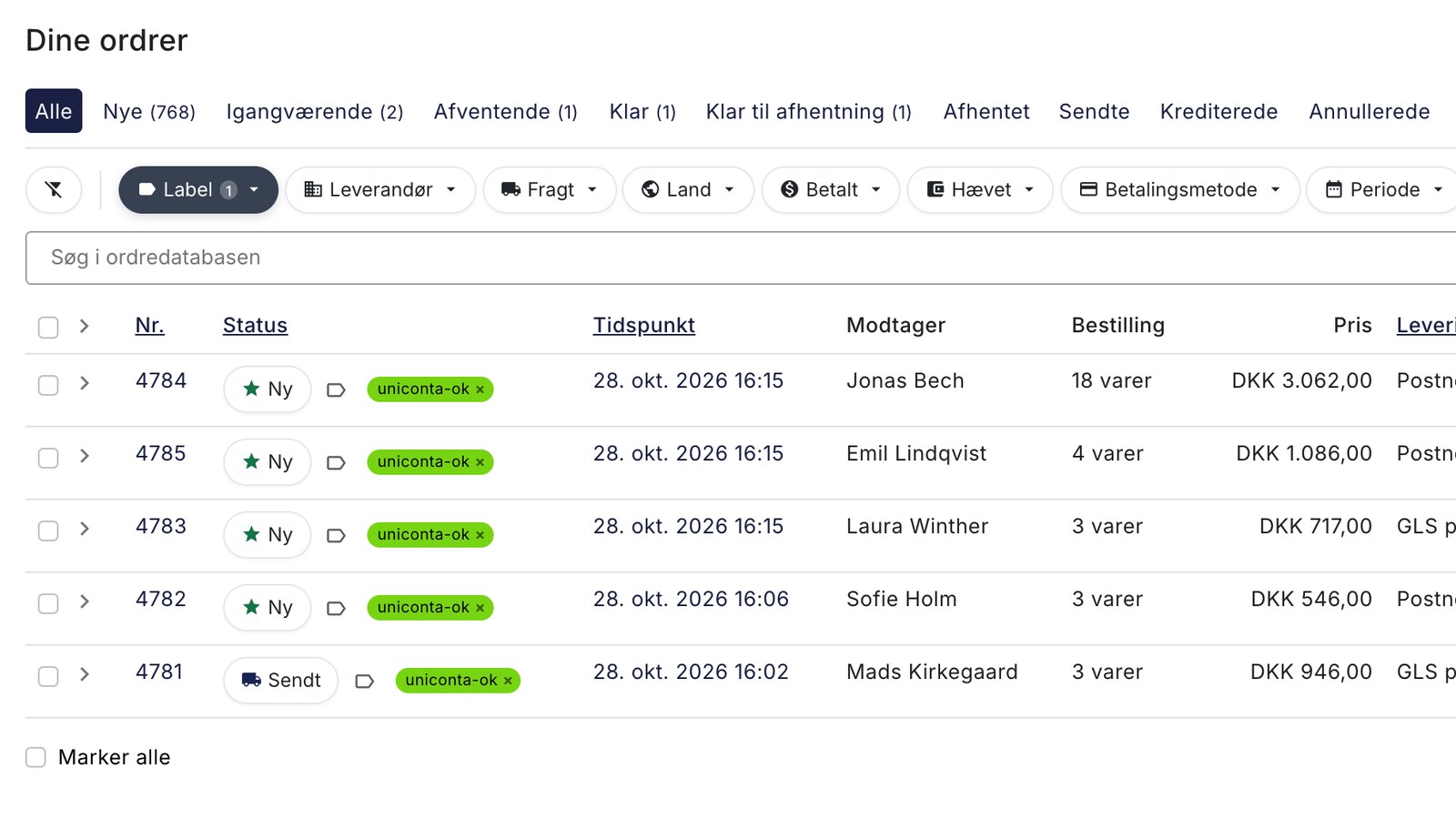
The app creates three order labels in your shop: uniconta-ok (transferred), uniconta-failed (failed), and uniconta-pending (transfer again). In the order list, you can immediately see which orders have been transferred. Read more about labels in Order Labels.
Open the order and click System Notes to expand the notes. Here you’ll find the sales order number in Uniconta, the customer, and the amount.
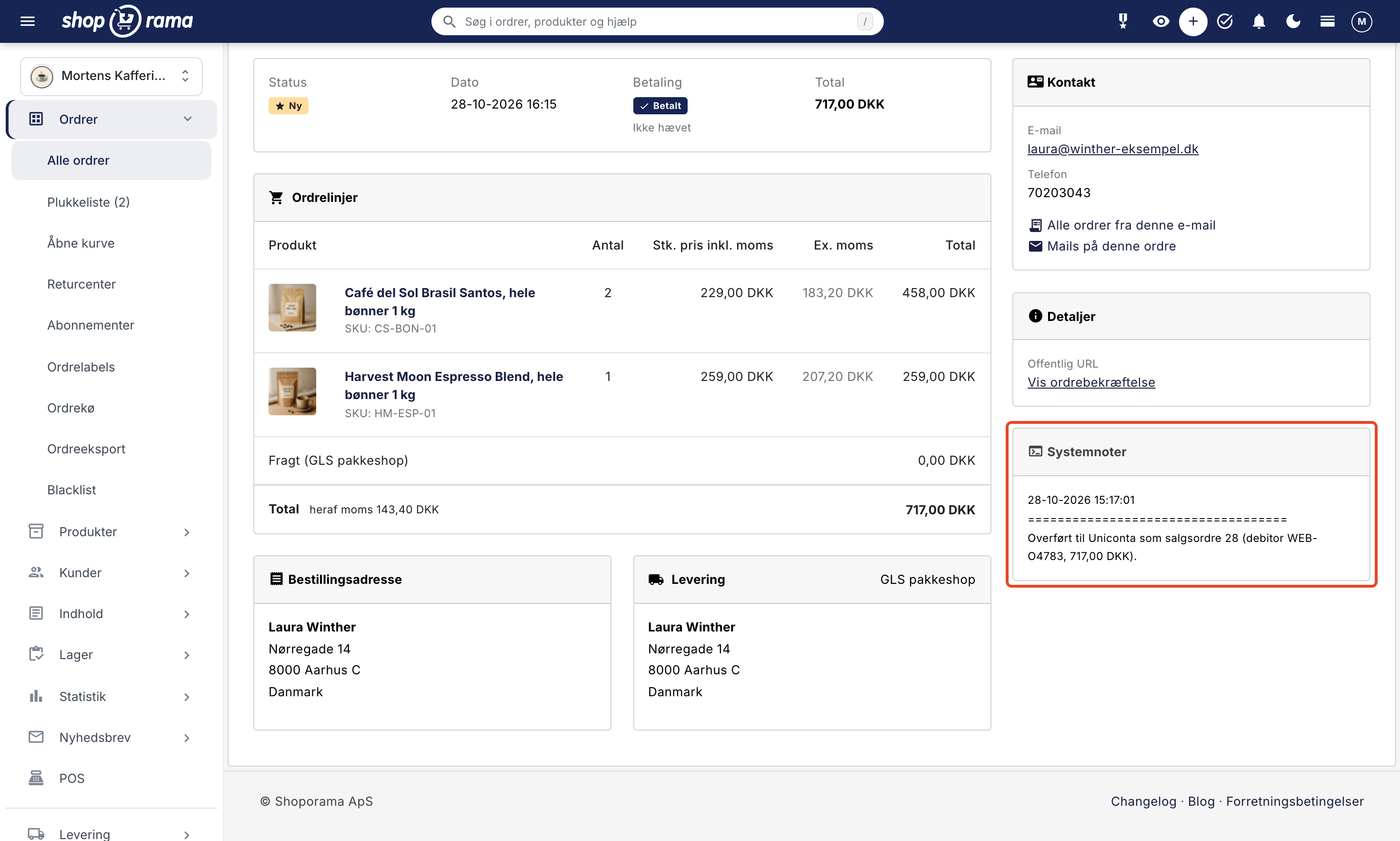
Errors and Retries
If a transfer fails, the order is labeled “uniconta-failed” and a note describing the error appears under “System Notes.” The app does not retry automatically, because each attempt uses a call to Uniconta. Here’s how to resend the order:
- Correct the error. For example, if it says that Uniconta rejected the login, check the company ID, username, and password in the app.
- Go to the order list, click the label icon “Assign/Remove Labels ” next to the order, and select “uniconta-pending.”
- After a few minutes, the label will change to “uniconta-ok.” If it fails again, the order will be marked as “uniconta-failed” and a new note will appear detailing the error.
If the order has already been transferred, the app will not create another sales order. Instead, you’ll receive a note indicating which sales order it was converted into. If the total in Uniconta differs from the order total, the sales order has been created, but the order will be marked as “uniconta-failed.” Correct the sales order in Uniconta, and then remove the label yourself. “uniconta-pending” does not create a new sales order for an order that has already been transferred.
API Calls in Uniconta
Uniconta’s subscription includes 5,000 API calls per user per day. If you use more than that, the calls become slower, and according to Uniconta, solutions requiring more calls incur additional costs. The app is designed to use as few calls as possible:
- 2 calls per order when the customer is known, and 3–4 when the customer is new.
- 0 calls when a transferred order changes status.
- A maximum of 4 calls per day for the lists on the setup page.
- 1–2 additional calls when “Create Missing Item Numbers” in Uniconta is enabled and the order contains item numbers the app doesn’t recognize.
Even 500 orders a day therefore typically result in 1,000–2,000 calls. The “Connection” field in the app shows how many calls the app has used today.
The app does not
- Does not generate invoices. You invoice the sales order in Uniconta.
- Does not post payments. You handle payments and reconciliation in Uniconta.
- Does not manage inventory. Items created by the app are non-inventory services, and inventory levels are not retrieved. If the item number corresponds to an inventory item in Uniconta, Uniconta automatically deducts inventory when you invoice the sales order.
- Does not update the sales order. If you edit the order in Shoporama after the transfer, you must also edit the sales order in Uniconta.
- Does not select OSS VAT codes. If you sell to private customers in other EU countries using their VAT rates, the order will include a note to verify the VAT code in Uniconta.
Frequently Asked Questions
Can an order be transferred to Uniconta twice?
No. The app remembers which orders it has transferred and does not create a new sales order, even if you mark an order that has already been transferred as “Uniconta-pending.” If an order appears in the app multiple times at once—for example, due to a payment or status change—only the first instance is transferred.
Why isn’t the shipping address listed on the sales order?
The “Delivery Address” feature is not enabled in Uniconta. Enable it under “Company,” “Maintenance,” “Enable/Disable Features” on the “Orders” tab, then log out and back in. Orders that were transferred earlier will not have the address added retroactively.
What happens to item numbers that don’t exist in Uniconta?
The line appears as a text line with the same text, quantity, and price, and the order receives a note listing the item numbers. If you’d rather have the items created, enable “Create Missing Item Numbers in Uniconta.” They will then be created as services without inventory.
What happens if I uninstall the app?
Your login and settings will be deleted, but the app remembers which orders it has transferred. If you reinstall it, the same orders won’t be transferred again. Labels and notes will remain on the orders.
What VAT code is assigned to line items with 25% VAT?
The app only assigns a tax code to line items without tax. Line items with tax are assigned the tax code listed for the item or customer group in Uniconta, typically U25.
Does the customer receive an email when the order is transferred?
No. The app does not send any emails. It creates the sales order in Uniconta and adds a label and note to the order in Shoporama.
Can multiple online stores use the same accounting setup in Uniconta?
Yes. Install the app in each online store and assign each store its own account number under “Account Number for New Customers,” e.g., WEB- and STORE2-. This ensures that two stores cannot assign the same account number to different customers. If the online stores log in with the same Uniconta user, they also share the 5,000 calls per day. The “Connection” field only shows the calls from the online store you’re currently in.
A new customer isn’t on the list in Uniconta. Hasn’t it been created?
Yes, but Uniconta’s web client remembers customers and products until you log in again. Log out and back in, and it will appear there.
Read more
Related articles
Order labels
Guide to order labels in Shoporama. Create color-coded labels to organize and categorize your orders and set up automatic allocation based on...
Credit notes and refunds
Complete guide to credit notes and refunds in Shoporama, including partial refunds, full credit notes and transfer to accounting systems.
Reverse charge og VIES-validering: sælg uden moms til erhverv i EU
B2B sales in Shoporama
How to sell to businesses (B2B) and public institutions (B2G) in Shoporama with CVR, EAN and differentiated VAT.
Related features
B2B Online Store with Uniconta
Sell to businesses and import the orders into Uniconta as sales orders with CVR, EAN, and prices excluding VAT. Here’s how Shoporama’s free...
Orders from the online store are now automatically transferred to Uniconta
New on Shoporama: A free app sends orders from the online store to Uniconta as sales orders, including customer information, item lines, discounts,...
Uniconta
Uniconta is a Danish accounting and ERP system. See what it's used for and how orders from your online store are imported as sales orders using...
Uniconta Integration
Shoporama's Uniconta app transfers orders as sales orders, finds or creates the customer, and displays the status using labels. See what the app...
Online Store with Uniconta
Connect your online store to Uniconta using Shoporama's free app. Orders are converted into sales orders, the customer is created or recognized as...
Accounting programs
Automatic transfer of orders to e-conomic, Dinero, Billys Billing, or Uniconta. Customers, line items, shipping, and sales tax are included without...