Split Delivery: Ship part of the order now and the rest later
Can't you ship the entire order at once? With split shipping, you ship what you have in stock, and the rest will be shipped when it arrives. The order will be consolidated into one shipment, with a single invoice and a single payment.
Nogle gange kan du ikke sende hele ordren af sted på én gang. Der ligger to af de tre varer på hylden, den sidste er i restordre, og kunden venter. Indtil nu havde du to muligheder: sende det hele senere, eller sende det du havde og selv huske resten.
Med dellevering kan du sende en del af ordren nu og resten senere. Ordren bliver ét sted, med én pris, én faktura, og ét betalingsforhold. Shoporama holder styr på hvad der er sendt, hvad der mangler, og hvornår ordren er færdig.
Sådan sender du en del af en ordre
Du opretter en dellevering tre steder i admin:
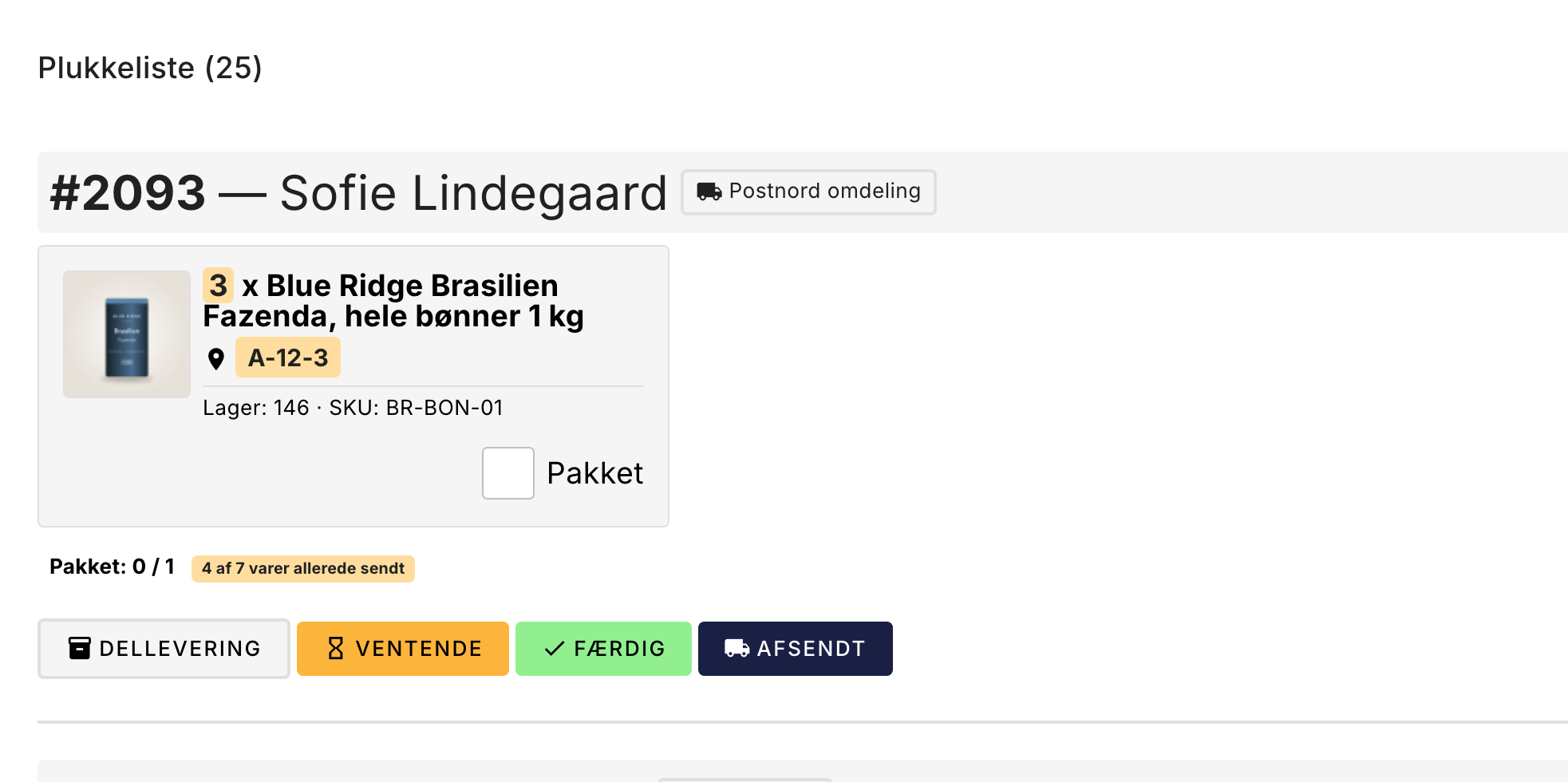
- Fra plukkelisten. Nederst på ordrekortet ligger knappen Dellevering ved siden af Ventende, Færdig, og Afsendt. Det er her de fleste delleveringer opstår, for det er ved pakkebordet du opdager at der mangler noget. Knappen vises kun, når der faktisk er mere end ét stk. tilbage at sende.
- Fra ordrelisten. Tryk på de tre prikker yderst til højre på ordren og vælg Dellevering. Punktet vises kun, mens ordren står som Ny, Igang, Afventer, eller Klar — er den allerede sendt, er der ikke mere at dele op. Laver du mange delleveringer, kan du vælge Dellevering som ikon i ordrerækken under Tilpas visning, som du åbner med tandhjulet yderst til højre i ordrelistens overskriftsrække. Så står det direkte i rækken i stedet for under de tre prikker.
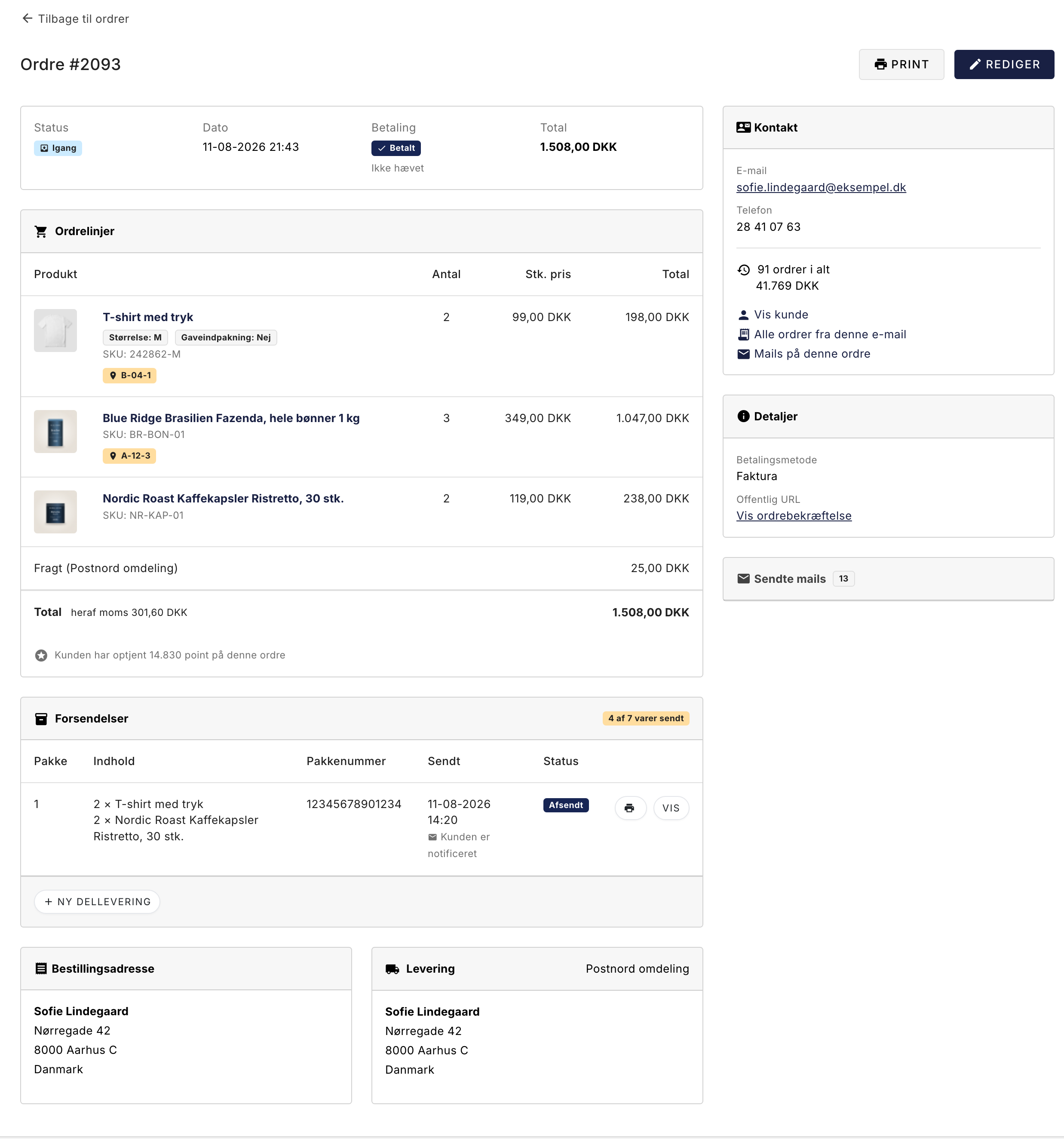
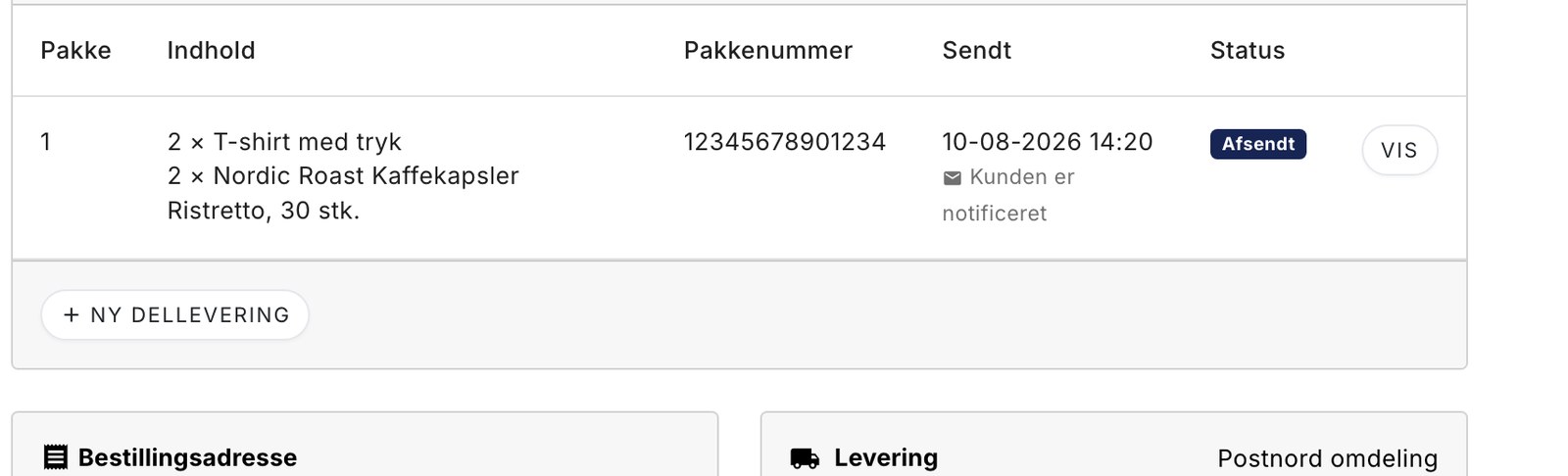
- Fra ordren. Har ordren allerede mindst én pakke, ligger knappen Ny dellevering nederst i Forsendelser-kortet.
Du lander på siden Ny dellevering, hvor du vælger hvad der skal med i pakken. Antallene er på forhånd udfyldt med alt der mangler, så du skruer bare ned for det du ikke har på hylden.
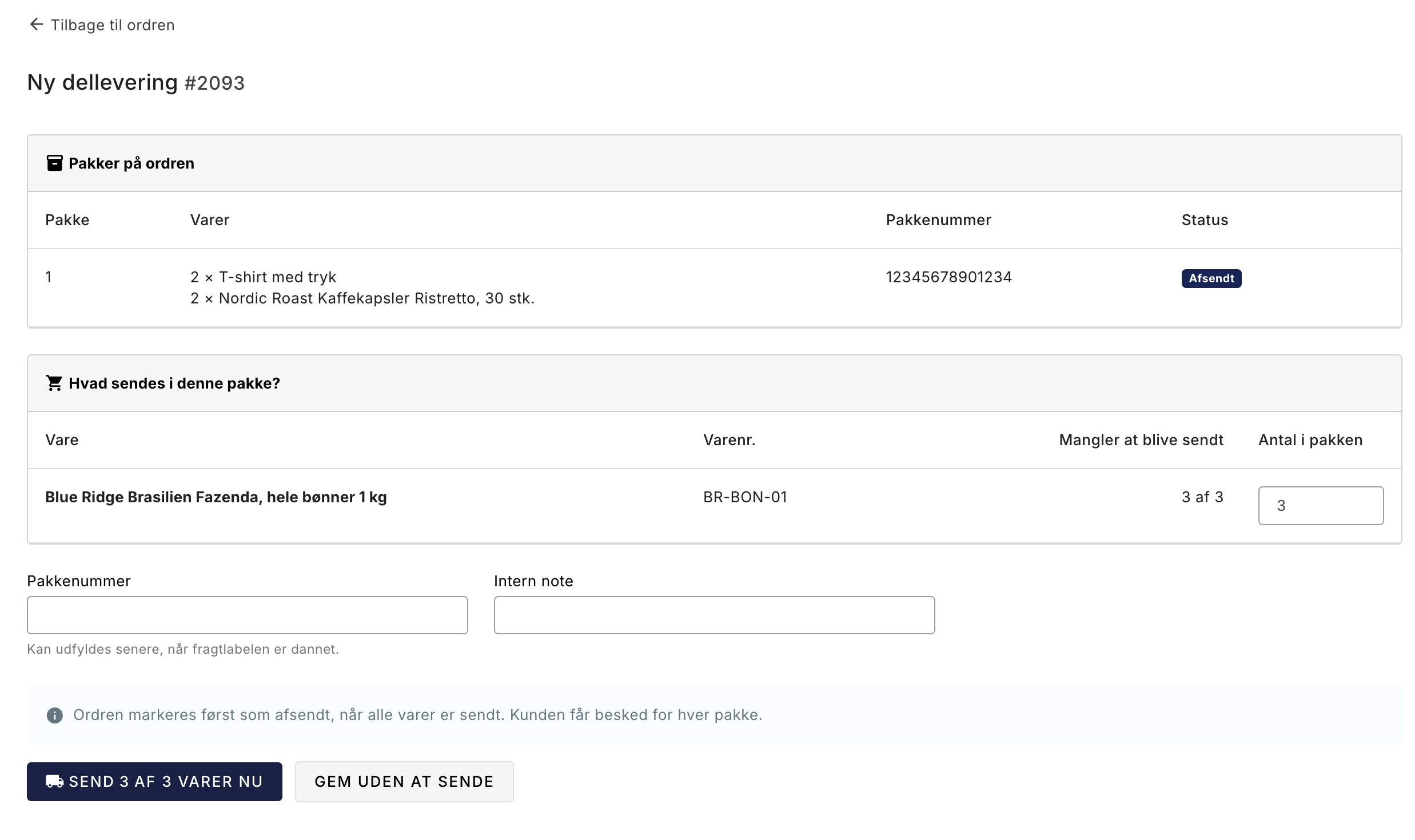
Herefter har du to valg:
- Send X af Y varer nu markerer pakken som afsendt med det samme, og kunden får besked.
- Gem uden at sende gemmer pakken som klargjort. Brug den hvis du pakker i dag, men først kører til fragtmanden i morgen. Du kan stadig rette i den bagefter.
Pakkenummeret kan du udfylde med det samme eller vente med, til fragtlabelen er dannet. Har du GLS eller PostNord sat op, kan du bestille labelen direkte fra pakken, og så bliver nummeret sat automatisk.
Hvad sker der med ordren
En dellevering sætter ikke ordren til Sendt. Står ordren som Ny, rykker den til Igang, så den bliver liggende i plukkelisten. Har du selv sat den til Afventer eller Klar, bliver den stående der. Først når den sidste vare er afsendt, skifter den automatisk til Sendt. Det er den vigtigste detalje i hele funktionen, for det er statusskiftet til Sendt der udløser resten:
- Fakturanummeret tildeles
- Betalingen hæves, hvis du har sat betaling til at blive hævet ved afsendelse
- Ordren overføres til dit regnskabsprogram, hvis du overfører ved afsendelse
Alt det sker altså præcis én gang, ved den sidste pakke, ligesom på en helt almindelig ordre. Bare senere. Der bliver aldrig to fakturaer eller to betalingstræk ud af én ordre.
Sådan ser du det i ordrelisten
Delvist afsendte ordrer er mærket direkte i listen med 4 af 7 varer sendt. Tallet tæller styk og ikke varelinjer, så en ordre med én linje på fem stykker kan sagtens være delvist sendt. Er ordren færdig og kom i mere end én pakke, står der i stedet Sendt i 2 pakker.
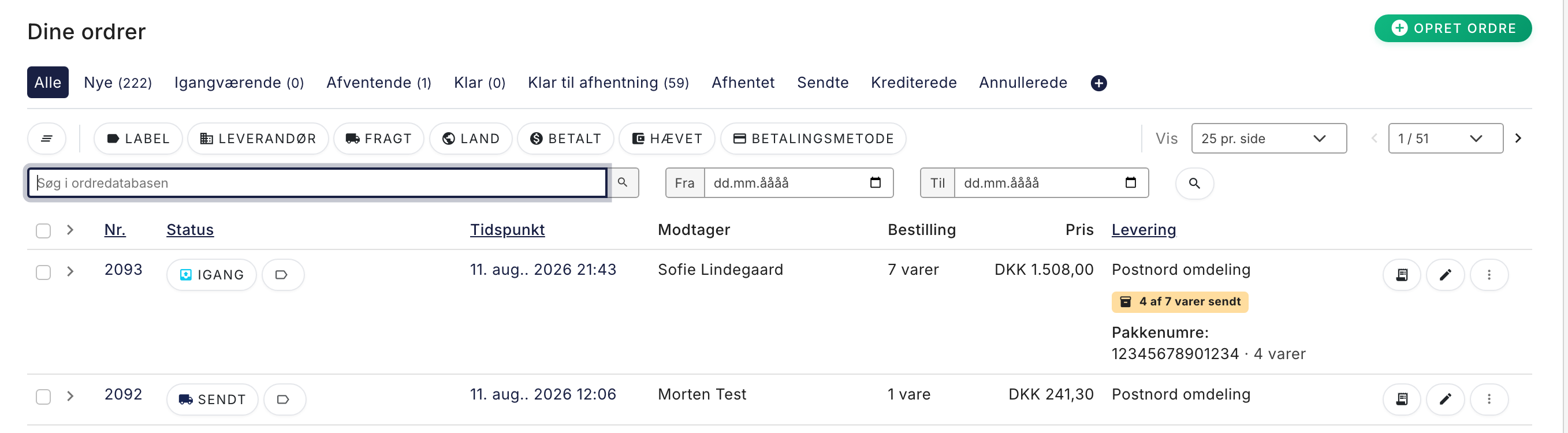
Vil du se dem samlet, kan du filtrere: tryk på Fragt i filterrækken over ordrelisten, og vælg Kun delvist afsendte under Dellevering.
Hvad kunden ser
Kunden får en mail for hver pakke, så de ved hvad der er på vej og hvad der kommer senere:
- Mangler der stadig noget: "En del af din ordre #2093 hos Mortens Kafferisteri er afsendt"
- Er det den sidste pakke: "Den sidste del af din ordre #2093 hos Mortens Kafferisteri er afsendt"
Mailen viser kun den pågældende pakkes varer og den pågældende pakkes sporingsnummer. Kunden får altså ikke en liste over hele ordren hver gang, og de kan følge netop den pakke der er på vej.
Mailen sendes kun hvis fragtmetoden er sat op til at sende besked ved afsendelse. Det styrer du under Levering på den enkelte fragtmetode, præcis som hidtil.
Har du selv skrevet en fast tekst i feltet Ordreafsendelses emne under Indstillinger, bruges den på alle afsendelsesmails, også delleveringernes. Så står der det samme i emnefeltet på første og sidste pakke. Lad feltet stå tomt, hvis du vil have de to forskellige emnelinjer ovenfor.
Bruger du et af Shoporamas indbyggede temaer, er teksten på plads. Har du fået bygget dit eget tema, skal mailskabelonen opdateres, før den kan skelne mellem en delvis og en fuld afsendelse. Indtil da sender temaet den almindelige afsendelsesmail med alle ordrens varer, én gang pr. pakke. Du behøver ikke selv opdage det: første gang en dellevering sender en mail fra et tema der ikke kender funktionen, skriver Shoporama en besked til dig under Beskeder i admin, så du kan se hvor mange kunder der har fået den forkerte mail. Skriv til support@shoporama.dk, så hjælper vi med at få skabelonen på plads.
Pakkelabels
Har du GLS eller PostNord sat op, kan du bestille en fragtlabel direkte på pakken. Labelen dannes med pakkens vægt og indhold, ikke hele ordrens, så du ikke betaler for varer der ikke ligger i kassen. Ved forsendelser ud af EU bruges også kun pakkens varer til tolddeklarationen.
DAO og Burd understøtter det ikke endnu. Prøver du at bestille en label hos dem på en ordre med delleveringer, sker der ikke noget, og du får en besked i admin om at bruge GLS eller PostNord i stedet, eller skrive pakkenummeret ind manuelt. Grunden er at de to integrationer kun kan håndtere ét pakkenummer pr. ordre og ville overskrive det første.
Følgeseddel til pakken
Hver pakke har sin egen følgeseddel. Tryk på printer-ikonet ud for pakken, enten i Forsendelser-kortet på ordren eller på dellevering-siden, så åbnes en seddel der kun viser denne pakkes varer.
Sedlen er mærket Pakke 1, Pakke 2 og så videre, og skriver om resten kommer senere eller om det var den sidste del. Beløbene står ikke på en pakke-seddel, for ordrens total passer ikke til en kasse der kun indeholder en del af varerne. I stedet henvises der til fakturaen for ordren.
Ordrens almindelige følgeseddel findes stadig under de tre prikker i ordrelisten, eller som ikon i rækken, hvis du har valgt Print følgeseddel under Tilpas visning. Den viser hele ordren som hidtil. Bruger du ikke delleveringer, mærker du ingen forskel.
Har du dit eget tema, gælder det samme som for mailen: temaets følgeseddel skal opdateres, før den kan skelne. Indtil da printer den hele ordrens varer, og du får en besked under Beskeder i admin første gang det sker.
Rette, slette, eller fortryde
- Mens pakken er klargjort kan du frit rette i den. Tryk på Ret ud for pakken, skru op eller ned for antallene, eller tryk Slet pakken.
- Når pakken er afsendt kan den ikke rettes. Den er ude af døren, og en rettelse ville gøre registreringen usand. Trykker du Vis, kan du i stedet annullere pakken, hvorefter dens varer igen tæller som ikke afsendt og kan pakkes om.
Kunden får ikke besked, når du annullerer en pakke, og et pakkenummer der allerede er dannet, bliver stående på ordren.
Godt at vide
- Lageret trækkes ved købet, som altid. En dellevering flytter ikke lager, den registrerer bare hvad der er sendt.
- Plukkelisten viser kun det der mangler. Har du gemt en pakke uden at sende den, bliver varerne stående på plukkelisten med en markering om at de allerede ligger i en pakke, så de ikke bliver plukket to gange. Ordren forlader først listen, når alt er ude af døren. Venter den på en restvare der er udsolgt, dukker den op igen af sig selv den dag varen er hjemme, så du ikke skal føre din egen liste.
- Der er ingen indstilling der skal slås til. Funktionen er der bare, og en ordre du ikke opretter delleveringer på, opfører sig præcis som før.
- Der er ingen grænse for hvor mange pakker en ordre må sendes i.
- Pantlinjer kan ikke lægges i en pakke og springes over, når du vælger varer. De tæller heller ikke med i "4 af 7 varer sendt", så en ordre med pant bliver færdig, når de fysiske varer er afsendt.
- Sætter du ordren manuelt til Sendt, mens der ligger klargjorte pakker, bliver de automatisk markeret som afsendt. Dellevering er en registrering, ikke en spærre.
Ofte stillede spørgsmål
Hvornår bliver ordren faktureret, og hvornår trækkes pengene?
Begge dele sker først, når den sidste pakke er afsendt og ordren skifter til Sendt. De første pakker udløser ingen bogføring, kun en mail til kunden. Ordren beholder én pris og én faktura hele vejen igennem, uanset hvor mange pakker den er sendt i.
Første pakke ryger af sted den 30., resten først i næste måned. Hvilken måned lander ordren i?
Den måned hvor den sidste pakke sendes, for det er dér fakturaen dannes og ordren overføres til regnskabet. Frem til da står ordren som Igang og er ikke bogført. Har du mange delleveringer hen over et månedsskifte, er det værd at være opmærksom på.
Jeg står ved pakkebordet og har kun 2 af de 3 varer. Hvad gør jeg helt konkret?
Bliv i plukkelisten og tryk på Dellevering nederst på ordrekortet. Vælg hvor mange du sender af sted nu, og tryk Send. Resten bliver stående på ordren, kunden får automatisk besked om at en del er på vej, og ordren dukker op i plukkelisten igen, når restvaren er på lager.
Hvad ligger der af papir i kassen, når jeg kun sender det halve?
En følgeseddel for netop den pakke. Den lister kun de varer der rent faktisk er i kassen, og er mærket "Pakke 1 · resten sendes senere", så modtageren ikke leder efter noget der ikke er der. Du printer den fra printer-ikonet ud for pakken på ordren.
Får kunden besked hver gang, eller tror de bare der mangler noget i pakken?
Kunden får en mail for hver pakke, og der står tydeligt at det er en del af ordren, og senere at det er den sidste del. De ser stadig kun én pris og én faktura, så der er ikke to betalinger at blive forvirret over.
Hvordan ser jeg, om en ordre kun er sendt delvist, uden at åbne den?
Det står direkte i ordrelisten som 4 af 7 varer sendt. Vil du se dem samlet, kan du filtrere på Kun delvist afsendte under Fragt-filteret.
Hvad hvis jeg kommer til at trykke Dellevering på en ordre, hvor alt er på lager?
Det er ikke farligt. Så længe pakken ikke er sendt, kan du rette den eller slette den helt. Er den allerede markeret som afsendt, kan du annullere den, og varerne tæller igen som ikke afsendt. Kunden bliver hverken faktureret eller trukket af den grund.
Kan to pakkere komme til at sende den samme vare to gange?
Nej. Antallet du kan lægge i en pakke, kan aldrig overstige det der reelt mangler at blive sendt, og det tjekkes også når du gemmer. Har din kollega lige sendt de sidste to, kan du ikke sende dem igen.
Betaler kunden fragt to gange, når ordren sendes i to pakker?
Nej. Kunden betaler den fragt der blev valgt ved bestillingen, én gang. Bestiller du en fragtlabel til pakke nummer to, er det en omkostning du selv bærer. Det er værd at have med i overvejelsen, hvis du ofte deler ordrer op.
Hvad gør jeg, hvis restvaren aldrig kommer hjem?
Så skal ordren rettes til, så den svarer til det kunden faktisk får. Fjern eller ret varelinjen på ordren, og sæt derefter ordren til Sendt. Sætter du den blot til Sendt uden at rette linjen, bliver kunden faktureret for hele det oprindelige beløb, inklusive den vare de aldrig modtog.
Kan jeg se hvilken pakke der er nået frem til kunden?
Leveringsstatus og pakkeshop-afhentning gemmes pr. ordre, ikke pr. pakke. Sender du en ordre i flere pakker, viser statussen derfor kun den ene. Sporingsnumrene ligger til gengæld på hver sin pakke, så du kan altid slå den enkelte pakke op hos fragtfirmaet.
Til dig der bygger integrationer
Delleveringer findes også i REST-API'et som et underpunkt til ordren, på /order/{id}/shipment, hvor du kan hente, oprette, rette, afsende, og slette pakker. Ordrens eget svar indeholder desuden en shipments-liste, når den har pakker. Der er webhooks på shipment_created og shipment_sent under gruppen order. Se den fulde beskrivelse i API-dokumentationen.
Related articles
Manage your orders in Shoporama
Guide to managing orders in Shoporama - from receiving to shipping and status updates.
Pick list
How to use the picking list in Shoporama: the queue, shelf location for each item, scanning with a barcode scanner, printing picking slips, and the...
View emails sent to a customer from your shop
Guide to see which emails a customer has received in connection with an order.
Print PostNord parcel labels from Shoporama
Guide to setting up PostNord integration and creating parcel labels directly from the Shoporama admin.
Følg levering og pakkeshop-afhentning i Shoporama
Shoporama viser leveringsstatus direkte i ordrelisten, både for pakkeshop og levering til adressen. Se om pakken er undervejs, klar til afhentning,...
Print shipping labels without an order
Create and print shipping labels without first placing an order, using your own account with PostNord, GLS, or DAO. Create labels for multiple...
Related features
Partial Delivery
A split shipment occurs when an order is shipped in multiple shipments because not all items can be shipped at the same time. Find out what this...
Partial delivery: Send what you have now, and the rest when it arrives home
Order status
Order status shows where an order is in the process. Read about order statuses, automatic emails and order management in eCommerce.
Backorder
A backorder is an item that has been ordered but is not in stock and will be delivered at a later date. Learn how backorders occur and how to ship...
Send part of the order now and the rest later
Was an item missing from the shelf? Now you can ship what you have, and the rest will be shipped when it arrives. One order, one invoice, and the...
Fulfillment
Fulfillment covers the entire order process from order to delivery. Read about fulfillment models, 3PL and order management.
Your first order: pack, ship, and collect payment
Manage your first order in Shoporama: order status, picking list, partial shipments, shipping labels, payment refunds, and unpaid orders.