Free Shipping Bar and Suggestions for Items in the Cart
Show customers how much more they need to spend to qualify for free shipping by displaying a bar in the cart and on the checkout page, and suggest items that qualify for free shipping with just one click. Here’s how to enable these two theme settings and how to select the suggestions.
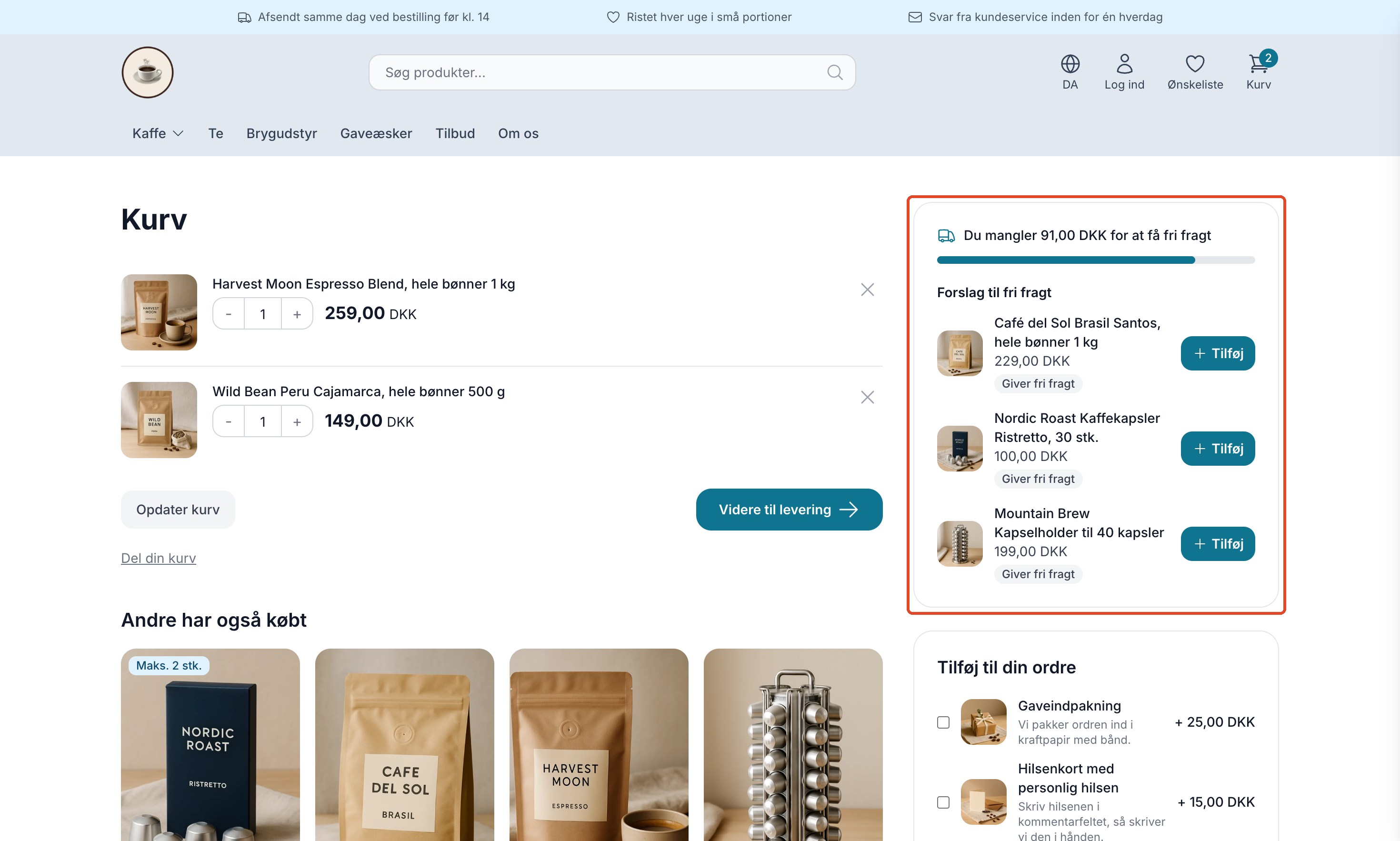
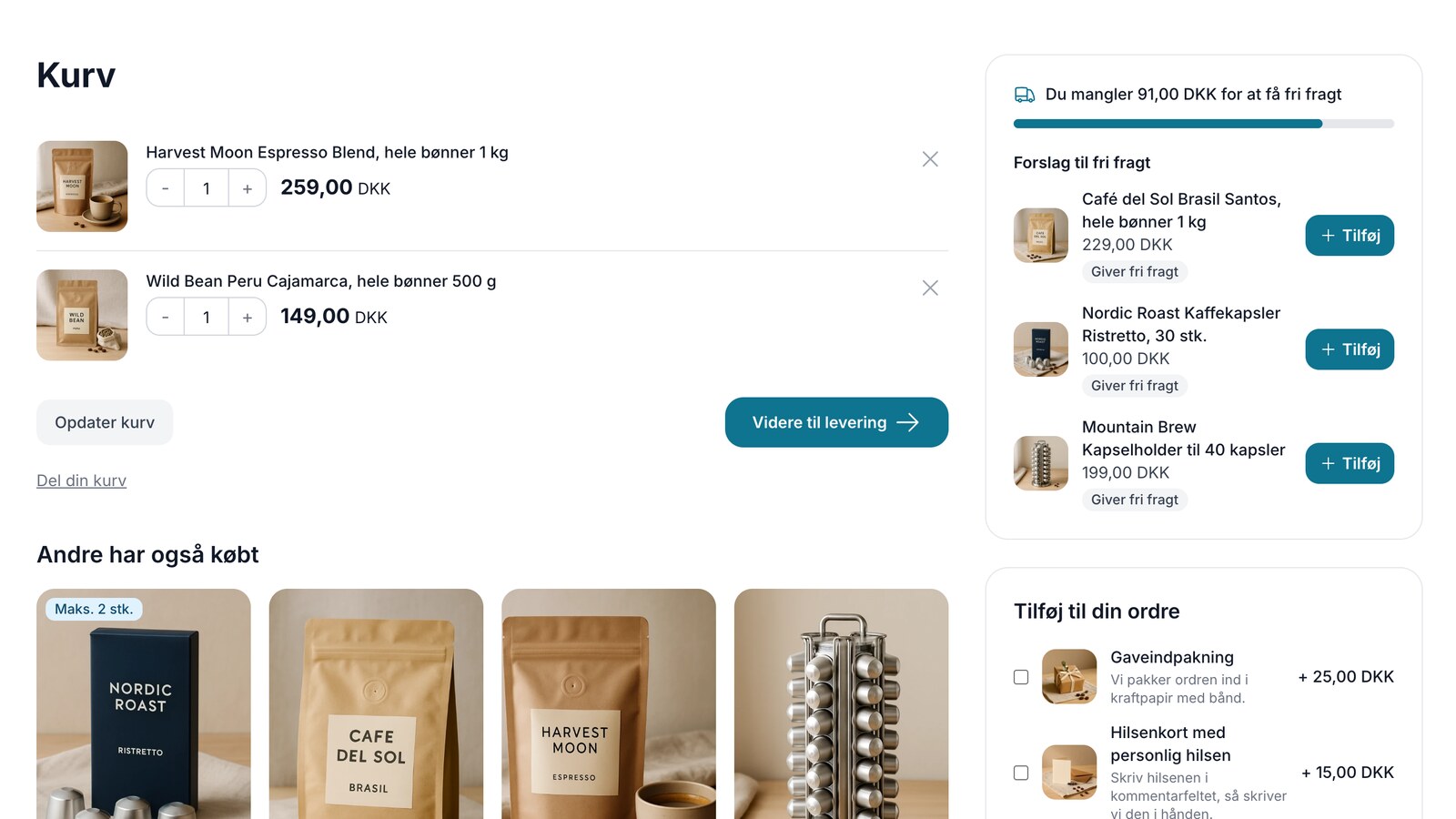
With two theme settings, you can show customers how much more they need to spend to qualify for free shipping and suggest items that qualify for free shipping. The card appears in the cart and on the checkout page with a progress bar that fills up, along with up to three items that the customer can add to the cart with a single click. It’s a simple way to help customers who are close to the threshold take that final step.
Why help the customer reach the threshold?
Free shipping over a certain amount works best when the customer knows how much more they need to spend. Without assistance, the customer has to figure out what’s missing on their own and search the store for an item that brings the total to the right amount. Some would rather pay for shipping, while others abandon the purchase altogether. The card makes it easy for the customer:
- The customer sees the remaining amount right away, and the progress bar shows how close they are.
- The suggestions are items that your customers actually buy together with what’s already in the cart, or your best-selling items. If that’s not enough, the suggestions are items from the same category in the right price range—not random items.
- Items that alone qualify for free shipping are listed first, and items that cost significantly more than the remaining amount needed are never suggested. The customer makes a small additional purchase, not a new order.
- The customer stays in the cart or at the checkout step while the item is added and doesn’t lose their place in the purchase process.
The goal is for more shopping carts to reach the threshold, so that the average order value increases and covers the shipping costs you pay yourself. How much of a difference this makes depends on your threshold, your prices, and your product selection.
Before you start: there must be a threshold for free shipping
The map uses the same threshold as the checkout, namely “Free shipping over.” You set this for the country under Delivery → Countries in the Shipping tab, or for the individual shipping method under Delivery → Shipping Methods in the Settings tab. If the shipping method has its own threshold, it takes precedence over the country’s. If there is no threshold, the card won’t appear, even if the settings are enabled. Here’s how to set the threshold: Free shipping over a specific amount.
How to enable the bar and suggestions
- Go to Design → Theme Settings.
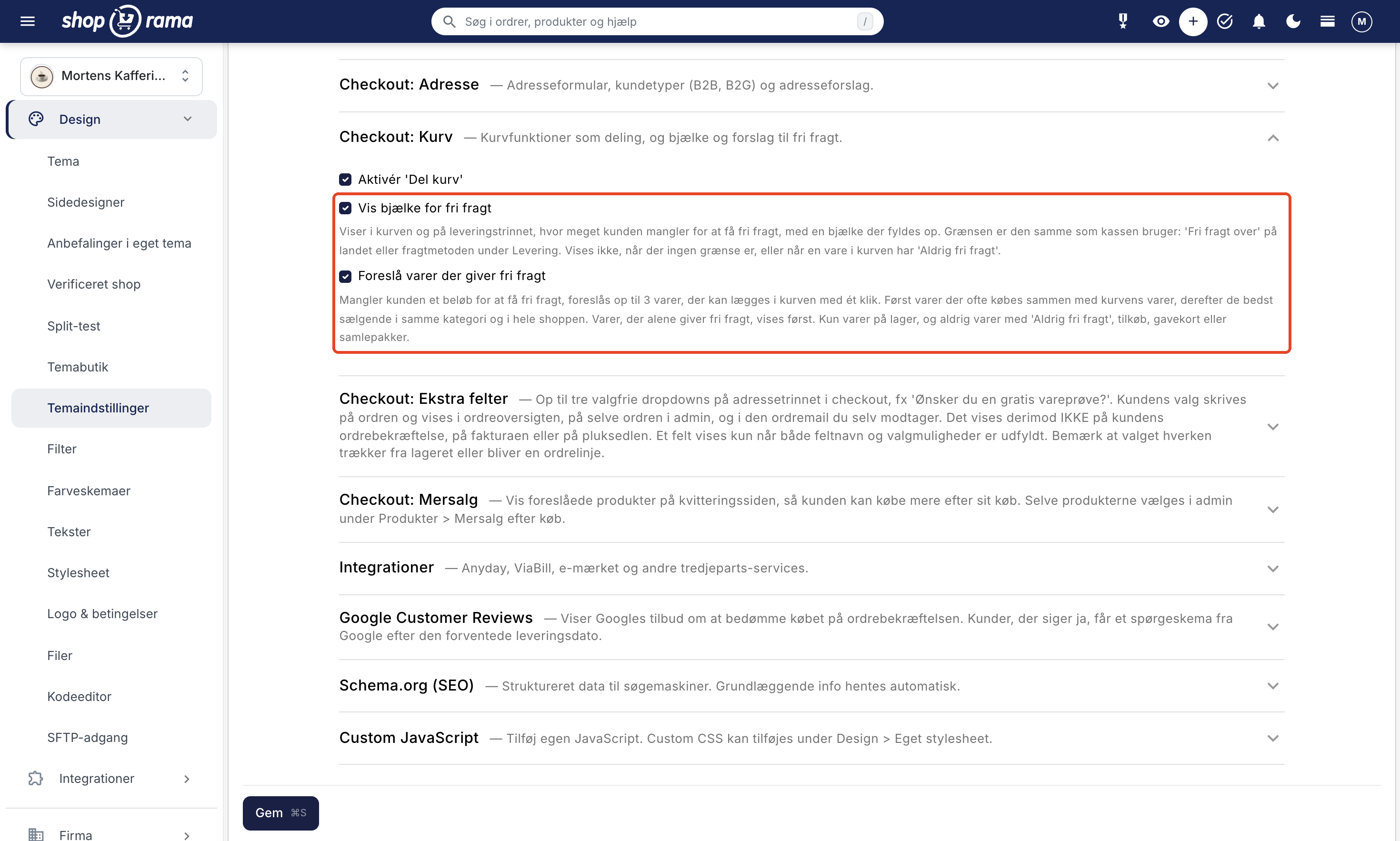
- Find the group with the cart settings. It’s named slightly differently in the themes—see the table below. In Montana and MontanaB2B, click the group to expand it, or type “free shipping” in the Search settings field at the top of the page.
- Check the box for “Show free shipping bar,” “Suggest items that qualify for free shipping,” or both.
- Click Save.
| Theme | Group | Bar | Suggestions |
|---|---|---|---|
| Montana, MontanaB2B, and DelawareDK | Checkout: Cart | Show free shipping bar | Suggest items that qualify for free shipping |
| Delaware (English) | Checkout: Cart | Enable Free Shipping Progress Bar | Enable Free Shipping Suggestions |
| Alaska 2 and California | Checkout | Show free shipping bar | Suggest items that qualify for free shipping |
Both settings are turned off by default, so your store will look the same as before until you turn them on yourself. They work independently:
- Bar only: The card displays the text and the bar, but no suggestions.
- Suggestions only: The card displays the text and suggestions, but no bar.
- Both: The card looks like the image at the top.
If you can’t find the fields, your store is running a theme that doesn’t support this feature: an older theme, a purchased theme, your own theme, or a copy of one of the built-in themes. A copy doesn’t automatically receive new features. See the section for developers further down. Read more about theme settings in general in Theme Settings: How to Customize Your Theme.
Where is the card displayed?
- In the cart. In Montana and MontanaB2B, the card appears at the top of the right-hand column, above the “Add to Your Order” box, if you sell add-ons. On mobile, it appears directly below the items in the cart. In Delaware and DelawareDK, it appears in the summary next to the items, and on mobile, below the items. In Alaska2 and California, it appears above the cart.
- At the shipping step. The card appears above the form for that step in all themes. The limit may depend on the shipping method, so the card updates when the customer selects a different shipping method. If the store has only one shipping method and one payment method, the checkout can skip the shipping step, and the customer will only see the card in the cart.
The card does not appear on product pages or in the small shopping cart that slides out from the side. Montana and MontanaB2B already have a small bar in the small shopping cart with the text “Only X away from free shipping!”. It’s still there and looks the same as before, but now calculates according to the same rules as the new card. It is therefore also hidden when there is an item with “Never Free Shipping” in the cart.
The text on the card follows the theme’s language. X is the amount in the currency, e.g., 91.00 DKK:
- Montana, MontanaB2B, Alaska2, and California: “You need X to qualify for free shipping,” and when the threshold is reached, “You qualify for free shipping.” The suggestions appear under the heading “Suggestions for Free Shipping,” are labeled “Offers Free Shipping,” and the button is labeled “Add.”
- DelawareDK: The text is “You are X away from free shipping,” and when the threshold is reached, “You have qualified for free shipping.” The heading is “Suggestions for free shipping,” the label is “Offers free shipping,” and the button is labeled “Add.”
- Delaware: The text reads “You are X from free shipping,” and when the threshold is reached, “You are eligible for free shipping.” The heading is “Suggestions for free shipping,” the label is “Offers free shipping,” and the button is labeled “Add.”
How the Amount Is Calculated
The card calculates using exactly the same rules as the checkout, so what the customer sees in the cart matches the shipping price at checkout:
- The threshold is Free Shipping for the customer’s delivery country, or the shipping method’s own threshold. Before the customer selects a country and shipping method, the store’s default country and that country’s default shipping method are used, just as in the checkout.
- The amount is the shopping cart total after discounts. Shipping is not included.
- If you have set “Add-ons do not count toward the free shipping threshold ” to “Off” under Delivery → Shipping Rates in the “Add-ons and Free Shipping” tab, the amount is calculated without add-ons.
- Gift cards and other discount codes marked as “Do not include in free shipping threshold” are not deducted, so a gift card does not cost the customer the free shipping.
- If the customer uses points from the loyalty program, the value of the points is deducted.
- The cart total must exceed the threshold; it cannot be exactly equal to it. If the threshold is 499 DKK and the cart contains exactly 499 DKK worth of items, the total is 0.01 DKK short. The checkout will not offer free shipping in this case either.
- If the customer is shopping in a country with its own currency, the threshold is converted to that country’s currency, just as it is at checkout.
VAT, add-ons, and thresholds by country and shipping method are explained in more detail in “Free Shipping Above a Certain Amount ” and “Shipping Rates: How to Set Up Rates by Country and Amount.”
When is the card not displayed?
- When there is no free shipping threshold for the customer’s country or shipping method.
- When the selected shipping method has “Never Free Shipping.” If the customer selects a different method at the delivery step, the card will reappear if that method has a threshold.
- When an item in the cart has “Never Free Shipping.” In that case, the cart cannot qualify for free shipping above that amount, and the card would display a threshold the customer cannot reach.
- When the cart contains only add-ons, such as gift wrapping.
- When the cart is empty.
If the cart total exceeds the threshold, it will say “You have free shipping,” and no suggestions will be displayed. The same thing happens when the customer has a discount code that includes free shipping and is valid in the customer’s country, or is a member of the loyalty program, and you’ve enabled “Free Shipping for Members.” This still requires that there be a free shipping threshold; otherwise, the card won’t appear at all. Read more in “Create a Discount Code ” and “Loyalty Program.”
How Suggestions Are Selected
Suggestions are selected automatically based on your sales. The order is fixed and cannot be changed:
- Items that are frequently purchased together with the items in the cart, based on paid orders from the past year. The system considers up to five items in the cart, so an item purchased with multiple of them appears first.
- The best-selling items in the same category as one of the items in the cart, over the past 90 days.
- The store’s best-selling items over the past 90 days.
- If none of the items from the first three steps qualify for free shipping on their own, the system continues searching for items in the appropriate price range, including items that haven’t sold yet: first in the same category as the items in the cart, then throughout the entire store. Only items that qualify for free shipping are included here, and the cheapest ones are listed first so the customer spends as little extra as possible.
Within that order, the following applies:
- Items that qualify for free shipping on their own appear first and are labeled “Qualifies for free shipping.”
- Items that cost significantly more than the remaining amount needed are not suggested. The upper limit is the remaining amount plus the same amount again, or plus 30% of the threshold, whichever is greater. If the customer is 91 kr. short of a 499 kr. threshold, a suggested item can cost up to approximately 241 kr.
- If there aren’t enough items that qualify for free shipping, the cart is filled with cheaper items that bring the customer closer to the threshold. These items are not labeled.
- A maximum of three suggestions are displayed.
- The price shown is what the customer pays, including the customer group’s price, the country’s price and currency, sales tax, and any promotions on the item.
The first three steps are based on sales, so in a store with no paid orders, the suggestions come from the last step. This means that only items that qualify for free shipping are suggested. If there are no items in that price range, the card simply displays the text and the bar, if it’s enabled.
Items that are never suggested
- Items already in the cart.
- Sold-out items, unless “Allow Negative Inventory” is enabled for the item.
- Items marked “Never Free Shipping” because they would prevent the customer from qualifying for the free shipping they’re trying to achieve.
- Add-ons from an add-on profile, such as gift wrapping. These have their own section in the cart; see “Add-ons in the Cart and Checkout.”
- Gift cards.
- Bundles.
- Items with fields that the customer can fill out on the product page, such as a text field for a greeting. See “Let the customer fill out fields on the product.”
- Items that are offline or deleted, items hidden in the customer’s country using “Visible in Countries,” and, in a B2B store, items the customer does not have access to.
Products with variants
If a product has variants—such as color or grind—the suggestion will include a drop-down list where the customer selects the variant before clicking “Add.” The list starts with “Select” and the name of the variant, e.g., “Select Color” (in Delaware, “Choose”). Only variants in stock are included, or all variants if the product can be sold with negative inventory. If only one variant is available for purchase, it is selected automatically, and the drop-down list does not appear. If none of the variants are available for purchase, the product is not suggested.
Business Customers in MontanaB2B
In MontanaB2B, prices in the suggestions are displayed without sales tax, just as in the rest of the theme. However, the missing amount is calculated based on the cart total including sales tax, because that is what the checkout compares to the limit, and the text ends with “(incl. sales tax).” The “Offers free shipping” label is also calculated with tax: If the customer is 91 DKK short (including tax), an item priced at 80 DKK (excluding tax) qualifies for free shipping because it costs 100 DKK with 25% tax.
If the customer is shopping without VAT—for example, a business customer with a VAT number—the amount is calculated without VAT, and “(incl. VAT)” does not appear.
Delaware and DelawareDK: the old free shipping notice
Delaware and DelawareDK already have a text message about free shipping, which you can enable by selecting “Activate free shipping notice” in the “Shipping” group in DelawareDK, or “Enable Free Shipping Notice” in the “Shipping” group in Delaware. When the new card appears, the old message is hidden in the cart and on the checkout page so the customer doesn’t see the same information twice. On the product page and in the mini-cart, the old message appears as before if it’s enabled. Read more about this topic in the article on Delaware.
Get the most out of the bar and suggestions
- Set the threshold slightly above your average order value. If it’s much higher, the gap is too wide for a single additional purchase to push the customer over the top.
- Offer items in a low price range. Accessories, consumables, and smaller packages work well as suggestions because they fill a small gap without feeling like a new purchase.
- Find the optimal threshold through testing. With A/B testing of shipping rates, you can compare two different levels. The card will use the threshold the customer encounters during the test.
- Track the numbers. Keep an eye on the average order value in your statistics, both before and after you enable the card.
For developers: bar and suggestions in your own theme
This section is for those of you who build or maintain a theme. The settings and the card are only available in the built-in themes Montana, MontanaB2B, Delaware, DelawareDK, Alaska2, and California. In your own theme—or in a copy of one of these themes—you can implement the same functionality using pre-built features. These provide the spending threshold, the amount still needed to reach it, the customer’s progress toward the goal, and suggestions for available product variants, all calculated according to the same rules as the checkout process. This way, the theme itself doesn’t need to account for gift cards, points, or “Never Free Shipping.” The templates in the built-in themes can be used as a starting point. Descriptions and examples are provided in the documentation for theme developers.
Frequently Asked Questions
Can I edit the text myself, such as “You need … to qualify for free shipping”?
Yes. The text on the card can be edited under Design → Text, just like the theme’s other text. They’ll appear in the list once the card has been displayed at least once in your store, so enable the setting and open the cart before searching for them. Read more in Translate and Customize Texts in Your Web Store.
Can I choose which items are suggested, or exclude some?
Not at this time. Suggestions are selected automatically in the fixed order described above, and you cannot pin or hide individual items. Do not use “Never Free Shipping” to exclude an item from the suggestions: doing so will prevent the cart from offering free shipping at all when the customer purchases that item. If you have a request, please email support@shoporama.dk.
Can I see how many people click “Add”?
There are no separate statistics for the suggestions. An item added to the cart from the card is treated like any other item, so it counts toward your general sales statistics and the tracking you’ve set up for “Add to Cart” and purchases.
Does the card update when the customer changes the quantity or removes an item?
Yes. The total and the suggestions are recalculated every time the cart is updated. In Delaware and DelawareDK, the card updates immediately without reloading the page. In the other themes, it updates when the cart is refreshed. If the cart falls below the threshold again because the customer removes an item, the card displays the new total, and the suggestions reappear.
Can I test this without customers seeing it?
No. The settings apply to all visitors as soon as you save them. Enable them, add items totaling less than the threshold to the cart, and check the card in the cart and at the checkout step. If you’re not satisfied, uncheck the box and save.
What happens if a suggested item goes out of stock while the customer has the page open?
If the customer clicks “Add,” the item is added to the cart. If the customer proceeds, they are redirected back to the cart with a message stating that the item is out of stock, and they cannot check out until the item is removed. The next time the page is viewed, the item will no longer be suggested, because out-of-stock items are never suggested.
Do visitors who aren’t logged in to my B2B store see the suggestions?
No. MontanaB2B requires that the customer be logged in before the store and shopping cart are displayed. Logged-in customers see the suggestions with their own prices, even when they have special prices through a customer group.
Can I change the color of the bar?
The bar and buttons use the theme’s default colors, so they match the rest of your store without you having to do anything. If you want to make further changes, you can add your own CSS under Design → Stylesheet, or have a developer customize the card.
Need help? Contact us at support@shoporama.dk.
Related articles
Free shipping over a certain amount
Here's how to set up free shipping for orders over a certain amount in Shoporama. The threshold is set per country under Shipping → Countries or...
Theme Settings: How to Customize Your Theme
Theme settings are the theme's own control panel in Shoporama. Here, you can change colors, text, images, and enable or disable features without...
Add to Cart and Checkout
Here's how to offer gift wrapping, greeting cards, delivery, and other add-ons with a single checkbox in the shopping cart and on the final step...
Shipping Rates: How to Set Rates by Country and Amount
How to use the pricing matrix under "Shipping Rates": one price per country and shipping method, empty fields that default to 0 DKK, free shipping...
A/B Testing of Shipping Rates: Find the Shipping Rate That Generates the Most Revenue
How to Use A/B Testing for Shipping Rates in Shoporama: Show two shipping rates to two separate groups of your visitors, and see which one yields...
Upselling After Purchase: Sell More on the Receipt Page
Post-purchase upsells display suggested products on the receipt page, allowing customers to add more items with a single click. Here’s how to set...
Related features
AOV - Average Order Value
AOV is the average order value of your online store. Learn what AOV is, why it's important and concrete strategies to increase your average order...
Sådan viser du fri fragt-bjælke og forslag i dit eget tema
Guide for Theme Developers: Display the free shipping bar and one-click product suggestions in your own Shoporama theme. Includes code examples in...
Cross-selling
Cross-selling is when you offer a product that complements what the customer is already buying. Learn the difference between cross-selling and...
Shipping options
Set up shipping with PostNord, GLS, DAO, DHL and Shipmondo. Parcel shops in checkout, tracking, free shipping and weight-based shipping calculation.
Set up shipping: shipping methods, prices by country, and free shipping
How to set up shipping in Shoporama: shipping methods, prices by country, weight-based rates, and free shipping. Avoid accidentally setting...