Sell in multiple countries and in multiple languages
Here's how to sell in other countries in your customers' languages and currencies using "Countries": Add a country, set up the address, language, currency, and shipping options, test it, and activate it.
With Lande, your online store can sell in other countries in your customers’ own language and currency. Each country gets its own address, such as minshop.dk/se or minshop.se, and you decide the language, currency, prices, theme, pricing model, and which shipping and payment methods customers can use. You manage everything from the same admin panel with the same products, the same inventory, and the same order overview.
In short: Go to Webshop → Countries, select one of your delivery countries, and click Add Country. Set the address, language, and currency on the country’s page, view the country in the store, and activate it when you’re ready. Your text will be translated automatically. An active country costs 1,400 DKK per month on the Pro plan or 5% of the country’s revenue on the Flex plan; however, starting January 1, 2027, the minimum charge is 249 DKK per month. Prices exclude VAT, and you only pay while the country is active.
Main country, countries, and delivery countries
There are three concepts that are important to keep track of:
- The main country is your store as it is today: your domain, your language, your currency, your theme, and your pricing model. It’s always located on the store’s domain and is always active.
- A country under Webshop → Countries is a market where you sell with its own address, language, currency, and pricing model. Customers can only see it once you’ve activated it.
- A delivery country under Delivery → Countries is a country to which you ship products. Here, you set the sales tax, shipping options, and the threshold for free shipping, just as you normally would.
You don’t need “Countries” to ship products abroad. If you just want to ship to Sweden, for example, a “Delivery Country” is enough, and then Swedish customers will shop in your Danish store, in Danish, and in your currency. "Countries" is for when you want to serve customers in their own language, in their own currency, and at an address in their country. Learn more about delivery countries in " Countries and Currency."
Before you get started
- The delivery country must exist. A country is always based on one of your delivery countries. If you haven’t created the country under Delivery → Countries, do so first, and remember to set up B2C VAT and shipping rates. See Create a New Delivery Country.
- The theme must be ready for countries. Most of Shoporama’s themes are ready, such as Montana, Delaware, California, and Washington. Massachusetts is not ready. Once you’ve added a country, the Countries page displays a warning if your theme isn’t ready or if Shoporama can’t determine whether it is.
Settings for All Countries
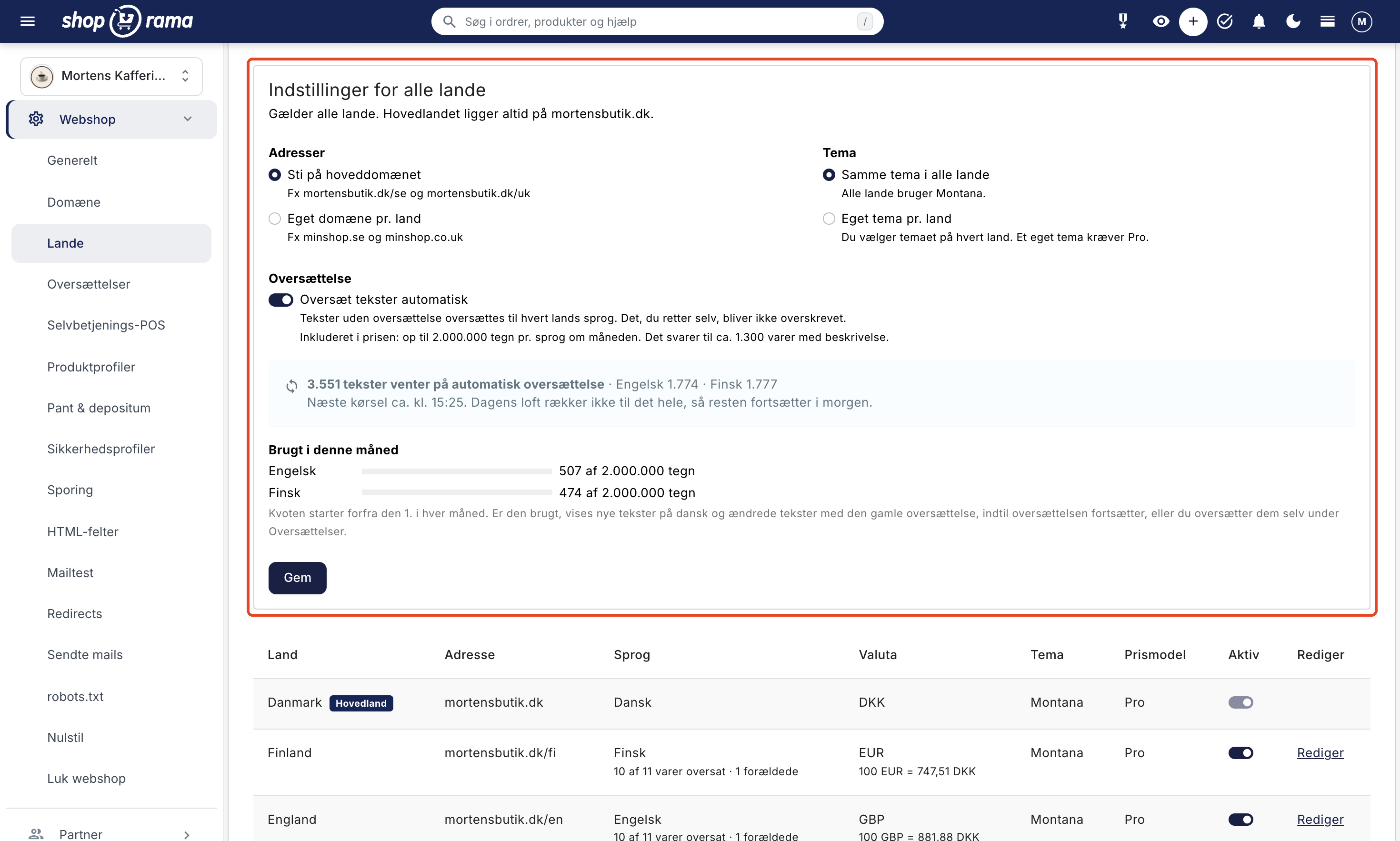
At the top of Webshop → Countries, you’ll find the “Settings for All Countries” tab. The options here apply to all your countries. The main country is always located on the shop’s own domain.
- Addresses: Select “Path on the main domain” so that the countries are located at, for example, minshop.dk/se and minshop.dk/uk, or “Separate domain per country,” for example, minshop.se and minshop.co.uk. A path requires no setup. You set up a separate domain yourself on the country’s page. The domain must have an A record pointing to Shoporama’s IP address (found under Webshop → Domain), and you can order a free SSL certificate by clicking the “Order Free SSL” button on the country’s page.
- Theme: The same theme across all countries is the default. If you choose “Custom Theme per Country,” you select the theme for each country. If a country uses a theme you’ve uploaded yourself (a custom theme), that country must be on the Pro plan.
- Translation: When “Translate Texts Automatically” is enabled—which is the default setting—texts without translations are translated into each country’s language. Any changes you make yourself will not be overwritten. Up to 2,000,000 characters per language per month are included in the price. Under “Contact,” you can see how many texts are waiting to be translated and how much of the monthly quota has been used.
Click Save once you’ve made your selections. You can view and edit all translations under Webshop → Translations. Learn more in Translate Your Webshop.
If you want to change the address type later while you have active countries, those active countries must have an address of the new type. First, deactivate them, change the addresses, assign the new address to each country on its respective country page, and then reactivate them.
Add a country
- Go to Webshop → Countries.
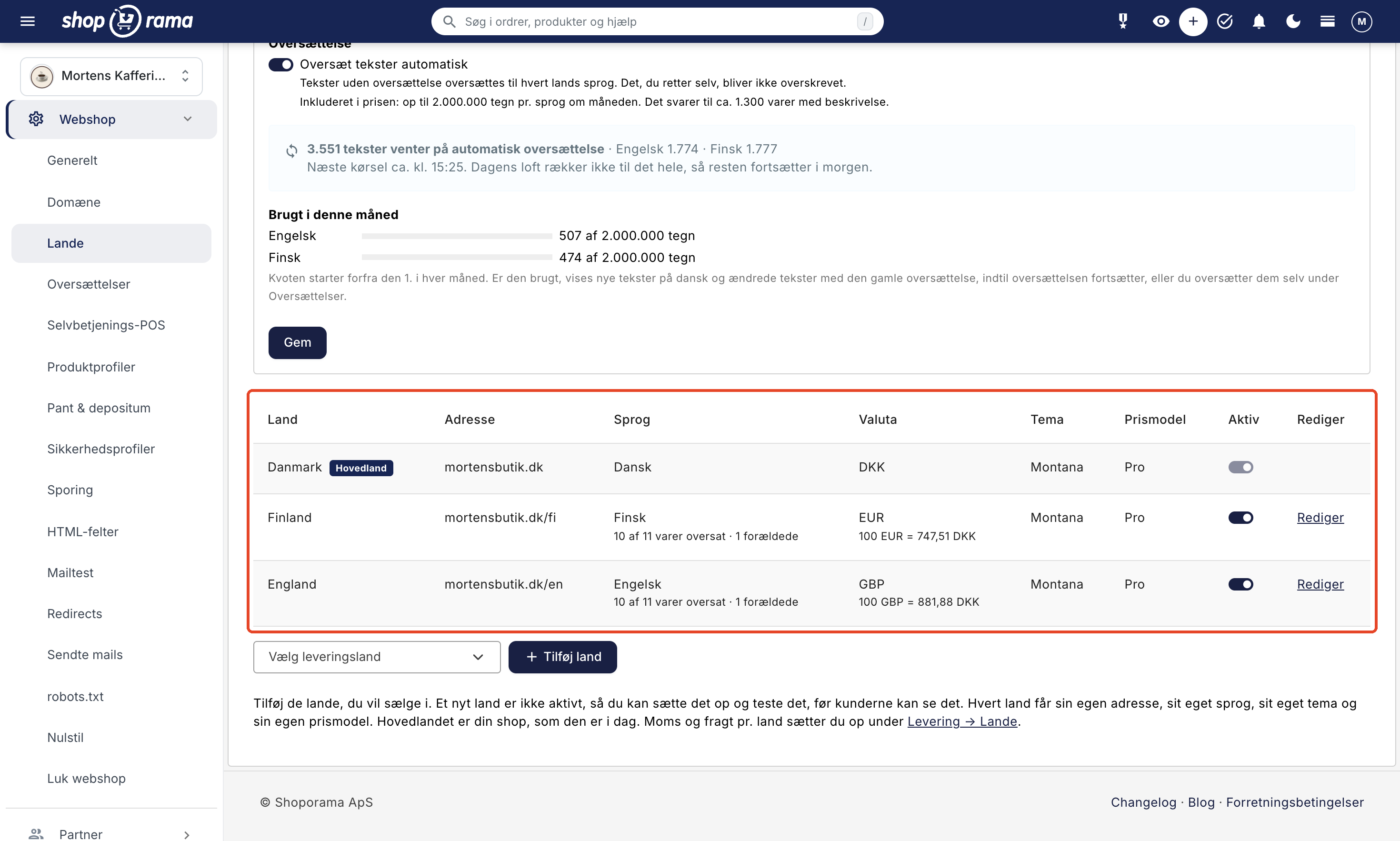
- Select the country in Select Delivery Country below the table. The list shows your delivery countries, excluding the main country and the countries you’ve already added.
- Click Add Country. You’ll be taken to the country’s page. The country isn’t active yet, so customers can’t see it.
Shoporama suggests a path based on the country code—for example, “se” for Sweden and “uk” for the United Kingdom—as well as a language and currency based on the country, such as the euro in eurozone countries. The country starts with the same pricing model as the shop, though it’s set to “Pro” if it uses its own theme. You can edit all of this on the country’s page.
In the table, you can see all your countries with their address, language, currency, theme, and pricing model. Under “Language,” you’ll see how many products have been translated, and under “Currency,” the exchange rate used to convert prices. A yellow label such as “Missing Address” or “Missing Currency” indicates what the country is missing before it can be activated.
Set up the country
Click “Edit” next to the country. The country’s page consists of a series of tabs, which are described below. When you’re done, click “Save and Close ” or “Save and Continue Editing.”
Address and Language
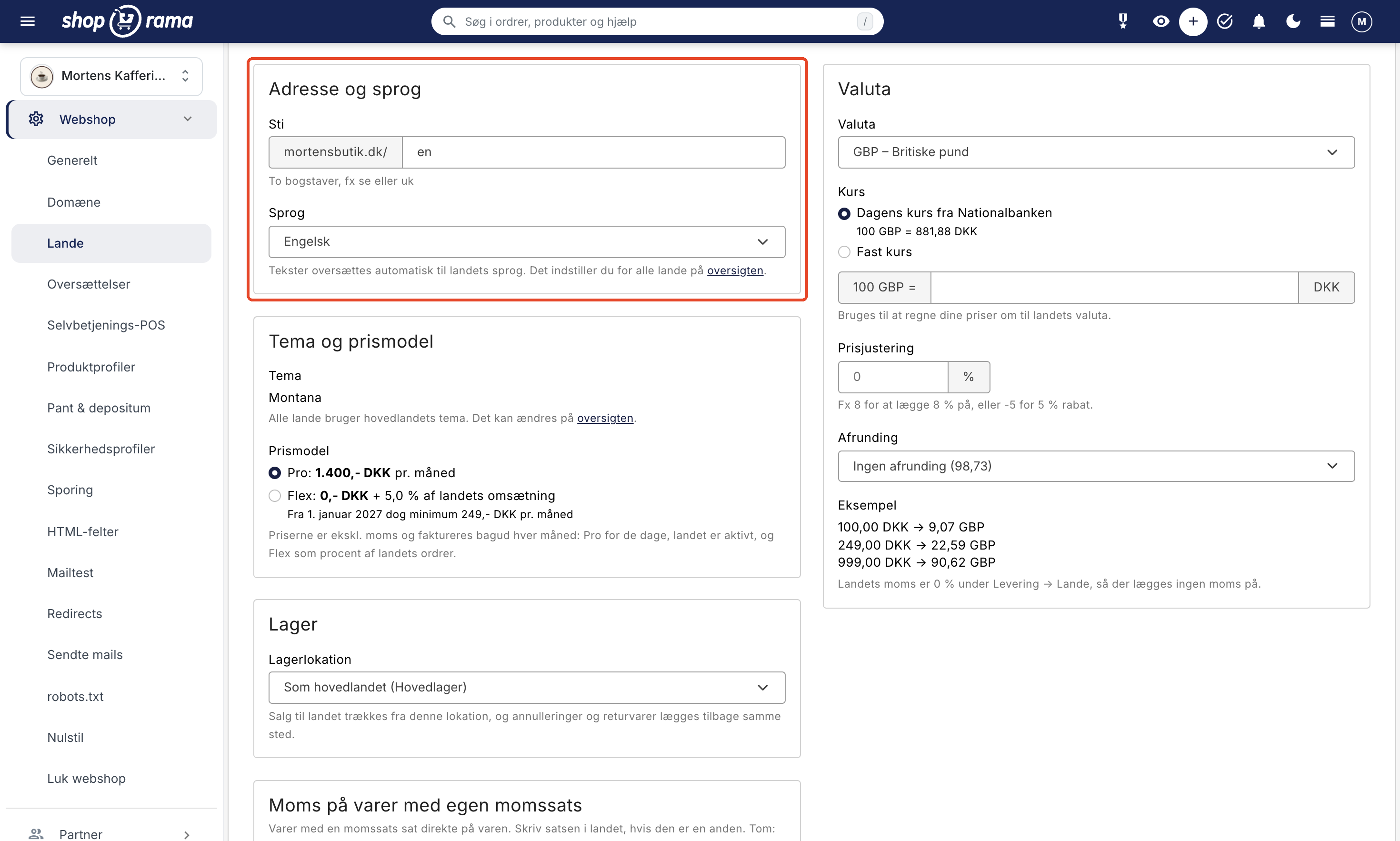
Enter the country’s Path, e.g., se or uk. The path consists of two letters, or the language and country, such as fr-ch. If you use a separate domain for each country, enter the country’s Domain instead, e.g., minshop.se without https://. No other country may use the same path or domain, and the path must not be the same as the address of a page in the store.
Select the country’s language. You can choose from 22 European languages, such as Swedish, Norwegian, German, English, Finnish, French, and Dutch. If automatic translation is enabled, the texts will be translated into the country’s language automatically.
If you change the language for a country that is already in use, the country will be displayed with translations into the new language, and the URLs for products and pages will also change. Old links and search results will then lead to different URLs.
Theme and Pricing Model
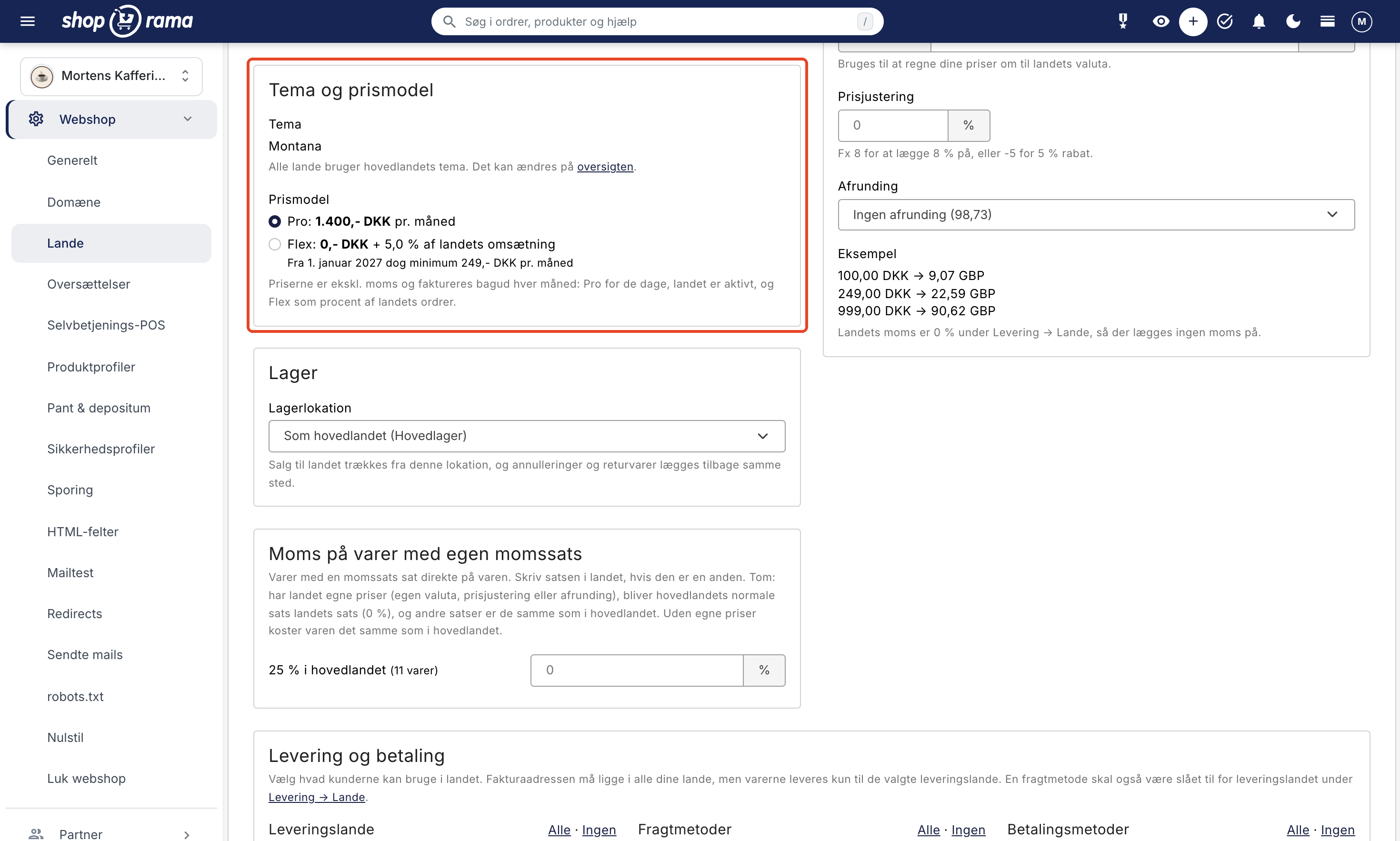
If all countries use the same theme, the main country’s theme is displayed here. If you’ve selected “Custom Theme per Country” on the overview, choose the country’s theme here—either one of Shoporama’s themes or one of your own.
Under “Pricing Model,” you choose how you want to pay for the country:
- Pro: 1,400 DKK per month for the country.
- Flex: 0 DKK plus 5% of the country’s revenue; however, starting January 1, 2027, the minimum is 249 DKK per month.
Prices are exclusive of VAT and are billed monthly in arrears. The country’s pricing model is independent of the shop’s, so a shop on Pro can have a country on Flex and vice versa. Flex cannot be selected if the country uses its own theme. You can read more about the pricing further down.
Warehouse
If you have more than one warehouse location, you can select the warehouse location from which sales to that country will be deducted—for example, a warehouse in Finland for Finnish orders. This applies to orders with a shipping address in that country as long as the country is active. Cancellations and returns are returned to the same location. If you select “None,” the same location as in the main country will be used.
VAT on Items with Their Own VAT Rate
If you have products that do not have the country’s standard VAT rate—such as books, newspapers, or food items—it’s best to assign them a VAT category. This category has a rate for each country, ensuring the product is charged the correct VAT in all your countries without you having to enter the rates here. If you enter prices including VAT, and the country has its own pricing rules (such as its own currency, price adjustments, or rounding), the item’s price is recalculated using the category’s rate in both the main country and the specific country. Shoporama maintains the rates for EU countries, and you can view and edit them under Webshop → VAT Categories. Read more in VAT Categories.
The “VAT on Items with Custom VAT Rates ” tab is displayed only if you have items with a VAT rate set directly on the item (the “Old VAT Rate” field), such as newspapers with 0% VAT. Items with a VAT category are not included here. Enter the rate that applies in that country if it differs from the main country’s rate. If you leave the field blank and the country has its own pricing (own currency, price adjustment, or rounding), items with the main country’s standard rate will be charged the country’s standard rate, and other rates will remain the same as in the main country. Without specific prices, the item costs the same as in the main country. The country’s standard rate is the B2C VAT you’ve set for the delivery country under Delivery → Countries.
Currency
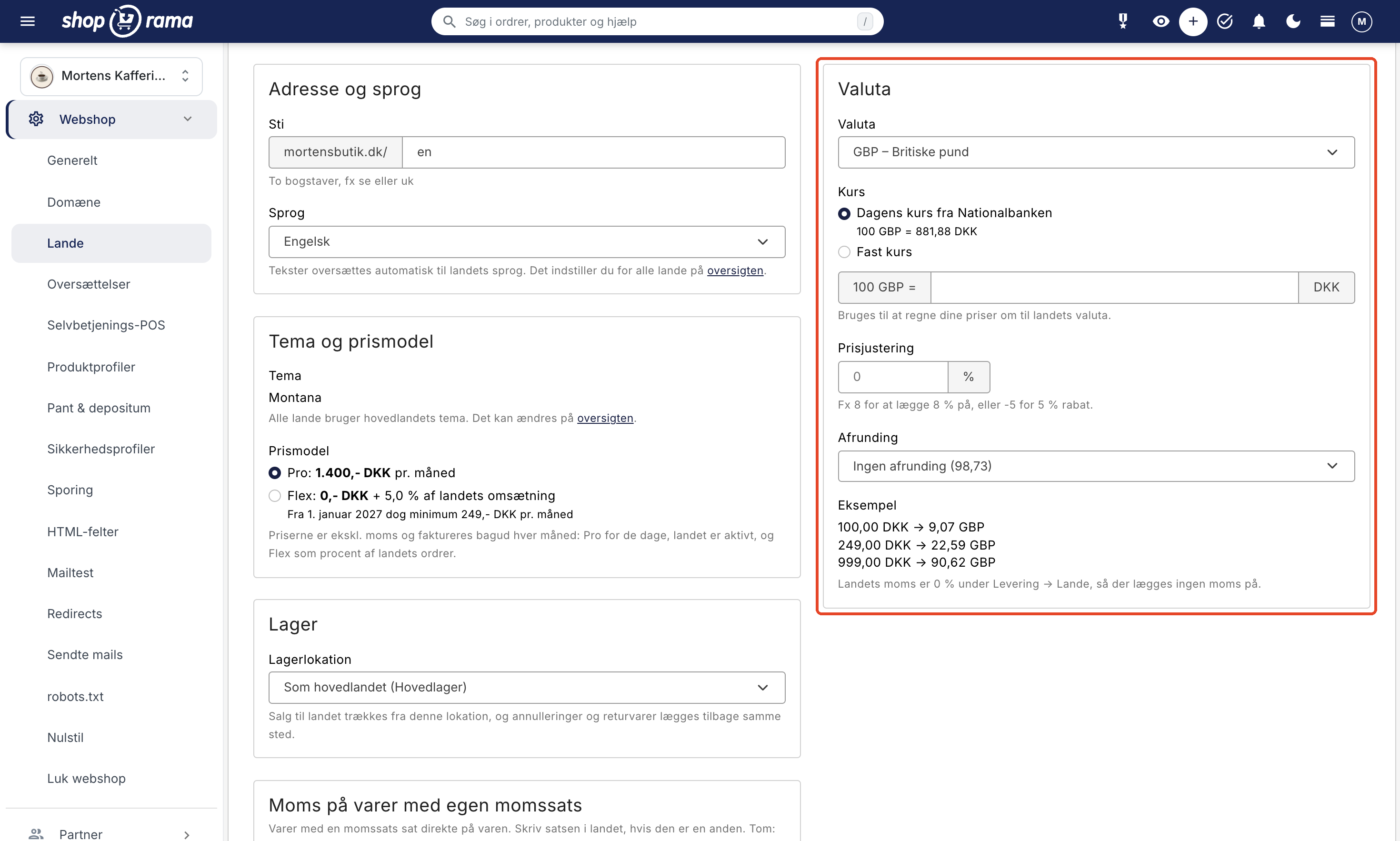
Select the country’s currency. You can choose from 14 currencies, such as the euro, Swedish and Norwegian kroner, British pounds, Swiss francs, and U.S. dollars. If you select the same currency as the main country, no exchange rate is needed.
- Exchange Rate: The current exchange rate from the National Bank is automatically retrieved every day. If you want a fixed exchange rate, select “Fixed Rate” and enter the value of 100 units of the country’s currency in your currency, e.g., 100 SEK = 64.50 DKK.
- Price adjustment: Add or subtract a percentage, e.g., 8 to add 8% or -5 for a 5% discount.
- Rounding: Round the converted prices, e.g., to whole amounts, to .95, or to an amount ending in 9.
Under “Example,” you can see what 100, 249, and 999 in your currency will be in that country as you make adjustments. If you want to set a specific price for an item, you can assign it a fixed price in the country’s currency. Read more in “Set Currency in Your Store.”
Shipping and Payment
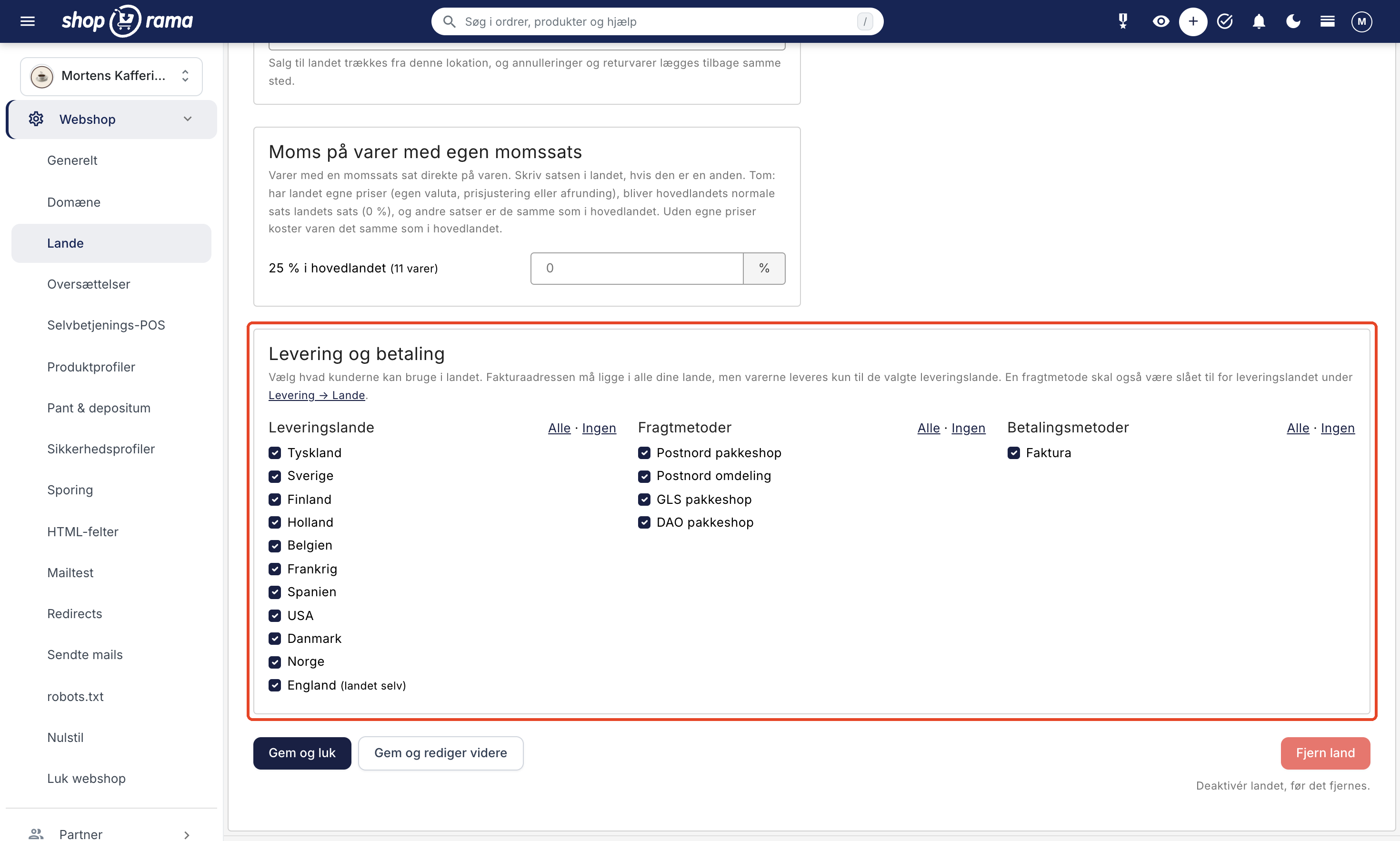
Here, you choose what customers can use when shopping in that country: Delivery Countries, Shipping Methods, and Payment Methods. By default, everything is selected, and this also applies to methods and countries you create later. You must select at least one of each.
- These selections can only restrict options. A shipping method must still be enabled for the delivery country under Delivery → Countries, and a payment method that can only be used in specific countries will still only apply there. Methods that cannot be used are grayed out, and the reason is indicated.
- Only the shipping address is restricted. The billing address can be in any of your countries. Products are shipped only to the shipping countries you’ve selected for that country.
If customers with a shipping address in one of the countries cannot make a purchase—for example, because none of the country’s shipping methods are available there—the page will display a yellow warning after you save.
Review the country before activating it
Customers cannot see a country that is not active. You can view it yourself when you’re logged into the admin panel:
- Click the eye icon “View Webshop” at the top of the admin panel. The store opens in a new tab, and you’re logged in.
- Type the country’s path after the domain in the address bar, e.g., minshop.dk/se.
- Browse through the store: the homepage, a product page, the shopping cart, and checkout. Check that the text is in the country’s language and that prices are displayed in the country’s currency.
The language selector in the store only shows active countries, so you’ll need to enter the address yourself. Google is instructed not to display the pages while you’re browsing. If you’ve just added the country, it may take a little while for everything to be translated. If you have many products, it may take a few days because only a certain amount of text is translated per day. The text is translated even when the country isn’t active, and you can track the progress on the Countries page.
If you’re using a custom domain for each country, the domain must point to Shoporama and have an SSL certificate before you can view that country on it. Click “Check Domain” on the country’s page to see if the domain is pointing correctly, and “Order Free SSL” if you haven’t already done so. It may take 1–2 business days for the certificate to be installed.
Activate the country
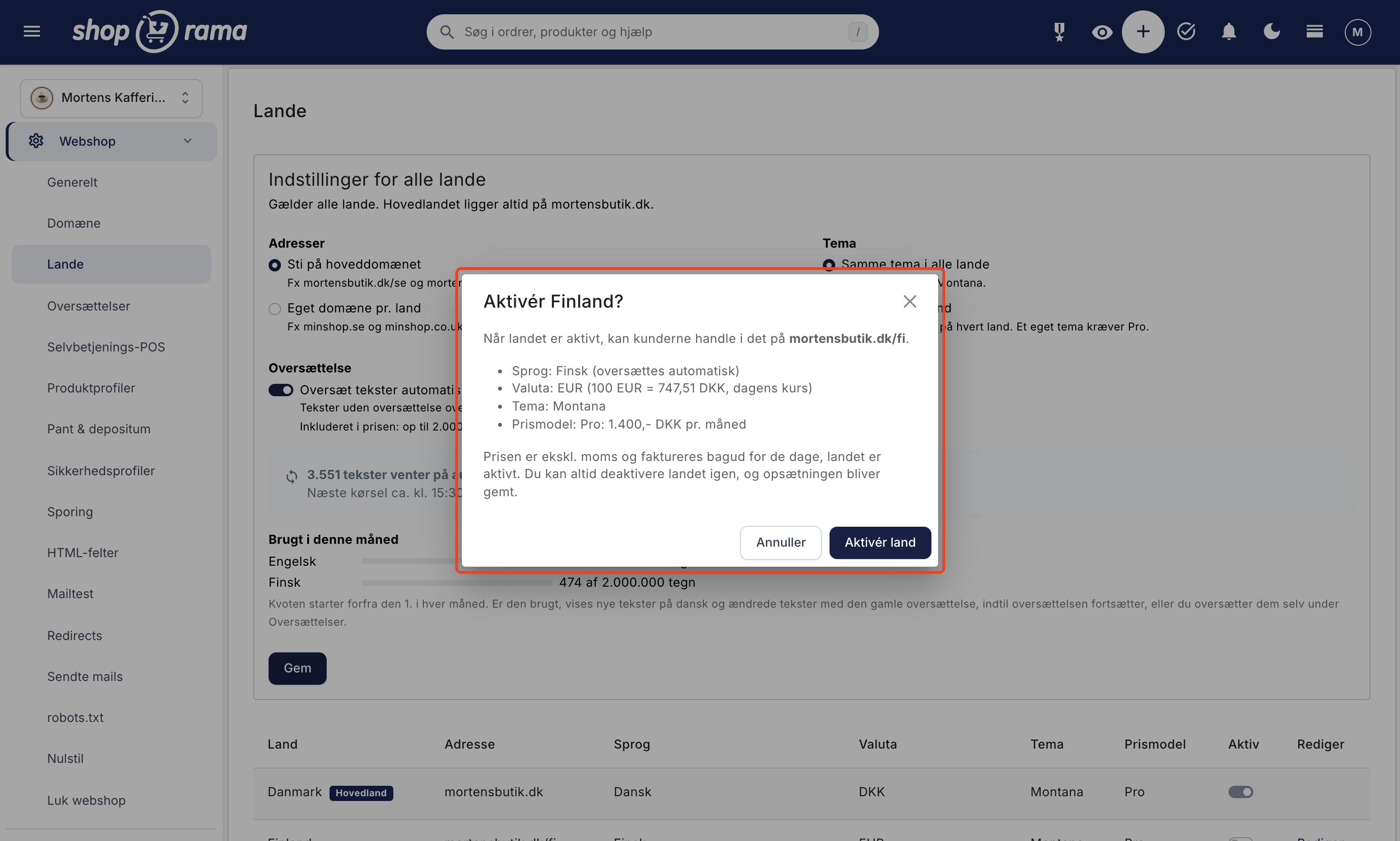
Once the country is ready, toggle the switch to “Active,” either in the table on the Countries page or next to the title on the country’s page. The change won’t be saved immediately. A window will open showing the country’s address, language, currency, theme, and pricing model. Click “Activate Country” to make the country available to customers.
A country can only be activated if it has an address (path or domain), a language, and a currency. If the country uses its own theme, it must also be on the Pro plan. If anything is missing, it will be listed in the window, and you can correct it on the country’s page.
Once the country is active, customers can shop there, and billing for that country begins.
Here’s what your customers will experience
- Country address and language: Customers shop at the country’s address, with products, categories, pages, menus, and theme texts in the country’s language. Products and pages also have translated addresses.
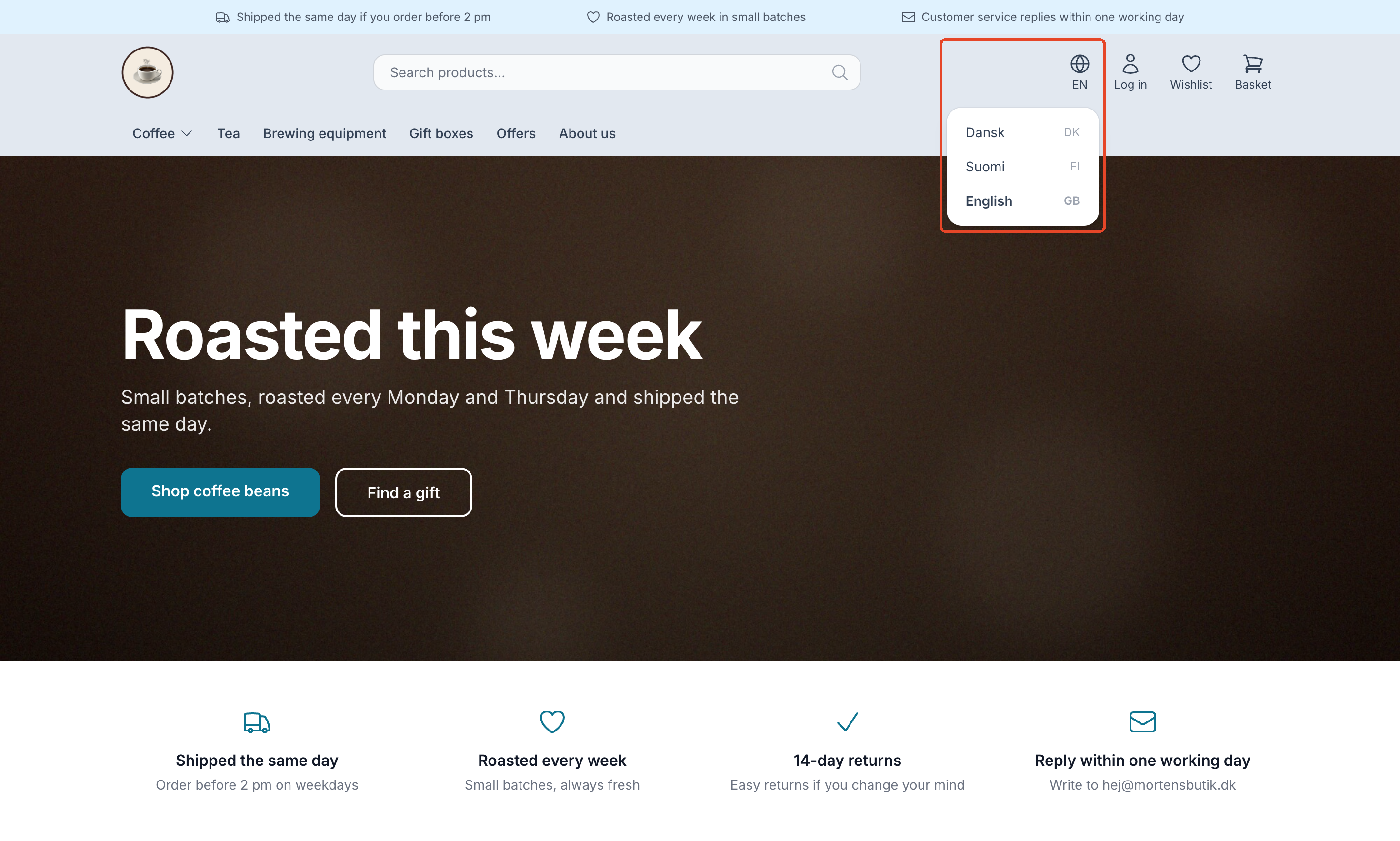
- Language selector: In Shoporama themes that are country-ready, customers can switch between the main country and your active countries. The languages are listed by their own names, e.g., Svenska and Suomi, and the customer is taken to the same page in the other country. The cart is carried over.
- Prices in the local currency: Prices in the store, the shopping cart, and the checkout are displayed in the local currency, including special offers, product variants, customer group prices, and promotional prices. Shipping costs, the free shipping threshold, discount codes, and gift cards are converted using the current exchange rate.
- Checkout: The country itself is preselected as the delivery country, and sales tax is calculated at the country’s rate. Items with a sales tax category are subject to that category’s rate in the country. The customer can only select the delivery countries, shipping methods, and payment methods that you have selected for that country. The payment window is displayed in the country’s language, if the payment provider supports it.
- Emails: Emails regarding the order—such as the invoice and shipping notification—are sent in the country’s language, with amounts in the country’s currency and links to the country’s website. This also applies to emails not related to an order—such as password resets and waitlist notifications—sent to customers who have registered, logged in, or signed up in that country.
- Search: The search field finds products in the local language and still in Danish.
- Texts without translation: If a text has not yet been translated, it is displayed in Danish until it is translated.
Shoporama also ensures that Google can find the countries. Each country gets its own sitemap, and the pages are tagged with `hreflang` attributes that tell Google which pages correspond to each other in the different languages. A page is only included in the country’s sitemap once it has been translated. Your Google Shopping feed is also located at the country-specific URL, e.g., minshop.dk/se/google-shopping.xml, featuring the country’s language, currency, and prices. The same applies to feeds for PriceRunner, Kelkoo, and Partner Ads. As with the sitemap, only products that have been translated into the country’s language are included. Read more in Hreflang and alternate tags for multilingual online stores.
Orders, Statistics, and Accounting
All orders appear in the same order overview. Each order shows the country where it was purchased, and the amounts are listed in the order’s currency. In the order overview, you can display the “Purchased in” column by enabling “Purchased in (country) ” under “Customize View.” An order in a different currency is saved using the exchange rate from the National Bank on the date of purchase, so it can be converted to your currency. If you export orders to CSV, the file will include columns for currency, exchange rate, and amount in your currency.
If you use Dinero or Billy, the invoice is transferred in the order’s currency, and the exchange rate from the purchase is included. Ask your accountant what VAT rate you should charge in each country, for example, if you’re registered for OSS VAT. Items with a VAT rate different from the country’s standard rate—such as books or food—will be assigned the country’s rate for those types of items if they have a VAT category.
Under Statistics → Sales by Country, you can compare countries based on revenue (excluding VAT), orders, average order value, new customers, and much more. The country is the country where the customer made the purchase, not the shipping address. On the dashboard, the Sales by Country module displays sales from other countries over the past 30 days. Learn more in Sales by Country.
Pricing and Billing
Each active country has its own pricing model:
- Pro: 1,400 DKK per month per country.
- Flex: 0 DKK plus 5% of the country’s revenue; however, starting January 1, 2027, the minimum is 249 DKK per month per country.
All prices are exclusive of VAT. The countries are listed as separate lines on your monthly invoice from Shoporama and are billed retroactively for the previous month:
- You only pay for the days the country has been active. If a Pro country is active from the 10th to the 31st of a 31-day month, you pay 22/31 of 1,400 DKK, or 993.55 DKK. A day counts even if the country was active for only part of it.
- On Flex, you pay 5% of the paid orders that customers have purchased in that country, just like Flex on the shop. Starting in 2027, the minimum fee applies only to the days the country is active. Each country has its own minimum, so sales in that country do not count toward the shop’s total.
- Orders from the main country follow the shop’s pricing model, and orders from a country follow that country’s pricing model.
- If you change a country’s pricing model in the middle of the month, the days are split between Pro and Flex.
- Countries only incur a cost when the store is live. While the store is in demo mode, you can set up countries and try them for free.
- Automatic translation is included for up to 2,000,000 characters per language per month. This corresponds to approximately 1,300 products with descriptions.
Please note that the shop’s own Pro subscription is paid in advance, while the countries are billed in arrears. Read more about pricing and billing in “How much does a Shoporama shop cost?”
Deactivate or Remove a Country
Turn off the “Active” toggle and confirm by clicking “Deactivate Country.” Customers will then no longer be able to shop in that country, but the address, theme, pricing model, and the rest of the setup will be saved so you can reactivate the country later. You’ll be charged for the day you deactivate the country, but not for the days that follow.
If you’re using a path on the main domain, the country’s URLs will return an error page when the country is deactivated. If you’re using a custom domain, visitors will be redirected to the main country. Emails about orders from that country will still be sent in the country’s language and currency, but the links will point to the main country.
If you want to remove the country entirely, first deactivate it, open the country’s page, and click “Remove Country.” A country with orders cannot be removed. Leave it deactivated so that the orders retain the country’s language and addresses. Your translations will not be deleted when you remove a country because they are associated with the language, not the country.
Do you have a custom theme?
A theme that you or your developer has created must be set up for multiple languages and currencies before you activate a country. Otherwise, parts of the store may appear in Danish, in kroner, or with a Danish number format. Send your developer the guide “Set Up Your Theme for Countries.”
Frequently Asked Questions
Do I have to translate all my products myself?
No. When “Translate Texts Automatically” is turned on, products, categories, pages, menus, and theme texts are translated automatically whenever a translation is missing or when you change the Danish text. If you want to correct a translation, you can do so under Webshop → Translations, and your text won’t be overwritten.
Can I test a country without it costing anything?
Yes. A new country isn’t active by default, and you only pay for the days it’s active. You can set it up, have the texts translated, and preview it in the store using “View Webshop” before activating it.
Should I choose a subpath or my own domain?
A path like minshop.dk/se is the easiest. There’s nothing to set up, and the customer remains logged in when she switches countries. A custom domain like minshop.se may seem more local, but the domain must point to your store, and a customer who switches countries will need to log in again. The shopping cart is carried over in both cases. This choice applies to all your countries.
Can I have different prices in Norway than just the converted ones?
Yes. With Price Adjustment, you can add or subtract a percentage, and with Rounding, you can set prices to round numbers, such as .95 or 9. If a specific item must cost a specific amount, you can set a fixed price in that country’s currency. See “Set Currency” in your shop.
Can I use the same language in two countries, such as Germany and Austria?
Yes. The translations are tied to the language, so the German texts are used in both countries, and you only need to translate once. Each country can still have its own currency, its own prices, and its own shipping options. If two countries share the same language, the language selector also displays the country code so customers can tell them apart.
How much does it cost if the country is only active for part of the month?
On the Pro plan, you pay for the days the country was active; for example, 15 out of 30 days equals 700 DKK. On the Flex plan, you pay 5% of the country’s paid orders, and starting in 2027, the minimum fee will also be calculated based on the active days. This is billed retroactively on your invoice at the beginning of the following month, and the amounts are exclusive of VAT.
How do orders in Swedish kronor appear in my accounting?
The order is saved in Swedish kronor along with the exchange rate from the National Bank on the purchase date. The statistics convert the amount to your currency using that rate, and the order CSV includes columns for currency, exchange rate, and amount in your currency. If you use Dinero or Billy, the invoice will be generated in Swedish kronor, and the exchange rate from the purchase will be included.
Can a sale to one country be fulfilled from a different warehouse?
Yes, if you have more than one warehouse location. Select the country’s warehouse location on the country’s page. Orders with delivery to that country will then be fulfilled from that location, and cancellations and returns will be processed at the same location.
What happens if the automatic translation uses up the entire quota?
In that case, translation into that language will pause for the rest of the month. Until it resumes on the 1st of the following month, new texts will appear in Danish, and texts you’ve edited will display the old translation. You’ll receive a notification in the admin panel, and in the meantime, you can translate the texts yourself under Webshop → Translations.
Who can add and activate countries?
Only users with full access to the store can add, edit, activate, and remove countries, because the pricing model for each country affects your invoice. When a country is activated, deactivated, or deleted, it is recorded in the activity log. See Roles and Permissions.
Do you need help getting started with a new country? Email us at support@shoporama.dk.
Related articles
Prepare your theme for multiple languages and countries
Step-by-Step Guide for Developers: How to Make Your Own Shoporama Theme Work with Countries, Including Translated Texts, the Country's Currency and...
Hreflang and Multilingual Online Stores
How Shoporama sets `hreflang`, `x-default`, and `html lang` for your countries, what happens to untranslated pages, and how to manage your own...
Set currency in your shop
Set your store's currency and sell in other currencies by country using the current exchange rate or a fixed rate, price adjustments, rounding, and...
Countries and Currency: Delivery Countries, Sales Tax, and Shipping
Set up delivery countries under Delivery → Countries with VAT rates, VAT zones, shipping options, and free shipping, and see how they relate to...
Create a new shipping country
Guide to creating a new shipping country under Shipping → Countries in your Shoporama online store, and when you should also add the country under...
Translate your online store into other languages
How to translate your online store when selling in multiple countries: automatic translation, status by language, corrections, addresses in the...
What does a Shoporama shop cost?
Pricing on Shoporama: Flex, Pro, and Storage; prices by country; usage-based add-ons; billing; changing pricing plans; and answers to frequently...
Sales by Country: Compare Your Countries in the Statistics
Statistics → Sales by Country shows revenue, orders, customers, and contribution margin for each country where you sell, as well as the Sales from...
Related features
Hreflang
Hreflang tells Google that a page is available in multiple languages, so the customer sees their own language in the search results. See how...
OSS (One-Stop Shop)
OSS (One Stop Shop) is the EU's VAT scheme for sales to consumers in other EU countries. Learn what OSS is and how Shoporama helps with...
Countries: Sell in multiple countries from the same online store
Sell in multiple countries from the same online store, with your own language, currency, and prices for each country. Automatic translation of your...
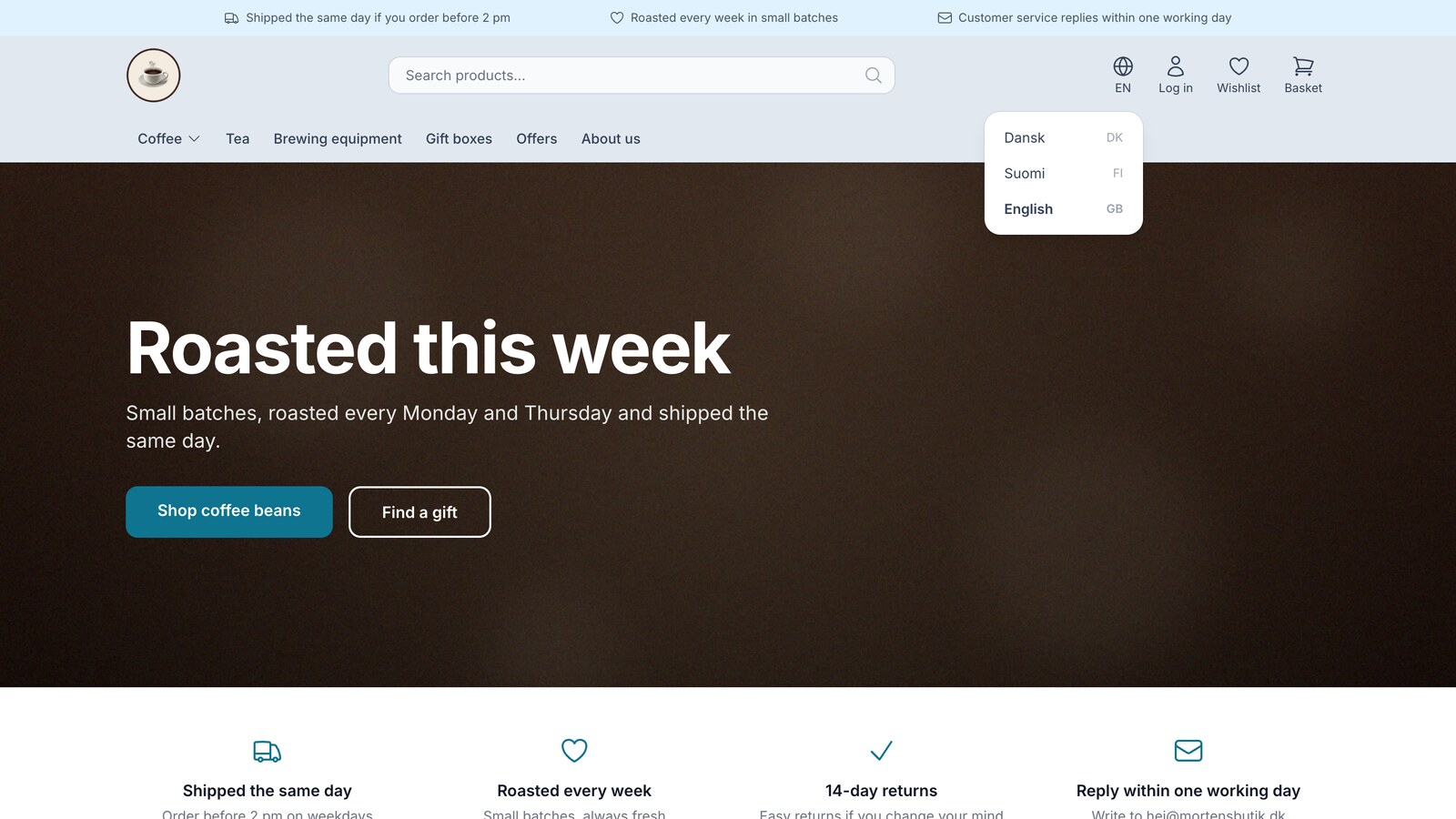
Sell in multiple countries through the online store you already have
New on Shoporama: Sell in Sweden, Finland, or Germany using each country's language, currency, and prices. Translation is included in the price,...