Sales by Country: Compare Your Countries in the Statistics
Statistics → Sales by Country shows revenue, orders, customers, and contribution margin for each country where you sell, as well as the Sales from Other Countries dashboard module.
What does "Sales by Country" show?
If you sell in multiple countries using the" Countries" feature, Statistics → Sales by Country shows you what each country is selling, who is buying, and how the countries are performing. You’ll see the countries side by side with revenue, orders, new customers, credits, and free shipping, and you can track what percentage of your revenue comes from countries other than your main country.
This menu item appears at the bottom of the Statistics section and is displayed once you’ve created at least one country under Web Store → Countries. The country doesn’t need to be active. The “Country Settings” button at the top of the page takes you directly to Web Store → Countries.
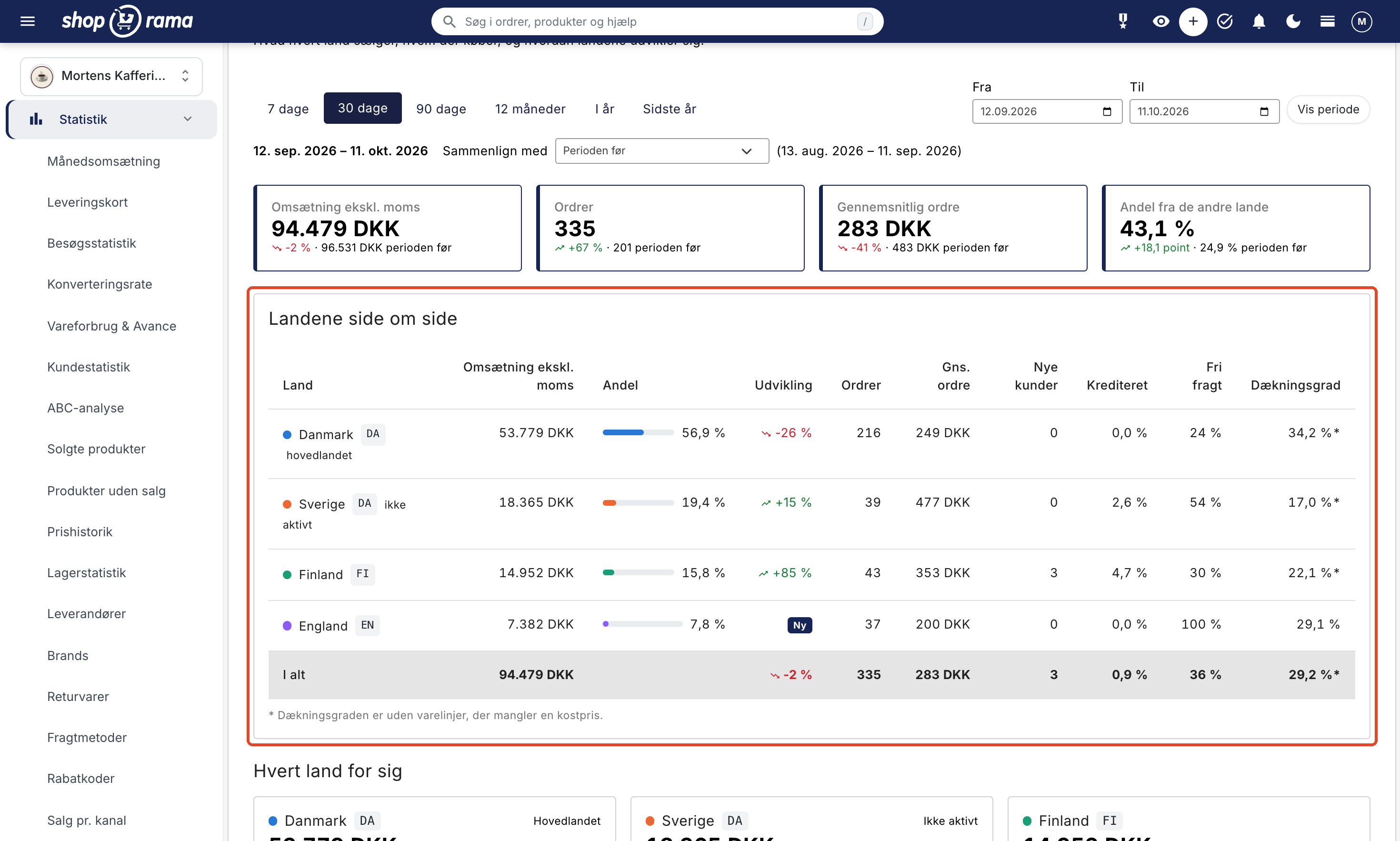
Select Period and Comparison
At the top, select a time period using the tabs 7 days, 30 days, 90 days, 12 months, This Year, and Last Year. The page opens with 12 months selected. If you want to view a specific period, such as a promotional week, enter the dates in “From ” and “To” and click “Show Period.”
Next to the selected dates, use “Compare with” to specify what the figures are being compared against:
- The previous period: the same number of days immediately prior. This is the default for 7 days, 30 days, 90 days, 12 months, and your custom dates.
- Same period last year: the same dates last year. This is the default for “This Year” and “Last Year,” and it’s the right choice if your sales fluctuate seasonally.
- No comparison: just the figures for the period.
The dates for the comparison period are shown in parentheses, and your selection is carried over when you switch tabs.
The four key metrics at the top
These four metrics apply to the entire store, combining all countries:
- Revenue excl. VAT: revenue for all countries excluding VAT, after credit memos.
- Orders: number of paid orders.
- Average order: the revenue from orders excluding VAT before credit memos, divided by the number of orders.
- Share from other countries: the proportion of revenue coming from countries other than the main country.
If you compare with another period, each card shows the change in percentage with an up or down arrow, along with the figure from the comparison period. The share from other countries changes in points (percentage points): if it goes from 25% to 43%, it shows +18 points.
Countries Side by Side
The table has one row per country. The home country is at the top, followed by the other countries in order of revenue. Countries you haven’t activated are marked as “inactive” but still appear in the table so you can see if they’ve received orders. The columns show:
- Country: the country’s name in a color that is repeated in the country’s graph further down, and the country’s language (e.g., FI or EN).
- Revenue excl. VAT: The country’s revenue excluding VAT, including shipping and after credit memos, in the store’s currency.
- Share: The country’s share of total revenue, shown as a bar and as a percentage.
- Trend: the change in revenue compared to the comparison period. If it says “New,” the country had no revenue during the comparison period. This column is only displayed when you’re comparing data.
- Orders: The number of paid orders purchased in the country.
- Avg. Order: The country’s average order amount, excluding tax, before credit memos.
- New customers: Customers who made their first purchase in the store during the period.
- Credited: Number of credit memos relative to the number of orders, as a percentage.
- Free shipping: the percentage of orders with no shipping charges.
- Profit margin: the selling price of the items minus the cost price as a percentage of the selling price, excluding VAT and shipping. This column is only displayed if you have permission to view cost prices. If an asterisk (*) appears, some of the sold items are missing a cost price. Those items are excluded, so the gross margin is based only on the items that have a cost price. Learn more about cost prices.
The “Total” row at the bottom shows the figures for the entire store. On a narrow screen, some of the columns are hidden, so use a computer if you want to see them all.
Each Country Separately
Below the table, each country has its own chart. The chart shows the country’s revenue excluding VAT, its trend, and the country’s share of the total. If the country uses a different currency than the store, the revenue is also shown in the country’s own currency, e.g., in SEK or EUR.
Each card has a small graph showing revenue for the period. The graph has its own scale so that a small country isn’t dwarfed by the main country. Below the graph, you’ll see:
- Orders, Average Order, Customers, and New Customers. Customers are unique email addresses that have made purchases in that country.
- Payment Methods: the three payment methods most commonly used by customers in the country, along with their share of orders.
- Best-selling items: the country’s five best-selling items measured by units. Click on an item to open it. If the item does not have a name in the country’s language, it says “Not translated,” and clicking on the label takes you to the item’s translation.
If a country has not made any sales during the period, it will say “No sales during the period.”
Share from other countries over time
The graph shows what percentage of revenue comes from countries other than the main country over the period. It indicates whether your new countries are growing or if they’re just keeping pace with the rest of the store. For up to 45 days, one value is shown per day; for up to about half a year, one per week; and otherwise, one per month.
If the period covers only part of a week or month—for example, the current month—it is marked with an asterisk (*), so that a lower number does not appear to be a decline.
Delivered to Another Country
The table shows orders purchased in one country and delivered to another, such as a Norwegian customer shopping on your Danish site. You’ll see the columns “Purchased in,” “Delivered to,” “Orders,” and “Revenue excl. VAT,” with the largest figures at the top. A large number of orders to the same country may indicate that that country should have its own site. The table is displayed only when such orders exist in the period.
How the Numbers Are Calculated
At the bottom of the page, you can expand “How the Numbers Are Calculated.” In short:
- The same orders as in “Monthly Revenue.” The page counts paid orders—the same ones as in “Monthly Revenue.” If you add up the countries, you’ll therefore get the same revenue (excl. VAT) as in “Monthly Revenue” for the same dates.
- The country is where the customer made the purchase. An order is counted in the country where the customer shopped (the country’s path or domain), not in the country to which the item is shipped. Orders from before you created the countries, and orders created in the admin panel, are counted in the main country.
- Always excluding VAT. VAT varies from country to country, so countries can only be compared on a pre-VAT basis. Shipping costs are included in revenue.
- Credit memos are deducted. A credit memo is deducted in the country where the order was placed, on the date the credit memo was issued.
- Store currency. All amounts are in the store’s currency. An order in another country’s currency is converted using the exchange rate from the National Bank on the day the order was placed. The figures therefore do not change when the exchange rate changes afterward.
- Additional sales. Additional sales made after the purchase are included in revenue but not counted as a separate order, just as in Monthly Revenue.
- Subscriptions and exchanges. A subscription renewal is counted in the country where the subscription was purchased, and an exchange is counted in the country of the original order.
- Customers are not combined. The same customer can make purchases in multiple countries, so there is no total for Customers. A new customer counts only in one place: in the primary country if the customer also made a purchase there during the period, and otherwise in the country you created first.
- Coverage. Based on the cost price of the items as it stands now (the variant’s cost price, if it has its own). Items without a cost price are not included, neither in sales nor in cost price. The cost price is always in the store’s currency, and deposits are not included.
- Deleted countries. If you delete a country, the orders retain their country. If the country has orders during the period, it gets its own row, e.g., “Sweden (deleted),” so that the rows still provide the total figure.
Dashboard module “Sales from Other Countries”
If you’ve created countries, the dashboard will include the “Sales by Country” module in the “Sales” group. It’s enabled by default, so it appears automatically on the front page, and the map label reads “Sales from Other Countries.”
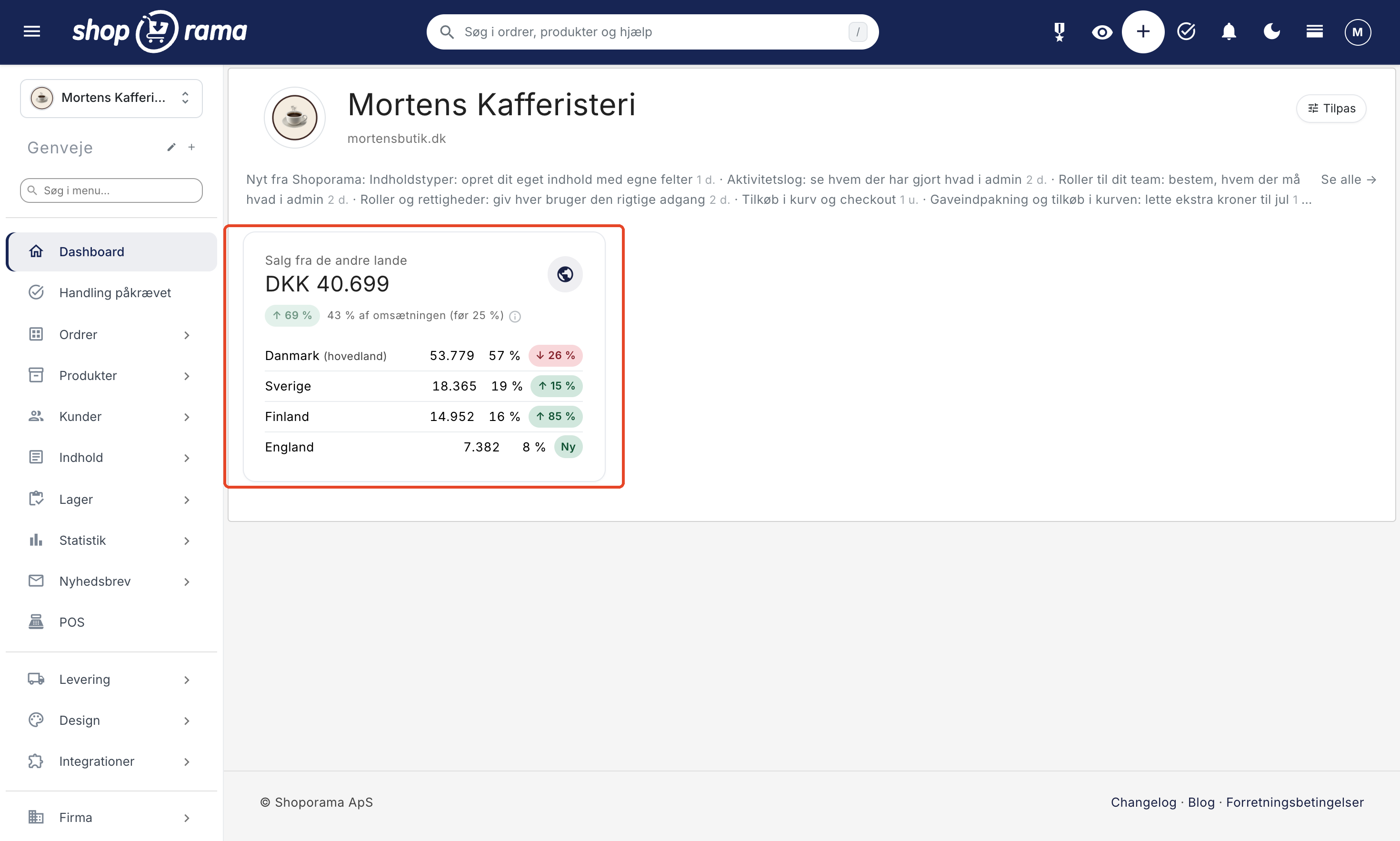
The module shows:
- Revenue from other countries over the past 30 days, excluding VAT and in the store’s currency, along with a comparison to the previous 30 days.
- The percentage of revenue that came from other countries, with the percentage for the previous 30 days shown in parentheses.
- A list of the main country and up to three of the largest other countries, showing revenue, percentage, and trend. If you have more than three other countries, the rest are grouped into a single line, e.g., “+ 2 countries.” If you hover your mouse over the amount for a country that sells in a different currency, you’ll see the amount in that country’s currency.
- A warning, “No orders since,” and a date, if an active country usually receives at least 30 orders in 30 days but hasn’t received an order in three days. This may be a sign that something isn’t working in that country, such as payment or shipping. A country with this warning is always displayed, even if it’s small.
The module appears when at least one of your countries is active or has had sales in the last 30 days. The figures are always exclusive of VAT, even if you’ve checked “Show dashboard including VAT.” If you don’t want the module, you can remove it using “Customize,” and you can add it back using “Add Module.” Read more about the front page in “Sales Reports and Revenue” in the dashboard.
Who can view Sales by Country?
Users with Full Access can see everything. If a user has a different role, both the page and the dashboard module require that the role be authorized to view the statistics and have the “Revenue and Statistics” add-on. The “Coverage” column also requires the “Cost Prices and Profit Margin” add-on. Without this add-on, the user will see the rest of the page without that column.
Viewing the statistics does not grant access to change the countries. Only users with Full Access can change the store’s countries. The company administrator selects roles and add-ons under Company → Users. Read more in Roles and Permissions.
Tips
- Compare with the previous year when evaluating a new country. A country that is growing compared to the previous period may simply be following seasonal trends.
- Look for “Not Translated” next to the best-selling items. If an item sells well in a country without being translated, it’s a good place to start. Read more in Translate Your Webshop.
- Check the payment methods by country. Customers in different countries prefer different payment methods, and the list shows what your customers actually use.
- Keep an eye on “Shipped to Another Country.” If many customers from the same country are buying through another country’s site, that country could be your next market.
- Enter the cost prices so that the coverage ratio includes all products and shows whether a country is profitable even when shipping costs and prices differ from those in your home country.
Frequently Asked Questions
Why can’t I find “Sales by Country” in the menu?
This menu item only appears once you’ve created at least one country under Webshop → Countries. If you’ve created a country and still can’t see it, your role likely lacks the “Revenue and Statistics” permission. Ask your company administrator.
A Danish customer made a purchase on my Swedish site. Where is the order counted?
In Sweden. The country is where the customer made the purchase, not the shipping address. Under “Shipped to Another Country,” you can see how many orders were purchased in one country and shipped to another.
Do the numbers match my accounting records?
The figures are exclusive of VAT, after credit memos, and in the store’s currency, converted using the exchange rate from the day the order was placed. Your accounting software may use a different exchange rate, so there may be slight differences for orders in other currencies. Use this page to track the countries, and your bookkeeping for your financial statements.
Can I see revenue in the country’s own currency?
Yes. The country’s card under “Each Country Separately” shows revenue in the country’s currency when the country sells in a currency other than the store’s. On the dashboard, you’ll see the amount when you hover your mouse over the country’s revenue.
Why does it say “0 new customers” in a country where I’ve sold a lot?
A new customer is a customer who has not purchased from the store before, regardless of country. If customers have purchased in the main country previously, they are not considered new. A customer who makes purchases in multiple countries during the same period counts as a new customer in only one location.
What does “Not translated” mean next to a product?
The product does not have a name in that country’s language, so customers in that country see it in the language of the main country. Click on the label to translate the product.
How can I tell if my campaign in one of the countries was successful?
Enter the campaign dates in “From” and “To,” and select “The period before” under “Compare with.” The “Trend” column will then show how each country performed compared to the days immediately before the campaign.
What happens to the numbers if I delete a country?
Orders retain their country. If the deleted country has orders during the period, "(deleted)" appears after its name so the total remains accurate. A country you’ve simply turned off will still be listed as "inactive."
Why is there an asterisk next to the coverage rate?
Some of the sold items are missing a cost price, and they are not included in the gross margin. The figure therefore applies only to items that have a cost price. If you hover your mouse over the number, you’ll see how many items are missing. Enter the cost prices for the items, and all items will be included.
Why can’t I see the “Sales from Other Countries” module on the dashboard?
The module appears when at least one of your countries is active or has had sales in the last 30 days. If you’ve removed it, you can re-enable it via “Customize” and “Add Module,” where it’s labeled “Sales by Country.” This also requires the “Revenue and Statistics” add-on if you don’t have Full Access.
Related articles
- Sell in Multiple Countries: Create and Activate Countries with Their Own Language and Currency.
- Statistics and Analysis in Shoporama: Overview of all reports under “Statistics.”
- View your revenue: Monthly revenue for the entire store.
- Sales by Channel: Which traffic sources generate sales.
- Inventory Usage & Profit Margin: Break-even point month by month.
Do you have any questions? Email us at support@shoporama.dk.
Related articles
Translate your online store into other languages
How to translate your online store when selling in multiple countries: automatic translation, status by language, corrections, addresses in the...
Roles and Permissions: Give Each User the Right Access
See what the seven roles and five optional features provide access to, which role is best suited for whom, and what only the company administrator...
Sell in multiple countries and in multiple languages
Here's how to sell in other countries in your customers' languages and currencies using "Countries": Add a country, set up the address, language,...
Sales per channel - see which channels are driving revenue
Find out which channels are generating revenue in your online store. Shoporama's sales per channel statistics show revenue, orders and AOV per...
Sales reports and revenue in dashboard
Guide to the Shoporama dashboard: view revenue, orders, and visitors on the home page; customize the dashboard with the modules you need; and find...
See your revenue
Guide to viewing your revenue in Shoporama - both on the front page, via the detailed revenue statistics with graphs, and via order export.
Statistics and analytics in Shoporama
Get an overview of Shoporama's built-in statistics tools: dashboard, revenue, profit margin, ABC analysis and much more. Learn how to use data to...
Cost of Goods Sold & Profitability: Understand your online store's break-even point
Cost of Sales & Profit gives you an overview of your profit margin per month. Learn how to use the numbers to make better decisions on pricing,...
Related features
Countries: Sell in multiple countries from the same online store
Sell in multiple countries from the same online store, with your own language, currency, and prices for each country. Automatic translation of your...
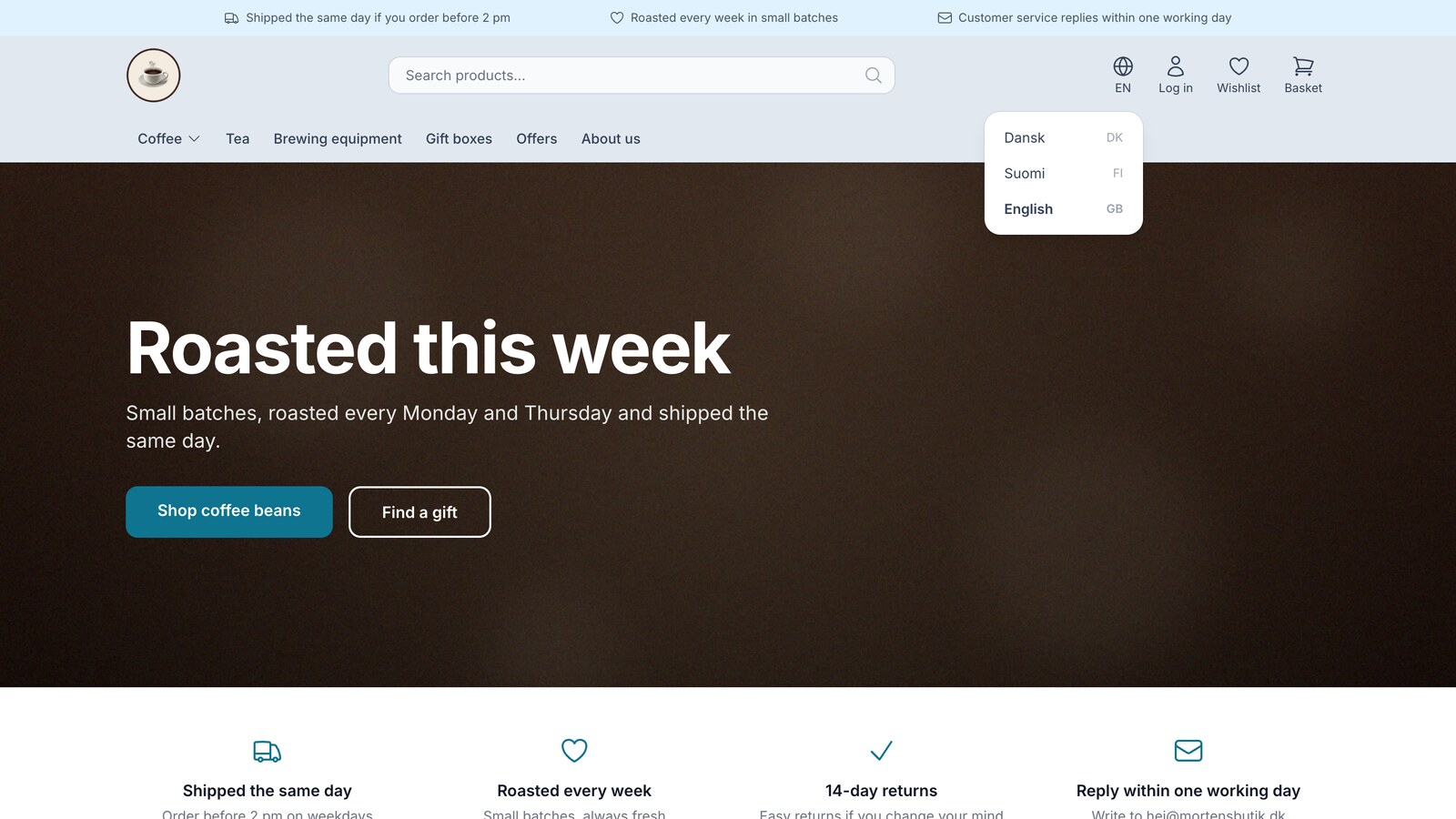
Sell in multiple countries through the online store you already have
New on Shoporama: Sell in Sweden, Finland, or Germany using each country's language, currency, and prices. Translation is included in the price,...
Contribution margin
Contribution margin is the difference between selling price and variable costs (typically cost price). It shows how much each product contributes...
Credit note
A credit note cancels or reduces an invoice for returned goods or price adjustments. Read about credit notes in eCommerce and accounting.