Rental: Rent tents, trailers, and equipment through your online store
Here's how to rent out tents, draft beer systems, trailers, and other equipment on Shoporama. The customer selects a time period on a calendar and pays by the day, and you can see each day what's going out and what's coming back.
What is rental in Shoporama?
With rentals, your customers can rent items from you for a specific period directly through your online store. This could include party tents, draft beer systems, tables and chairs, trailers, tools, or anything else you have on hand that others would like to borrow for a fee. You can use this feature whether you’re a dedicated party rental business or you run a regular store that also offers some rental services on the side.
The customer selects the first and last days on a calendar on the product page, sees the price for the entire period immediately, and pays just as they would for a regular purchase. In the calendar, the customer can only select days when items are available, so you avoid renting out the same tent twice. Afterward, you can see each day what’s going out and what’s coming back, and in the statistics, you can see how much your equipment is actually being used.
A rental is a standard order. The only difference is that the order line includes a rental period with a start date and an end date. There is no new payment method, and the order is invoiced and posted just like any other order.
Three rules you need to know
- The price is per day. The price you enter for the product is the price for one day.
- The stock quantity is the number of items you own. If you have 2 tents, enter 2 in stock. A rental never reduces the stock.
- Both the first and last days count. Friday through Sunday is 3 days.
How to set up rentals
Rentals are enabled on a product profile. All products listed in the profile become rental products. The setup involves three steps: create the profile, create the products, and, if desired, select a minimum rental period.
Step 1: Create a rental profile
- Go to Webshop → Product Profiles.
- Enter a name in the field for a new profile, for example, “Rental,” and click Create Profile.
- Check the box next to “Rental.” This field is located directly below “Financial Products ” and “Add-on Profile.” Below that, the “Charge upon order ” field appears with the box checked. Leave it checked unless you’d prefer to charge in a different way (read more under “Payment” below).
- If the customer should be able to choose between, for example, two tent sizes, add an attribute under “Attributes,” such as “Size” with the values “6 x 12 m” and “6 x 18 m,” and mark it as a “Variant.”
- Click Save and Close. The profile list now shows a “Rental” label next to the profile name, and you can find all your rental profiles using the Rental filter.
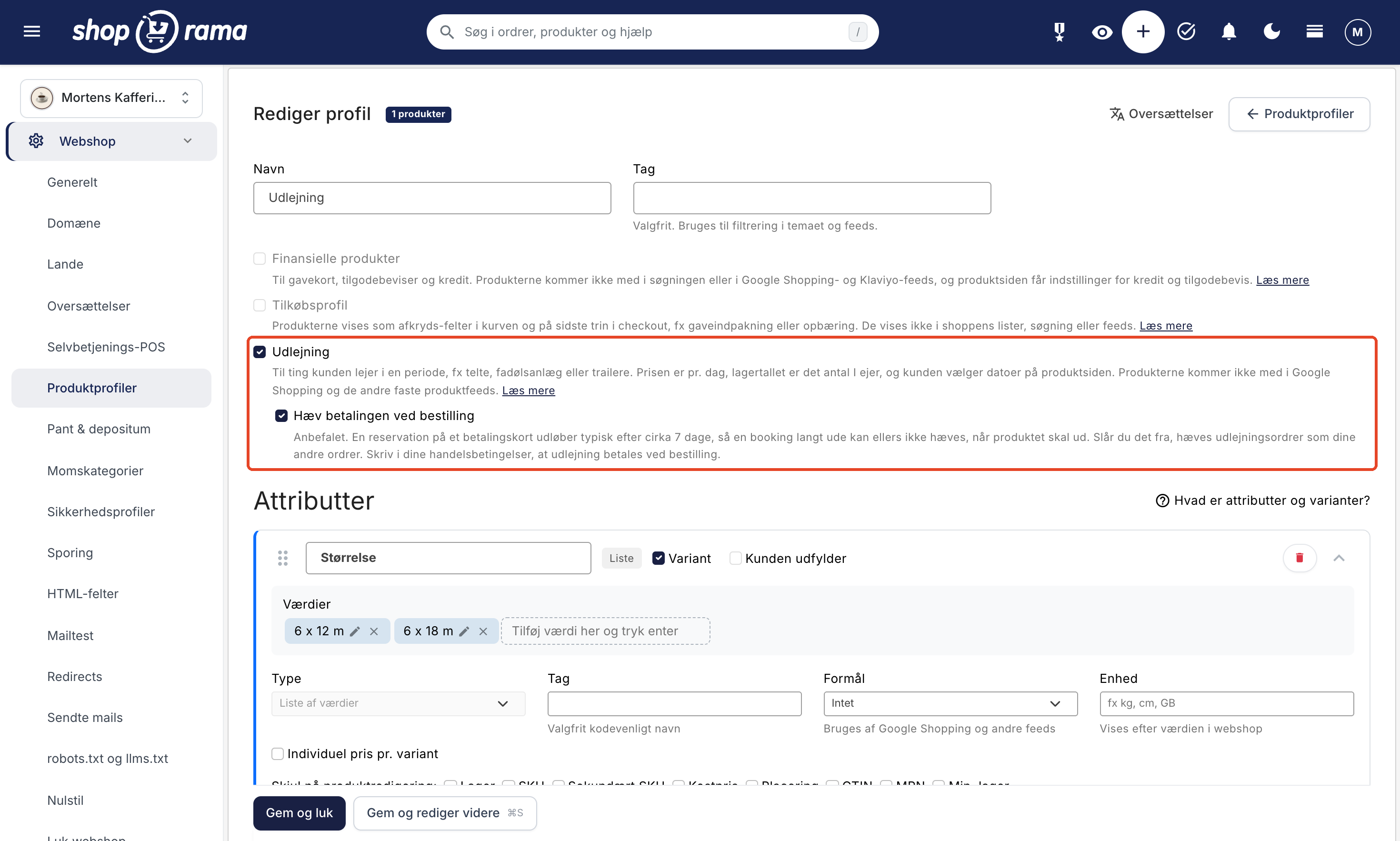
A few things about the profile:
- One variant. A rental profile may have one variant, such as the size of the tent. Each variant has its own quantity and can have its own price.
- Rental cannot be combined with Financial Products or Add-on Profile. If you check the “Rental” box, the other two checkboxes are automatically unchecked.
- Be careful with existing profiles. If you check the “Rental” box on a profile that’s already being used for regular products, they’ll all become rental products. Therefore, create a new profile for rentals.
- The theme must support the date picker. If the store uses a theme without the date picker, the profile will display a yellow warning indicating that customers cannot add the products to their cart. See the section on themes further down.
Step 2: Create the products
- Go to the product list and click Create Product.
- Select your rental profile under Profile, give the product a name—for example, “Party Tent”—and click Create Product.
- Enter the price for one day in the price field on the General tab, for example, 1,200 DKK. If the variants should each have their own daily price, check the “Individual price per variant” box for the attribute in the profile.
- Enter the quantity you own in the “Inventory” field on the “Inventory Management” tab, just as you would when managing inventory for a regular item. If the profile has variants, enter the quantity for each variant—for example, 2 tents measuring 6 x 12 m and 1 tent measuring 6 x 18 m.
- Add images, a description, and categories as usual; make sure the “Product is online” box is checked, and save.
If the stock level shows 0, the product cannot be rented. If you purchase another tent, add it to stock as usual, and then there will be one more unit available for rent. Manual stock adjustment works exactly as before. It’s only the orders that never affect the stock.
Step 3: Select a minimum rental period (optional)
When a product is in a rental profile, it gets the “Rental ” tab right below “Inventory Management.” Here, in the “Minimum Rental Period” field, you can specify the minimum number of days the customer must rent the item. The default is 1 day, and you can select up to 365. For example, if you rent out a trailer for at least two days at a time, enter 2 and save.
Below this field is “Upcoming Rentals”: a list of rentals for the product that haven’t ended yet, showing the period, product and variant, quantity, and a link to the order with the customer’s name. The “View all rentals” link takes you to Orders → Rentals, which you can read about further down.
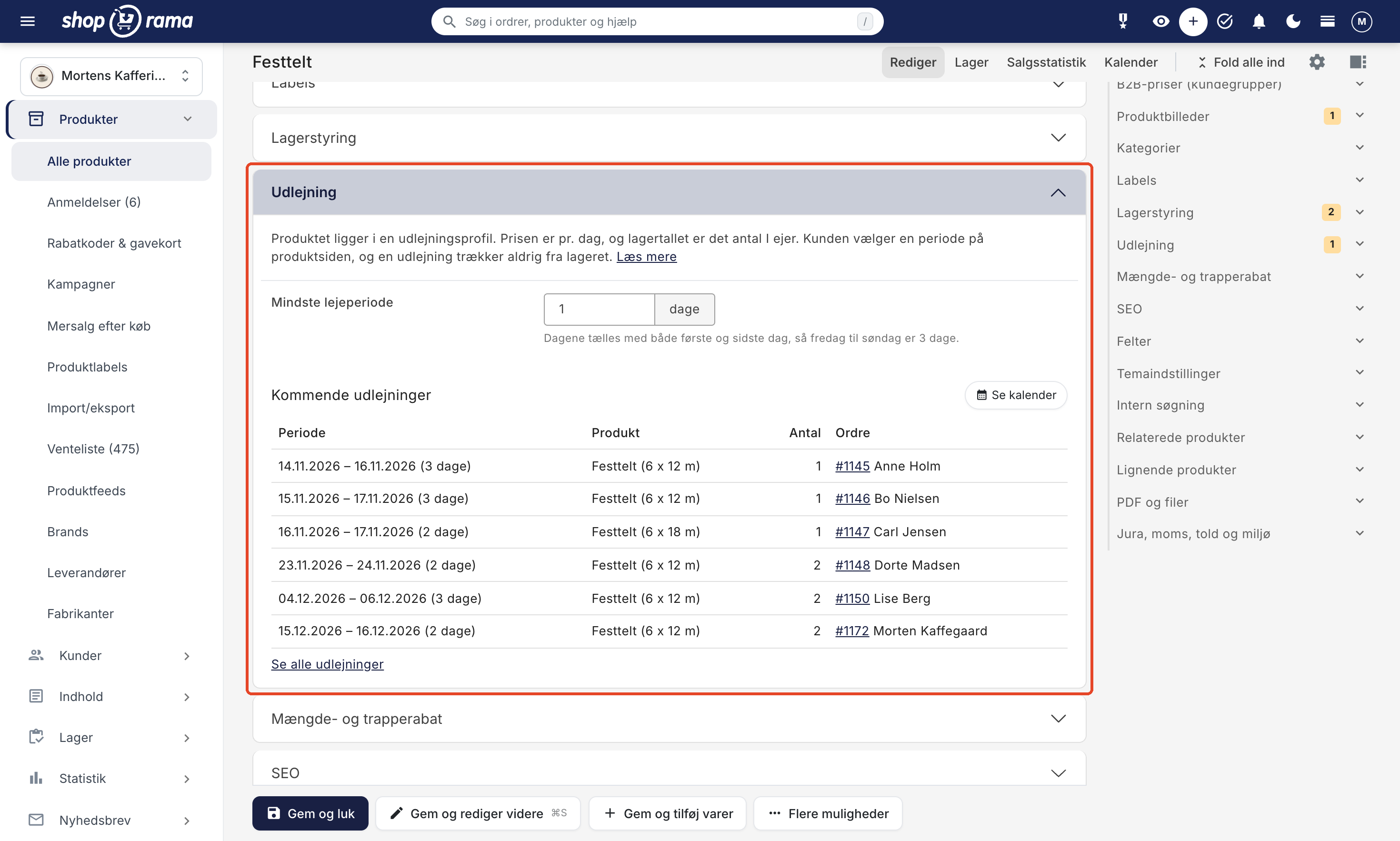
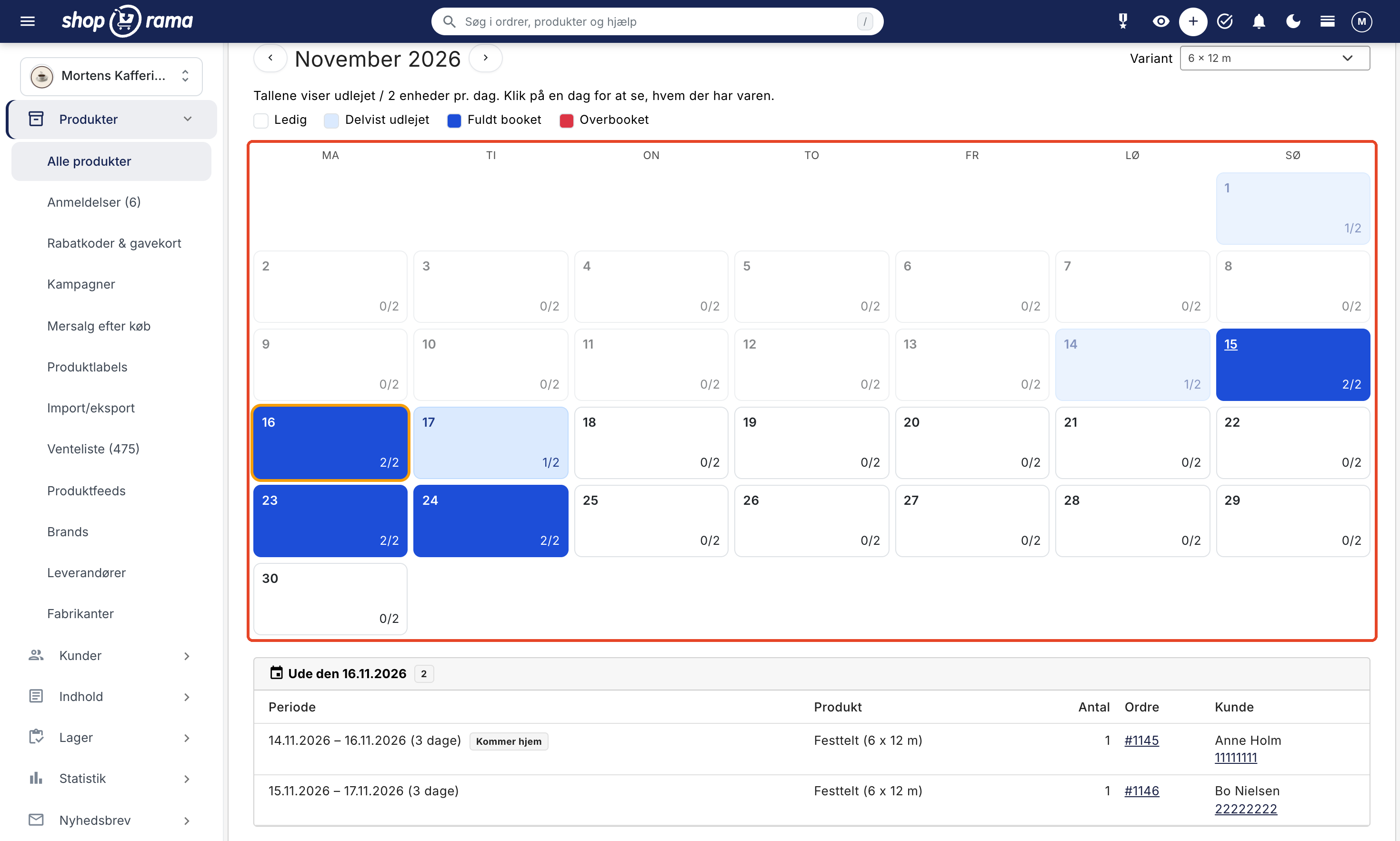
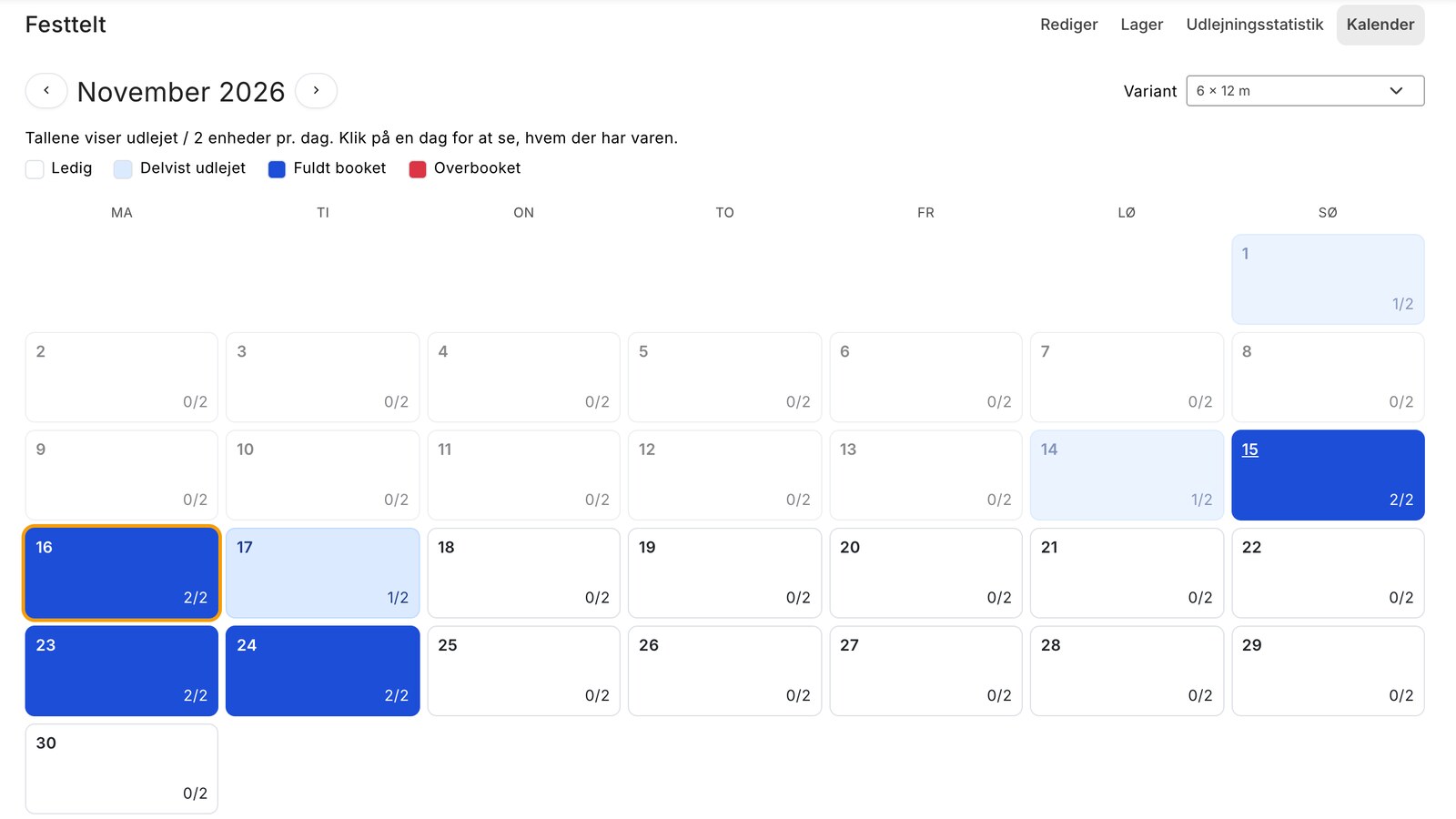
If you want to see when the product has been rented out, click “View Calendar ” on the card, or select the “Calendar ” tab at the top of the product page next to “Edit,” “Inventory,” and “Sales Statistics.” The calendar displays one month at a time, and each day is marked as rented based on the number of units, e.g., “1/2.” The colors indicate whether the day is available, partially rented, fully booked, or overbooked. If the product has variants, select the variant in the top-right corner, or view them all together. Click on a day to see who has the product out, along with the period, quantity, order, and customer. If you frequently check the calendar, you can add a calendar button to the rows in the product overview: click the gear icon at the far right of the table’s header row, and enable “Rental Calendar” under “Buttons” in the product row. The button appears only for rental products, and a small number in the corner shows how many rentals are currently out or pending. If you hover your mouse over the icon, the numbers are broken down, e.g., “2 out now · 4 pending.”
For rental products, the " Subscription Settings," " Bundles," and " Product Feeds " tabs are hidden because they don’t apply to items rented out on a daily basis.
How Days and Price Are Calculated
Days are counted as calendar days, and both the first and last days are included:
- Friday through Sunday is 3 days.
- Thursday through Saturday is 3 days.
- If the customer picks up and returns the item on the same day, it counts as 1 day.
The price on the order line is the daily rate multiplied by the number of days multiplied by the quantity. A party tent at 1,200 kr. per day from Thursday to Saturday costs 3 × 1,200 kr. = 3,600 kr. If the customer rents two tents during the same period, the total is 7,200 DKK. If you’ve set a promotional price or a separate price for a variant, that’s also a price per day.
If you’re thinking in terms of 24-hour periods, remember that picking up on Friday and returning on Saturday counts as 2 days. Set your daily rate so that it matches how the days are counted. The longest period a customer can rent on a single order line is 365 days.
How Shoporama Calculates Availability
Shoporama looks at all the orders that have already rented the product and calculates on a day-by-day basis. The number of units available during a period is the number you own, minus the highest number rented out on any single day within that period.
Example: You have 2 tents. One is rented from Monday to Tuesday, and the other from Thursday to Friday. If a new customer wants to rent from Monday to Friday, 1 is available because there’s never more than one tent out at a time. Shoporama does not combine the two rentals but looks at the busiest day.
- Each variant is counted separately. If both of your 6 x 12 m tents are rented out, the customer can still rent the 6 x 18 m tent if it’s available.
- Unpaid orders reserve the units. An order that hasn’t been paid yet still reserves the tent, so you don’t risk renting it out twice. This also applies if a customer backs out at checkout, so it’s a good idea to enable automatic cancellation of unpaid orders.
- Canceled orders do not reserve any units. If you want to release the units from an order, cancel the order. A credit memo does not, by itself, release the units from the original order.
- The customer’s own shopping cart is taken into account. If the customer already has a tent in their cart for the same dates, the calendar will show this so the customer cannot add more to their cart than you have available.
If you use automatic cancellation of unpaid orders, the units from unpaid orders are automatically released when the order is canceled.
What the customer sees in the online store
The price is listed with “per day” next to it, so the customer doesn’t think it’s the price for the entire period. On the product page, the heading “Select Rental Period” appears alongside a two-month calendar. The customer can scroll to later months using the arrow.
- If the product has variants, the customer selects one first. Until then, the calendar shows the days on which at least one variant is available, along with the text “Select a variant to see available days.”
- The customer clicks on the first day and then on the last day. Days prior to today and booked days are crossed out and cannot be selected. If the customer selects a quantity greater than 1, the days where there aren’t enough available slots are also crossed out.
- Below the calendar, the period, number of days, and price for the entire period and the selected number are displayed, for example, “Thu, Nov. 19 – Sat, Nov. 21 · 3 days · 3,600.00 DKK.”
- The customer clicks “Add to Cart.”
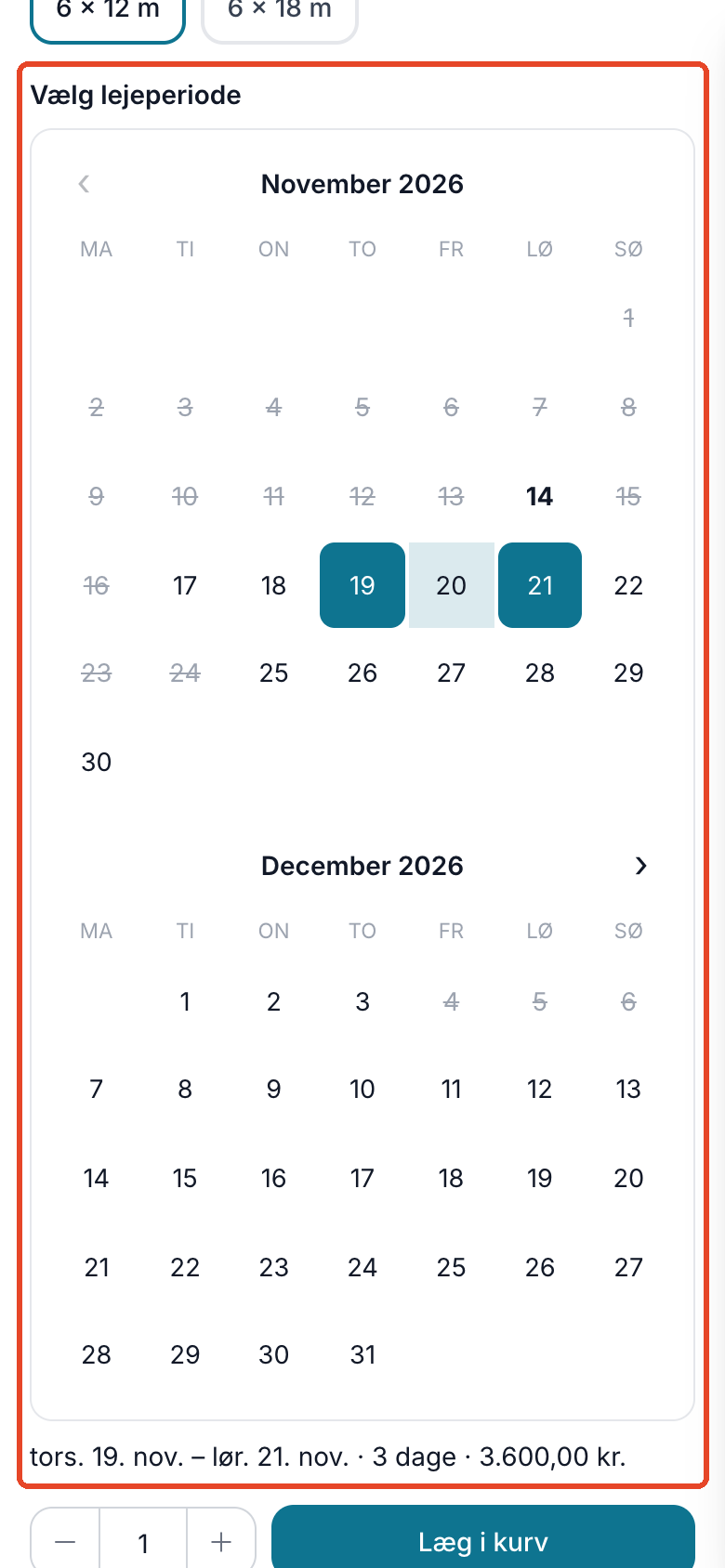
The calendar guides the customer through the process:
- If you’ve set a minimum rental period and the customer selects a shorter period, the message “The period must be at least X days” appears.
- If there aren’t enough available units for the selected number throughout the entire period, the message “There aren’t enough available units for the entire period. Available: X” appears.
- If the customer clicks “Add to Cart” without selecting a period, the message “Select a period before adding to cart” will appear.
- The cart checks the period again when the product is added to the cart. If the last unit has been rented out in the meantime, the customer is redirected back to the product page with a message, such as “There are not enough available units for that period. Available: X.”
In categories, in the cart, and on the order
- Product card. In categories and other lists, the “Select Dates” button appears instead of “Add to Cart” because the customer must first select a time period on the product page. For the same reason, the sticky “Add to Cart” bar does not appear on mobile devices, nor does the Vipps MobilePay button for purchasing directly from the product page. Vipps MobilePay Express from the cart works as usual.
- The rental period is displayed throughout the entire process. In the cart, at checkout, on the thank-you page, in the order overview in the customer’s account, in the order confirmation, and on the invoice, the text below the product reads, for example, “Rental period: December 4, 2026 – December 6, 2026 (3 days).”
- Two periods result in two lines. If the customer rents the same tent for two different periods, there will be two lines in the shopping cart. The same product for the same period is combined into a single line.
- The quantity always matches. If the customer enters a quantity in the cart that exceeds availability, the quantity is reduced to the available amount.
- The period cannot be changed in the cart. If the customer wants to change the dates, the line must be removed, and the product must be added to the cart again with the new period.
- Rentals and purchases in the same cart. The customer can easily rent a tent and purchase disposable tableware in the same order.
- No subscriptions. Rental products cannot be purchased as a subscription.
Payment: The amount is charged at the time of ordering
The customer pays at checkout using the payment methods you already offer. If the “Charge payment upon ordering ” box is checked in your profile, the amount is charged as soon as the customer completes the payment. This box is checked by default when you create a rental profile.
This is important for rentals because a reservation on a credit card typically expires after about 7 days. If a customer orders a tent for six weeks from now, and you don’t charge until the tent is due to be picked up, the reservation may have expired, and then the amount cannot be charged.
- The entire order is charged, including any additional items the customer purchases, such as charcoal or cups.
- If you cancel a booking for which the payment has already been processed, refund the order amount using “Refund Amount” as you normally would.
- If your payment module already has automatic collection enabled, unchecking the box won’t change anything.
- If you uncheck the box, rental orders will be charged like your other orders—for example, using “Automatically Charge the Amount When the Item Is Shipped or Picked Up” in the payment module.
Include in your terms and conditions that rental fees are paid at the time of booking, so the customer knows this in advance.
The Order in the Admin Panel and “Edit Period”
When you open the order, the rental period appears in a blue label below the order line, for example, “11/14/2026 – 11/16/2026 (3 days),” and next to it is the “Edit Period” link. If the line does not yet have a period, it will say “No period.”
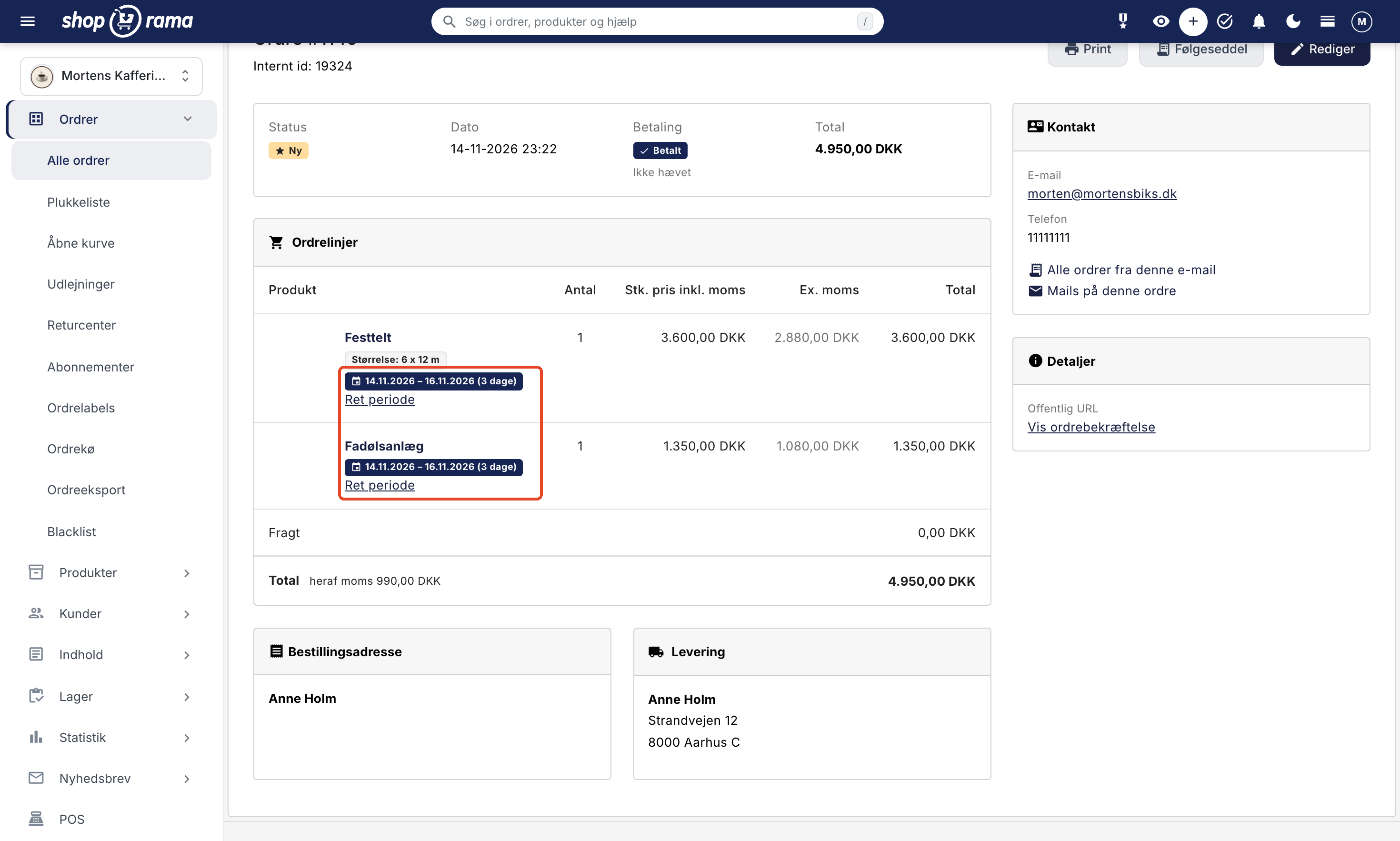
If you click " Edit Period," a window will open with the "From" and "To" fields. Select the new dates and click "Save." Three things are important:
- The price does not change. If the customer extends the stay from 3 to 4 days, you must manually adjust the price on the line when you edit the order.
- The period is saved, even if there aren’t enough units available. In that case, you’ll see the message: “The period has been saved, but more units have been rented out than you have available on one or more days within the period. See Orders → Rentals." If everything checks out, it will say "The period has been saved."
- With installment payments, the remaining balance is adjusted accordingly. If the order has installment payments and the payment link for the remaining balance hasn’t been sent yet, the dates for the link, the deadline, and the reminder are recalculated from the new first day, and the message ends with “The dates for the remaining payment have been adjusted accordingly.” If the link has already been sent, the deadline is not moved, and the message reads, “The payment link for the remaining balance has already been sent, so the deadline has not been moved.”
The rental period is also listed on the order printout, the picking list, and the packing slip, so you can pack for the correct date. If the customer cancels the entire rental, cancel the order so the units become available again.
To view all orders with rentals in the general order overview, go to Orders → All Orders, click the Shipping filter, select “Only orders with rentals” under Rentals, and click Apply Filter. This option is only available in the filter if your online store has a rental profile.
Bookings Made by Phone or In-Store
If a customer calls to rent a tent, create the order in the admin panel and set the rental period afterward:
- Click the plus sign at the top of the admin panel and select New Order. Fill in the customer details and click Create Order. You’re now on the edit page for the new order.
- Click “Add Products,” select the rental product, and click “Save” in the window. The product is now listed on the order with the daily rate.
- Enter the price for the entire period in “Unit Price incl. Tax.” If the customer is renting for 3 days, the daily rate must be multiplied by 3. Click “Save” and continue editing.
- Click “View Order” at the top. Below the line, you’ll see “No period.” Click “Edit Period,” select the dates, and click “Save.” Only now will the line include the units.
If you use automatic cancellation of unpaid orders, check the “Paid” box once the customer has paid, or select a status other than “New”—such as “Pending”—when editing the order. Otherwise, it will be canceled after the number of minutes you’ve selected, and the tent will be available again.
Orders → Rentals: What’s Going Out and What’s Coming Back?
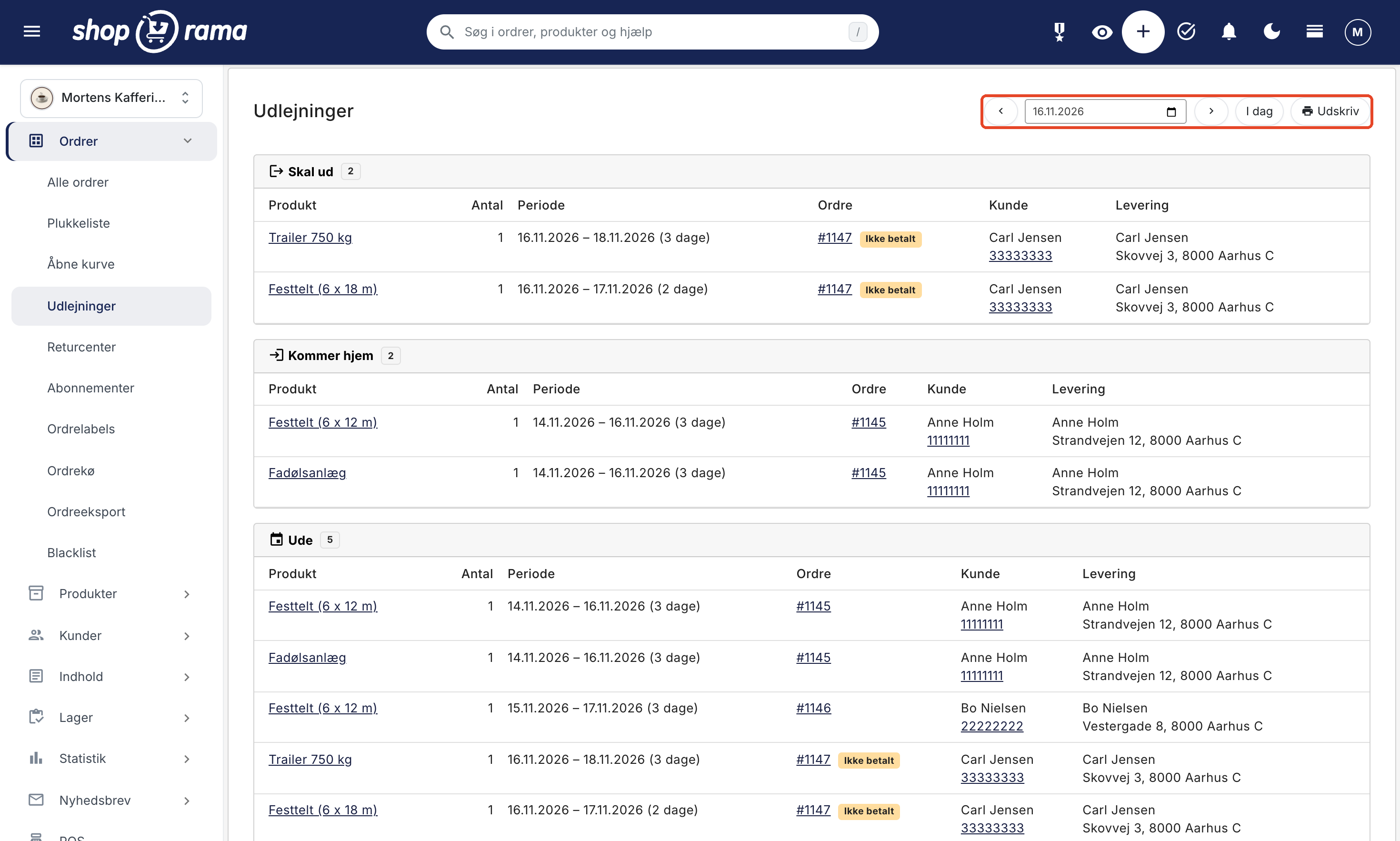
Under Orders → Rentals, you’ll see today’s overview. This menu item appears as soon as the store has at least one rental profile. In the top right corner, select the day using the arrows for the previous and next day or the date field. If you’re viewing a different day, click the “Today” button to return to the current day, and use “Print” to get a hard copy of the list for the warehouse or your vehicle.
The page has three boxes:
- Outgoing: rentals where the period starts on that day.
- Returning: rentals where the period ends on that day.
- Out: everything that’s been rented out that day.
For each rental, you’ll see the product, quantity, rental period, order number, customer name and phone number, and delivery address. If the order hasn’t been paid, there’s a yellow label that says “Unpaid” next to the order number.
If there are days when more units have been rented out than you have in stock, a red box labeled “Overbooked” will appear at the top of the page. It shows the next 30 days from the date you’re viewing, listing the product, how many units have been rented out, how many units you have in stock, and links to the affected days. This can happen when two customers pay for the last unit at exactly the same moment, or when you’ve adjusted a rental period. Resolve this by adjusting the rental period on one of the orders or by finding one more unit.
Rentals on canceled orders and credit memos are not included on this page.
Statistics → Rentals: How much is your equipment being used?
Under Statistics → Rentals, you can see how often each product is rented out and how much revenue it generates. This page appears when the store has a rental profile. At the top are four key metrics:
- Utilization Rate: the percentage of possible days your equipment has been rented out. Read more about this term in the glossary under “utilization rate.”
- Revenue: Excluding tax, for paid rentals that begin during the period.
- Rentals: the number of order lines where the rental period begins during the period.
- Average rental period: the average number of days customers rent, including both the first and last days.
You can select the period using the buttons “This Month,” “Last Month,” “Last 12 Months,” “This Year,” and “Last Year,” or by using the “Start Date” and “End Date” fields and the “Show Period” button. Use the “CSV” button to download the figures to a spreadsheet.
The table shows each product and each variant separately, with the columns Units, Rented Days, Possible Days, Utilization, Rentals, Revenue, and Per Unit. Utilization is calculated as rented days divided by possible days. For example, if you have 2 tents in November, there are 2 × 30 = 60 possible days. If they’ve been rented out for a total of 11 days, the utilization rate is 11 / 60 = 18.3%.
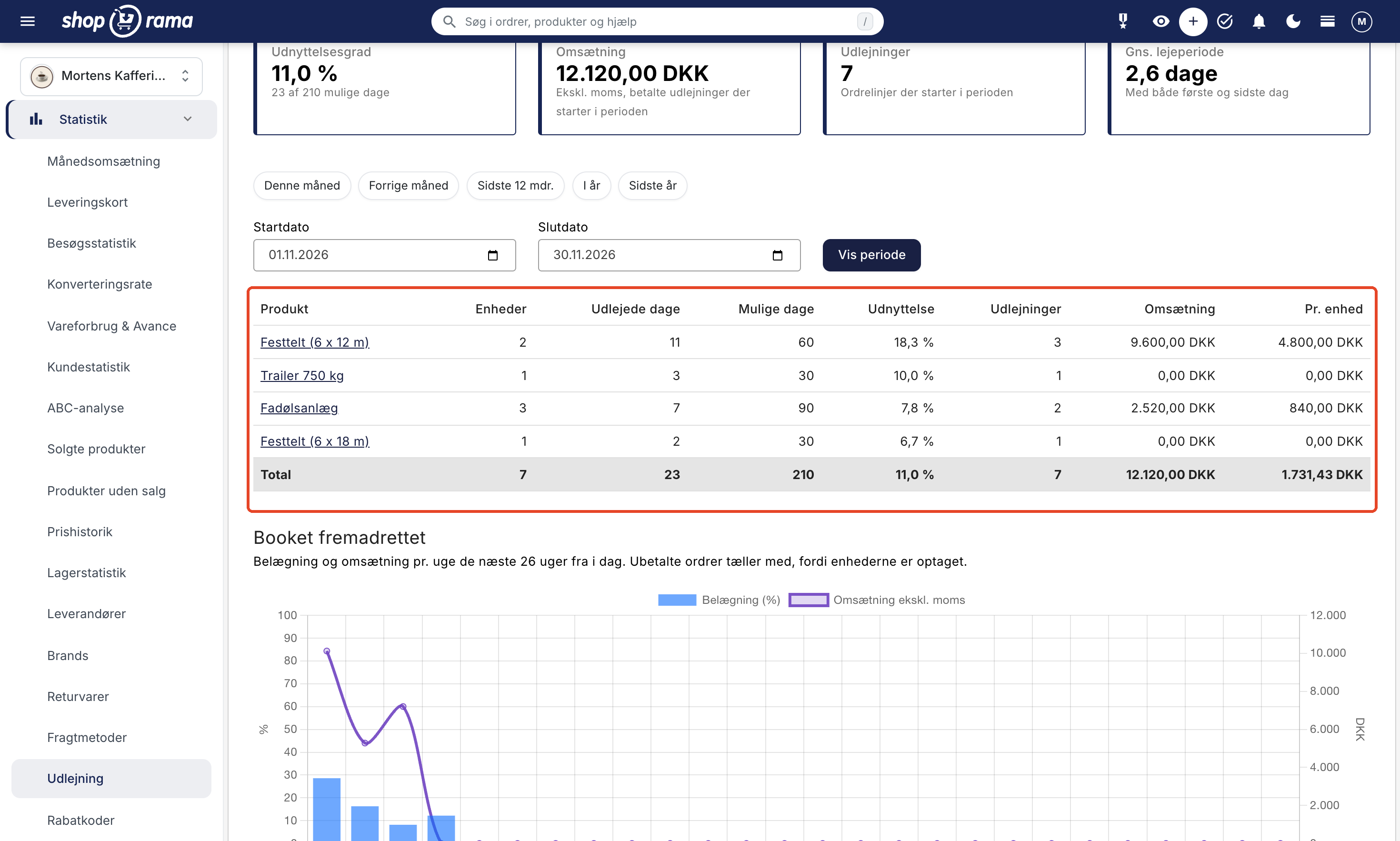
Note that unpaid orders are included in the utilization rate because the units are reserved, but not in revenue. Therefore, a product can have a utilization rate of 10% and revenue of 0 DKK if the order hasn’t been paid yet. For installment payments, only the deposit counts until the remaining balance is paid; after that, the full price counts. In “Booked Going Forward,” the full price always counts. Canceled and credited orders do not count. Products in a rental profile that have never been rented out are listed as 0%, so you can see what’s just sitting there taking up space.
“Units” refers to the current stock level of the product. If you’ve purchased additional units during the period, the available days are calculated based on the new quantity, so the utilization rate prior to the purchase will appear slightly lower.
Below the table is the “Future Bookings” graph. It shows occupancy as a percentage and revenue (excluding tax) per week for the next 26 weeks starting today. Unpaid orders are included here, both in occupancy and in revenue, so you can see how busy you’ll be and when there’s room for a promotion.
If you want to see the figures for a single product, select the “Rental Statistics” tab at the top of the product page. For rental products, this tab replaces “Sales Statistics” because units sold and days in stock don’t make sense when inventory is never deducted. The page features the same four key metrics, one table per variant, and the “Future Bookings” graph. You can select the “Next 30 Days” and “Next 90 Days” periods to see how booked the product is going forward. The “Sales Statistics” button in the product overview also opens the rental statistics for rental products.
Feeds, Search, and Sitemap
A daily rate does not fit into a price comparison where all other prices are for a purchase. Therefore, rental products are never included in Shoporama’s standard feeds to Google Shopping, PriceRunner, Kelkoo, Partner-ads, TradeTracker, Miinto, Klaviyo, the landing pages’ Google Shopping feed, and the general product feed. If you create your own feeds under Products → Product Feeds, rental products will be included if the feed includes all products; select categories or labels if you want to exclude them.
In the online store itself, rental products are treated just like regular products. They appear in your categories and lists, in search results, and in the sitemap, so both customers and search engines can find them.
Which themes support rentals?
Rental works with the Montana, MontanaB2B, Delaware, and DelawareDK themes. In the Delaware theme, which is in English, the price is listed as “per day” and “Choose dates” appears on the product detail pages. If you use a different theme or your own custom theme, the date picker isn’t included automatically.
Without the date picker, customers cannot add rental products to their cart. Shoporama helps you in two ways:
- The rental profile displays the warning: “Your theme does not show the date picker for rentals, so customers cannot add the products to their cart.”
- If a customer still tries to add a rental product to the cart without specifying a rental period, the attempt will be rejected, and you’ll receive a notification below the clock at the top of the admin panel indicating that the theme is likely missing the date picker.
If you have your own theme, a developer can add the date picker; see the section for developers below. If you’re unsure what your theme is capable of, please email support@shoporama.dk.
What You Need to Know Before You Get Started
Rental covers what most landlords need on a daily basis, but there are some things it can’t do yet:
- No security deposit. Shoporama cannot collect a deposit that the customer receives back when the item is returned in good condition. If you want part of the rental fee paid at the time of booking and the rest later, enable “Installment Payments” on your rental profile. Otherwise, the customer pays the full rental fee at the time of booking, just like a regular purchase.
- No buffer between rentals. The return date counts as a rental day, so a tent can be rented out again the day after it’s returned. A minimum rental period results in fewer turnarounds.
- Price per day only. There is no weekend rate or weekly rate.
- No distance-based delivery charges. Use your standard shipping methods, such as pickup and delivery.
- No tracking of individual units. Shoporama keeps track of how many trailers are out, but not which trailer has which license plate.
- No bundle packages for rentals. If you want to rent out a party package set, create it as a single rental product.
- Not available in POS. Rentals cannot be sold in POS. Instead, use an order in the admin panel and adjust the rental period as described above.
- The period cannot be changed in the cart. The customer must remove the line item and add the product to the cart again.
- Simultaneous payments. Two customers who pay for the last unit at exactly the same moment can both receive their orders. This is rare, and you’ll see it listed as “Overbooked” under Orders → Rentals when there are fewer than 30 days remaining.
For developers: Rentals in your own theme
This section is for those of you who build or maintain a theme. If you use Montana, MontanaB2B, Delaware, or DelawareDK, you can skip this.
- Declare support. Set "supports_rental": true in the theme’s theme_settings.json file if the theme includes the date picker. Without this, the shop owner will see a warning on the rental profile.
- Include the date range in the “Add to Cart” action. The form must submit `rental_from` and `rental_to` in the format YYYY-MM-DD along with the product, quantity, and variant. If these are missing, the product will be rejected, and the shop owner will receive a notification.
- Retrieve available dates. /rental-availability returns a JSON response and accepts product_id, optionally attribute_value_id for the variant, and from and to (maximum 93 days). The response includes, among other things, the daily rate, minimum rental period, and available units per day, with the customer’s own cart items deducted. Always retrieve this from the browser, as the product page may be cached.
- Display the rental period. $product->getIsRental() and $product->getRentalMinDays() on the product, $basket[i].rental in the cart, and $op->getRental() on order lines provide the rental period with start date, end date, and number of days.
- Hide shortcuts without a period. The “Quick Add to Cart” button on the product card, a sticky cart bar, Vipps MobilePay on the product page, and the subscription form cannot include a period.
The built-in themes include a ready-made date picker, which is a good starting point to replicate. The full description, including code examples and error codes, can be found in the documentation for theme developers.
In the REST API, profiles have the `is_rental` field, products have ` rental ` with `min_days`, and order lines have `rental ` with `from`, `to`, and ` days`. If you use the Claude integration (MCP), Claude can also create a rental profile and set the minimum rental period. POS and the Headless API cannot add rental products to the cart yet.
Frequently Asked Questions
Can I charge a deposit for a tent or a trailer?
Shoporama cannot charge a security deposit that is refunded to the customer when the tent or trailer is returned in good condition. If you want part of the rental fee paid at the time of booking and the rest later, you can enable “Installment Payments” on the rental profile. Then, for example, the customer pays 25% immediately, and the rest is automatically charged via a payment link before the rental period’s start date.
Can the system set aside a day for cleaning between two rentals?
No, there is no buffer between rentals. The return date counts as a rental day, so the unit can be rented out again no sooner than the following day. A minimum rental period results in fewer turnarounds.
The customer wants to change the date or cancel. What should I do?
If the customer wants to reschedule the rental, click “Edit Period ” on the order, select the new dates, and click “Save.” The price will not change automatically. If the customer cancels, cancel the order. This will make the units available again. Handle the payment as you would with any other order, such as by issuing a refund. A credit memo alone does not release the units; only the cancellation does.
What happens if two customers book the last tent at the same time?
The online store checks availability both when the item is added to the cart and again at checkout. If two customers pay at exactly the same moment, both can receive the order. This is displayed in the red “Overbooked” box under Orders → Rentals when there are fewer than 30 days until the rental date, so you can contact one of the customers.
Can I both sell and rent out the same tent?
Not for the same product, because rental is enabled on the profile and applies to all products within it. Create the rental as its own product in a rental profile. The customer can have both rental items and regular items in the same cart.
Can I offer weekend or weekly rates?
Not yet. The price is always per day. You can set a minimum rental period, and discount codes and promotions work the same way as for other items and are applied to the price for the entire period.
What about sales tax on rentals?
Rentals are subject to the same VAT rate as other items in your online store, based on the product’s VAT settings. If you’re unsure which VAT rate applies to your rental, ask your accountant.
Can the customer choose a time for pickup and drop-off?
No, the rental period is in full days. Agree on a time with the customer, or list your set times in the product description.
Does the rental feature work with my own theme?
The calendar is built into Montana, MontanaB2B, Delaware, and DelawareDK. If you’re using your own theme, the profile will display a warning, and your developer can integrate the calendar using the instructions in the “For Developers” section above. You’re also welcome to email support@shoporama.dk.
Related articles
Product Profiles and Variants
Guide to product profiles and variants in Shoporama. Understand how profiles, attributes and variants are related.
Automatic cancellation of unpaid orders
Set Shoporama to automatically cancel unpaid orders after a number of minutes. Frees up inventory and keeps the order list clean. The value is in...
Manage your orders in Shoporama
Guide to managing orders in Shoporama - from receiving to shipping and status updates.
Statistics and analytics in Shoporama
Get an overview of Shoporama's built-in statistics tools: dashboard, revenue, profit margin, ABC analysis and much more. Learn how to use data to...
What themes are there on Shoporama?
Complete overview of all free themes on Shoporama: Delaware, DelawareDK, California, Alaska 2, Washington, Montana, and the classic Smarty 2 themes...
Related features
Get Started with Renting
Set up rentals in Shoporama: a rental profile, price per day, number of units, and minimum rental period. View the customer's calendar and see what...
Rent out equipment through your own online store with daily rates and a calendar
Rent out items online from your own web store: price per day, available dates on a calendar, sales and rentals in the same shopping cart, and...
Rental
Rental
Renting involves making an item available to a customer for a period of time in exchange for payment. Learn about the rental period, security...
Capacity utilization rate
Utilization rate is the percentage of the total available time that something is in use. See the formula with an example, and learn how Shoporama...
Online store for rentals with online booking
A rental system and online store in one. Customers book tents, draft beer systems, and trailers online using a calendar that shows available dates...