MobilePay on Your Online Store
Here's how to accept MobilePay on your Shoporama online store through your payment gateway. See the difference between MobilePay Online and Vipps MobilePay in QuickPay, and get help if MobilePay isn't showing up.
If you offer the payment methods your customers expect, there’s one less reason for them to abandon their cart. On Shoporama, you can accept MobilePay through your payment gateway, such as QuickPay, Pensopay, or Flatpay. Here you can see how to enable MobilePay, the difference between MobilePay Online and Vipps MobilePay in QuickPay, and what to do if MobilePay doesn’t appear in the payment window.
Are you looking for MobilePay Checkout? That feature has been discontinued. Read more in the section “MobilePay Checkout has been discontinued ” at the bottom of the article.
How MobilePay Works on Shoporama
MobilePay is not a standalone payment gateway in Shoporama. It’s a payment method that you enable through the payment gateway you use. You’ll find your gateways under “Payment Gateways” in the Shoporama admin panel.
The customer enters their information at checkout just as with other payments and then pays with MobilePay.
MobilePay fees are billed by Vipps MobilePay or your payment gateway, not by Shoporama. Shoporama does not charge transaction fees. You can read more in “Additional Fees for MobilePay and Fraudfighter.”
If you don’t have a payment gateway yet, start with “How do I accept online payments?”
Payment gateways that support MobilePay
Where you enable MobilePay depends on which gateway you use:
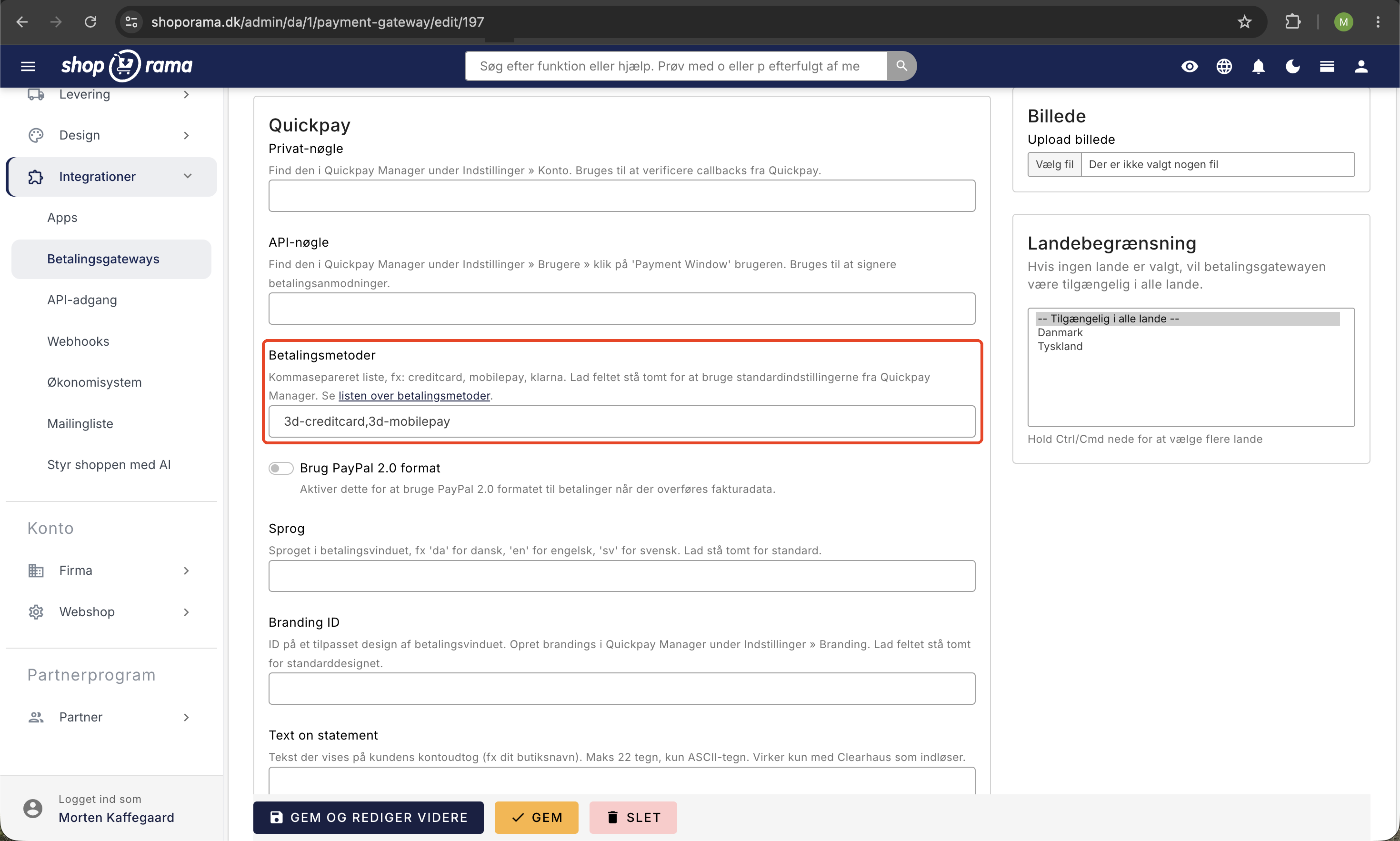
- QuickPay: Use the “Payment Methods” field on the gateway in Shoporama. If the field is empty, QuickPay will use the methods enabled in QuickPay Manager. See Setting Up QuickPay.
- Pensopay: Use the “Payment Methods” field in Shoporama, e.g. , visa, mastercard, mobilepay. If the field is empty, all methods are offered.
- Flatpay: Use the “Payment Methods” field in Shoporama, e.g. , card, MobilePay. If the field is left blank, all methods will be offered. See the Flatpay guide.
- OnPay: Integrates well with MobilePay and Dankort. Payment methods are set up in OnPay. See the OnPay guide.
- Nets Easy: Payment methods are configured in Nets’ own portal. See the guide for Nets Easy.
- Stripe: Payment methods are configured in the Stripe dashboard. See the guide for Stripe.
- ePay: Select the “MobilePay Online” payment type on the gateway in Shoporama.
Tip
If you want to control which payment methods customers in specific countries can choose, read “Restrict payment methods to specific countries.”
MobilePay with QuickPay: MobilePay Online or Vipps MobilePay
QuickPay offers two ways to accept MobilePay. For your Danish customers, they look the same because both are displayed as MobilePay. The difference lies in which agreement the payment is processed under.
MobilePay Online
- This solution is card-based. The payment goes through a card acquirer, such as Clearhaus.
- At QuickPay, a MobilePay Online transaction counts as both a card transaction and a MobilePay Online transaction.
- You can enable it in QuickPay Manager under Settings → Acquirers → MobilePay Online.
- Vipps MobilePay still supports and maintains MobilePay Online, and there is no planned end date.
- It applies only to the Danish and Finnish markets.
- In the Payment Methods field, the method is listed as mobilepay.
Vipps MobilePay (ePayment)
- This solution requires a direct agreement with Vipps MobilePay. You can apply through QuickPay Manager.
- QuickPay will ask for the agreement’s MSN (merchant serial number).
- Vipps MobilePay recommends ePayment for new integrations.
- QuickPay supports only one Vipps MobilePay agreement per QuickPay merchant and, therefore, only one currency. DKK and EUR are displayed as MobilePay, while NOK and SEK are displayed as Vipps.
- Leave the “Payment Methods” field on the Shoporama gateway blank so that the configuration in QuickPay Manager takes effect. This ensures that Vipps MobilePay is included.
Which solution is right for your online store?
- If you already have card processing through QuickPay—for example, via Clearhaus—MobilePay Online is typically the quickest option. If you don’t have a processing agreement, see “Apply for a Processing Agreement with Clearhaus.”
- If you already have an agreement with Vipps MobilePay, check with Vipps MobilePay to confirm that the agreement covers payments in an online store before entering the MSN in QuickPay.
- If you sell in multiple currencies, keep in mind that Vipps MobilePay via QuickPay only supports one currency per merchant.
How to enable MobilePay in QuickPay
- Log in to QuickPay Manager and enable MobilePay. Either select MobilePay Online under Settings → Acquirers → MobilePay Online, or apply for Vipps MobilePay and enter the agreement’s MSN.
- Verify that MobilePay is listed as activated and approved in QuickPay Manager.
- Open your QuickPay gateway under Payment Gateways in the Shoporama admin.
- Check the Payment Methods field. Leave it blank to use the configuration in QuickPay Manager. If you’re using MobilePay Online and want to manage the list yourself, MobilePay must be included.
- Save the gateway.
- Test a real payment with MobilePay in your online store.
If you have questions about the customer’s phone number when paying with MobilePay, see “Phone Number in MobilePay.”
MobilePay does not appear in the payment window
If your customers cannot select MobilePay when paying, go through the steps below:
- Is MobilePay enabled and approved? Check in QuickPay Manager to ensure that MobilePay Online or Vipps MobilePay is enabled and approved.
- Does the “Payment Methods” field exclude MobilePay? For example, if it only says “credit card,” MobilePay won’t appear, even if it’s enabled in QuickPay Manager. Clear the field so that the default settings from QuickPay Manager apply. If you’re using MobilePay Online, you can add “mobilepay” instead.
- Is the currency correct? The customer must pay in a currency covered by your MobilePay agreement. With Vipps MobilePay via QuickPay, you have one currency per merchant.
- Are you using a different gateway? For Pensopay and Flatpay, check the “Payment Methods” field in Shoporama. For ePay, the payment type “MobilePay Online” must be selected. For OnPay, Nets Easy, and Stripe, check the settings with the respective gateway.
- Have you tested with a real payment? Complete a purchase yourself after setting up the system so you can see the payment window exactly as your customers will see it.
MobilePay Checkout is closed
MobilePay Checkout was an add-on with a button for quick payment. Customers could skip entering their address information in the online store because MobilePay sent the customer’s address along with the payment.
According to QuickPay, MobilePay Checkout is no longer available as of March 12, 2024, because MobilePay has discontinued the Checkout product.
- The button has been removed from Shoporama’s themes. A button that takes the customer directly to checkout without requiring them to enter an address can result in orders without a name, address, or email if the customer pays with, for example, a card. If your online store has a custom theme that still displays such a button, it should be removed.
- Standard MobilePay payments are not affected. The customer enters their information at checkout and pays with MobilePay as usual.
- The setting on the QuickPay gateway has been changed. It is now called “Get Customer Address from PayPal” and is used only for PayPal.
If you’d like to learn more about how MobilePay can benefit your business, see “Online Store with MobilePay.” If you have any questions about the setup, feel free to email us at support@shoporama.dk.
Frequently Asked Questions
My customers used to be able to pay with MobilePay without entering their address. Did I make a mistake?
No. That was MobilePay Checkout, and MobilePay itself discontinued that feature on March 12, 2024. Regular MobilePay payments work as before: the customer enters their information at checkout and pays with MobilePay at the end. You don’t need to do anything to switch.
Do I need a separate agreement with MobilePay, or is it enough to enable it in QuickPay?
It depends on which solution you choose. MobilePay Online runs through your card acquirer, such as Clearhaus, and is enabled in QuickPay Manager. Vipps MobilePay requires a direct agreement with Vipps MobilePay, which you can apply for through QuickPay Manager. QuickPay will then ask for the agreement’s MSN number.
Is there a difference in fees between MobilePay Online and Vipps MobilePay?
The fees depend on your agreements and are not billed by Shoporama. Please note that a MobilePay Online payment through QuickPay also counts as a card transaction. See “Additional Fees for MobilePay and Fraudfighter” and check the rates in your agreements.
Can I accept MobilePay without using QuickPay?
Yes. MobilePay can also be enabled via OnPay, Pensopay, Flatpay, Nets Easy, Stripe, and ePay. See the list of gateways above to find out where to enable MobilePay for each one.
I’m testing from my Android phone and can’t see Apple Pay. Is there an error?
No. Apple Pay only appears on Apple devices and in Safari, while Google Pay typically appears on Android and in Chrome. Test from an iPhone if you want to see Apple Pay in the payment window.
Can I create my own “Pay with MobilePay” button in my theme that skips the address step?
No. The button was based on MobilePay Checkout, which has been discontinued, so MobilePay no longer sends the customer’s address. If the customer pays with a card instead, for example, you’ll receive an order without a name, address, or email. The button has therefore been removed from Shoporama’s themes, and the customer must go through checkout as usual.
Related articles
Setting up QuickPay
Guide to setting up QuickPay as a payment gateway on your Shoporama online shop. Supports Dankort, MobilePay, Visa, Mastercard and many more.
Phone number in MobilePay
Why the phone number is not pre-filled in MobilePay and what the customer can do.
Additional fees for MobilePay and Fraudfighter
Explanation of additional fees for MobilePay, Fraudfighter and other add-on services.
Apply for a settlement agreement with Clearhaus
Apply for a settlement agreement with Clearhaus directly from the Shoporama admin panel, save your API key, and have our support team link the...
Customize your checkout
Guide to customizing the checkout flow in your Shoporama online store, including payment methods, shipping, customer fields and gift cards.
Settings for transactional emails
How to set when Shoporama automatically sends transactional emails like abandoned baskets, payment reminders and product reviews.
Order flow and automated emails
Understand the entire flow from checkout to order confirmation. Learn when automatic emails are sent, what happens with different payment methods...
Related features
Webshop with MobilePay
Set up an online store with MobilePay and offer your customers a faster checkout experience. Here's how to set up MobilePay on Shoporama via QuickPay.
Best E-commerce Platform for 2026: A Comparison of 9 Platforms
Shopify, WooCommerce, DanDomain, Shoporama, and 5 others compared based on price, fees, MobilePay, Dankort, accounting, and Danish support....