VAT Categories: The Correct VAT Rates for Books, Food, and Other Goods
Here's how to apply the correct VAT rate to books, newspapers, food, and other items in each country using VAT categories, and how to allocate shipping costs and discounts when an order has multiple VAT rates.
With VAT categories, items that don’t have the country’s standard VAT rate are assigned the correct VAT rate in each country you sell to. For example, if you select the “Books” category for a book, the book will be subject to 25% VAT in Denmark, 6% in Sweden, and 7% in Germany. Shoporama keeps the rates up to date in all EU countries, and when an order contains items with different rates, shipping and discounts are automatically distributed according to those rates.
In short: Under Webshop → VAT Categories, you’ll see the categories and their rates for your countries. You select the category for the item in the VAT Category field in the Legal, VAT, Customs, and Environment tab. If almost all your items belong to the same category—for example, books in a bookstore—you can instead select a Standard Category for the store. If you only sell items subject to the country’s standard VAT rate, you don’t need to do anything.
What are VAT categories, and when should you use them?
Most products are subject to the country’s standard VAT rate—25% in Denmark. However, some products have a different rate, and this rate varies by country. A VAT percentage entered directly for a product applies in all countries, so it cannot be accurate everywhere. Instead, a VAT category tells Shoporama what kind of item it is, and the category has a specific rate for each country.
Here’s an example: You list prices that include VAT and charge Swedish VAT on your sales to Sweden. If a Swedish customer buys a book for 250 kr., the VAT is 14.15 kr. (6%) instead of 50 kr. (25%). The customer pays the same amount, but you pay 35.85 kr. less in VAT.
Shoporama has five categories, and you’ll need them if you sell:
- Books , e-books, or audiobooks to customers in other EU countries. In Denmark, they are subject to 25% VAT, just like other goods, but in most EU countries, they have a lower rate. There are two categories because the rate for e-books and audiobooks is not the same as for books in all countries.
- Newspapers—that is, daily and weekly newspapers—which are subject to 0% VAT in Denmark. Here, the category makes a difference, even when you sell only in Denmark. Magazines and periodicals do not fall under this category, as they are subject to a different rate than newspapers in several countries. In Denmark, magazines are subject to a 25% VAT rate.
- Food products for customers in other EU countries, such as Sweden, Germany, or Finland. In Denmark, food products are subject to a 25% VAT rate. This category uses the standard rate for general food products. Several countries have lower rates for basic goods and higher rates for candy and beverages. A single fixed rate per category cannot cover this, so here you can enter your own rate or create your own category.
- VAT-exempt for goods that are subject to 0% VAT in all EU countries.
Items without a VAT category are subject to the country’s standard VAT rate, which you have set under Shipping → Countries.
You are responsible for the VAT
Shoporama’s rates are designed to help you get started quickly and correctly. As the store owner, you are responsible for the VAT you charge, and you can always adjust a rate or create your own category. If you’re unsure which category a product belongs to or what VAT rate to charge in a particular country, consult your accountant.
Rates in Shoporama’s Categories
Here are the rates for some countries as of October 2026. You can always view the current rates for all your countries under Webshop → VAT Categories.
| Country | Books | E-books and audiobooks | Newspapers | Food |
|---|---|---|---|---|
| Denmark | 25% | 25% | 0% | 25% |
| Sweden | 6% | 6% | 6% | 6% (12% as of January 1, 2028) |
| Germany | 7% | 7% | 7% | 7% |
| Finland | 13.5% | 13.5% | 10% | 13.5% |
| Netherlands | 9% | 9% | 9% | 9% |
| Ireland | 0% | 0% | 0% | 0% |
Shoporama keeps the rates up to date
Shoporama maintains the tax rates for all EU countries. When a country adopts a new tax rate, we enter it along with the date, and the rate changes automatically on that day. Upcoming changes are listed under the category name, e.g., “Effective Jan. 1, 2028: SE 12%” under Food. Proposals that have not been adopted are not included.
Countries outside the EU, such as Norway, the United Kingdom, and the United States, do not have rates listed in Shoporama’s categories. For these countries, the product is assigned the country’s standard VAT rate from Delivery → Countries, unless you manually enter a rate for the category in that country.
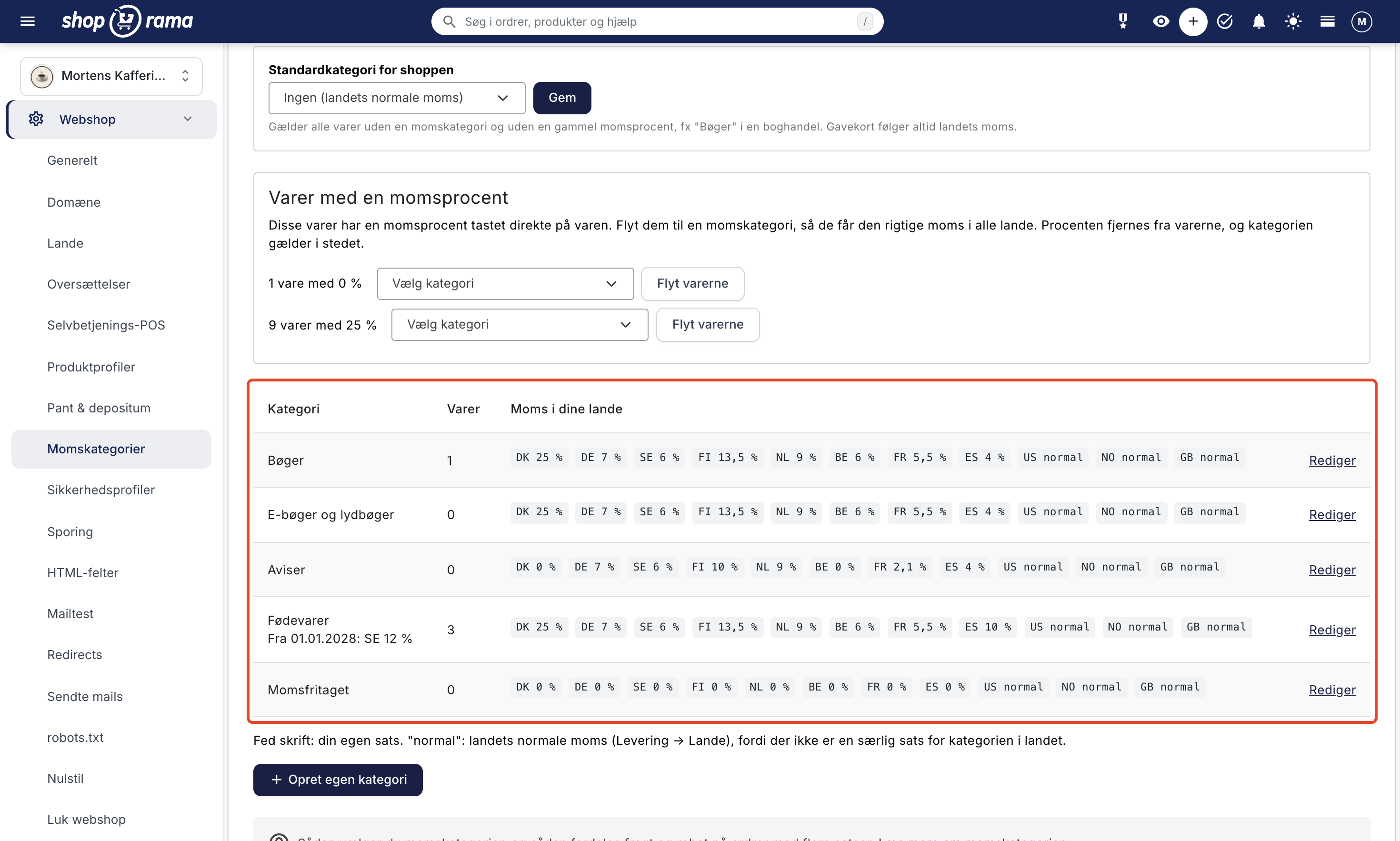
The VAT in Your Countries column lists the rates for the countries you ship to under Delivery → Countries, with your default country listed first. “Normal” refers to the country’s standard VAT rate because the category does not have a specific rate for that country. A rate in bold is your own, and categories you’ve created yourself are marked “custom.” The “Items” column shows how many items have this category selected directly. Items that fall under the default category are not included in this count.
How Shoporama Determines an Item’s VAT
Shoporama goes through the rules in this order and uses the first one that applies:
- The item’s VAT category.
- Otherwise, the item’s old VAT rate, as before.
- Otherwise, the store’s default category.
- Otherwise, the country’s standard VAT rate from Delivery → Countries.
The category’s rate in a country is your own rate, if you’ve entered one. Otherwise, it’s Shoporama’s rate, and if the category has no rate in that country, it’s the country’s standard VAT rate.
When the VAT rate is 0% in the country
If the customer’s VAT rate is 0% in that country, the product’s VAT rate is also 0%, regardless of category. This applies, for example, when exporting to a country outside the EU that is listed as 0% under Delivery → Countries. This also applies when a business customer in another EU country has a valid VAT number, and that country’s B2B VAT (%) is set to 0%. In this case, reverse charge applies, meaning the customer is responsible for paying the VAT in their own country. Read more in Reverse Charge and VIES Validation.
Danish business customers are subject to the same category rates as private customers in Denmark. Thus, a newspaper is 0% and a book is 25%, even when the customer is a business.
Sales to Private Customers in Other EU Countries and OSS
When you charge VAT at the buyer’s country’s rate—for example, because you’re registered with OSS (One Stop Shop)—the item must be assigned the buyer’s country’s rate for that type of item. This is the rate specified by the VAT category. You still set the country’s standard VAT rate under Delivery → Countries; see Countries and Currency. If you edit an EU country there, Shoporama displays a warning under B2C VAT (%) if the rate is neither the country’s standard rate according to Shoporama’s VAT table nor the same as in your default country.
Do you charge Danish VAT on sales to other EU countries?
The rates for the categories in other EU countries are the countries’ own rates. A book shipped to Germany is subject to 7%, even if you’ve set Germany to 25% (Danish VAT) under Shipping → Countries. If you charge Danish VAT on your sales to private customers in other EU countries—for example, because you’re selling within the EU’s single market and aren’t registered for the OSS scheme—enter the Danish rate for the category in each of the EU countries you sell to, e.g., 25% for Books and 0% for Newspapers, in Your Rate under Webshop → VAT Categories. Consult your accountant if you have any questions.
Set up VAT categories
You’ll find this page under Webshop → VAT Categories, right below “Deposits & Refunds.” The tabs on the page are listed in the same order as the sections below.
Default category for the store
If almost all your products belong to the same category—for example, books in a bookstore—select that category under “Default Category for the Store” and click “Save.” This category then applies to all products that have neither a VAT category nor an old VAT rate, and you won’t need to edit the products one by one. Gift cards are never assigned the default category.
If you have products that do not belong to the default category—such as a tote bag or a coffee mug in a bookstore—select “Standard” (the country’s standard VAT rate) in the “VAT Category” field for the product. When the store has a default category, that selection appears directly below “Store Default” (Books).
Move items with a tax rate to a category
If you’ve entered a tax rate directly on your items, the page displays the “Items with a Tax Rate ” card with a line for each percentage, e.g., “9 items at 25%.” Select the category for the items from the list and click “Move the items.” The VAT rate will be removed from the items, and your selection will apply instead.
- If the rate is simply the country’s standard VAT rate—for example, 25% in a Danish store—select “Standard (country’s standard VAT rate)” at the bottom of the list. This will apply the country’s standard VAT rate to the products in all countries, even if the store has a default category.
- Ifthe items have a reduced rate, such as 0% on newspapers, select the category to which they belong, such as “Newspapers.”
Do not move regular items with a 25% VAT rate to a category with a reduced VAT rate, such as Books or Food, because then they will be assigned the category’s lower rate in other countries. All items with the same percentage should be moved at once. If you have a 0% rate on different types of items, such as newspapers and tax-exempt items, select the category for each item individually or in Table Editor (see below).
Secondhand VAT is not yet included in the VAT categories. If you’ve assigned a 0% rate to used goods due to second-hand VAT, let them keep that rate and do not move them to “VAT-Exempt.” “VAT-Exempt” means 0% VAT in all EU countries and is not the same as second-hand VAT.
Edit a rate in one of Shoporama’s categories
Click Edit next to the category. The page displays your countries with the columns Country, Shoporama’s Rate, and Your Rate. Enter a rate in the “Your Rate” column only if your product should have a different VAT rate than Shoporama’s in that country, then click “Save.” An empty field follows Shoporama’s rate; if you want to revert to Shoporama’s rate after making a change, clear the field and click “Save.”
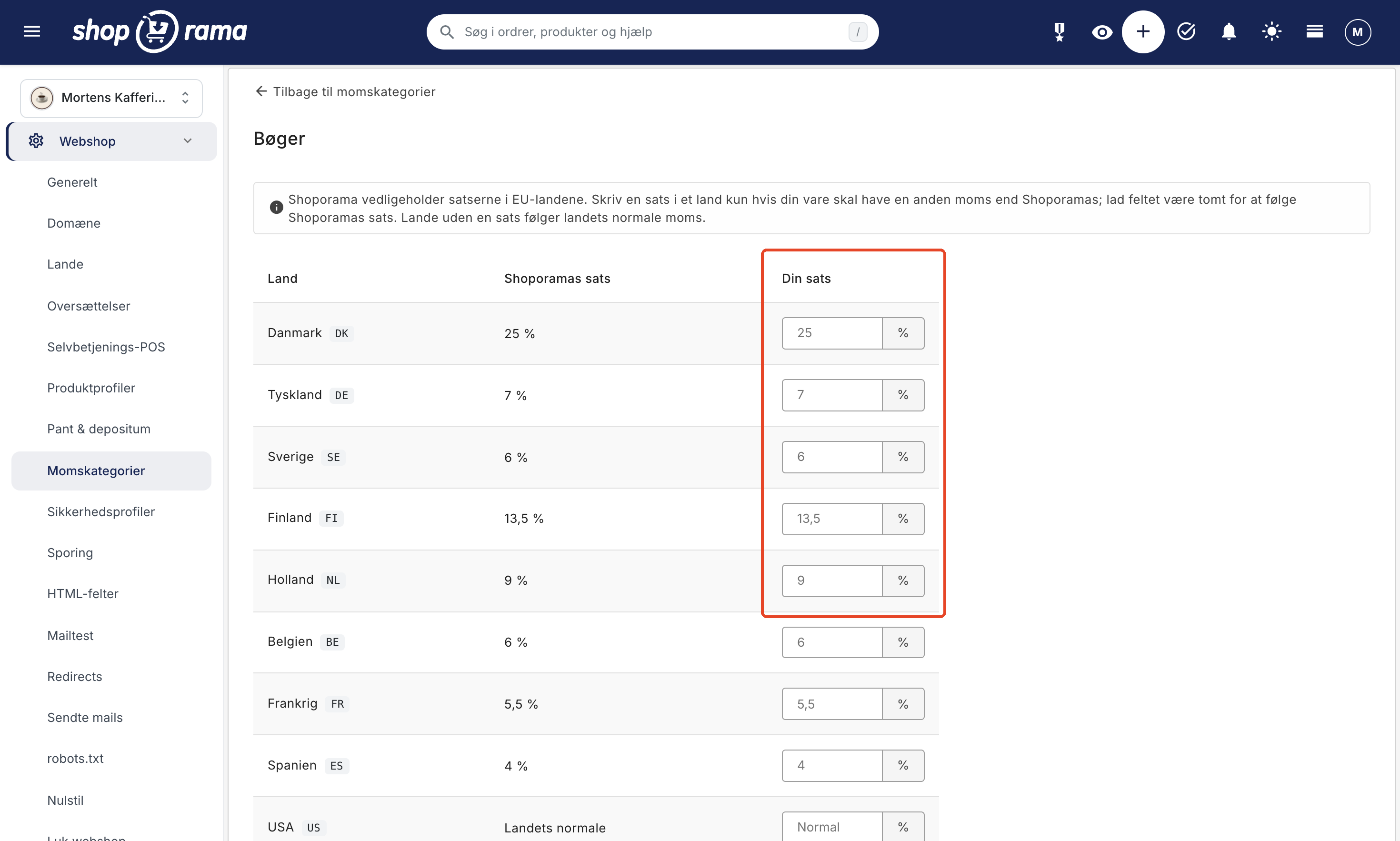
Your own rate takes precedence over Shoporama’s, even if Shoporama’s rate is changed later. In that case, you’ll need to keep it updated yourself. If you enter the same number as Shoporama’s rate, it won’t be saved as your own, and you’ll continue to follow Shoporama’s changes.
Below the table, you can see how many products have this category selected directly. Products that follow the default category are not included in this count. If there are upcoming changes to the category in your countries, they’ll be listed in the “Upcoming Changes” section, e.g., “Effective January 1, 2028, in SE: 6% → 12%.” Shoporama’s categories cannot be deleted.
Create Your Own Category
If none of Shoporama’s categories fit, you can create your own, such as “Art” or “Education.” It’s better to use one of Shoporama’s categories if it fits, because then we’ll keep the rates updated for you.
- Click “Create Your Own Category ” at the bottom of the VAT Categories page.
- Enter the category’s Name, then click “Create and Set Rates.”
- Enter the category’s rate for each country in the “Rate” column. A blank field means the country’s standard VAT rate.
- Click " Save."
You can delete a custom category using the "Delete" button on the category page. Items in that category will then be assigned the store’s default category or the country’s standard VAT rate.
Select a VAT category for your products
On the product
- Open the product and expand the Legal, VAT, Customs, and Environment tab.
- Select the category in the “VAT Category ” field in the “VAT and Customs” section.
- Save the product.
Below the field, you’ll see the category’s rates for those of your countries where the category has a special rate, e.g., “DK 25% · DE 7% · SE 6% · FI 13.5%.” The first option in the field is “Standard” (the country’s standard VAT rate) or, if the store has a default category, “Store Default” with the category name in parentheses. Learn more about the product’s other fields in “Edit Product.”

The Old VAT Rate field appears only on products that already have a VAT rate entered directly on the product. Select a VAT category instead. When you save, the percentage is removed.
Gift cards—that is, products with the “Credit Note” checkbox selected in the “Credit, etc.” tab—have no VAT category. They still have the “VAT Rate” field. Read more in Gift Cards and Credit Notes.
Multiple Items at Once
- Table editing: Select the items in the product overview, click “Table editing,” and select the “VAT category” field under “Select fields.” The column has the same options as on the individual item. A blank field means the same as the first option on the product: the store’s default category or the country’s standard VAT rate. A blank field does not remove an old tax rate, so for those products, you must select a category or use the Move Products feature on the Tax Categories page. The category applies to the entire product, so it cannot be changed in the variant rows. Read more in Bulk Editing of Products.
- Import and Export with CSV: During import, you can select “VAT Category” as a column. It can contain the category name, e.g., “Books,” or Shoporama’s code (books, ebooks, newspapers, food, or exempt). If you enter “standard,” the product will be assigned the country’s standard VAT rate, even if the store has a default category. An empty cell removes the category, so the product will follow the store’s default category or the country’s standard VAT rate. A category removes the item’s old VAT rate. Unknown values are skipped without errors, so check a few items after the import. The export also includes the item’s VAT category. Read more in Import Products via CSV.
- REST API: If you have an integration, it can also set the product’s VAT category. See REST API.
How the VAT category affects your prices
The VAT category determines the VAT. How this affects the price depends on how you enter your prices:
- Prices incl. VAT: The product price is the customer’s price in your default country, and VAT is calculated based on the category’s rate. If the rate changes—for example, on a specific date—the price remains fixed, and the VAT amount changes.
- Other countries without their own prices: The customer pays the same price as in your default country, just as with all other items. If you enable “Adjust prices to the delivery country’s VAT ” under Webstore → General, the price is adjusted according to the category’s rates. A book priced at 250 DKK will then cost 250 ÷ 1.25 × 1.07 = 214 DKK in Germany. Read more in “Prices Including VAT and Adjustment to the Delivery Country’s VAT Rate.”
- Countries with custom prices (custom currency, price adjustment, or rounding under Webshop → Countries): The price is converted using the category’s rate in your default country and in the destination country. If the rate in the country changes, the country’s price adjusts accordingly, unless you have set a fixed price for the item in that country’s currency. Read more in “Sell in Multiple Countries and in Multiple Languages.”
- Prices excluding VAT: VAT is added to the price at the category’s rate. A book priced at 200 DKK costs 250 DKK in Denmark and 212 DKK in Sweden.
Orders with multiple VAT rates: shipping, discounts, and points
Shipping charges you apply to items are part of the items’ VAT base. Shipping is therefore subject to the items’ VAT rate: 25% on an order with items at 25%, and 0% on an order with items at 0%. If the order contains items with different VAT rates, the shipping cost is allocated based on the value of the items. The same applies to discount codes and points, and a promotional discount is allocated to the items covered by the promotion. This allocation also applies to items with an old VAT rate. Your accountant can confirm that the allocation is appropriate for your business.
An example: A Danish customer buys newspapers for 300 DKK (Newspapers, 0%) and a cup for 100 DKK (the country’s standard VAT rate, 25%). Shipping is 40 DKK, and the customer uses a discount code worth 20 DKK. The newspapers account for 75% of the value of the items and the cup for 25%, so shipping and the discount are allocated in the same way:
| 0% | 25% | Total | |
|---|---|---|---|
| Goods | 300.00 | 100.00 | 400.00 |
| Shipping | 30.00 | 10.00 | 40.00 |
| Discount Code | −15.00 | −5.00 | −20.00 |
| Total (including tax) | 315.00 | 105.00 | 420.00 |
| VAT base | 315.00 | 84.00 | 399.00 |
| VAT | 0.00 | 21.00 | 21.00 |
The customer pays the same amount as if shipping and the discount were not split. Shipping and the discount cost the same; only the VAT is split. If all shipping and a 25% discount were included, the VAT would be 24.00 DKK, even though 30 DKK of the shipping cost applies to the VAT-exempt newspapers.
The allocation is used wherever VAT is listed:
- Shopping cart and checkout: VAT is calculated based on the allocation.
- The order in the admin panel: Below the amounts, there is one line per rate, e.g., “VAT base 25%: 84.00 DKK · VAT 21.00 DKK.”
- PDF Invoice: If you’ve enabled PDF invoices, the customer receives an invoice showing the VAT per rate once the order is shipped. Shipping and discounts are listed with one line per rate, and there is a VAT base per rate. Read more in PDF Invoices for Orders.
- Payment: Nets Easy, QuickPay, Mollie, and Payson display lines per tax rate.
Shoporama’s built-in themes also display the VAT per rate on the invoice and in order emails. If you’re using a theme custom-built for your store, it will only show the total VAT amount until the theme is customized. If a customer needs the breakdown, send them the PDF invoice.
Orders where all items are subject to the country’s standard VAT rate are calculated as before. Orders placed before VAT categories were introduced in Shoporama are calculated as before, even if you open or post them later.
Bookkeeping in Dinero, Billy, and e-conomic
If an order contains items with 0% VAT, the 0% portion of shipping and discounts must be posted without VAT. This also applies if you already have items with a 0% VAT rate.
- Dinero automatically posts the 0% portion to the “Sales Excluding VAT: Items at 0%” account, which includes items with 0% VAT and the 0% portion of shipping, discounts, and points. Other reduced rates, such as 6% on an order to Sweden, are posted to the sales account or to the OSS accounts, if you have selected them. Read more in Set Up Dinero Integration.
- Billy: Under Integrations → Accounting System, select “Product for Shipping with 0% VAT ” and “Product for Discount with 0% VAT.” Both products must be assigned to a VAT-exempt account in Billy. Read more in Billy’s Billing Integration.
- e-conomic: In the older e-conomic integration under Integrations → Accounting System, enter the Product ID for shipping with 0% VAT in e-conomic and the Product ID for discount with 0% VAT in e-conomic. Both items must be in a product group without VAT in e-conomic. The e-conomic app does not yet break down shipping and discounts by rate. Read more in Set Up e-conomic Integration.
Billy and e-conomic only separate the 0% portion, and only for orders that include a 0% portion. If you haven’t selected the products, shipping and discounts are posted as before, and you’ll receive a notification in the admin panel when an order includes a 0% portion. Shipping and discounts with a different reduced rate—for example, 6% on an order to Sweden—are posted to your regular shipping and discount products with the VAT rate assigned to them in the accounting software. Consult with your accountant on how to handle this.
VAT categories do not support this yet
- Second-hand VAT.
- Automatically adjust your prices when a rate changes.
- Applies to POS systems that still use a single rate.
Frequently Asked Questions
Can variants of the same item have different VAT rates?
No. The category applies to the entire product and all its variants, and in Table Editor, it can only be changed on the product’s own row. If a variant needs a different VAT rate—for example, a book that’s also available as an audiobook—create it as its own product with its own category.
Will my books be cheaper for customers if I select “Books”?
Not in Denmark, where books are subject to a 25% VAT rate, just like other products. In other countries, it depends on how you enter your prices and whether “Adjust prices to the destination country’s VAT” is enabled. See the section “How the VAT category affects your prices” above.
Swedish VAT on food will increase to 12% in 2028. What will happen to my prices?
The change is already reflected in the “Food” category, and the rate will change automatically on January 1, 2028. If the item costs the same in Sweden as in Denmark, the price remains the same, and the VAT increases. A coffee priced at 100 kr. will then have 10.71 kr. in VAT instead of 5.66 kr., and you’ll earn 5.05 kr. less. If you want to maintain your profit margin, you’ll need to raise the price yourself. If “Adjust prices to the delivery country’s VAT ” is enabled, or if Sweden has its own prices under Webshop → Countries, the Swedish price will be recalculated using the new rate, so the customer pays more. However, this does not apply to items for which you have set a fixed price in Swedish kronor.
I sell candy and juice to Sweden and Finland. Does the “Food” category apply?
Not necessarily. The “Food” category uses the standard rate for general food items, and several countries have a different rate for candy and beverages. Ask your accountant which rate applies to these items in each country. Then create a separate category, such as “Candy and Beverages,” and enter the rate for each country. Remember that leaving a field blank in a separate category will apply the country’s standard VAT rate, not Shoporama’s rate for food.
I’m starting to sell to Finland. Do I need to set the rates myself?
No. Shoporama has the rates for all EU countries. Once you’ve added Finland under Shipping → Countries, the country will appear on the VAT Categories page with Shoporama’s rates, e.g., 13.5% on books. Remember to enter the country’s standard VAT rate in the “B2C VAT (%)” field for that country. See “Create a New Shipping Country.” Countries outside the EU will be charged the country’s standard VAT rate unless you enter your own rate in the category.
A rate in Shoporama’s table looks incorrect. What should I do?
Enter the rate you believe is correct in the “Your Rate” field for that category, and click “Save.” It will take effect immediately in your store. Also, email us at support@shoporama.dk so we can verify Shoporama’s rate. Once it’s corrected, you can clear the field again and use Shoporama’s rate.
Can I see who changed a rate or the default category?
Yes. The changes are listed in the activity log, which you can open under Company → Users by clicking the Activity Log button. Here you’ll see entries such as “VAT category changed,” “Default VAT category changed,” and “Items moved to VAT category,” along with who made the changes. Read more in the Activity Log.
Does the VAT category carry over when I copy products to another one of my shops?
Shoporama’s categories are carried over—for example, Books and Groceries—and so is the “Default” option (the country’s standard VAT rate). A category you’ve created yourself is only carried over when you copy items within the same shop. In the other shop, the item will be assigned the shop’s default category or the country’s standard VAT rate until you select a category. Your custom rates and the default category are specific to each individual shop.
Need help? Contact us at support@shoporama.dk.
Related articles
Sell in multiple countries and in multiple languages
Here's how to sell in other countries in your customers' languages and currencies using "Countries": Add a country, set up the address, language,...
Prices include VAT and are adjusted to the VAT rate of the country of delivery
Here's how to choose whether your product prices include or exclude VAT, and how to adjust the price based on the destination country's VAT...
Countries and Currency: Delivery Countries, Sales Tax, and Shipping
Set up delivery countries under Delivery → Countries with VAT rates, VAT zones, shipping options, and free shipping, and see how they relate to...
Edit product
Guide to the Product Edit Page in Shoporama: the top section with "Edit," Inventory, and Sales Statistics; how to customize the page with tabs and...
Reverse charge og VIES-validering: sælg uden moms til erhverv i EU
Set up Dinero integration
Guide to setting up Dinero integration with Shoporama to automatically transfer sales to the accounts.
Billy's Billing integration
Guide to setting up Billy's Billing in Shoporama. Automatically transfer orders to your accounts, synchronize products and post payments.
Set up E-conomic integration
Step-by-step guide to install Shoporama's e-conomic app from the App Store and set up automatic transfer of orders.
Related features
OSS (One-Stop Shop)
OSS (One Stop Shop) is the EU's VAT scheme for sales to consumers in other EU countries. Learn what OSS is and how Shoporama helps with...
Accounting programs
Automatic posting of orders in e-conomic, Dinero or Billys Billing. Products, customers and VAT are transferred automatically.