Server-side tracking in Shoporama
A Complete Guide to Server-Side Tracking in Shoporama. Better data quality, fewer ad-blocker losses, product IDs that match your feed, and contribution margins directly in GA4.
Server-side tracking provides you with significantly better data about your visitors and conversions. Fewer losses due to ad blockers, faster pages, and data that meets modern privacy requirements. You’ll even get cost of goods sold and contribution margin in GA4, so you can optimize for profit—not just revenue. In this article, you’ll learn what server-side tracking is, how it works in Shoporama, and how to set it up step by step.
Good to know before you get started
- Server-side tracking costs 89 DKK (excl. tax) per month. This amount is added to your regular subscription fee.
- If you’re already familiar with server-side tracking, you can set up your own solution independently of ours.
- If you use both your own solution and ours, we do not provide support, as the two can easily conflict. Choose one solution.
- You must use Google Analytics 4 (GA4) to use Shoporama’s server-side tracking.
What is server-side tracking?
Traditional tracking takes place in the customer’s browser. Pixels and scripts from Google, Meta, and others are loaded, and data is sent directly from the browser to the individual platforms. The problem is that ad blockers, browser restrictions, and strict cookie policies are increasingly blocking these signals. The result is unreliable data, poor ad optimization, and lower ROAS.
With server-side tracking, we send data from Shoporama’s servers to Google, Meta, and others instead of from the browser. This provides more complete data, faster page loads, and better control over what is shared and when.
How Shoporama’s Solution Works
When you activate the service, Shoporama automatically sets up a tracking server for your online store. The server runs on Shoporama’s tracking infrastructure and comes with a common, pre-configured tag setup that forwards your events to the platforms of your choice. You don’t have to build, host, or maintain anything yourself.
What happens if the user only accepts necessary cookies? If the user selects “necessary only,” we use cookies exclusively to manage the shopping cart. These are purely functional cookies that the online store cannot operate without. If you’ve enabled Consent Mode, the Meta and LinkedIn pixels won’t fire in the browser, and no marketing cookies will be set.
We can still send the purchase data to Meta, GA4, and Google Ads without cookies when a purchase is completed. This is done via Google Ads Offline Conversions and server-side events to Meta.
For example: A customer completes a purchase. Shoporama now knows the customer’s email address. We can send this to Google and Meta along with a message stating that the user has completed a purchase worth X DKK. This is done without cookies, but you must, of course, describe this type of tracking in your privacy policy.
The purchase itself is recorded twice: once from the customer’s browser and once from Shoporama’s server once the order has been paid for. Both events are sent with the same event ID—namely, the order number—so the platforms automatically remove the duplicate. You get the server’s high data quality without your purchases being counted twice.
Same product ID as your product feed
All tracking events use the same product ID as your Google Shopping feed. This applies to both the events sent from the customer’s browser and the purchase sent from the server. By default, the ID is the product’s numeric ID, and for variants, the product ID and variant ID are separated by a colon (e.g., 154585:45789). If your store uses language or country-specific feeds, the stock-keeping unit (SKU) is used instead, as it is the consistent identifier across your country-specific stores.
Because events and feeds always use the same ID, your purchases and product views match the product catalog at Meta and Google 1:1. This is a prerequisite for dynamic remarketing and catalog ads to work. You can read much more in the article about product IDs and catalog matching.
View your contribution margin directly in GA4
This is where Shoporama stands out from virtually all other e-commerce platforms: When a purchase is sent from the server, we include not only the revenue but also the cost of goods sold and the gross profit. Each line item includes the fields `item_cost ` and `item_gross_profit`, and the order itself includes the totals `total_item_cost ` and ` total_item_gross_profit`.
This means that in GA4, you can see your earnings—not just your revenue—broken down by campaigns, channels, and products. A campaign can easily generate strong revenue while still earning very little profit if it primarily sells low-margin products. With gross profit in GA4, you can optimize your ad spend based on what actually matters for the bottom line.
The fields are sent automatically, but GA4 won’t display them in reports until you’ve registered them under “Administrator” and “Custom Definitions”:
- Create ` total_item_cost ` and ` total_item_gross_profit ` as custom metrics with event scope. This allows you to view total cost of goods sold and gross profit per campaign and channel.
- Create `item_cost ` and ` item_gross_profit ` as custom dimensions with item scope if you also want to see the figures by product.
Gross profit is calculated as the sales price (excluding tax) minus the product’s cost price. This requires that you have entered cost prices for your products in Shoporama. If the cost price is missing, the figure cannot be calculated correctly for that product.
Google Ads can also display gross profit per campaign and product. This requires that you enter your Google Merchant Center ID in Tracking and that Merchant Center has your cost of goods sold. Learn more about gross profit in Google Ads.
Step 1: Enable server-side tracking in Shoporama
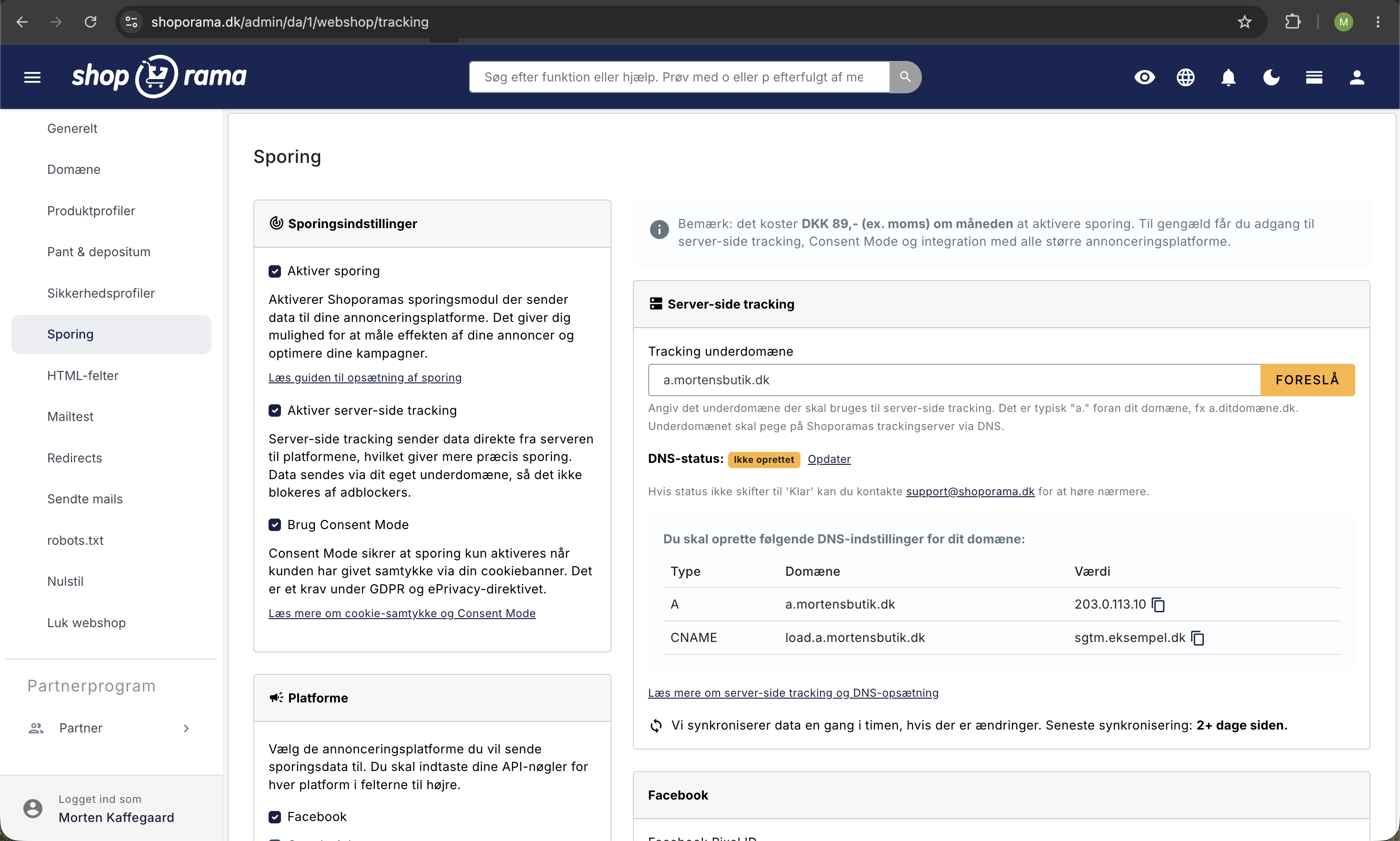
Go to Tracking in the admin panel and check the box next to “Enable tracking.” Then check the box next to “Enable server-side tracking.”
Once you’ve enabled it, Shoporama will suggest a tracking domain. For example, if your online store is named minwebshop.dk, we’ll suggest a.minwebshop.dk. You can also choose your own subdomain.
Step 2: Create DNS records with your domain provider
Once you’ve entered your tracking domain and clicked “Save,” Shoporama will display the DNS records you need to create. Create exactly the records listed in the table on the tracking page. For new tracking domains , there are three records:
- An A record on your tracking subdomain (e.g., a.minwebshop.dk) that points to Shoporama’s tracking IP. The exact IP address is displayed on the page.
- An AAAA record on the same tracking subdomain that points to the tracking server’s IPv6 address. IPv6 is the newer, longer type of IP address that uses colons instead of periods. The address is displayed on the page. Copy it exactly as shown, without a period at the end.
- CNAME record on load.<your subdomain> (e.g., load.a.minwebshop.dk) that points to Shoporama’s tracking infrastructure. The value is displayed on the page.
Important: Always follow the table on the tracking page. Some older tracking domains only require an A record and a CNAME, in which case the table will only show those two. If the AAAA record is listed in the table, it must be created. Otherwise, your tracking domain will not be approved.
The exact values are listed directly on the tracking page in Shoporama, and you can copy them with a single click. The records are created with the provider that manages your DNS. If you’re unsure who that is, you can look up your domain on punktum.dk.
Once all records have been created and propagated online, the DNS status on the tracking page will change to “Ready.” Until then, an English status will be displayed, such as “verifying.” The status is refreshed every time you open the tracking page, and you can click “Update” to check again. If a record is missing or has an incorrect value, the tracking page displays a yellow box indicating which record is affected, and the row in the table is marked with “Check.”
If it says “Not created,” your tracking domain has not yet been set up on the tracking server. This will happen during the next synchronization, which runs once an hour. If the status does not change to “Ready” within 24 hours after you’ve created the records, please email support@shoporama.dk, and we’ll look into it.
Step 3: Choose what you want to track
On the tracking page, select what you want to track. On the left-hand side, it’s important that you select “Server-side tracking” and Google GA4. These are the only required options.
When you select a tracking channel, the corresponding fields will appear. For example, if you want to track Meta/Facebook, we’ll ask for your Facebook Pixel ID and a Facebook Access Token (Conversion API).
In addition, you—or whoever manages your Google Ads account—should fill in:
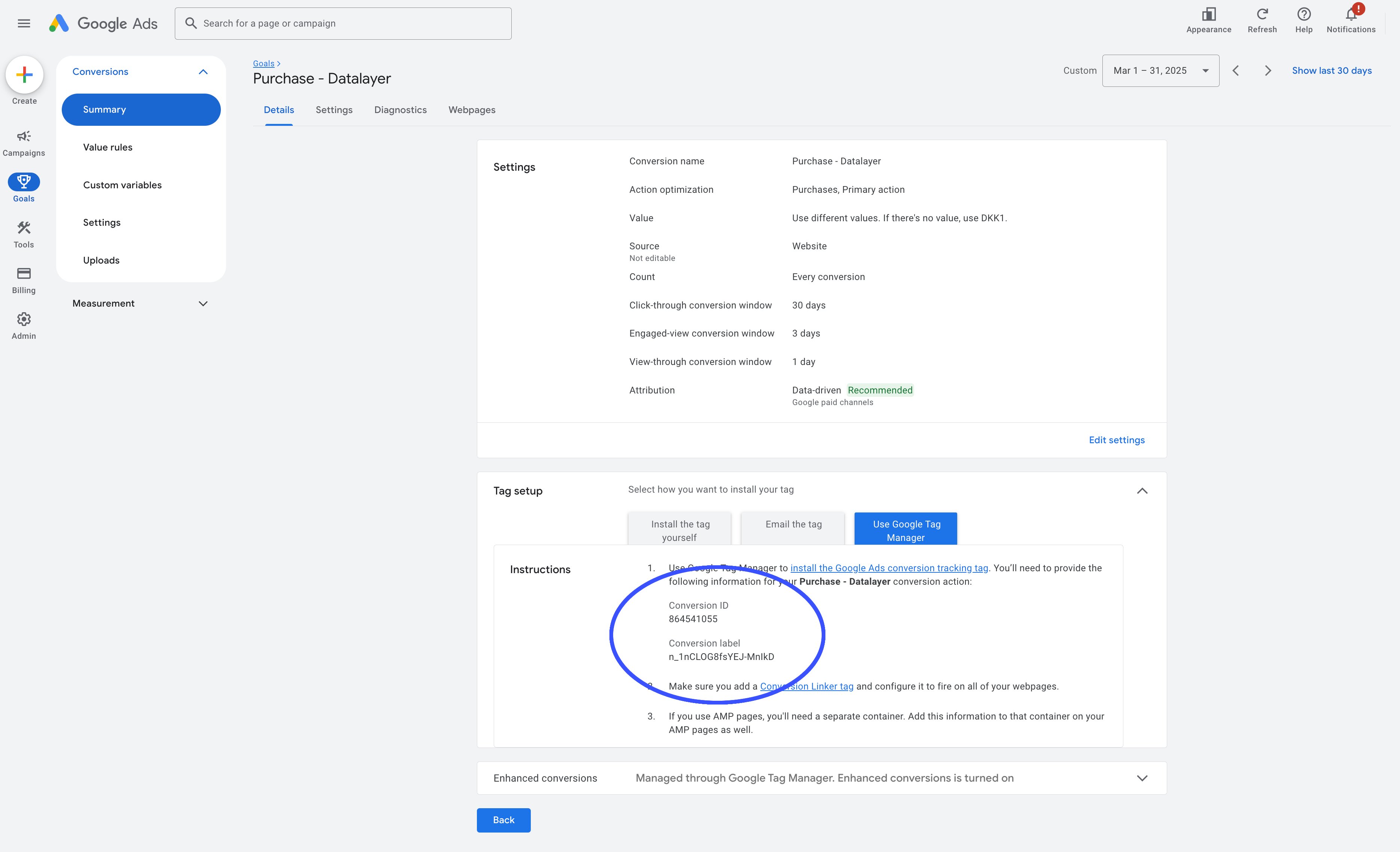
- Google Ads Conversion ID
- Google Ads Conversion Label (Purchase)
Here’s where to find your Conversion ID and Conversion Label:
If you want to use Google Ads Offline Conversions
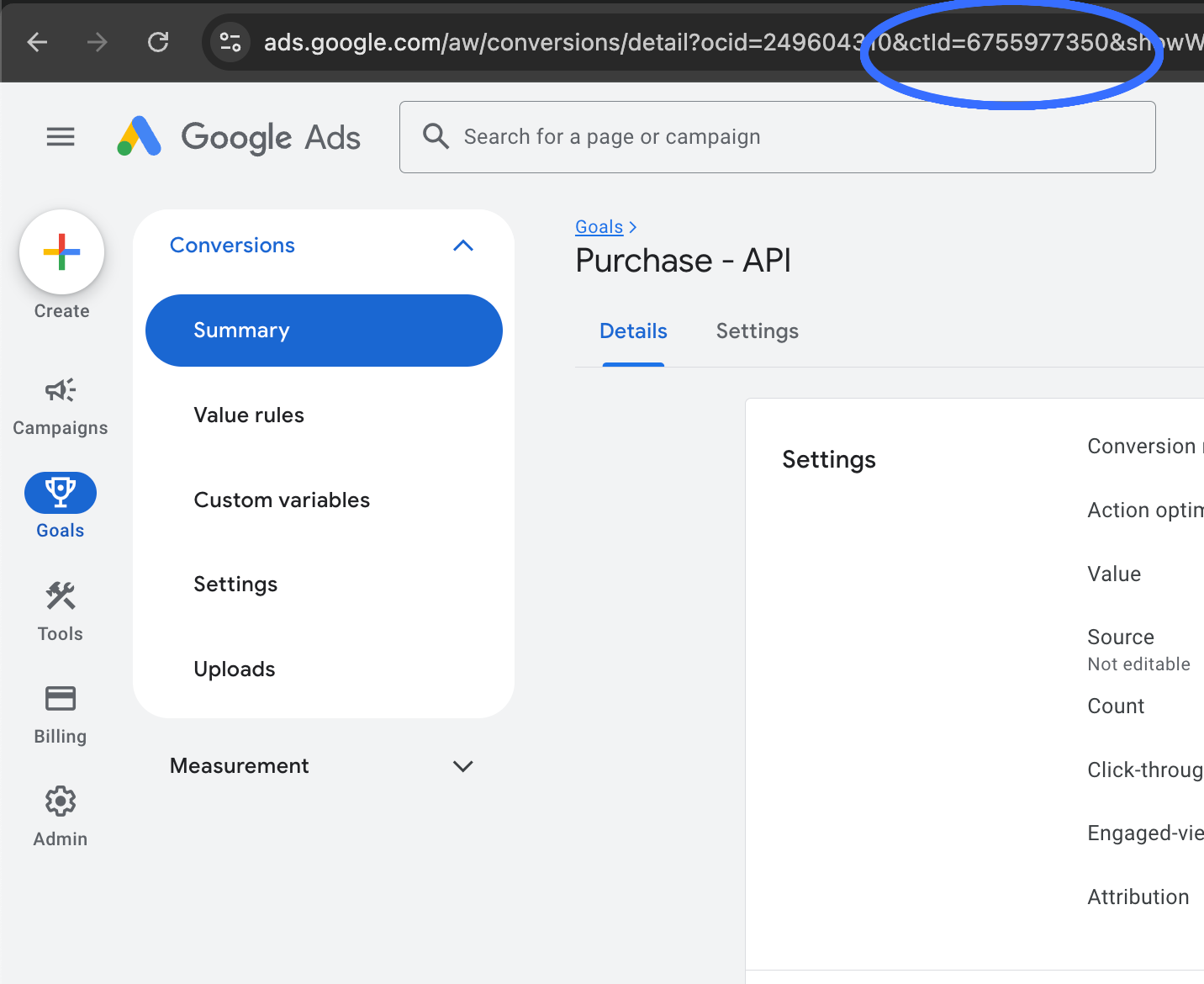
If you want to use Google Ads Offline Conversions, you’ll need to fill out a few more fields. You can find your Conversion Action ID in the URL of each conversion in Google Ads:
What is the Google Ads Operating Customer ID?
If you don’t know what this is, you probably shouldn’t fill it in. This field is only used if your account is managed by a Google Ads agency via an MCC (Manager Account).
If you want to use Google Ads Offline Conversions, you’ll need to invite ads@shoporama.dk as an administrator on your Google Ads account. It’s a bit more complicated to set up, but you’ll get better data in return. Once you’ve invited us, let us know so we can accept the invitation.
Setup in Google Ads
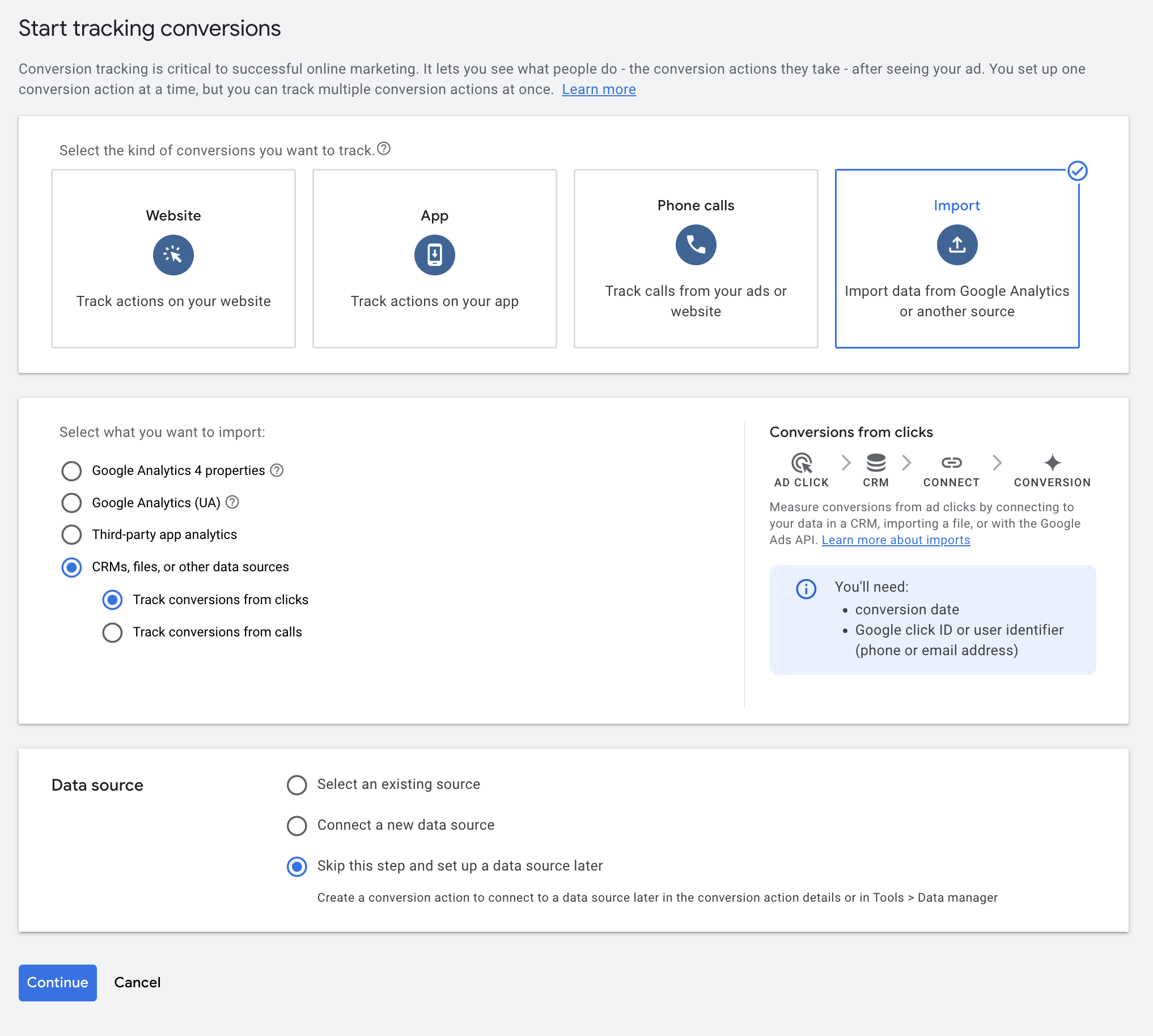
You should create a source in Google Ads where you import your offline conversions. That way, you’ll have one conversion that counts purchases from the website and one that counts purchases from the API. This provides the most accurate picture.
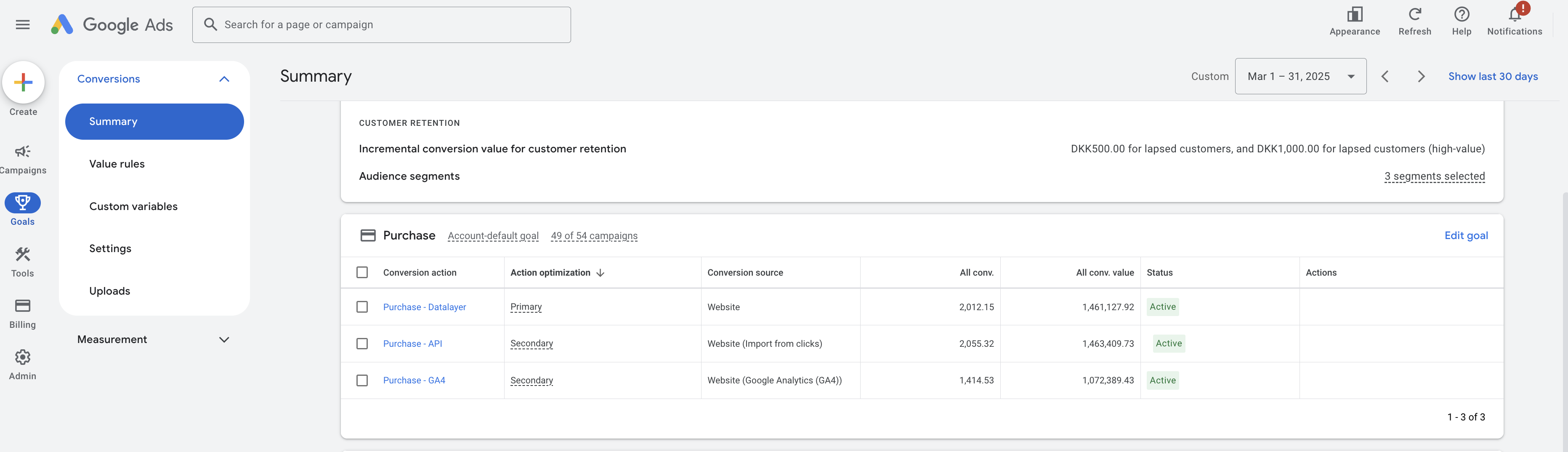
Create a Conversion Action of the type “Import from clicks.” Here’s what the setup looks like:
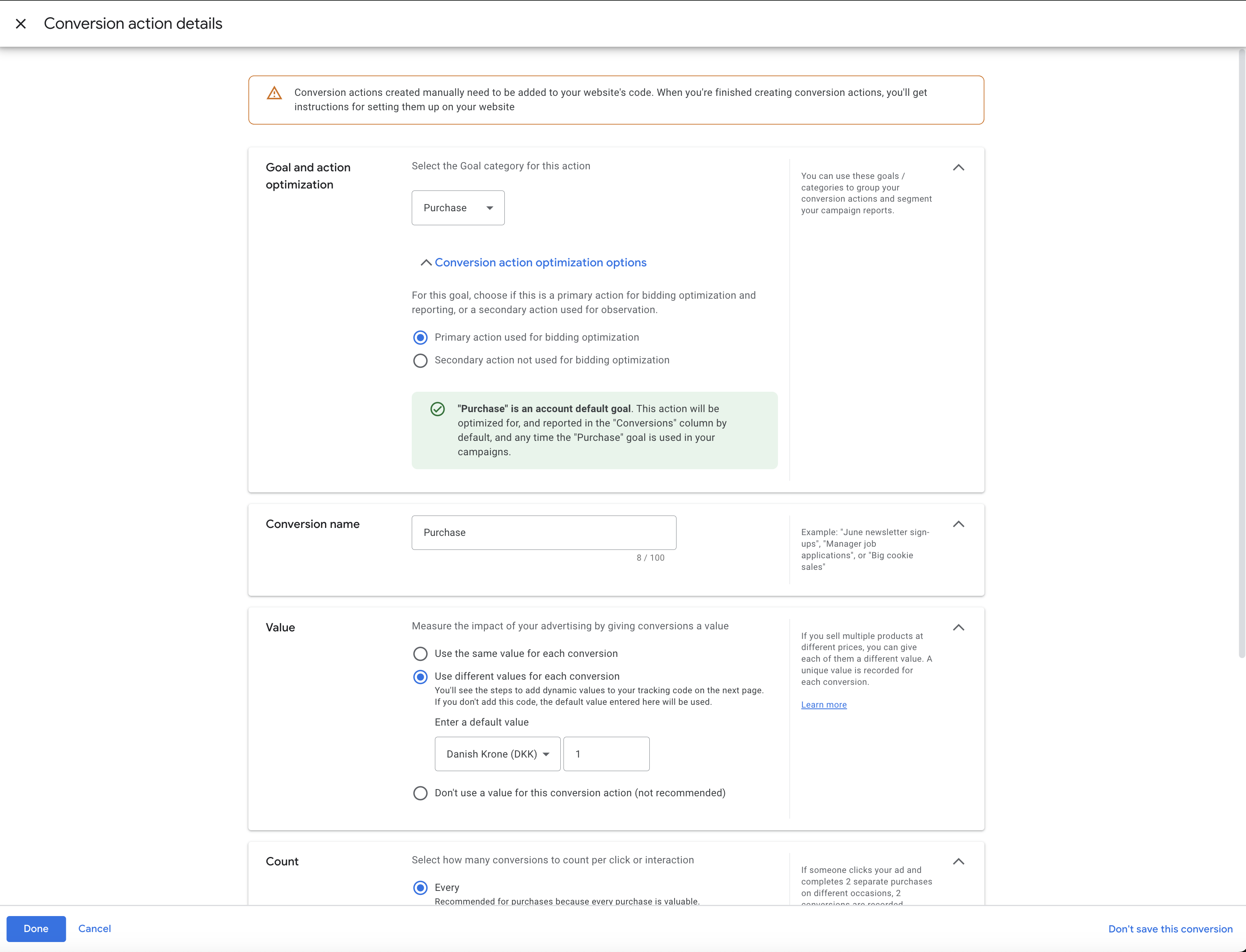
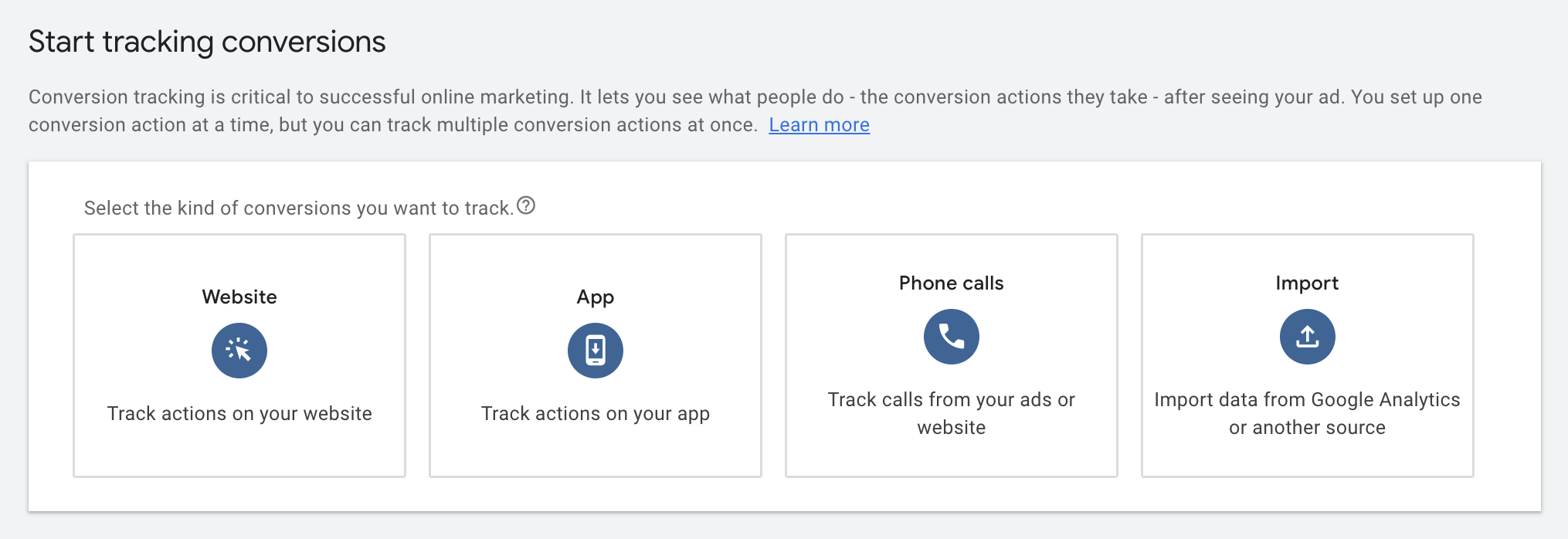
You need both a source that pulls data from your website and one that pulls data from the import:
Microsoft Ads Offline Conversions
In addition to Google Ads, Shoporama also supports offline conversions for Microsoft Ads. When a customer clicks on a Microsoft ad, we store the click ID (msclkid) on the order and send it back upon purchase.
Enable Microsoft Ads under Tracking to get a CSV URL with a username and password. Set up automatic import in Microsoft Ads to match conversions with ad clicks. See the separate article Google and Microsoft Ads Offline Conversions for a complete guide.
Frequently Asked Questions
What exactly does server-side tracking do for my online store?
Server-side tracking sends conversion and behavioral data from Shoporama’s servers instead of directly from the browser. This means you capture more purchases and events because data is no longer blocked by ad blockers or browser restrictions. In practice, you’ll typically see 10–30% more recorded conversions in Meta and Google Ads compared to classic pixel tracking.
Do I need to create an AAAA record?
Yes, if it’s listed in the table on the tracking page. All new tracking domains must have an A record, an AAAA record, and a CNAME record. If the AAAA record is missing, the domain won’t be approved, and the tracking page will display a yellow box indicating this. Some older tracking domains only require an A record and a CNAME record, so the table will only list those two.
This applies only to the tracking subdomain (e.g., a.minwebshop.dk). The store’s main domain itself still shouldn’t have an AAAA record. You can read more about this in the Academy under “Custom Domain and SSL.”
Does server-side tracking bypass ad blockers?
For the most part, yes. Because data is sent via your own tracking subdomain (e.g., a.minwebshop.dk) instead of from well-known third-party domains like facebook.com or google-analytics.com, the signals aren’t intercepted by most ad blockers. This provides significantly more complete data, especially for “purchase” and “add_to_cart” events.
Does server-side tracking affect my page speed?
Quite the opposite. When data is sent server-side instead of via client-side pixels and scripts, you reduce the number of third-party scripts that need to be loaded in the browser. This results in faster pages, better Lighthouse scores, and improved Core Web Vitals metrics, which also impact SEO.
Is server-side tracking GDPR-compliant?
Server-side tracking isn’t automatically GDPR-compliant, but it gives you better tools to comply with the regulations. You have full control over which data is transmitted. With Consent Mode, tracking in the browser respects the customer’s choice in the cookie banner. However, the purchase itself is sent from the server with the customer’s contact information, even when the customer has rejected cookies, as described under “only necessary” above. Always remember to describe your tracking practices in your privacy policy.
Should I use Consent Mode?
Yes, if you want to comply with European legislation. If you use Shoporama’s free Cookie Consent app or a recognized solution such as Cookieinformation, Cookiebot (V2), or Openli (formerly Legalmonster), Consent Mode is automatically handled. Also, remember to check the “Use Consent Mode” box under “Tracking.” If you’re using a custom-developed or lesser-known solution, you’ll need to ensure that consent signals are correctly forwarded to Google.
What exactly is Consent Mode?
Consent Mode means that we respect the user’s choice as indicated on the cookie banner. If the user has not consented to marketing, cookies are restricted, and only anonymized signals are sent from the browser. If you’re using a solution we don’t directly support, you can send consent updates manually using the following code:
<script>
  window.dataLayer = window.dataLayer || [];
  window.dataLayer.push({
    event: 'cookie_consent_update',
    consent: {
      ad_storage: 'granted',
      analytics_storage: 'granted',
      functionality_storage: 'granted',
      personalization_storage: 'granted',
      security_storage: 'granted',
      ad_user_data: 'granted',
      ad_personalization: 'granted'
    }
  });
</script>
How long does it take for the DNS status to change to "Ready"?
DNS changes typically take effect within a few hours, but in rare cases may take up to 24–48 hours, depending on your provider. The status is retrieved when you open the tracking page, so click “Update” to see if it has changed to “Ready.” If your tracking domain is brand new, it may take up to an hour for it to be set up on the tracking server.
Is it required that I use GA4?
Yes. GA4 is the backbone of our server-side tracking, and you cannot use the solution without it. If you don’t have a GA4 account yet, read our guide to Google Analytics 4 on Shoporama.
Why can’t I see the contribution margin in my GA4 reports?
These fields are automatically sent with all server-sent purchases, but GA4 won’t display them until you’ve registered them as custom metrics. Set up `total_item_cost ` and `total_item_gross_profit ` as custom metrics in GA4, and then wait up to 24 hours. Also, keep in mind that gross profit can only be calculated for products for which you’ve entered the cost price in Shoporama.
Which product ID is included in my events?
By default, the product’s numeric ID, and for variants, the product ID and variant ID separated by a colon. If your store has language or country feeds enabled, the stock keeping unit (SKU) is used instead. This is exactly the same ID that your Google Shopping feed uses, so your events always match your product catalog on Meta and Google. Read more in the article about product IDs and catalog matching.
Can I scale this across multiple online stores?
Yes. Each online store gets its own tracking setup and its own tracking subdomain. It’s a repeatable setup: Activate, create the DNS records shown on the tracking page, and insert the tracking IDs. You’ll be ready in 10–15 minutes per store.
If you have any questions or need help, feel free to contact us at support@shoporama.dk.
Related articles
Google Analytics 4 (GA4) on your Shoporama online store
How to set up Google Analytics 4 on your Shoporama online store. Built-in GA4 integration with e-commerce events, server-side tracking and Consent...
Implement tracking in a Shoporama theme
Developer Guide to E-commerce Tracking in a Shoporama Theme: Data Layer, Google Tag Manager, Custom Events, and Correct Product IDs Using...
Implement Pricerunner tracking
Guide to implementing Pricerunner conversion tracking on your Shoporama online shop with proper Smarty code.
What cookies does Shoporama set?
A complete overview of the cookies set by a Shoporama online store: name, purpose, and duration. Use this list as the basis for your cookie policy.
Offline conversions for Google Ads and Microsoft Ads
Send your Shoporama orders as offline conversions to Google Ads and Microsoft Ads. Get full attribution of sales to clicks via a secure CSV feed.
Product IDs and Catalog Match: How to Ensure Your Ads Match Your Product Feed
An explanation of which product ID Shoporama’s tracking sends, why it always matches the Google Shopping feed, what “catalog match” means for your...
Cookie consent and Consent Mode v2
How to set up Shoporama's free cookie consent app: categories, automatic blocking, consent revocation, and Google Consent Mode v2.
Shoporama Tracking Engine: Server-side tracking for all major platforms
Shoporama's tracking engine (developed with 1260 A/S) sends data from your webshop directly to Facebook, Google Ads, GA4, Pinterest, Snapchat,...
Facebook Conversions API
Guide to the Facebook Conversions API on Shoporama: setup with Pixel ID and access token, automatic deduplication of purchases, content_ids that...
Related features
ITP
ITP is Apple's feature in Safari that restricts tracking cookies. Learn how it affects your eCommerce conversion tracking and retargeting and what...
Server-Side GTM (sGTM)
Server-side GTM is a tag container on a server that receives events from your online store via your own domain. Learn about the difference between...
Server-side tracking
Server-side tracking collects data via your server instead of the browser. Learn why it provides better data and how it works in your online store.
Server-side tracking - accurate tracking without cookies
Server-side tracking for Google, Facebook, Pinterest, TikTok, LinkedIn and Microsoft Ads. Unaffected by adblockers. Included in Shoporama Pro.
Conversions API (CAPI)
The Conversions API sends conversions via server-to-server communication to Meta, TikTok, Pinterest, and Snapchat. Learn why CAPI complements the...
GTM - Google Tag Manager
Google Tag Manager manages tracking codes without code changes. Read about GTM, tags, triggers and e-commerce tracking for webshops.
Pixel swapping
Pixel swapping is a fraud technique where tracking pixels are manipulated to hijack conversions. Learn how it works and how to protect your online...
Facebook pixel
Facebook Pixel tracks visitors to your online store and sends data to Meta. Learn about events, retargeting, the Conversions API, and setup in...
GA4 - Google Analytics 4
GA4 is Google's analytics platform for measuring user behavior. Read about GA4, e-commerce tracking and analytics for webshops.
Conversion tracking
Conversion tracking measures actions like purchases and sign-ups. Read about tracking, ROI measurement and optimizing your online store.
How much will an online store cost in 2026? Prices over 1 and 3 years
How much does an online store cost per year? Four cost estimates using Shoporama, Shopify, WooCommerce, and an agency over 1 and 3 years. Platform,...
Shoporama vs DanDomain
Compare Shoporama and DanDomain on price, speed, AI features and integrations. See which Danish webshop platform is best for your business.
Shoporama vs WooCommerce
Compare Shoporama and WooCommerce: price, security, speed, GDPR and maintenance. Find the best online shopping platform for your business.