Add-ons on the product page: Sell accessories with a single checkbox
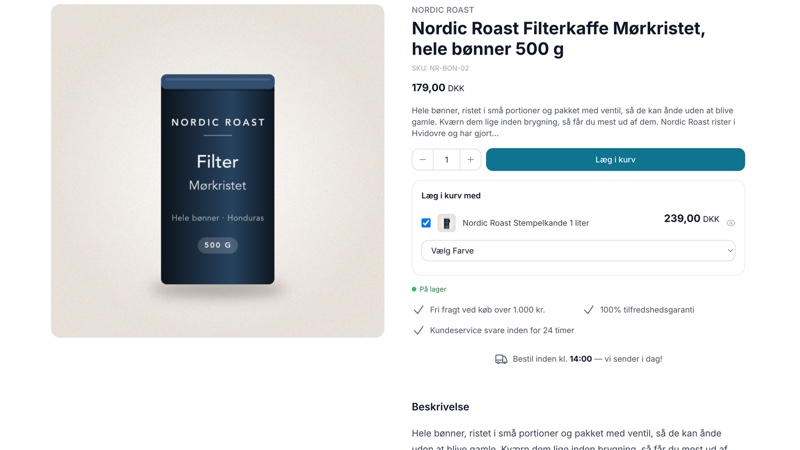
Display selected accessories below the "Buy" button so customers can add them to their cart with a single checkmark. With variant selection, customers can also choose the size or color of the add-on item.
What are add-on purchases?
Add-ons are those small, obvious items that the customer will need anyway, placed right below the “Buy Now” button on the product page. For example, the customer checks the box next to running socks, batteries, or shoe care products, and the item is added to the cart along with the main product in a single click. The decision to buy has already been made at that point, so you don’t need to persuade anyone—you just need to make it easy for them to say yes.
From a business perspective, upselling isn’t about attracting more customers, but about increasing the value of the customers you’ve already paid to acquire. Shipping, payment processing fees, and packaging costs are the same whether there’s one or two items in the cart, so the revenue from an upsell is almost pure contribution margin. This is classic cross-selling, and the most direct way to increase your average order value.
In short: add-ons are set up by entering the product IDs of the accessory items, separated by commas, into a field on the main product page. The field is provided by your theme, and add-ons are available in the Montana, MontanaB2B, Delaware, and DelawareDK themes.
Here’s how it appears to the customer
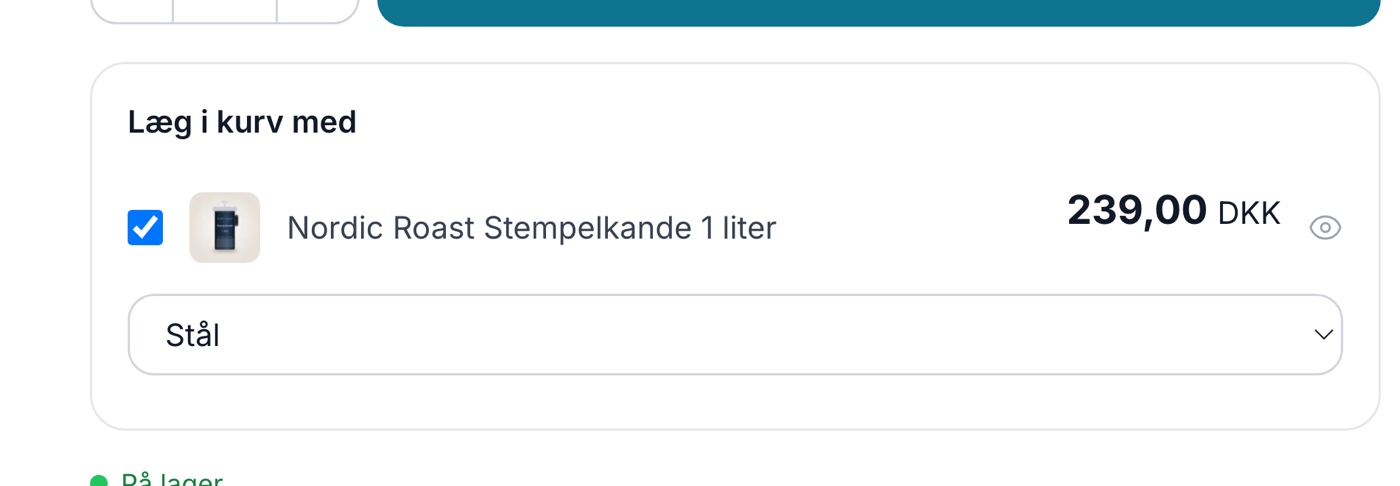
Below the “Buy” button on the product page is a small block with the heading “Add to Cart with.” Below the heading are the add-ons you’ve selected, each with a checkbox, a small image, the product name, the price, and a link to the add-on’s own product page if the customer wants to read more.

The customer checks the desired add-ons and clicks the regular “Add to Cart” button. Both the main item and the checked add-ons are added to the cart at once. This means the customer doesn’t have to navigate to multiple product pages and repeat the process.
The price displayed for the add-on is the item’s regular price in the store, including any promotional price. You cannot create a special discount that applies only when the item is purchased as an add-on. If the combination is to be cheaper than the sum of its parts, it belongs in a bundle or a promotion.
If the add-on has different prices for its individual variants, the block displays the lowest of those prices, and it does not include “From” in front of it. The price also does not update when the customer selects a size. Therefore, it’s best to use items with the same price across all variants as add-ons.
Add-ons with variants: let the customer choose the size
If the add-on has variants—for example, socks in multiple sizes or a cover in multiple colors—a selector will appear as soon as the customer checks the box for the add-on. The dropdown menu is hidden until then, so the block remains unobtrusive for customers who aren’t interested.
- If the add-on has only one available option, it is selected automatically, and the customer does not see a dropdown menu.
- Sold-out sizes cannot be selected. They are either not displayed at all, or they appear with the text “(sold out)” and cannot be clicked. This behavior is controlled by the theme setting “Show sold-out variants” under Design, which is disabled by default so that sold-out sizes are not displayed at all.
- The additional item is added to the cart with the selected variant’s own item number, ensuring that picking, inventory deduction, invoicing, and any returns are handled correctly.
There are two things worth knowing in advance. First, the selector only works for variants set up as a list of fixed options—that is, the type of variant where the customer chooses between, for example, S, M, and L. If the variant is set up differently in the product profile, the customer will not see a selector, and the add-on cannot be added to the cart. Second, the platform supports only one variant axis per product. An add-on can therefore have either size or color, but not both. If you need both, create the products separately, for example as “Running Socks, Black” and “Running Socks, White,” each with its own sizes.
Important note about inventory: the selector is not a guarantee
The size selector blocks out of-stock sizes, but it is a visual filter in the browser, not a stock control system. An add-on without variants is always displayed, even when it’s out of stock, and the customer can check the box for it. If the add-on has exactly one remaining size, it is selected automatically without a stock check.
There is also no stock check when the item is added to the cart. However, the customer cannot complete the purchase: every step of the checkout process checks the cart against inventory and returns the customer to the cart with the message “One or more items are out of stock.” Only in very rare cases, where two customers select the last item at the exact same time, can this slip through. Therefore, only set items you actually have in stock as add-ons, or enable “allow negative stock” for them.
How to set up add-ons for a product
- First, find the product ID for the items you want to offer as add-ons. It’s the last number in the browser address bar when you’re editing the product. See how to find IDs for products, categories, orders, and other objects. If you’d rather have the IDs displayed in the overview, click the gear icon at the far right of the table’s header row in the product list to open “Customize View,” toggle the switch next to “Product ID” to “On,” and click “Save.” This column applies to all users in the store.
- Go to Products, All Products, and click on the product to which you want to add add-ons. If you have questions about product editing in general, you can read more about editing a product.
- Expand the Extensions section of your theme. It’s located near the top, right after General, and after Customer Groups if your store uses them. The section is collapsed by default, and you can also jump directly to it using the shortcut in the right-hand sidebar.
- Find the “Add-ons” section. Its name varies depending on the theme; see the list below. You can always recognize the field by the tooltip below the input field, which explains that add-ons let you add multiple products to the cart along with the main product.
- Enter the product IDs in the field, separated by commas, for example , 232153,242862. Spaces have no effect, so 232153, 242862 works just as well.
- Save the product.
- Check that it works: open the product page in the store, check the box for an add-on, select a size if there’s a selector, and click “Add to Cart.” In the cart, you should now see two lines: the main item and the add-on, each with its own item number.
The order in the field is also the order on the product page, so place the add-on you most want to sell at the top. If you enter the same ID twice, the add-on will only appear once.
If you clear the field and save, you’ll only disable the product’s own list. If the product has an additional field named ` addon_ids`, or if the category has it in Montana and MontanaB2B, that field will take precedence instead. Currently, there is no “turn off completely” option for a single product in a category with shared add-ons.

The field name varies depending on the theme
Section and field names are taken directly from the theme and are not translated by Shoporama. That’s why English text appears in three of the four themes, even when you’re using the admin panel in Danish. The field itself is the same, regardless of what’s written above it.
- Montana: The section is called “Addon Settings,” and the field is called “Product Ids.”
- MontanaB2B: “Addon Settings ” and “Product Ids.”
- Delaware: Addon Settings and Product Ids.
- DelawareDK: Here, the text has been translated, so the section is called “Add-on Products ” and the field is “Product IDs.”
On the customer side of the screen, the heading is “Læg i kurv med” in Montana, MontanaB2B, and DelawareDK, while the English version of Delaware displays “Add to cart with.” If you’d like a different phrasing—for example, “Don’t forget” or “Remember to”—you can see how to customize texts in the store.
Which themes support add-ons?
Add-ons are available in Montana, MontanaB2B, Delaware, and DelawareDK. If you’re using another Shoporama theme, the field won’t appear, and the block won’t be displayed in the store. This isn’t a bug. It’s simply because add-ons are a feature of that specific theme.
There are three situations that might cause confusion:
- The theme has no custom fields at all, such as Washington. In that case , the entire “Extensions” section from your theme will not appear on the product page in the admin panel.
- The theme has custom fields but no add-ons, such as Alaska2 and California. In this case, you’ll see the section, but the add-ons section will be missing from it.
- You switch to a theme without add-ons. Your saved IDs aren’t deleted; they just become invisible and unused. If you switch back to a theme with add-ons, the values will reappear.
If you have a private theme or a partner theme, add-ons must be built into your specific theme before the field appears. Read more about theme extensions, or email support@shoporama.dk if you’re unsure about what your theme is capable of.
Where the store looks for add-ons
The store searches for add-ons in a fixed order and stops at the first source that has something. The first two sources work in all four themes:
- The add-ons field on the product itself—that is, the one you filled out above.
- An additional field on the product named ` addon_ids ` with the IDs as its value.
The next two sources only work in Montana and MontanaB2B. In Delaware and DelawareDK, the category path doesn’t work—this is a known bug in the theme—so you’ll need to add add-ons to the products there.
- The same field, ` addon_ids`, on the product’s main category. If the product has no main category, the category it’s in is used.
- Use the same field further up in the category tree if the category itself does not have it. Please note that the top-level category with the field takes precedence, not the nearest one. If you set `addon_ids` on both a main category and a subcategory, the main category’s list is the one used.
How to fill in the addon_ids field
The value is written as key=value, and there must be only one key per line. The line itself looks like this:
addon_ids=232153,242862
- On the product: open the product, find the “Fields” section, and enter the line in the “Extra Fields” field. The key may be written in uppercase here.
- On the category: go to Categories, open the category, and enter the line in the Extra Fields field. Here, the key must be entered exactly in lowercase; otherwise, it won’t be found. The category doesn’t have an “Extensions” tab, so don’t look for it there.
The advantage is obvious: apply filters and descaling tablets to the entire coffee category once, and then override that setting for the few products that stand out. That way, you maintain one place instead of 400.
Apply add-ons to multiple products at once
There are three ways to do this, and it’s worth knowing what doesn’t work before you spend an hour searching: bulk editing, table editing, and CSV import cannot set the add-on field. It must be done one of these ways:
- The “Category” field (Montana and MontanaB2B only): a single line in the category covers all products within it. This is clearly the fastest method if your theme supports it.
- The REST API (all four themes): You can write to the add-on field for the products, allowing you to process a list programmatically.
- Manually, one product at a time. This works well for 5 to 20 products where the add-on is specific.
What happens in the cart and on the order
An add-on becomes a regular item in the cart with its own line item, its own price, and its own SKU. If the add-on has variants, the SKU of the selected variant is used. One unit is added to the cart each time the customer checks the box and clicks “Buy,” but the customer is free to change the quantity in the cart afterward or delete the add-on line without affecting the main item. If the customer adds the same add-on to the cart twice, the quantities are combined into a single line item.
Because the add-on is a regular shopping cart line item, it is counted as usual toward the free shipping threshold, the minimum order value, discount codes, and shipping weight. An add-on cannot have its own add-ons, so there is no chain reaction.
Upon purchase, each shopping cart line item becomes its own product line item on the order, and inventory is deducted for the variant the customer has selected. This also means that neither the order in the admin panel, the invoice, your accounting software, nor any potential return can distinguish between an add-on and an item the customer selected on their own. This is an advantage in day-to-day operations because everything just works as usual, but it also means you can’t generate a report on “how much I sold as add-ons.” If you want to measure the effect, you’ll need to look at your average order value and at sales of cross-sell items before and after you set them up.
Add-ons, bundle deals, or upselling after purchase
Shoporama offers several ways to increase sales per customer, and each serves a different purpose:
- Add-ons on the product page are for accessories that you know go with the main item. The customer can freely choose to add or remove them, and each add-on becomes its own line item. Choose this option when the accessory costs significantly less than the main item.
- Bundles are a single product containing multiple items, with their own name, price, and SKU. Choose this option when the combination has a name and a total price—such as a starter kit or gift basket—when you want to offer a discount on the entire package, and when the bundle needs to be discoverable via search, categories, and product feeds. Customers cannot deselect individual items within a bundle.
- Post-purchase upsells appear on the receipt page after payment and create a new order using the customer’s existing address, shipping, and payment method. Choose this option when you do not want to disrupt the actual purchase under any circumstances, and when the item does not need to be related to the purchased item.
- Recommendations are calculated automatically based on what other customers have viewed and purchased, and require no maintenance of the lists. However, you must place them once—for example, “Others also viewed” on the product page—using the page designer. Choose this option when you want to cover your entire product range without any manual effort.
- Related products and reverse-related products are set up manually on the product page and displayed as suggestions. They are similar to upsells, but they do not add items to the cart with a single click.
In short: add-ons are for items you know go together, recommendations are for what the statistics identify, bundle deals are for items you want to sell as a single product, and post-purchase upsells are for items that shouldn’t get in the way of the sale.
Tips: Which products are suitable as add-ons
- Start with your own orders, not with a hunch. The “Bought Together” report under Statistics shows exactly which product pairs appear on the same orders. Choose the two or three that come up most often.
- Keep the price at about 10 to 25 percent of the main item. An add-on for 79 kroner on an item priced at 599 kroner is an impulse buy. The same add-on for 349 kroner requires a new decision, and you risk the customer leaving the page to think it over.
- Choose small, lightweight items with a good margin. The add-on must not change the shipping cost or require new packaging. That’s where the profit lies.
- No more than two or three add-ons per product. More than three items turn the block into a list that the customer scrolls past. Two compelling add-ons sell more than seven lackluster ones.
- Choose items you have in stock. A backorder or a slow-moving supplier item as an add-on can delay the entire package, and even if an add-on is out of stock with no variants, the customer can still check the box for it.
- Choose add-ons with a low risk of return. Accessories that don’t require a specific fit are the safest. If the add-on requires a size selection, make sure the variant names are unambiguous (39–41 is better than “Medium”), and that there’s a size guide on the page.
- Avoid making something necessary into an optional selection. If the product cannot be used without the add-on, it must either be included in the price or clearly stated in the description. Otherwise, you’ll end up with disappointed customers and support cases.
- Add common accessories to the category and override them for products that stand out. This works in Montana and MontanaB2B.
- Clean up yourlistings regularly. Discontinued, seasonal, or permanently out-of-stock items should be removed from the listings.
- Track performance over four to six weeks, and focus on order value— not on the number of clicks. A add-on that sells well but leads to a high return rate is bad business.
Examples from various industries
- Sports: running shoes with running socks in sizes 36–38, 39–41, and 42–45. Bicycle with an inner tube featuring the correct valve type. Yoga mat with a carrying strap.
- Clothing and Footwear: Leather boots with waterproofing spray and shoe care products. A jacket with a hood or gloves in sizes S, M, and L.
- Electronics: a phone or tablet with a screen protector and a case, where the case color can be chosen.
- DIY: Paint with brushes, painter’s tape, and drop cloths. Deck boards with 45 mm or 60 mm screws.
- Food and beverages: coffee beans with filters, descaling tablets, or a mug. Wine with a gift box.
- Toys: remote-controlled car with batteries, where the customer chooses between AA or AAA.
- Home and furniture: a lamp with a light bulb, where the socket is either E14 or E27. A shelving system with extra brackets.
- Pets: dog food with chew bones, or a litter box with bags of litter.
My add-on isn’t showing up: how to find the error
The field has no validation, and the store doesn’t display a warning when an add-on is skipped. This happens silently, so you won’t notice it until you view the product page. Go through the list here from start to finish:
- The add-on is offline. Start here. If the product isn’t online, it’s skipped without notice. Be especially careful if you use the “automatically set to offline when out of stock” feature, as an add-on can disappear on its own.
- You’ve entered the wrong ID. If the product doesn’t exist, has been deleted, or belongs to one of your other stores, it will be skipped. Check that the number matches the address in the product editor for that specific item.
- You entered the item number instead of the product ID. These are not the same. The product ID is the number at the end of the address when you edit the product.
- You see the heading “Add to cart with” with nothing below it. This happens in Delaware and DelawareDK, and it means that all your add-on IDs have been filtered out, typically because they’re offline or deleted. In Montana and MontanaB2B, the entire block disappears instead. This is the best indication that the IDs are the problem, not the theme.
- Your theme does not support add-ons. Only Montana, MontanaB2B, Delaware, and DelawareDK have the block. If you’re using a custom theme, it must have add-ons built in.
- You’re looking in the wrong place. The block appears on the product page. In Delaware and DelawareDK, it also appears in a product block if you’ve added one using the page builder. It never appears in product lists, product cards, or the cart.
- You’re looking at a cached version of the page. Product pages are temporarily cached, so it may take some time before your changes are visible to visitors. If you want to see them immediately, you can clear the store’s cache from the admin panel under Settings.
If the add-on is displayed but a size is missing from the selector, the variant is either out of stock or hasn’t been enabled for the product. If it’s out of stock, whether it appears as selected or doesn’t appear at all depends on the theme setting “Show out-of-stock variants.” If the add-on appears without a checkbox at all, the product has variants, but none of them are currently available, or the variant hasn’t been set up as a list of fixed options. Check the product profile and inventory for the add-on.
Two final things worth knowing. You can display a maximum of 100 add-ons for a single product. Duplicates, zeros, and other junk are filtered out first, and then the first 100 IDs are read. Items numbered 101 and beyond aren’t displayed at all, and you won’t receive any notification about this. In practice, this is hardly a problem, since two or three add-ons typically sell best. And there’s no restriction preventing a product from listing itself as an add-on, so make sure you haven’t copied the ID from the product you’re currently viewing.
If you’re having trouble getting it to work, please email support@shoporama.dk with a link to the product page and the IDs you entered in the field, and we’ll take a look.
Frequently Asked Questions
Can I tell from the order or invoice that the customer added something as an add-on?
No. The add-on becomes a regular order line with its own item number and variant, and there’s no field indicating that the item came from an add-on. It looks the same in the order in the admin panel, on the order PDF, in your accounting software, on returns and credit memos, and in the API. Add-ons are only available on the product page in your store. If you want to identify them in your accounting, you’ll need to look at the item number or use items that are sold exclusively as add-ons.
Is there always 1 item listed on the add-on line?
No. The add-on block always adds one item to the cart, but the cart totals the quantity if the customer selects the same add-on in the same size again. Two clicks result in one line item with a quantity of 2. The customer can also freely adjust the quantity on the cart page, just like with any other item. Therefore, never assume the quantity is 1; check the quantity on the line item.
If a customer only wants to return the add-on itself, can I credit just that one line?
Yes. The add-on is its own order line with its own item number and is credited just like any other item. The downside is that the system doesn’t recognize that the main item and the add-on belong together, so there’s no warning or automatic action if the customer returns one and keeps the other. You’ll need to keep track of that connection yourself.
What happens if I remove the add-on product from the website or delete it?
Nothing breaks on the other product pages. The add-on is simply skipped and quietly disappears. The same applies if you enter the wrong quantity or a product from one of your other stores. The downside is that you won’t receive any notification at all—neither in the admin panel nor in the store—so if you notice that an add-on is missing, the explanation is almost always that the product is offline or has been deleted.
Can a customer add a size to the cart that I don’t have in stock?
Sold-out sizes cannot be selected in the selector; they either do not appear at all or are labeled "(sold out)" and cannot be clicked. However, if the add-on is a product without variants, the customer can check the box for it even if it’s sold out. There is no stock check when the item is added to the cart. The customer is stopped at checkout, where the cart is checked against inventory, and a message appears stating that one or more items are out of stock.
Does the add-on count toward free shipping and discount codes?
Yes. The add-on is a standard shopping cart item, so it counts toward the free shipping threshold, the minimum order value, discount codes, and shipping weight in exactly the same way as an item the customer has added to the cart themselves.
Does the add-on have to be in a category or be searchable?
No. The only requirement is that the product is online. This opens up a great opportunity: you can create standalone add-on items that aren’t in any category and don’t take up space in your product lineup, and sell them only as add-ons for the products where they make sense.
A customer says the add-on didn’t get added to the cart. What could be the reason?
Add-ons require JavaScript in the customer’s browser. If JavaScript is turned off, or if an ad blocker or another script on the page is blocking it, only the main item is added to the cart, and the customer won’t receive an error message. It’s rare, but it does happen. Ask the customer to try a different browser, and check yourself to make sure no new script or tracking code has been added to the product page.
Can I offer a discount on the add-on when it’s purchased together with the main item?
No. The add-on is sold at its regular price, including any promotional price, and there is no special add-on discount. If you want the combination to be cheaper than the sum of its parts, you’ll need to use a bundle with its own price, or a promotion that applies to both items.
Related articles
Product Profiles and Variants
Guide to product profiles and variants in Shoporama. Understand how profiles, attributes and variants are related.
Upselling After Purchase: Sell More on the Receipt Page
Post-purchase upsells display suggested products on the receipt page, allowing customers to add more items with a single click. Here’s how to set...
Recommendations: Automatically display the products your customers are looking for
Recommendations automatically display relevant products, such as "Others also viewed" on the product page and "Others also bought" in the shopping...
Show variants not in stock
Guide to display out-of-stock variants in your Shoporama theme so customers can see the full range and sign up for stock alerts.
Delaware-themed configuration and customization
Complete guide to setting up the Delaware theme on your Shoporama online store. Footer, mega menu, colors, payment icons, Trustpilot, Instagram...
Related features
Add-ons
Add-ons are accessories that customers can add to their cart with a single checkmark directly on the product page. See how add-ons work in...
Add-ons on the product page can now have variants
Now, add-ons on the product page can have variants. The customer selects a color or size in the "Add to Cart" box, and the item is included in the...
Add-ons: Sell accessories with a single checkmark
Upselling step
Upselling offers customers upgrades and accessories to increase order value. Learn about types, placement and best practices for upselling steps in...