Vipps MobilePay is now built directly into Shoporama
Vipps MobilePay is now built directly into Shoporama, with no payment gateway in between. Customers can make purchases directly from their shopping cart or the product page and select their address and delivery options within the app, and in your physical store, they can pay using a QR code displayed on the checkout screen.
A customer has found the gin she wants to give her brother-in-law as a birthday gift. She taps the Vipps MobilePay button on the product page, selects an address and pickup location in the app, and confirms the order. She hasn’t entered her name, address, or card number, and the app has verified that she’s at least 18 years old. The order appears in your admin dashboard, and the payment is processed when you ship the package.
This is how Vipps MobilePay works now that it’s integrated into Shoporama. Shoporama communicates directly with Vipps MobilePay, without a payment gateway in between. In addition to checkout payment, you get Express in the cart, a “Buy Now” button on the product page, age restrictions for stores selling alcohol, and in-store payment using a QR code on the register screen.
Payment at checkout
At checkout, the customer selects Vipps MobilePay from the available payment methods. On a mobile device, the app opens immediately. On a computer, the customer enters or confirms their phone number on the Vipps MobilePay payment page and authorizes the payment in the app. Afterward, the customer is taken to the receipt. If the customer cancels the payment, the items remain in the cart.
The order is created once the payment is approved. The Vipps MobilePay reference serves as the transaction ID for the order, and every event—such as when the amount is debited or refunded—is recorded in the order notes. If you send a payment link to a customer from an order, it can also be paid with Vipps MobilePay.
Express and “Buy Now”: The customer skips checkout
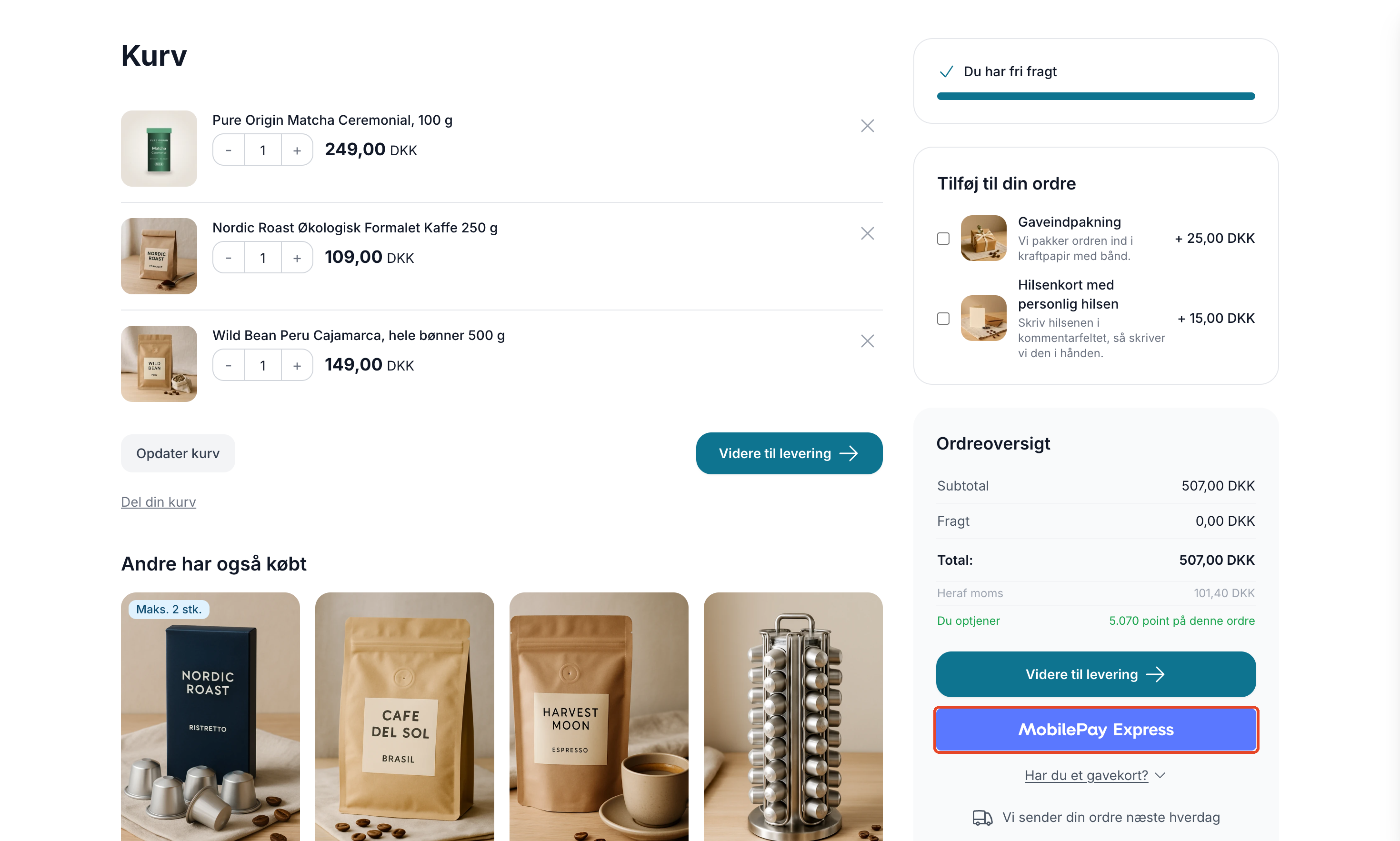
With Express, Vipps MobilePay’s own button appears in the cart. The customer taps it and purchases the entire cart within the app. The customer selects their name, email, phone number, address, and delivery options within the app, so the checkout page with all its fields is skipped. The order is created once the payment is approved.
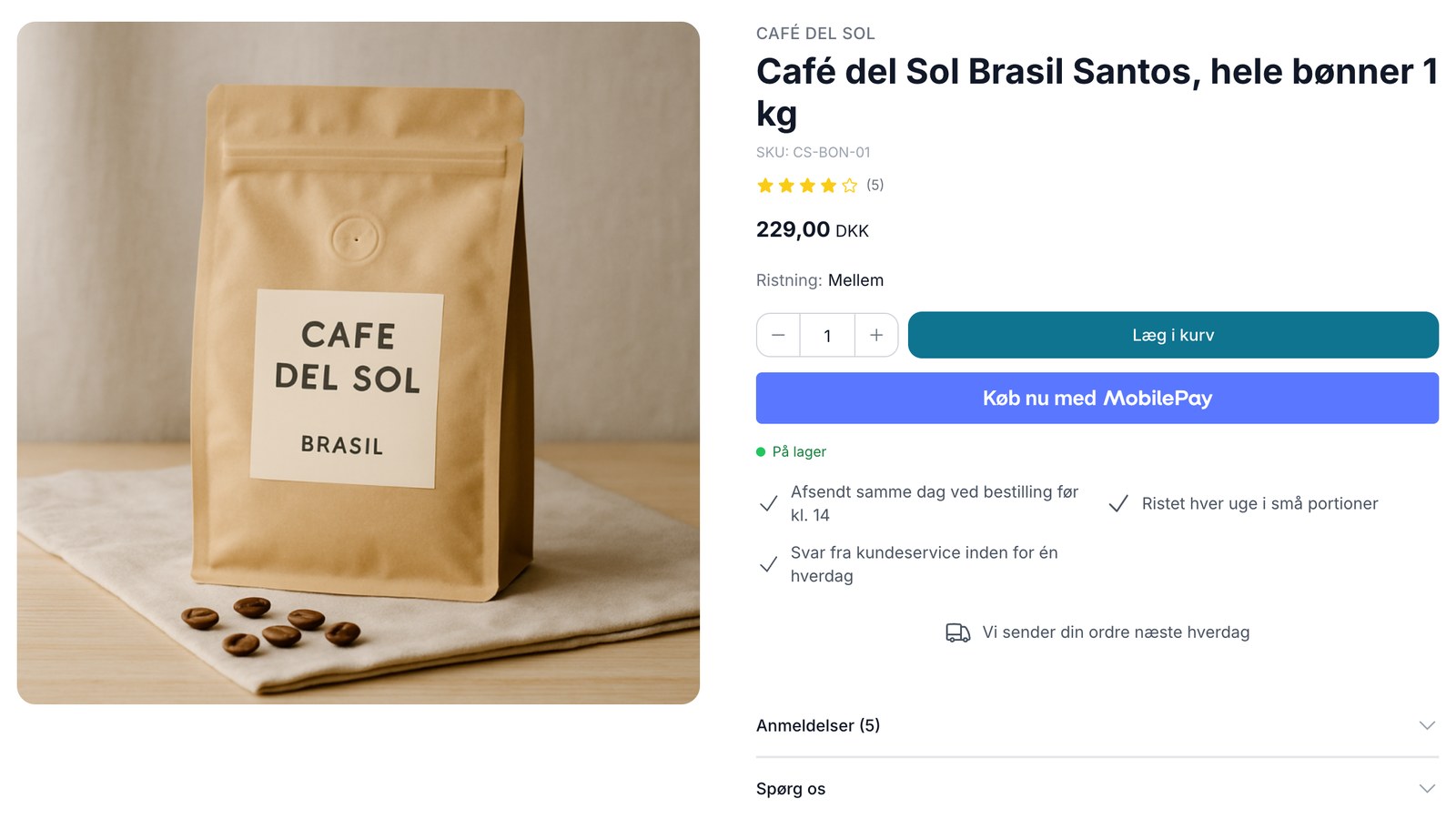
"Buy Now" is the same type of button on the product page. Here, the customer purchases only the item on the page—with the selected variant and quantity—and the shopping cart remains untouched. This works well for customers who arrive from an ad or a newsletter to buy a single specific item.
Delivery and Pickup Locations in the App
In the app, the customer sees your shipping options for the selected address, with the same prices as shown at checkout. If you use package pickup locations from PostNord, GLS, or DAO, the customer can select a pickup location in the app when the package is to be delivered in Denmark, and if you offer in-store pickup, the customer can select that option as well. Customers can have their orders delivered to any of the countries you ship to, but the sales unit’s country must be one of them.
The checkout rules also apply to Express, such as the blacklist and the minimum order value for business customers in a B2B store.
Here are the buttons
You enable the two buttons separately in the Vipps MobilePay setup: Show Express button in the cart and Show “Buy Now” button on the product page. In Shoporama’s built-in themes—Montana, MontanaB2B, Delaware, DelawareDK, Alaska2, California, and Washington, the buttons have a fixed position. In other themes, including custom themes, Shoporama automatically attempts to place the button below the checkout button and below the “Add to Cart” button. If it’s in the wrong place or missing entirely, your developer can specify the location under “Placement in the Cart (optional) ” and “Placement on the Product Page (optional).” The button matches the language and branding of your sales unit with Vipps MobilePay.
Vipps MobilePay cannot be used for subscriptions, whether at checkout, with Express, or with “Buy Now.” With “Buy Now,” the customer must first select a variant, and if the item has a field where the customer uploads a file, it must be added to the cart first.
Age Restrictions for Stores Selling Alcohol
If you sell wine, beer, or spirits, you can set an age limit of 15, 16, or 18 years for the item under Age Verification. The age limit is sent to Vipps MobilePay, and the app rejects customers who are too young. This applies at checkout, with Express and “Buy Now,” via payment links, and at the register in your physical store. Instructions on how to set the age limit for products can be found under Age Verification for Products.
The funds are debited when you ship
When the customer pays, the amount is reserved. If you enable “Automatically withdraw funds when the item is shipped or picked up,” the funds will be withdrawn when you mark the order as shipped or picked up. With Vipps MobilePay, the amount must be debited within 14 days. If you only sell items that are delivered immediately—such as digital goods and gift cards—you can instead debit the amount at the time of payment.
If a withdrawal fails—for example, because the hold has expired—you’ll receive a notification, and the order will be marked as “Action Required.” You can process refunds using a credit memo as usual, including partial refunds. If you cancel an order, the hold will be released by Vipps MobilePay. Read more in “Collect Payments on Orders.”
Payments in Your Physical Store
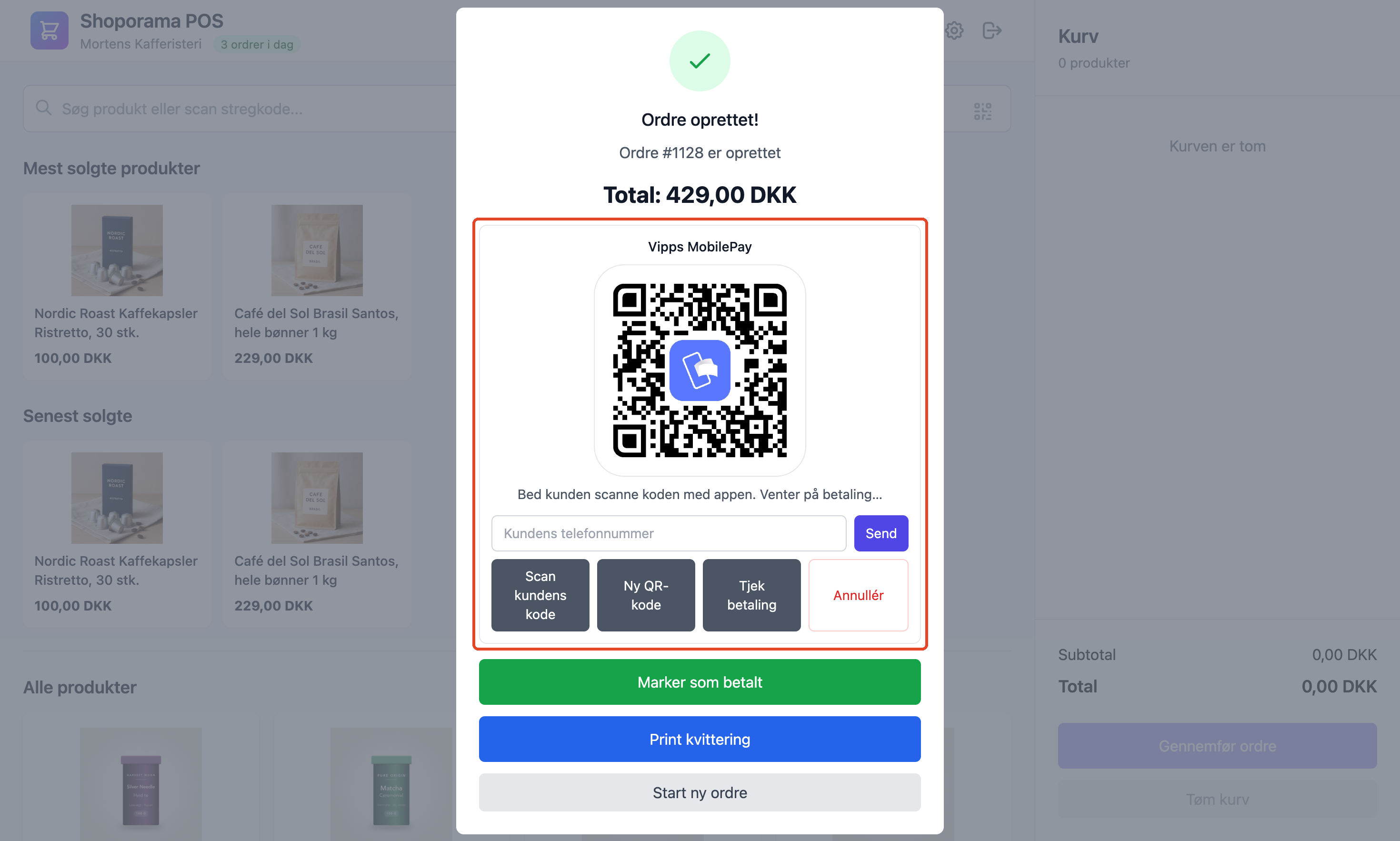
If you have a store, customers can also pay with Vipps MobilePay at the checkout in Shoporama POS. Select Vipps MobilePay as the checkout payment method in the POS settings. Once you’ve created the order, the register displays a large QR code, which the customer scans using the app. The register tracks the payment automatically and changes to “Payment received!” once it’s approved. The amount is debited immediately because the customer takes the item with them.
There are several ways to display the payment to the customer:
- QR code on the screen: The customer scans the code on the register’s screen.
- Send to phone: Enter the customer’s phone number and tap Send. The payment appears in the customer’s app.
- Scan the customer’s code: The register scans the customer’s personal QR code in the app using the camera.
- Sticker at the register: If the screen isn’t facing the customer, you can print a static QR code and place it at the register. When the customer scans it, the payment is sent to the customer’s app.
- Self-service: At the self-service POS, the customer pays using their own phone, and the app opens directly.
You create the sticker in the Vipps MobilePay setup under “QR Codes at the Register.” Give the code a name—for example, “Register at the Entrance”—which the customer will see in the app, and print it. Afterward, select it in the checkout settings under “Checkout Sticker.” The customer must scan the sticker after you’ve created the order. Everything about in-store payments is covered in the article on Vipps MobilePay in-store.
Starting January 12, 2027, it will be called Vipps
On January 12, 2027, MobilePay will change its name to Vipps in Denmark. If you use Vipps MobilePay directly in Shoporama, the name and logo will change automatically, so you don’t need to do anything. If you’ve given the payment method a different name yourself, your name will remain. In Finland, it’s still called MobilePay.
Here’s how to get started
You sign up directly through Shoporama. You’ll need your CVR number and MitID from someone authorized to sign on behalf of the company, and you don’t need to obtain API keys or have a payment gateway.
- Go to Integrations → Payment Gateways, click Add New Payment Gateway, and select Vipps MobilePay. The entry will initially be marked as New.
- Select when the funds should be withdrawn, enable Express and “Buy Now” if you want to use them, and enter links to your terms of service and privacy policy. The customer will view and accept them in the app before payment.
- Under “Connection,” “Sign Up via Shoporama” is selected. Enter your CVR number and click “Sign Up with Vipps MobilePay.” At Vipps MobilePay, the registration form is pre-filled, so you review it and sign using MitID.
- Vipps MobilePay approves the registration, typically within a couple of days. Shoporama retrieves the sales unit itself, checks the connection, sets up the payment notifications, and notifies you when you can start accepting payments.
The fee is 0.99% + 1.00 DKK per payment in the online store, and Shoporama adds no additional charges. If you already have an agreement with Vipps MobilePay and your own API keys, you can use those instead. In that case, the fee specified in your own agreement applies, and you can test using Test Mode and test keys without any real money changing hands.
If you’re already using MobilePay through QuickPay, OnPay, PensoPay, Flatpay, or Nets, everything will continue as before. You don’t need to do anything.
Read more
Step-by-step setup instructions are available in the MobilePay section of your online store, and for in-store payments, see the Vipps MobilePay section. Express and “Buy Now” are described on the MobilePay Express features page, and you can read about what MobilePay Express is in the glossary. If you have any questions, please email support@shoporama.dk.
Related articles
Age verification on products
Here's how to set an age restriction of 15, 16, or 18 for products in Shoporama so that the customer's age is verified when paying with ePay or...
Collect payments on orders (capture)
Guide to capture payments on orders in Shoporama. Understand the difference between authorization and capture and learn how to capture manually or...
MobilePay on Your Online Store: Setup, Express, and Buy Now
Here's how to accept MobilePay directly on your Shoporama online store using Vipps MobilePay: registration with your CVR number, pricing, "Express"...
POS - Point of Sale
Learn how to use Shoporama's POS system to make sales in your brick-and-mortar store. Log in with your Shoporama account, scan barcodes, create...
Self-Service POS: Let customers scan and pay on their own
With self-service POS, your customers can scan the barcodes of items on their own phones, add them to their cart, and pay online. Ideal for B2B...
Vipps MobilePay in-store: Payment at the register using a POS terminal
Here’s how to accept Vipps MobilePay in your brick-and-mortar store using Shoporama POS: QR code on the screen, payment sent to the customer’s...
More from the blog
New in the POS: product categories, cash register reports, and sales from multiple stores
Sell used items and bulk goods without having to enter each item individually; close the register with a report showing whether the cash drawer...
24. november 2026
Online Store → General is organized so that the settings are located where you use them
The Webshop → General page had grown to about 140 fields across 17 tabs. Now, feeds, emails and text messages, orders and invoices, and search and...
22. november 2026
Rent out equipment through your own online store with daily rates and a calendar
Now you can rent out tents, draft beer systems, trailers, and other equipment online through your own web store, adding them to the same shopping...
15. november 2026