Online Store → General is organized so that the settings are located where you use them
The Webshop → General page had grown to about 140 fields across 17 tabs. Now, feeds, emails and text messages, orders and invoices, and search and view functions each have their own page, and the settings for the returns center and warehouse have been moved to the Returns Center and Warehouse pages. Here you can see what has been moved where and why we did it.
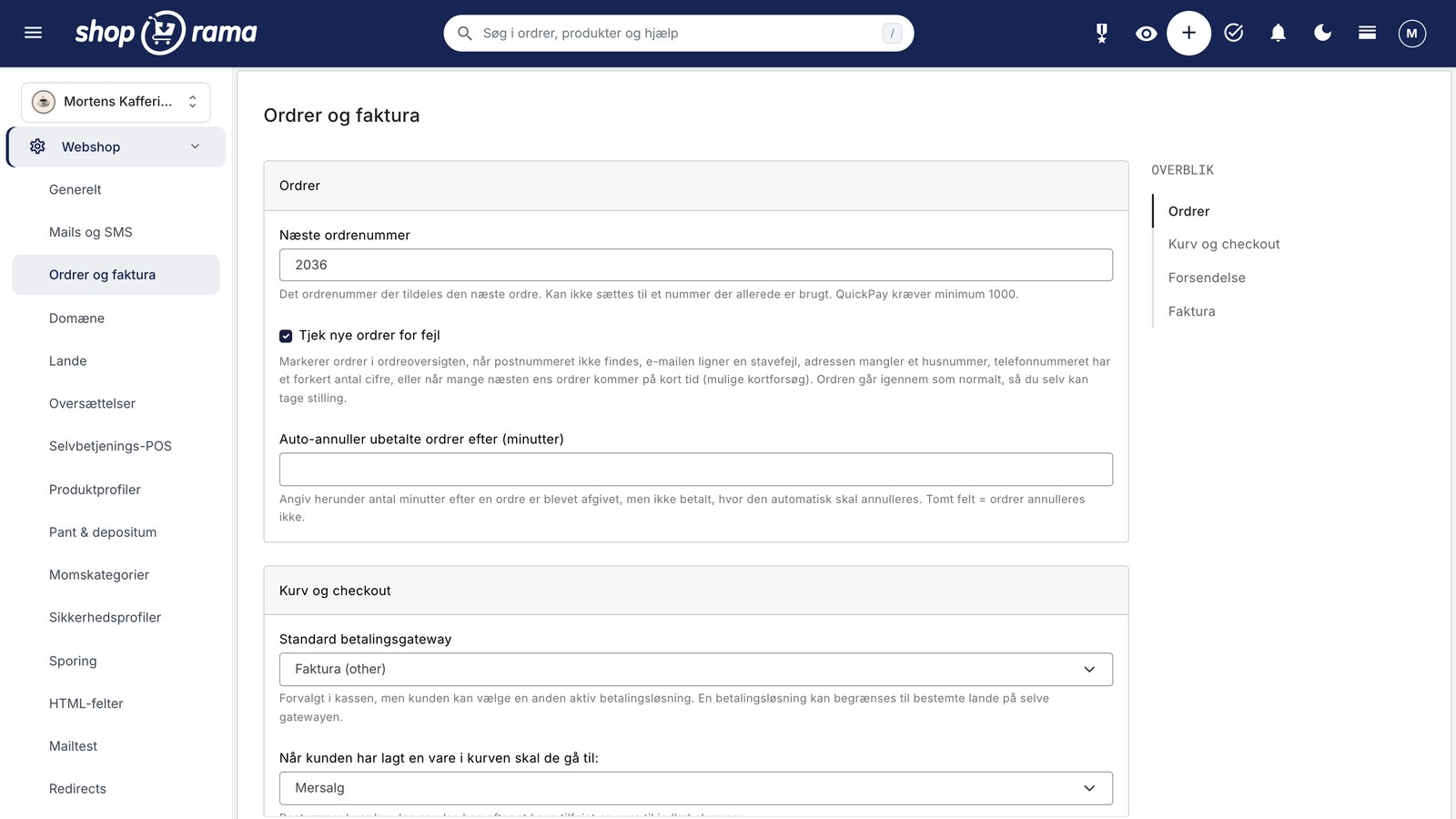
For many years, the “Webshop → General” section has been the place where everything that had no other home ended up. Feeds, emails, text messages, order numbers, invoices, search, the returns center, inventory rules, and integrations were all listed on the same long page. Eventually, there were about 140 fields spread across 17 tabs, and if you needed to edit the post-purchase email, you had to scroll past orders, invoices, text messages, and the entire Google Shopping feed tab to find it.
That’s why we’ve split up the page. The settings are now on pages, each dedicated to a single topic, and several of them are located right where you’re already working on that topic. The values are the same as before. Your settings have been moved along with them. Along the way, we’ve also made some of the fields easier to use.
Why we’ve split up the page
- You’ll find what you’re looking for faster. A page about emails contains only emails, and a page about feeds contains only feeds. Each page has its own Overview menu on the right-hand side, so you can jump directly to the tab you need.
- The settings are where you use them. Your product feeds are under “Products,” the return center settings are under “Return Center,” and the rules for drop shipping are under “Inventory.” You no longer have to go to a different page to change what you’ve just been looking at.
- Changes no longer overwrite each other across pages. Previously, the “General” section saved all fields at once. If two colleagues were editing different parts of the page at the same time, the person who saved last might accidentally overwrite the other’s changes. Now, each page saves only its own fields.
Here’s where you’ll find the settings now
- Products → Product Feeds: Google Shopping, Google Product Reviews, Pricerunner, Partner Ads, Klaviyo, Kelkoo, Tradetracker, and feed keys. Your own feeds are located on the “My Feeds” tab on the same page.
- Online Store → Emails and SMS: sender, order email subject lines, automatic emails, notifications to you about new orders, SMS, custom SMTP, and Heysender.
- Online Store → Orders and Invoices: order number, order verification, automatic cancellation, shopping cart and checkout, default payment gateway, B2B minimum order value, packaging weight, shipping costs, and invoice.
- Design → Search and Display: search, related products, results per category overview, Smarty version, and error messages from the theme.
- Orders → Returns Center: All Returns Center settings are grouped in a single window behind the Settings button (gear icon) at the top of the page.
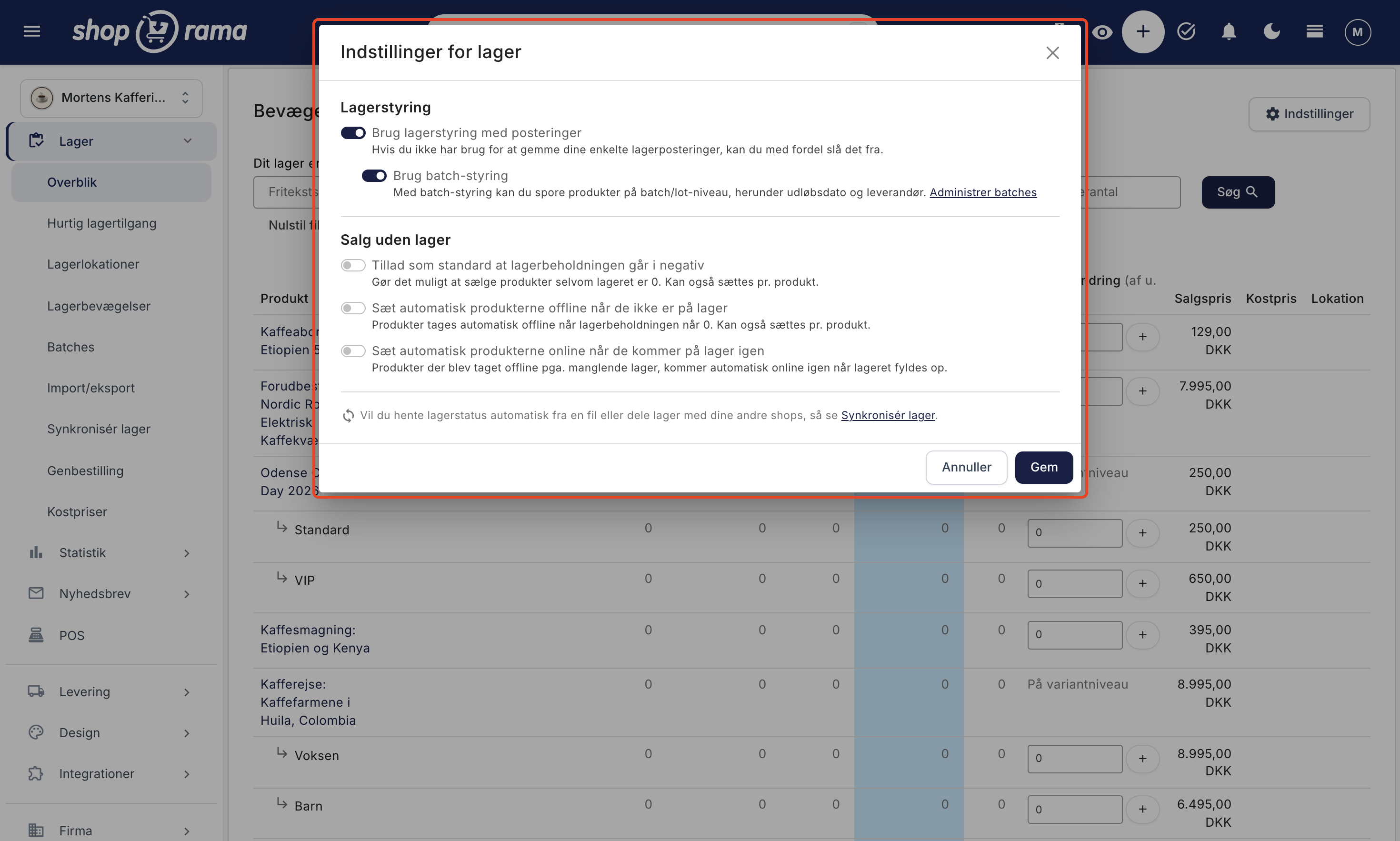
- Inventory → Overview and Inventory Movements: inventory management, batches, and sales without stock behind the Settings button. You can set the inventory status for a location under Inventory → Synchronize Inventory.
- You can enable or disableMorningscore SEO on the Morningscore page, where you also enter the API key. If the integration is disabled, you’ll find the page under Integrations. Read more in the Morningscore integration guide.
Back on the General tab, you’ll find the store name, front page category, language, country, currency, tax settings, visitor statistics, and your own OpenAI key for the AI assistant. If you have multiple stores, each store’s company information is listed there as well.
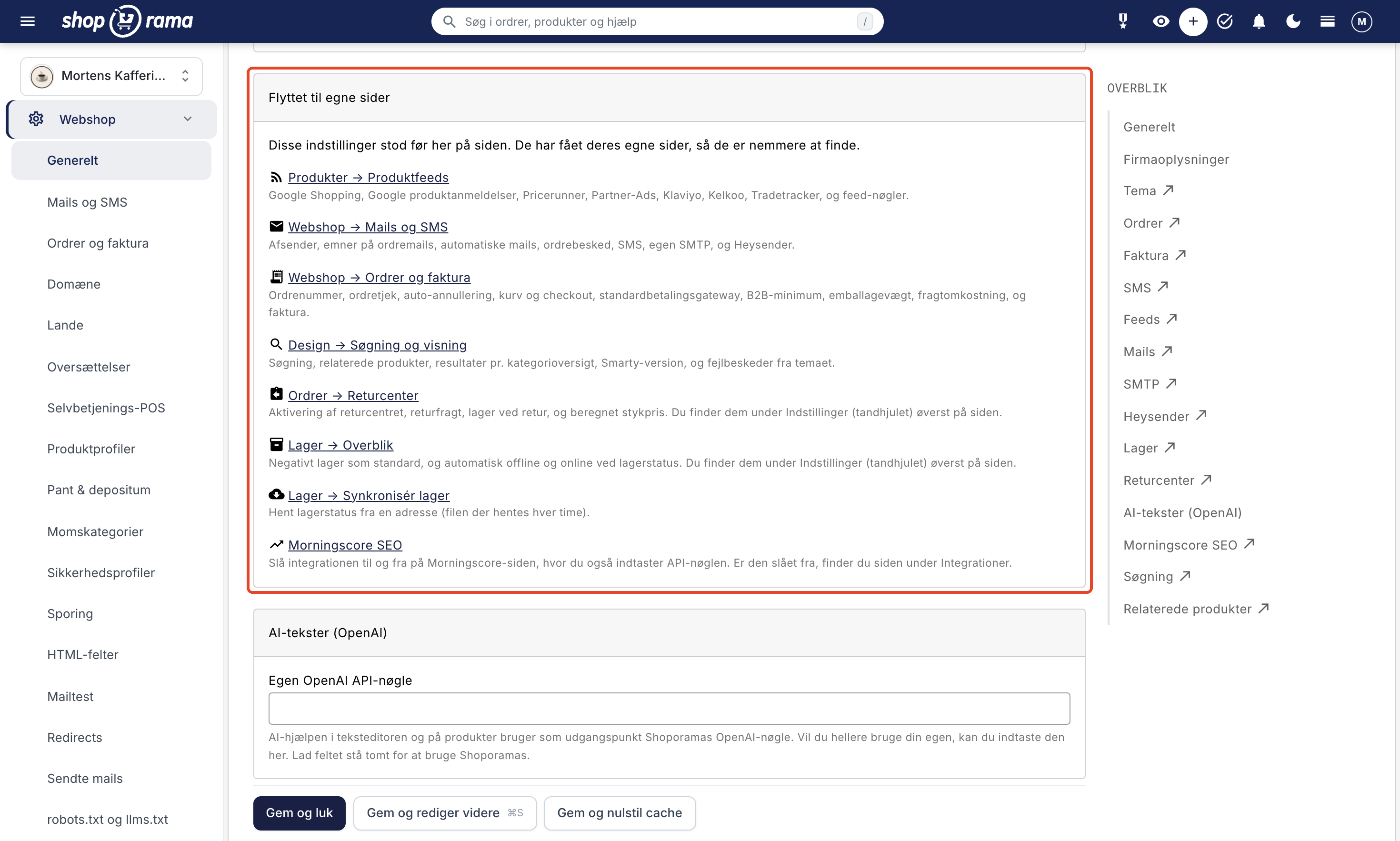
If you have a bookmark or an old link to one of the cards on the “General” page, it will redirect you to the page where the card is now located. The top search in the admin panel also recognizes the new locations, so you can search for, say, “sender” or “cancel” and go directly to the field.
Minor improvements along the way
Since we were moving the fields anyway, we also tidied them up.
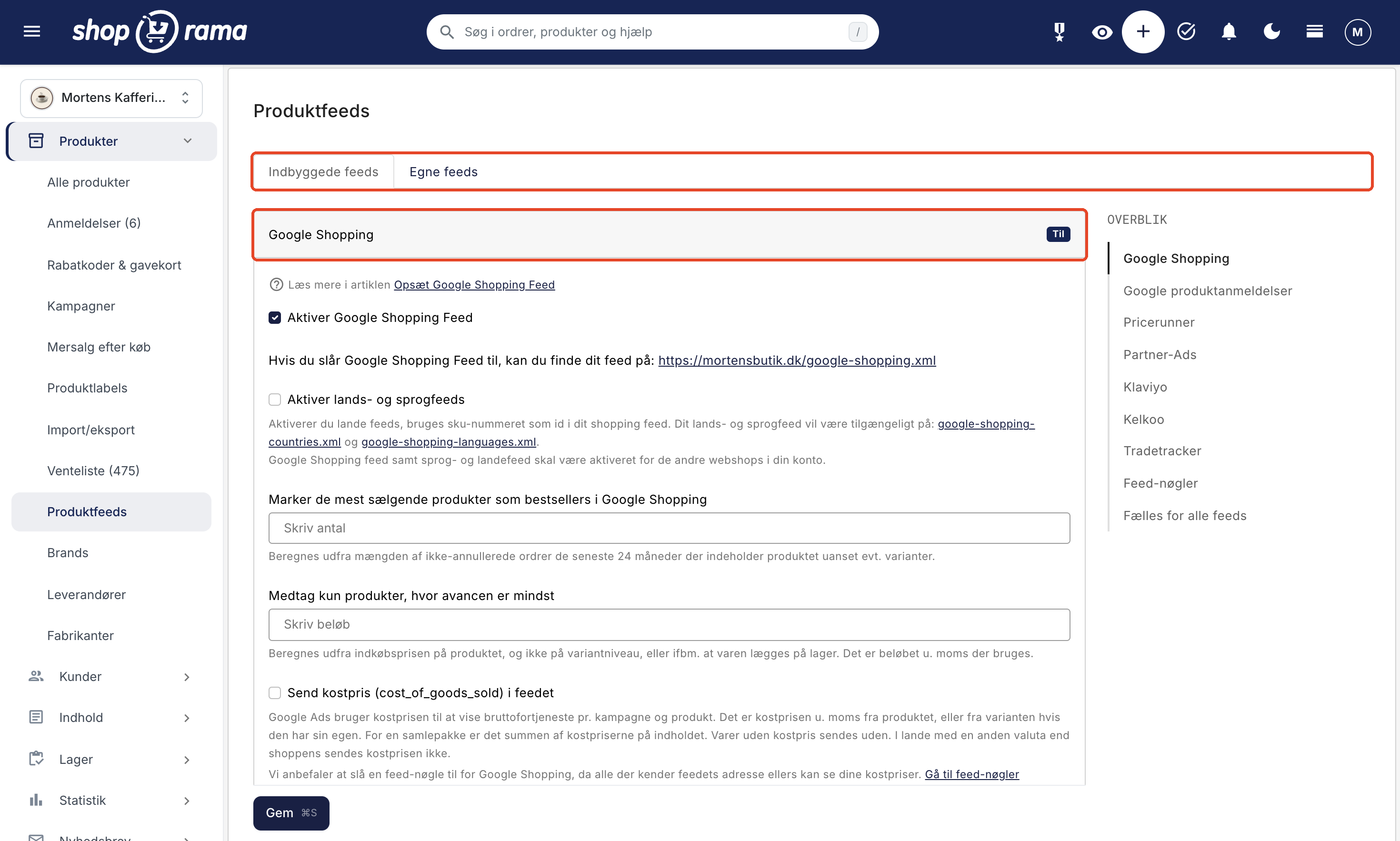
Feeds with To and From
Each built-in feed now has its own card with a label showing “To ” or “From.” The settings under a feed are only displayed once you’ve checked the box next to the feed, so you don’t have to read about Pricerunner’s categories if you don’t use Pricerunner. The “Send square images ” checkbox appears on the “Common to all feeds” card because it applies to both Google Shopping and Partner Ads. Read more in “Set Up Google Shopping Feed.”
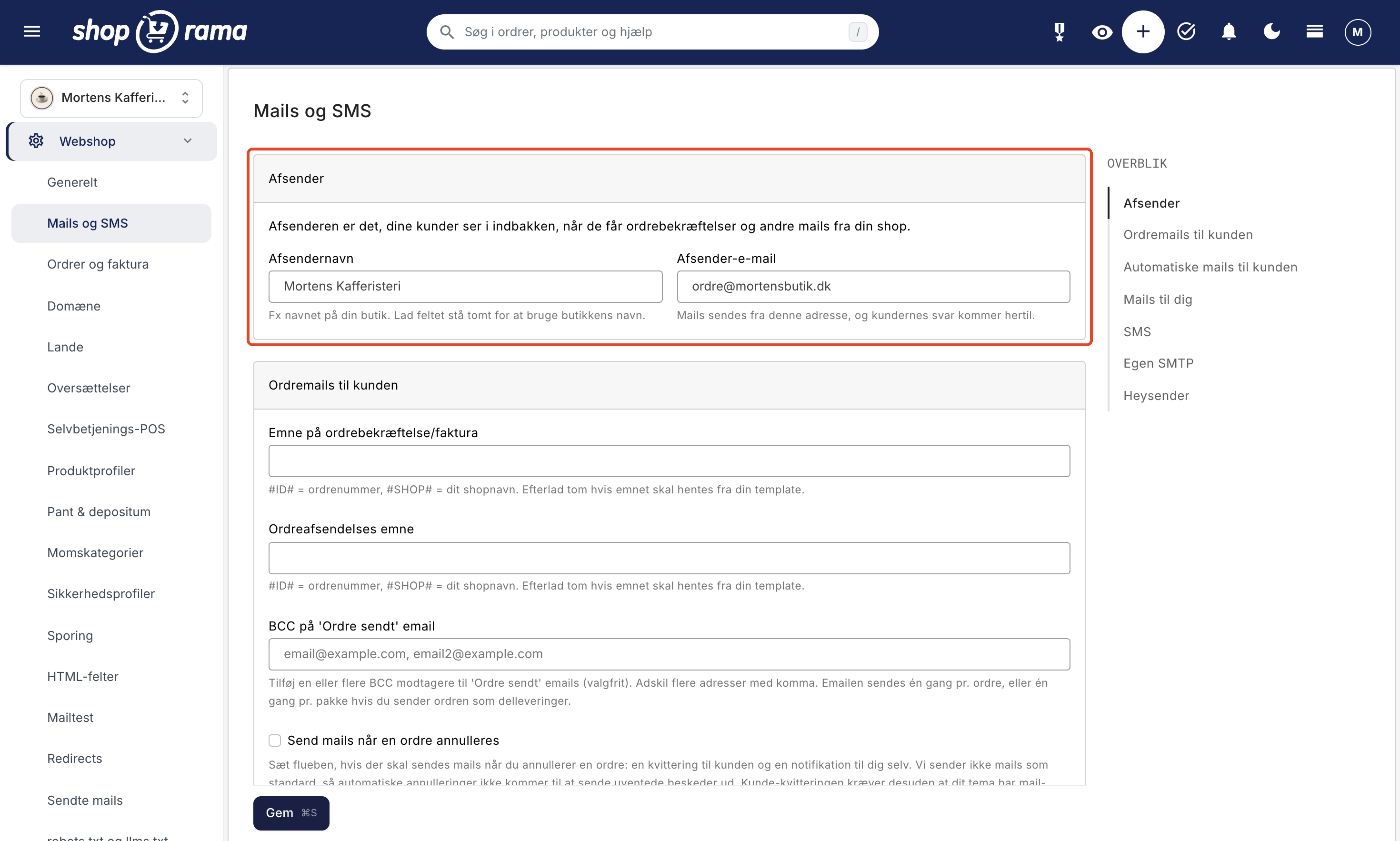
Sender in Two Fields
Previously, the sender’s information in your emails had to be entered in a single field with the name first and the email address in angle brackets afterward. If you entered the name without angle brackets around the email address, or if a space was accidentally included in the address, the emails might stop being sent. Now there’s one field for the name and one for the email address. If you leave the name field blank, the store’s name will be used, and an invalid email address won’t be saved. Instead, you’ll receive a message asking you to correct it. If your order emails aren’t arriving, see “My order emails aren’t arriving.”
Settings behind the gear icon
The Returns Center and Warehouse now have a Settings button with a gear icon at the top of the page. Clicking it opens a window with the settings for that area, so they don’t take up space below the list. Previously, some of the Return Center’s settings were under “General,” and the rest were at the bottom of “Return Center.” Now they’re all grouped together. Read more in “Return Center ” and “Inventory Entries and Batch Management.”
Currency and Language from a List
Language, country, and currency are now listed on a single row. You select the currency from a list instead of typing it, and the language displays both the code and the name, e.g., DA – Danish. If your currency is currently listed as “kr,” the list will select the krone for your store’s country, e.g., DKK, and the next time you save, it will be saved as the correct currency code for feeds and payments. Read more in Set the currency in your store.
We’ve removed this
- Danish e-Logistics. The integration was no longer used by any active stores, so it has been removed along with the fields it had on orders and shipping methods.
- The Statistics Chat. The old chat for questions about your statistics no longer had a menu item and has been removed. If you have questions about your numbers, you can connect Claude to your store; see " Manage Your Store with AI." The AI help in the text editor and on product pages is still available.
- "Don’t show statistics on my dashboard." The checkbox had no effect after the dashboard was rebuilt using modules that each user selects individually.
Frequently Asked Questions
Have my settings been changed?
No. The fields have been moved along with the values you had. There are two exceptions, and they only take effect when you save. If your currency is listed as “kr,” it will change to the currency code, e.g., DKK, the next time you save “General.” If your theme displays the currency next to prices, it will then show DKK instead of kr. And if your sender is listed only as an email address without a name, it will use the store’s name as the sender’s name the next time you save Emails and SMS, unless you enter a different name yourself.
I can’t find a field. What should I do?
Type a word from the field into the top search bar at the top of the admin panel, such as “sender,” “currency,” or “negative.” If it doesn’t find anything, try the “Search” field in the left-hand menu, which recognizes terms like “heysender” and “smarty.” You can also open “General” and follow the link in the “Moved to Custom Pages” box or one of the items marked with an arrow in “Overview.”
Who can change the settings?
The same people as before. The new pages require the same access to the online store’s settings as General. Users with the Developer role cannot access Return Center, Inventory, or Morningscore, so for them, the settings that were previously located under General are still found there. Read more in the article Roles and Permissions.
If you’d like to see a walkthrough of all the fields, read the article “General Web Store Settings.” If you have any questions, feel free to email us at support@shoporama.dk.
Related articles
General Online Store Settings
Review of the Web Store → General (name, language, country, currency, sales tax, and your own OpenAI key), and where you can now find product...
Set Up a Google Shopping Feed
Guide to Setting Up a Google Shopping Feed in Shoporama: categories, custom labels, product IDs, and catalog matching; feeds by country with the...
Return center
Learn how to set up and use Shoporama's Return Center so your customers can easily request returns and you can handle them efficiently from...
Set currency in your shop
Set your store's currency and sell in other currencies by country using the current exchange rate or a fixed rate, price adjustments, rounding, and...
Roles and Permissions: Give Each User the Right Access
See what the eight roles and five optional features provide access to, which role is right for whom, and what only the company administrator can do.
More from the blog
New in the POS: product categories, cash register reports, and sales from multiple stores
Sell used items and bulk goods without having to enter each item individually; close the register with a report showing whether the cash drawer...
24. november 2026
Vipps MobilePay is now built directly into Shoporama
Vipps MobilePay is now built directly into Shoporama, with no payment gateway in between. Customers can make purchases directly from their...
21. november 2026
Rent out equipment through your own online store with daily rates and a calendar
Now you can rent out tents, draft beer systems, trailers, and other equipment online through your own web store, adding them to the same shopping...
15. november 2026