Roles and Permissions: Give Each User the Right Access
See what the seven roles and five optional features provide access to, which role is best suited for whom, and what only the company administrator can do.
When multiple people are managing the online store, you assign a role to each user. The role determines what the user can view and edit in the admin panel. This way, the packer can pack orders, the bookkeeper can view the numbers, and the web agency can work on the design—without any of them having access to more than their tasks require. The company administrator selects the roles under Company → Users.
Here you can see what the seven roles can do, what the five optional features allow, and which role suits whom. Instructions on how to create a new user are in “Create More Users in Your Store,” and in the glossary you can read a brief overview of user roles in general.
This article focuses on the users in your administration. If you have a B2B online store, your corporate customers have their own roles—Member and Company Admin—under Customers → Companies. These roles do not grant access to the admin panel, and you can read about them in “Company Accounts in Shoporama.”
In short: Give each person their own login and the lowest role appropriate for their tasks. Enable additional permissions when needed, and monitor sensitive actions in the activity log. Only a company administrator can assign roles, create users, and close or reset the online store.
What happens to your current users?
You don’t need to activate anything, and your users will retain the access they have today, with one exception, which is listed below. Previously, a user could have three checkmarks under “Edit User”: Supplier, Order Management, and Administrator. Now, your current users have been assigned the role that corresponds to what they can do today:
| Previous setup | Now displayed as |
|---|---|
| No checkmarks | Full access. The user can do everything they could before, except close the online store, put it into Storage, and reset it. |
| Administrator checkbox | Company administrator, typically combined with the Full Access role. |
| Checkbox: Order Management | The Order Management role with all five add-ons, because users can now also issue refunds, export, and delete orders. |
| Checkbox: Supplier | The Supplier role with the add-ons Cost Prices and Markup and Deletion and Bulk Import, so the supplier can do the same things as they do today. |
| Both Order Management and Supplier | Order Management + Supplier. This is not a role; see below. |
| Administrator combined with Order Management or Supplier | Company Administrator, but the restriction from Order Management or Supplier still applies, even on the company pages, until you select a role. The "Edit User" screen displays this in a box, and in the user list, the "Company Administrator" label does not appear next to the user. |
Users with the previous setup will use “admin” exactly as they do today until you change their role or options. If you save a user without changing anything, nothing will change.
One restriction applies to everyone: Only the company administrator can close the online store, put it into storage, and reset it. Previously, anyone with full access could do this. You can see who the company administrator is by the “Company Administrator” label next to their role in the user list.
If a user had both “Order Management” and “Supplier,” it will say “Order Management + Supplier,” and on the “Edit User” page, a box explains that the combination does not exist as a role. This has not granted the user usable access to the admin panel, so open the user’s profile and select the appropriate role.
When you change an existing user’s role or permissions
If you want to restrict access—for example, by removing some of the permissions from an order processor—open the user under Company → Users, uncheck the boxes, and click Save. From that point on, the role takes full effect, and the menu will only display what the role grants access to.
Once the role is fully active, an order processor will have more capabilities than they do today. The user can also view products, customers, inventory, and shipping, and the permissions provide access to more than just orders. For example, “Sales and Statistics” provides access to the statistics pages; “Cost Prices and Profit Margins ” provides access to cost prices; and “Data Export” allows the user to retrieve the entire customer list. Therefore, review all five checkboxes and keep only those that the user needs.
New features for a role—such as a supplier being able to upload images—will only become available to a current user once you change the role or its options. If the user should keep the same options, uncheck a box and click Save. Then check the box again and click Save.
How to select a user’s role
Only a company administrator can assign roles. Here’s how:
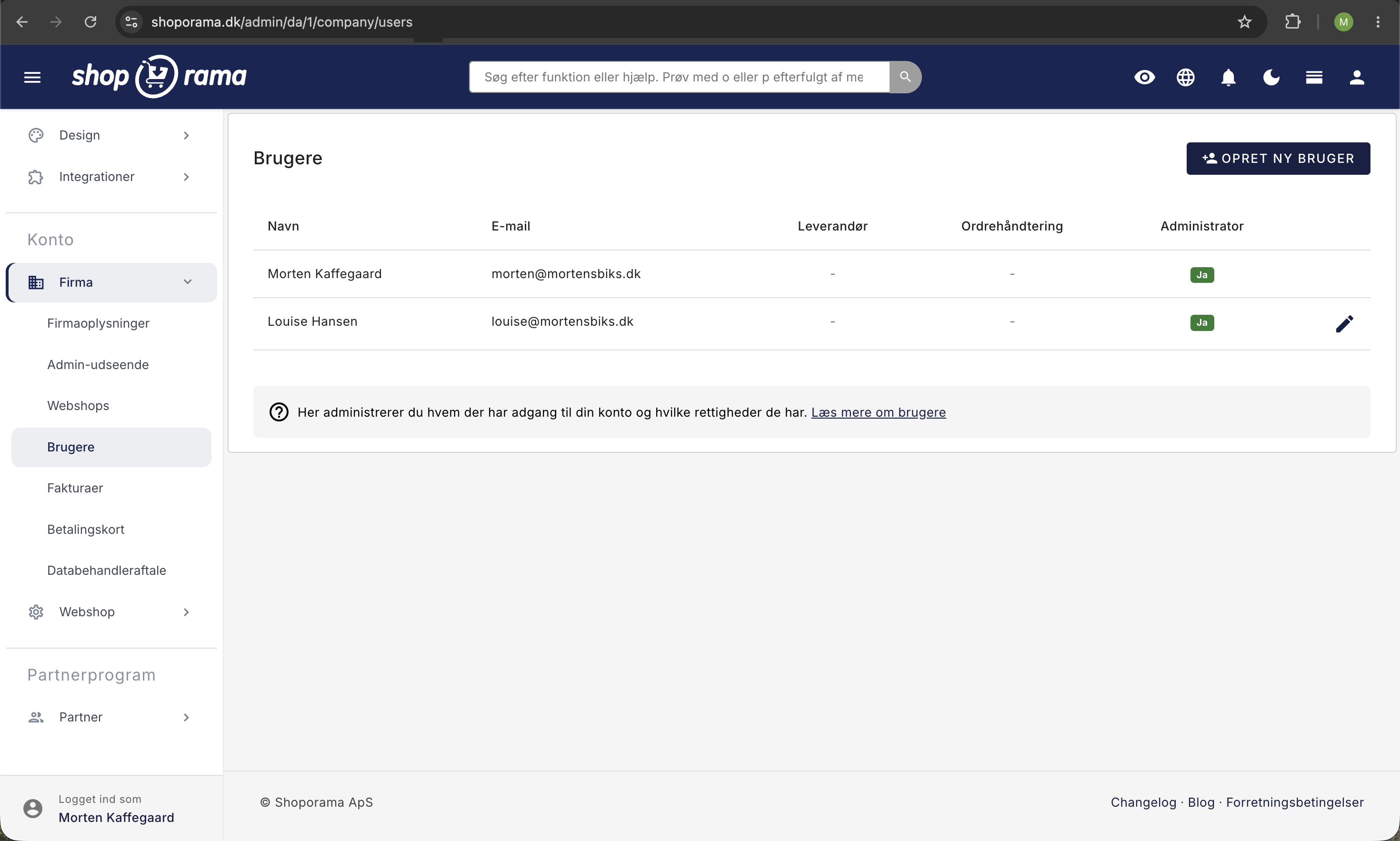
- Go to Company → Users.
- Click Create New User, or click a user’s name to open Edit User.
- Find the Role and Permissions tab, and click in the column for the role you want to assign to the user. You can click anywhere in the column.
- Check the boxes next to the options the user should have. They are listed at the bottom of the role’s column.
- Click Create User or Save.
On the “Create User” page, “Full Access” is selected by default, so be sure to choose a different role if the user shouldn’t have full access. On the “Edit User” page, the matrix shows the role and options the user has in the online store you’re currently viewing.

The matrix displays the online store’s 13 areas as rows, such as Orders, Products, Inventory, and Customers. The cells show what the role can do in each area:
- Edit: can create and edit.
- View: can view data in the area, but cannot edit it or open the settings.
- View*: Same as View, but requires the Sales and Statistics add-on.
- Own: only their own products. This applies to the Supplier role.
- – (a dash): no access.
If you hover your mouse over a role’s name, you’ll see the role’s description. The description of the role you’ve selected is also listed below the matrix.
What does “View” mean?
With “View, ” the user can open the lists and pages containing data in the area, including a single product or order. Most buttons and fields are still there, but if the user tries to save or perform an action, the “No Access” page appears. This means the bookkeeper can review orders, products, inventory, customers, and statistics without being able to make any changes. However, cost prices are hidden from users who do not have the “Cost Prices and Markup” add-on selected.
The settings and tools in an area require the “Edit” permission, even to open them. With the “View” permission, the user therefore does not see, for example, “Liens & Deposits,” “Product Labels,” “Blacklist,” “Picking List,” or “Quick Inventory Access ” in the menu. The only exception is “Product Profiles,” which the “Developer” role can view because the theme uses the profiles’ attributes.
Who should have which role?
Here are the people who typically need access to a small online store, along with the roles and optional features we recommend. Start with the smallest role that fits your needs, and enable additional options as specific needs arise. You can always change the role later.
| Who | Role | Permissions |
|---|---|---|
| The packer or seasonal helper | Order processing | None |
| Warehouse worker | Employee | Deletion and bulk import if inventory entries or goods receipts need to be imported from a file |
| Customer Service and Day-to-Day Operations | Employee | Refunds and Cancellations |
| The bookkeeper or accountant | Bookkeeper | Data export, if the bookkeeper needs to retrieve the orders themselves. Cost prices and markup, if the bookkeeper needs to use inventory value and markup. |
| The marketing agency or freelancer | Marketing | Revenue and statistics, if the agency needs to track sales |
| Web agency or web designer | Developer | None. This role cannot have any add-ons. |
| The supplier or dropshipper | Supplier | Cost prices and markup, if the supplier keeps the purchase price updated themselves |
The packer and seasonal help. Order processing without add-ons is sufficient for packing and shipping using the picking list, creating shipping labels, and marking orders as Shipped. Remove the user when the season is over. If the helper returns next year, create the user with the same email address. That way, the helper can log in with their old credentials, but a new email won’t be sent, so be sure to notify them yourself. If the helper has forgotten their password, you can send a link to reset it from the user’s page.
The warehouse employee. The “Order Processing” role can only view the warehouse, so this role cannot receive goods, move goods, or edit inventory counts. Therefore, assign warehouse staff the “Employee” role. There is no role that is limited to just orders and inventory, so they can also edit products, customers, and content. If they need to use “Receive Orders” or “Import Entries” under Inventory → Import/Export, they will also require the “Delete” and “Bulk Import” permissions.
Customer Service. With the “Employee” role and the “Refunds and Cancellations” add-on, the employee can process returns and issue refunds to the customer once the item has been returned, without waiting for you. Refunds are listed in the activity log with the amount. Employees can view discount codes but cannot create them, so create the codes in advance if customer service needs to provide a customer with a discount code. If your right-hand person runs the store on a day-to-day basis, you can also enable both “Revenue and Statistics ” and “Cost Prices and Profit Margin.”
The bookkeeper or accountant. Enable “Data Export ” if the bookkeeper needs to retrieve the orders themselves under “Orders” → “Order Export.” If the bookkeeper needs the inventory value and profit margin—for example, for year-end closing— the “Cost Prices and Profit Margin” feature provides access to “Statistics → Product Consumption & Profit Margin,” “Inventory Statistics,” and “Inventory → Cost Prices.” Under “Inventory Statistics,” there is also the “Inventory Value Over Time” tab, where the bookkeeper can view the inventory value on a specific date—such as the end of the year—and download it as a CSV file. This figure is based on what is recorded in Shoporama, so for the annual financial statements, it must be reconciled with a physical inventory count.
The marketing agency or freelancer. Enable “Revenue and Statistics” if the agency needs to measure the sales generated by campaigns. Grant “Data Export” access only if the agency needs to migrate your newsletter list to another system, and disable it again afterward. This option also allows you to download the entire customer list—including names, email addresses, and phone numbers—under Customers → Downloads, since the role has access to customer data. Grant “Deletion” and “Bulk Import” permissions if the agency needs to import redirects or landing pages.
The Web Agency. If the agency needs to migrate products and customers from another platform, the import requires " Deletion" and "Bulk Import" permissions, which the "Developer" role does not have. Grant the agency "Full Access" while the migration is in progress, and switch back to "Developer" once it’s complete. If an integration needs to retrieve orders, create the API key yourself.
The supplier or dropshipper. Remember to select the supplier under Supplier Setup so that the user only sees their own products. The steps are outlined in the section on suppliers further down.
The Seven Roles
The roles are fixed, so you cannot create your own roles or change what a role encompasses. You can customize them with the five optional settings when the role supports them.
Full Access: everything in the online store
Full Access covers everything in the online store, including payments, design, apps, and integrations, and this role always includes all five add-ons. Only users with Full Access can install apps, purchase paid themes, and connect Claude. Only grant this role to those you would entrust with the keys to the entire store—such as a co-owner. Additionally, users, online stores, and payment cards require the user to be a company administrator. Only the “Full Access” role can add, activate, deactivate, and remove countries under Webshop → Countries, because each active country incurs a charge on your invoice from Shoporama.
Employee: Day-to-Day Operations
The Employee role is for the person who manages the store on a day-to-day basis. The Employee can create and edit products, process orders, manage customers and inventory, and work with categories, pages, the blog, and menus. If you sell in multiple countries, the Employee can also edit translations under Webshop → Translations, including product translations. The Employee can view discount codes, promotions, newsletters, and shipping options, but cannot modify them. Statistics require the “Sales and Statistics” add-on, and this role has no access to settings, payments, design, code, or integrations. This role can have all five add-ons.
Order Management: Orders, Packing, and Returns
Order handling is for the person who packs and ships orders. This role can process orders from the order list, picking list, and order queue; create shipping labels; and accept returns in the Returns Center. The role can view products, customers, inventory, and shipping, but cannot edit them; for example, it cannot create a customer. The role can be assigned all five add-ons. Without the “Refunds and Cancellations” option, the role cannot refund, issue credits, or cancel orders, nor can it approve returns or mark them as refunded.
Marketing: discount codes, promotions, and newsletters
Marketing is for the person in charge of marketing, such as a marketing agency or a freelancer. This role can create discount codes, gift cards, promotions, and newsletters; manage reviews; write pages and blog posts; and customize the design using Theme Settings, Page Builder, and Texts. The Marketing role can view products and customers but cannot edit them, and has no access to orders. Under Web Store → Translations, the Marketing role can edit translations of, for example, categories, pages, menus, and theme texts, but can only view translations of products. The role can be granted the following options: Data Export, Sales and Statistics, and Deletion and Bulk Import.
Bookkeeper: view the numbers without being able to make any changes
The Bookkeeper role is intended for the bookkeeper or auditor. This role can view orders, products, inventory, customers, and statistics—including revenue—since the Revenue and Statistics add-on is always included. The bookkeeper can download the statistics as a CSV file and view Shoporama’s invoices under Company → Invoices. The role cannot save changes anywhere. If the bookkeeper needs to export orders and customers themselves, you can grant the Data Export option. If the bookkeeper needs to use inventory value and markup—for example, in the “Inventory Consumption & Markup” report—you can grant the “Cost Prices and Markup” add-on.
Developer: for the web agency and web designer
The Developer role is intended for a web agency, a web designer, or a freelance developer. This role can work with themes and design, the code editor, theme files, and SFTP; with content and shipping; and with the online store’s settings and integrations, such as API keys and webhooks. The developer can view the products. The role has no access to orders, customers, inventory, statistics, marketing, or payment setup, and it cannot be assigned any add-ons. The developer also cannot install or remove apps, purchase paid themes, or connect Claude. This role also grants access to domain and tracking settings, so only grant it to someone with whom you have an agreement. The developer can view the countries listed under Web Store → Countries but cannot change them, and under Web Store → Translations, the developer can edit everything except the product translations.
Supplier: own products only
The Supplier role is for a wholesaler, a dropshipper, or a local manufacturer who manages their own products in your online store. The supplier can create and edit their own products—including images, variants, and inventory—but cannot view orders, customers, or other suppliers’ products. This role can have the optional features “Cost Prices and Markup ” and “Deletion and Bulk Import.” It requires a bit of setup, which is described in the section on suppliers further down.
Overview: What Each Role Can Do in Each Area
The table shows the same information as the role matrix on the "Create User" and "Edit User" pages.
| Area | Full Access | Employee | Order Management | Marketing | Bookkeeper | Developer | Supplier |
|---|---|---|---|---|---|---|---|
| Orders: Orders, returns, packing, and shipping labels | Edit | Edit | Edit | – | View | – | – |
| Products: Products, variants, images, brands, and suppliers | Edit | Edit | View | View | View | View | Own |
| Inventory, locations, and goods receipt | Change | Change | View | – | View | – | – |
| Customers, customer groups, business customers, and loyalty | Edit | Change | View | View | View | – | – |
| Marketing: Discount codes, promotions, newsletters, and reviews | Change | See | – | Change | – | – | – |
| Content: Categories, pages, blog, menus, and image archive | Edit | Edit | – | Edit | – | Change | – |
| Statistics, Reports,and Revenue | Edit | View* | View* | View* | View | – | – |
| Shipping: Shipping Methods, Countries, and Shipping Rates | Change | View | View | – | – | Edit | – |
| Design Theme, theme settings, texts, and page designer | Edit | – | – | Edit | – | Change | – |
| Code Editor, theme files, stylesheet, and SFTP | Edit | – | – | – | – | Change | – |
| Integrations: Apps, AI, API keys, and webhooks | Edit | – | – | – | – | Change | – |
| Setup: Online StoreSettings, Domain, and Tracking | Edit | – | – | – | – | Change | – |
| Payment: Payment Methodsand Redemption | Change | – | – | – | – | – | – |
* Requires the " Sales and Statistics" add-on. " Own " means that the supplier can only create and edit products from their own supplier. Developers can make changes in "Integrations," but cannot install apps or connect Claude. “Webshop → Countries ” is part of “Setup,” but changes require “Full Access.” “Webshop → Translations ” is part of “Content.” “Shipping” covers the delivery countries under “Delivery → Countries,” not the countries under “Webshop.”
Options for sensitive actions
The options are five sensitive permissions that you can grant in addition to the role. They appear at the bottom of the matrix under Options, and you can only check the boxes in the column for the selected role. If it says “Always,” the option is always included with the role, and a dash means the role cannot have it. If you change roles, the checkmarks carry over if the new role is eligible for the options.
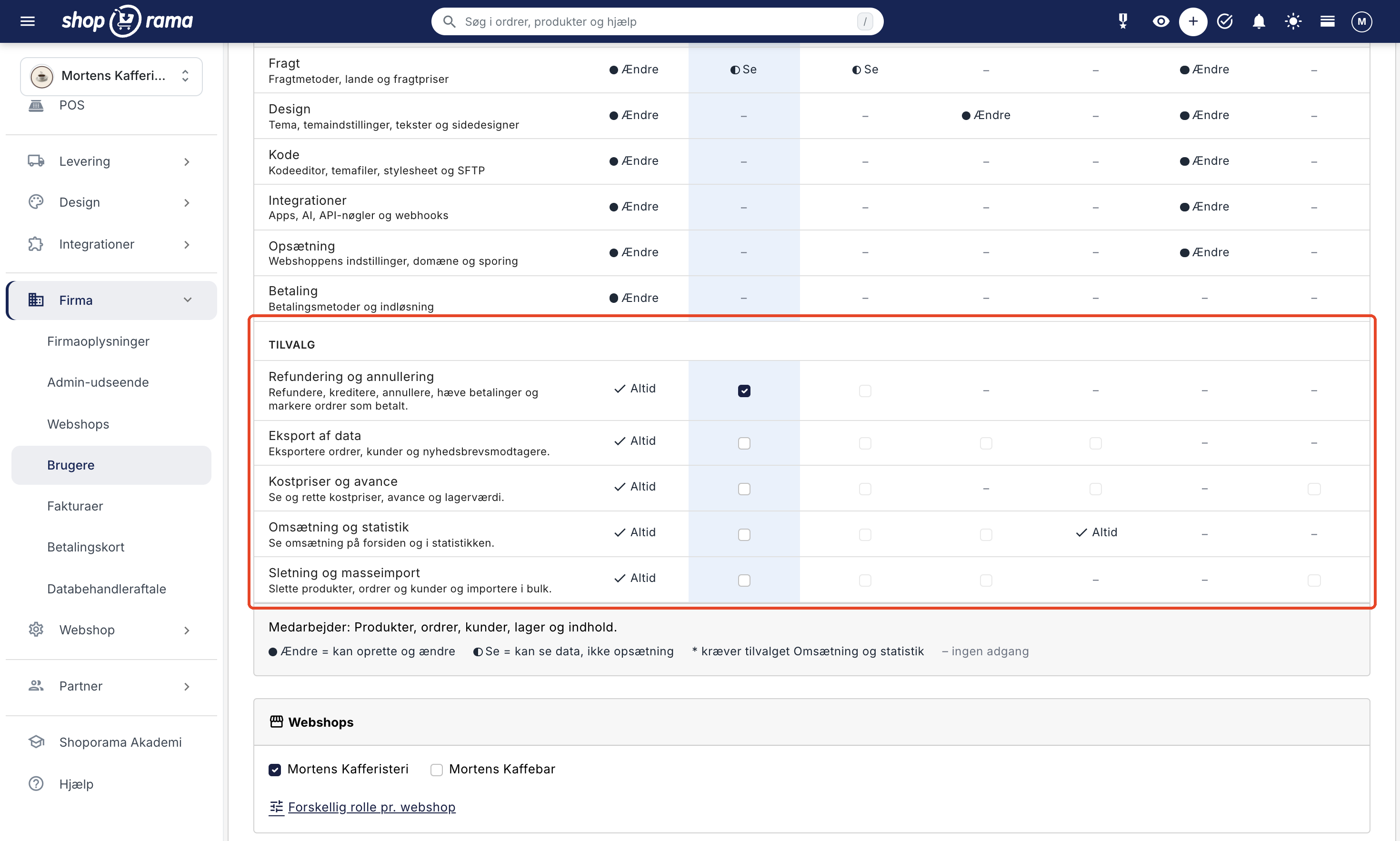
| Optional Features | Full Access | Employee | Order Management | Marketing | Bookkeeper | Developer | Supplier |
|---|---|---|---|---|---|---|---|
| Refunds and Cancellations | Always | Optional | Optional | – | – | – | – |
| Data export | Always | Optional | Optional | Optional | Optional | – | – |
| Cost prices and markup | Always | Optional | Can be selected | – | Optional | – | Can be selected |
| Revenue and Statistics | Always | Optional | Optional | Optional | Always | – | – |
| Deletion and bulk import | Always | Optional | Can be selected | Optional | – | – | Optional |
If the user is missing an option, most of the buttons are still there. If the user clicks on one of them, a message will appear explaining what’s missing, for example: “Your role (Employee) does not have access to: Refunds and Cancellations. Contact the company administrator if you need assistance." That way, you’ll both know which add-on to enable, if it makes sense.
Refunds and Cancellations
This add-on applies to actions that transfer funds or change the payment status of an order:
- Refunding on the Refund Amount page
- crediting and canceling orders, both on the order itself and from the order list
- canceling orders using the " Blacklist " bulk action in the order list
- creating return items on an order using the “Return Items” button
- mark orders as paid using “Mark as Paid” in the order list or the “Paid” field on the order
- manually capture payments using "Capture" in the order list and retry a failed capture using "Retry" in the order queue
- use "Approve and Create Credit Memo " and " Mark as Refunded " in the Returns Center
If a user edits an order without the add-on, the rest of the changes are saved as usual, but the “Paid” status and the “Credit Memo” or “Canceled” statuses remain unchanged. If you have enabled “Automatically Process Payment When Item Is Shipped or Picked Up ” on your payment gateway, the payment will still be processed when the order is set to “Shipped” or “Picked Up.” Learn more about credit memos and refunds, and about processing payments.
Data Export
This option applies to the export of orders and personal data: Orders → Order Export, exporting the order list as a CSV file, customer lists, newsletter subscribers, discount codes, and products. Customer data is among the most sensitive information in the admin panel, so only grant this permission when there is a specific need.
In addition to this permission, an export only requires that the role be able to view the area. With this permission, for example, the Bookkeeper and Order Management roles can export both orders and customers, and the Marketing role can retrieve the customer list, newsletter subscribers, and discount codes. This means that any role with access to customer data can, with this permission, retrieve the entire customer list—including names, email addresses, and phone numbers. However, exporting directly from a list requires that the role have edit permissions for that area. This applies, for example, to the order list’s Export → CSV File (all in the search) and Export Selected Products in the product list. The add-on is also required to download translations as a CSV file under Web Store → Translations; therefore, Developers cannot export them. The inventory export and statistics CSV files do not require this permission, with the exception of the CSV file containing customer statistics. Learn more about exporting orders and downloading customers as CSV files.
Cost Prices and Markup
Without this add-on, the admin hides the product’s cost price (the “Cost Price Excl. Tax” field) in the product list and bulk edit screen, on inventory pages, in statistics, and on orders. The modules “Contribution Margin,” Specified Inventory Value, and Average Order Value and Profit are not displayed, and the pages Inventory → Cost Prices, Inventory → Reorder, Statistics → Product Consumption & Profit Margin, ABC Analysis, Inventory Statistics, and Products Without Sales are disabled.
If a user without the add-on saves a product, the cost price you saved will remain unchanged. With this add-on, Order Handling and Bookkeeping users can only view cost prices, not edit them, because these roles can only view products and inventory. Read more about cost prices and inventory value, as well as contribution margin.
Revenue and Statistics
Without the add-on, the statistics pages are locked and disappear from the Statistics menu, including Sales by Country, which is available for shops with multiple countries. Only Price History remains if the role has access to products. The contribution margin on Sales by Country also requires Cost Prices and Markup. On the home page, the modules showing revenue are not displayed, such as Today’s Revenue, Sales Trends, and Sales from Other Countries. The Bookkeeper role always has this add-on enabled. Read more about sales reports and revenue on the home page.
Deletion and Bulk Import
This option applies to actions that remove or significantly modify data all at once: deleting products, orders, and customers; using Find and Replace on products; and importing from a file—such as products, customers, inventory, newsletter subscribers, categories, redirects, reviews, and translations. An incorrect Find and Replace can change hundreds of products in an instant, so this option protects against costly mistakes.
Here, too, what the option enables depends on the role. With Order Management, the user can only delete orders because that role can only view products and customers. With the “Marketing” role, for example, the user can import newsletter subscribers, redirects, and landing pages, and with the “Supplier” role, the supplier can delete their own products.
Countries and Translations
If you sell in multiple countries using the “Countries” feature, special rules apply to the pages associated with those countries:
- Webshop → Countries is part of Setup, so users with Full Access and Developer roles can open the page. Only users with Full Access can make changes—that is, add, edit, enable, disable, and remove countries, as well as change the settings for all countries. Each active country has its own pricing model and appears on your invoice from Shoporama, so this is a decision for the person who holds the keys to the entire store. If a user with a different role tries to access this, the message will read: “Only users with Full Access can change the store’s countries.”
- Web Store → Translations fall under Content, so Full Access, Employee, Marketing, and Developer can translate. Translations of products and their fixed prices in each country’s currency also require that the role be able to edit products, which Full Access and Employee roles can do. Exporting as a CSV file requires Data Export, and importing requires Deletion and Bulk Import.
- Statistics → Sales by country requires Revenue and Statistics, and the coverage ratio requires Cost of Goods Sold and Profit Margin.
In the activity log, the company administrator can see who has activated, deactivated, or deleted a country, along with the country and its address, and who has imported translations, including the type, language, and number of saved texts. Learn more about translations in " Translate Your Online Store into Other Languages."
Only the company administrator can
"Company Administrator" is not a role in the online store, but a contact listed at the top of the "Roles and Permissions" card. It replaces the previous "Administrator" checkbox. Only a company administrator can:
- create, edit, and delete users and select their roles and options
- add and remove online stores and change the pricing model under Company → Online Stores
- change payment cards under Company → Payment Cards
- view the activity log under Company → Users → Activity Log
- Close the online store or switch to Storage under Online Store → Close Online Store
- reset the online store—for example, delete all orders or products—under Online Store → Reset
This also applies to users with Full Access. For them, the menu items are hidden, and if they open those pages anyway, the “No Access” page will appear. In the user list, they can view users and their roles, but cannot create or edit users. Anyone with Full Access can still access Company Information, Admin View, the user list, the Data Processing Agreement, and Shoporama’s invoices. The Bookkeeper role can also view the invoices.
When you make a user a company administrator, that user gains full access to the online stores, and the matrix is locked to “Full Access.” The company must always have at least one company administrator. If you try to remove the last one or deactivate their account, the following message will appear: “This user is the company’s only company administrator. Make another user a company administrator first." If there are two of you running the store, make both of you company administrators. That way, one can manage the users when the other is sick or on vacation.
Different roles per online store
If the company has multiple online stores, the same person can have different roles in them—for example, “Employee” in the main store and “Order Processing” in the outlet store. Here’s how to do it:
- Go to Company → Users, and click the user’s name.
- Check the boxes next to the online stores the user should have access to.
- Click “ Different Role per Webshop.”
- Select the role for each online store. “Same role as above” refers to the role you selected in the matrix.
- Click Save.
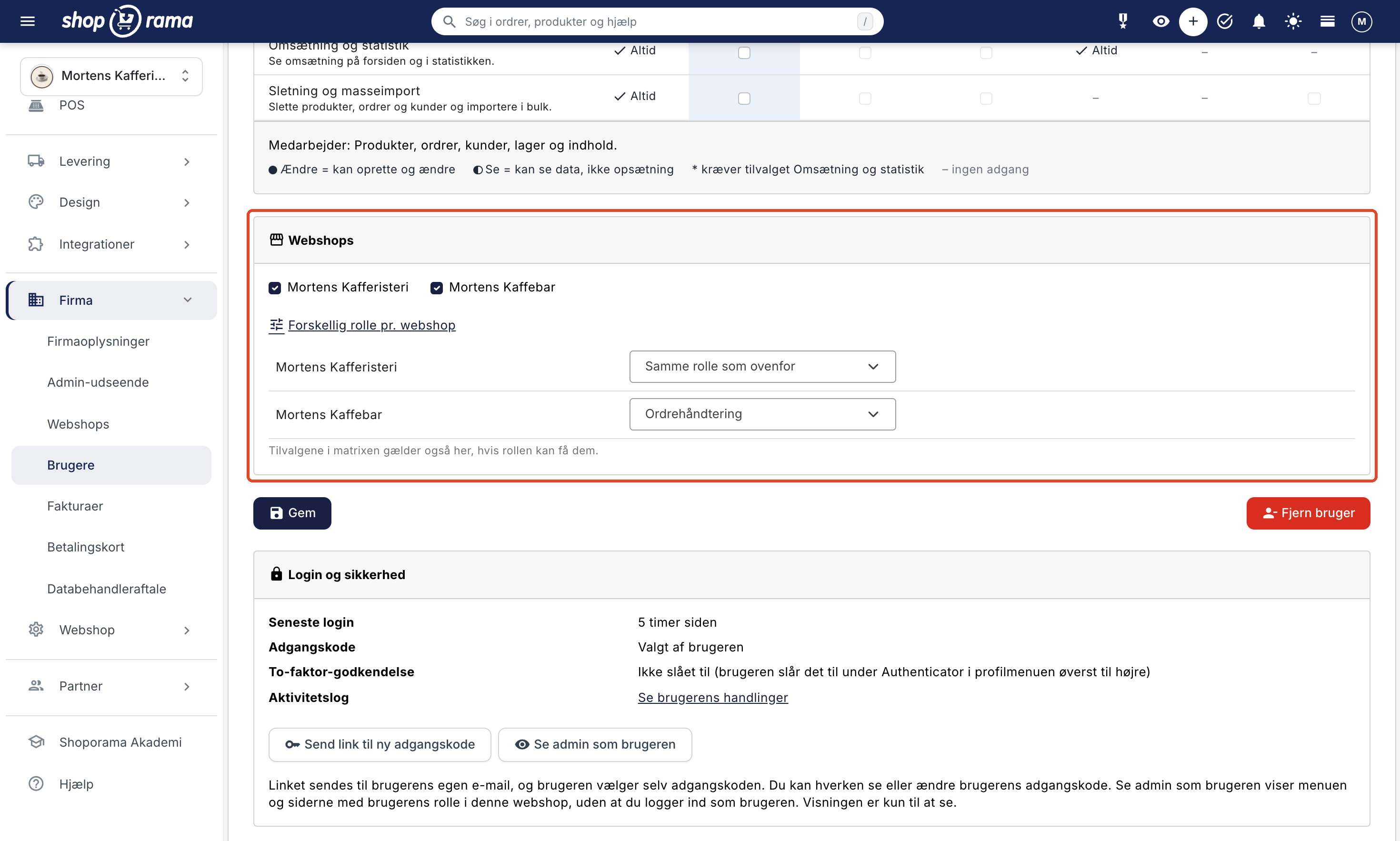
You set the add-ons only once in the matrix, and they apply to all online stores where the role is eligible for them. You cannot assign different add-ons to each online store. “Company Administrator” applies to the entire company. In the user list, there is one row per online store when a user has different roles across the online stores.
The “Webshops” tab is only displayed when the company has multiple webshops. When you create a user, all webshops are selected by default, and the user is assigned the same role in all of them. You can assign a different role in a specific webshop later via “Edit User.” If you uncheck the box next to a web store, the user loses access to it. At the same time, the user’s connections via “Log in with Shoporama” and any API keys the user has created without “Full Access” will stop working in that specific web store.
If you create a new online store, the company’s users will gain access to it, and users with a selected role will retain that role. Review the users afterward if any of them are not supposed to work in the new online store.
This is what a user without access sees
Once you’ve selected a role other than “Full Access” for a user, the admin interface will adapt to that role. Users with the previous setup will see the admin interface as they do today until you change their role or permissions.
The menu, the home page, and the search function
The menu displays only the pages that the role is authorized to access, and groups without pages disappear entirely. The home page displays only the modules that the role is authorized to view. For example, “Sales” requires the “Sales and Statistics” option; “Contribution Margin” and “Inventory Value” require “Cost Prices and Markup”; and the order modules require access to orders. The search field at the top displays only orders if the role is authorized to view orders, and only products if the role is authorized to view products. This also makes it easier for a new employee to find their way around.
The “No Access” page
If the user opens a page that their role does not grant access to—for example, from an old bookmark—the “No Access” page appears with the “Go to Home” button and one of the following messages:
- "Your role (Employee) does not have access to this page. Contact the company administrator if you need it."
- "Your role (Order Processing) does not have access to: Data Export. Contact the company administrator if needed."
- "Only the company administrator has access to this page. Contact the company administrator if you need assistance."
- "Only the company administrator can close or reset the online store."
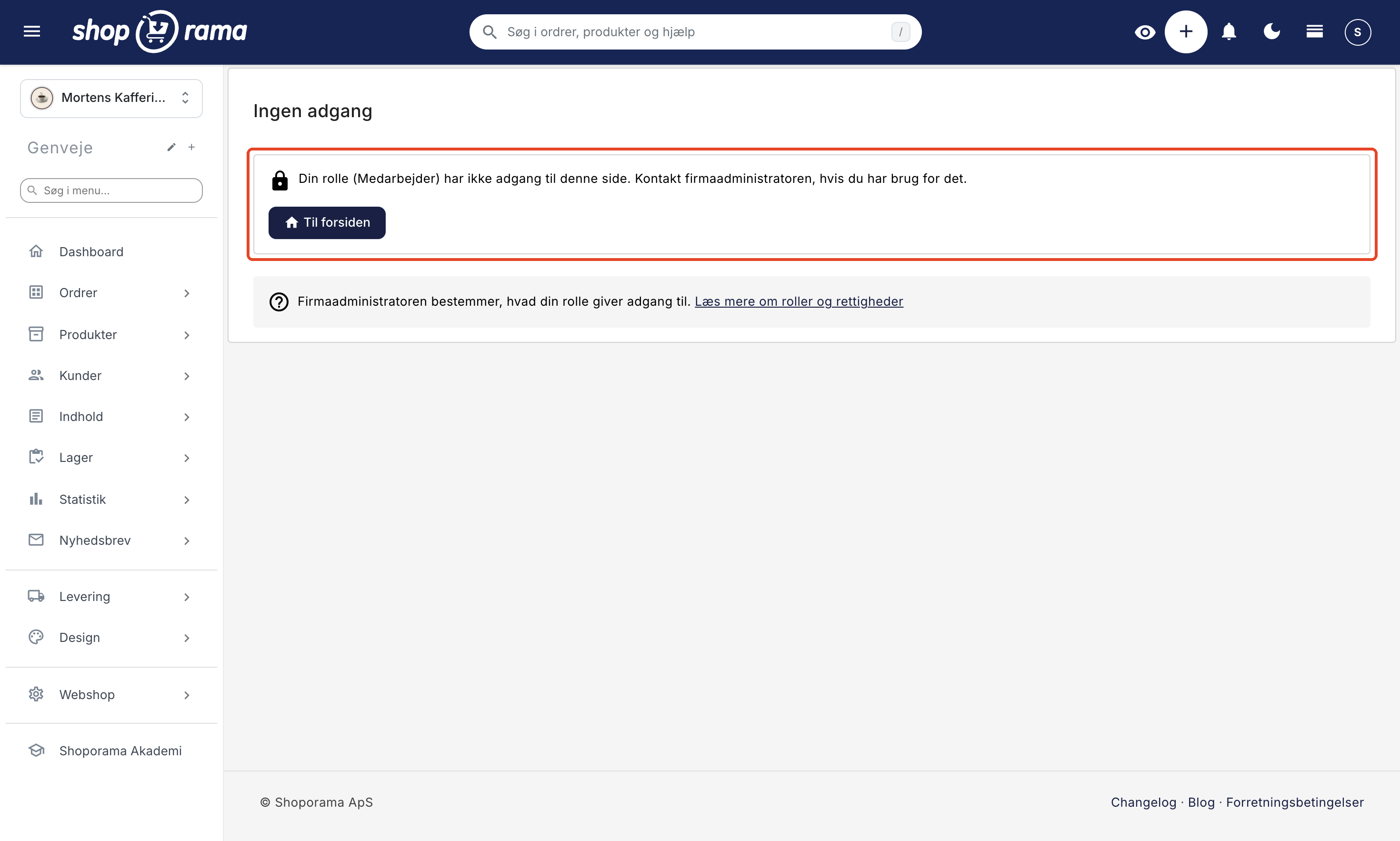
The role’s name appears in parentheses so that both of you can see what needs to be changed if the user is to be granted access. The page also appears when the user clicks a button that the role or add-ons do not grant access to, such as in the order list.
The online store is restricted
The “Online Store is Locked” page appears for users with a role other than “Full Access” when the online store is closed, has an overdue invoice from Shoporama that hasn’t been paid, or is an expired demo. The message reads: “The online store is closed or awaiting payment. Contact the company administrator.” The home page and the user’s own profile still work, so the user can, for example, change their password via the My Profile button and log out. The "Bookkeeper" role can also still view invoices via the "View Invoices" button. Users with "Full Access" will, as before, be directed to the page regarding the invoice, going live, or the expired demo.
How this affects the "Claude" role, apps, and API keys
This role also applies to tools that operate within the online store outside of the admin panel:
- Claude: Only users with Full Access can connect Claude to the online store and use AI tools and Authorizations under Integrations → Manage the Store with AI. If a user who has connected Claude is assigned a different role, the online store will reject Claude’s actions from that point on. Claude’s actions are recorded in the AI log, not in the activity log. Read more in Manage the Store with AI.
- Apps: Only users with Full Access can install and remove apps. An app is assigned its own key with its own access level and is not linked to any user’s role.
- Sign in with Shoporama: If a user connects a tool using “Sign in with Shoporama,” the connection belongs to that user. If you’ve assigned a role other than Full Access to the user, the connection can only perform the actions permitted by that role. If a tool needs to function throughout the entire online store, have a user with Full Access connect it. If you remove the user, the connection is revoked.
- API keys: Your current keys work as before. A key created by a user with Full Access under Integrations → API Access has the access level you select (All, Read-only, or Write-only) and is associated with the online store, so it continues to work even after the user is removed. A key created by a user with a different role—in practice, a Developer—has no more permissions than the role allows and stops working when you remove the user. For example, if an integration needs to retrieve orders, the key must therefore be created by a user with Full Access. Under Integrations → API Access, a user without Full Access will only see the keys they have created themselves. Read more in Find or Create an API Key.
Supplier: How to Limit a User to Their Own Products
The Supplier role requires a bit of setup before it works as intended:
- Create the supplier under Products → Suppliers if it doesn’t already exist. Learn more about
Related articles
Create more users in your shop
A guide to creating multiple user logins for your Shoporama admin panel and assigning each user a role that determines what they can do.
Activity Log: See who has done what in the admin panel
The activity log shows who has refunded, exported, deleted, imported, or changed access permissions in the administration system, and when. See...
Remove a user from your shop
Guide to removing a user from your business in Shoporama admin.
Login and two-factor authentication (2FA)
Two-factor authentication (2FA) is optional extra security on your Shoporama login. Choose between the Authenticator app or free SMS and secure...
Your Account: Edit Your User Information
How to edit your name and email address in your Shoporama account, what the checkboxes mean, and where to find dark mode, menu options, the...
Firma-konti med flere brugere og roller
Manage Your Store with AI: Get Started with Claude and MCP
Connect your Shoporama store to Claude using the connector library or via MCP, and have it create orders, discount codes, and storefronts. Learn...
Cost Prices and Inventory Value
Fill in any missing cost prices to get a more accurate inventory value and profit margin. Guide to the Cost Prices page.
Translate your online store into other languages
How to translate your online store when selling in multiple countries: automatic translation, status by language, corrections, addresses in the...
Sell in multiple countries and in multiple languages
Here's how to sell in other countries in your customers' languages and currencies using "Countries": Add a country, set up the address, language,...
Related features
More users
Assign each employee their own user account and a fixed role so they have only the access required for their tasks. Unlimited users on Pro and...

Roles for your team: Decide who has what permissions in the admin panel
New in Shoporama: Assign the packer, the bookkeeper, and the web agency their own roles in the admin panel, and decide who is allowed to issue...
User Roles
User roles group permissions under a single name, so each user has only the access required for their tasks. See what the seven standard roles in...