An Online Store with Business Central Without Duplicate Data Entry
When online store orders have to be manually entered into Business Central, time is spent copying names, addresses, item numbers, amounts, and payments from one screen to another. The more orders there are, the more hours it takes, and a typo in an amount or a tax code might not be noticed until it’s time to calculate the tax.
With Shoporama’s free app for Microsoft Dynamics 365 Business Central, orders are transferred automatically. By default, it becomes a posted sales invoice with the customer, line items, shipping, discounts, and tax, and for paid orders, the payment is recorded and reconciled so the invoice is marked as paid. If you ship from a warehouse managed in Business Central, the order can instead become a sales order. The app was developed by Shoporama, and you can find it under Integrations, Apps in your Shoporama admin.
Business Central is Microsoft’s ERP system for small and medium-sized businesses and the successor to Navision. The app works with Business Central Online, Microsoft’s cloud version.
How the Business Central Integration Works
Here’s what happens when the order is transferred as a sales invoice, which is the default. Sales orders are covered in the next section.
- The customer makes a purchase in the online store. Once the order is paid, Shoporama sends it to Business Central shortly thereafter. You can also choose to have this happen once the order is shipped, or as soon as it is created.
- The customer is found or created. The app searches for a customer using the customer’s email address. If none is found, the app creates a new one with name, address, phone number, email, tax region, and—for businesses—CVR number. If you’d rather group private customers under a single fixed customer, you can choose that option.
- The sales invoice is created. It includes one line per item with the item name and item number, shipping with the shipping method name, and discount codes, promotional discounts, and point discounts, each on its own line. Deposits and gift cards are also included. The online store’s order number appears in the “External Document No.” field, and the shipping address, email, and phone number are listed on the invoice.
- The amount is verified before posting. The app compares the invoice amount and sales tax in Business Central with the order. If they match, the invoice is posted. If they differ, it remains as a draft so that an incorrect amount is never posted.
- The payment is recorded and reconciled. The app posts the payment to its own payment journal for the payment method using the contra account you’ve selected and reconciles it with the invoice.
- The online store’s invoice is included. The invoice from the online store is attached to the sales invoice as a PDF, so the attachment is in place when the auditor reviews it.
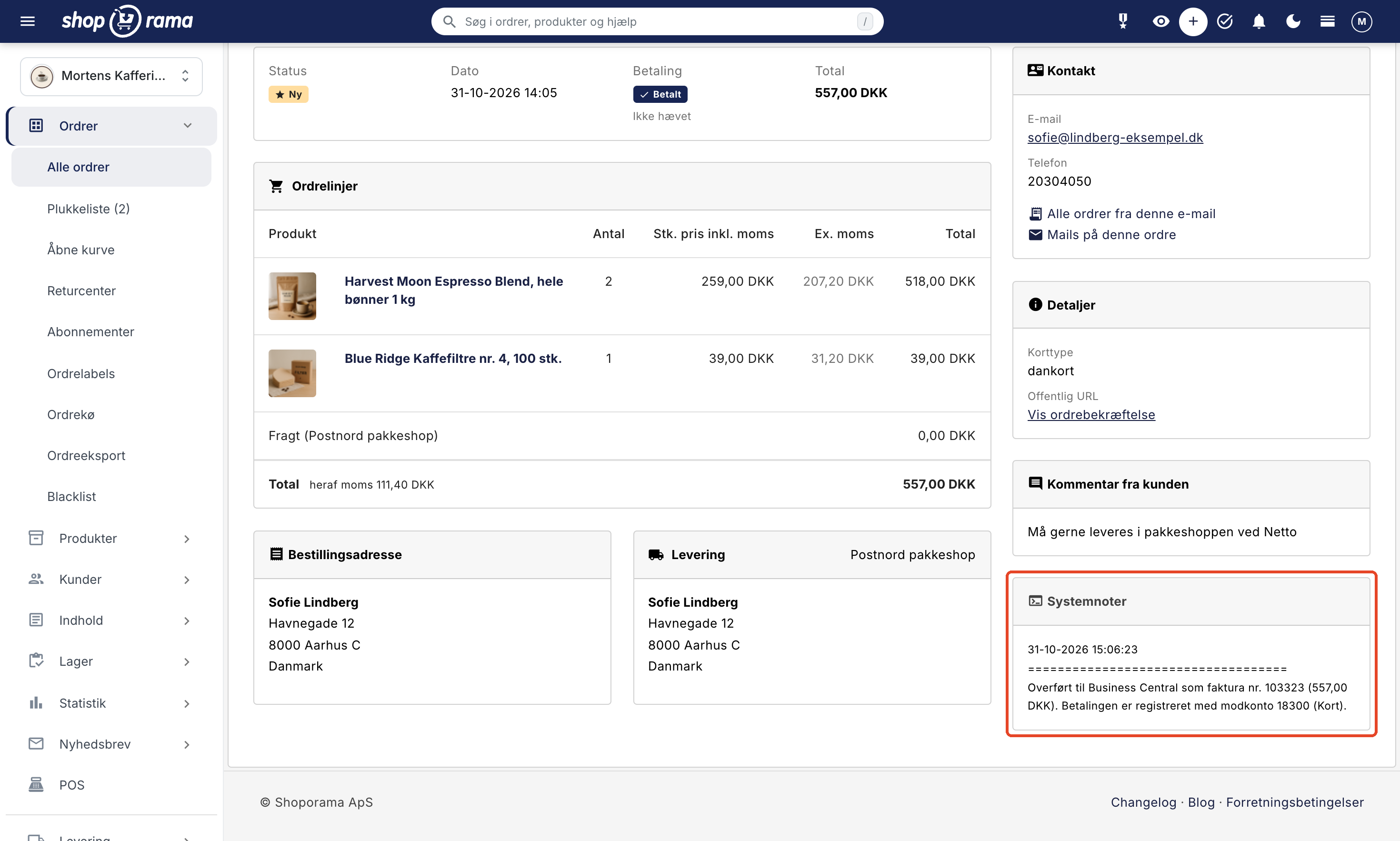
- You can see the result on the order. The order receives the green “Business Central OK” label and a note with the invoice number in Business Central, the amount, and the contra account.
Sales Invoice or Sales Order?
In the “Transfer as” field, you choose what the order will become in Business Central:
- Sales Invoice (default). The order becomes a sales invoice that is posted immediately. The payment is recorded, and the online store’s invoice is attached as a PDF. This works for most online stores where the item is shipped directly from the online store. If you want to review the invoices yourself, uncheck the “Post the invoice automatically” box. The invoices will then be saved as drafts, and you can record the payment yourself in Business Central.
- Sales Order. The order becomes a sales order that is not posted. You fulfill and invoice it in Business Central, just as you do with your other sales orders—for example, when inventory and shipping are managed there. The app does not record any payment and does not attach any PDFs to sales orders. If you also select “When the order is created” under “Transfer the order,” the sales order will be transferred as soon as the customer places the order.
If you change this setting, it applies to orders transferred thereafter.
What do you get as a store owner?
- No double data entry. The order appears in Business Central with the customer, items, shipping, discounts, deposits, and gift cards—without anyone having to enter it manually.
- Payments are reconciled from the start. Card, MobilePay, ViaBill, Anyday, Klarna, PayPal, and in-store cash payments can each have their own contra account—for example, a suspense account for each payment provider. This makes it easier to reconcile payments from the acquirer. Orders on invoices, with an EAN number, or paid by bank transfer remain open by default until the customer has paid.
- Errors are caught before they’re posted. If the invoice amount or sales tax differs from the order, it isn’t posted. It remains as a draft, and the order is labeled “business-central-failed” in red, with both amounts listed in the note. You’ll notice this immediately, rather than only when reconciling VAT.
- The document is there. The online store’s invoice is attached as a PDF to the sales invoice and credit memo, and the order number is listed in the “External Document No.” field, so the accountant can find the order behind each invoice.
- VAT is calculated automatically. Each line item is assigned a VAT group, and each new customer is assigned a VAT region. Business Central calculates the VAT based on your own VAT accounting setup.
- Inventory in Business Central is automatically updated. If you enable “Use Items in Business Central,” sales are posted to your inventory, so the inventory in Business Central tracks sales from the online store.
- You can see it all on the order. A green, red, or yellow label and a note indicate whether the order was successfully processed and, if not, what went wrong. The app’s settings also show how many orders have failed in the last 7 days.
- Free in Shoporama. The app is free, and it doesn’t use any of your user licenses in Business Central.
VAT, EU, and Export in Business Central
Business Central calculates the VAT itself. The app assigns a VAT group to each line item and a VAT region to each new customer, and then verifies that the amounts and VAT match the order.
- Denmark. Lines with VAT are assigned the VAT group for taxable goods (e.g., STANDARD), and lines without VAT—such as gift cards and tax-exempt goods—are assigned the group for non-taxable goods (e.g., MOMSFRI). New customers are assigned the Danish VAT region (e.g., DOMESTIC). This also applies to private customers in other EU countries who pay Danish VAT.
- Companies in other EU countries. If the customer has a valid VAT number and the order is VAT-exempt with reverse charge, a new customer is assigned the VAT region for EU companies (e.g., EU), and the sale can be assigned its own account.
- Outside the EU. Orders without VAT to countries outside the EU are assigned the VAT region for exports (e.g., EXPORT) and can also be assigned their own sales account.
- VAT charged on a foreign order. If the online store has charged VAT—for example, because a VAT number was invalid—the customer is classified as a Danish customer, so Business Central applies the same VAT rate as the order.
For companies within the EU and for exports, the lines retain the VAT group with VAT when the item normally has Danish VAT. It is the customer’s VAT region that sets the rate to 0%, and Business Central then enters the sale in the correct fields on the VAT return. VAT regions are used only for customers created by the app. An existing customer retains their own.
OSS. If you sell to private customers in other EU countries using the buyer’s country’s VAT (OSS), Business Central requires VAT accounting groups by country, which the app does not recognize. If the order has a VAT rate other than 25%, the invoice is therefore created as a draft with an explanation, and you select the groups and post the entry in Business Central. The app cannot distinguish an OSS sale with 25% VAT—for example, to Sweden—from Danish VAT, so check those orders in Business Central if you are registered for OSS.
Foreign currency. If you sell in multiple countries, each with its own currency, the invoice will be in the order’s currency, such as euros. Business Central converts using its own exchange rates, not the rate from the purchase, and you must manually record payments on foreign currency invoices in Business Central.
Products and Inventory in Business Central
If you have your products in Business Central, sales from the online store can be posted to them. Check the box for “Use items in Business Central,” and a line item will be posted for the item when the item number in Shoporama matches the item number in Business Central. This ensures that inventory in Business Central tracks sales, and the line item is posted according to the item’s own accounting setup.
- Variants can be matched using the item number and variant code separated by a hyphen, e.g., SP-SCM1006-WHITE for the WHITE variant of item SP-SCM1006.
- Unknown item numbers are posted to the sales account, and a note on the order indicates which item numbers were not found. If you create a new item in Business Central, it may take up to 24 hours before the app uses it.
- No synchronization takes place. The app never creates products in Business Central and does not retrieve products, inventory, or prices for the online store. You manage inventory and prices in the online store via Shoporama. If you want them to come from Business Central, you’ll need a different solution, such as via Shoporama’s REST API.
Without the checkbox selected, all lines are posted to the sales accounts you have selected. The item number is also called an SKU.
Credits become sales credit memos
If you issue a credit for an order in Shoporama—whether directly on the order, in the returns center, or for an exchange—it becomes a sales credit memo in Business Central for the same customer, and the online store’s credit memo is included as a PDF. If the original invoice is still unpaid, the credit memo is offset against it. You record the refund to the customer yourself in Business Central. In the case of an exchange, the app creates a credit memo for the original order and a new invoice for the exchange order.
If the order was transferred as a sales order, the credit memo is created as a draft so you can post it once the goods have been returned. Business Central cannot create return orders from external sources. Learn more about credit memos and refunds.
How to Get Started
- Install the app. Go to Integrations, Apps in Shoporama, and click Install on Microsoft Dynamics 365 Business Central.
- Connect to Microsoft. Click Connect to Business Central, and have an administrator in your Microsoft account—such as a Global Administrator—sign in and grant consent.
- Set up the app in Business Central. Search for Microsoft Entra apps in Business Central, set up the app using the client ID shown in the app’s settings, and grant it the D365 BUS FULL ACCESS permission set. Set Status to Enabled, and then save the app’s settings in Shoporama.
- Set up the customers. Create a one-time customer template under API Setup in Business Central so that new customers are assigned their accounting groups. You can also group private customers under a single customer, but the app always creates new companies as customers, so if you sell to businesses, the template must be in place.
- Select the company, accounts, and contra accounts. Select the company, sales accounts, tax groups, tax regions, and contra accounts for payments, then click Save. Test with a single order and check the note on the order.
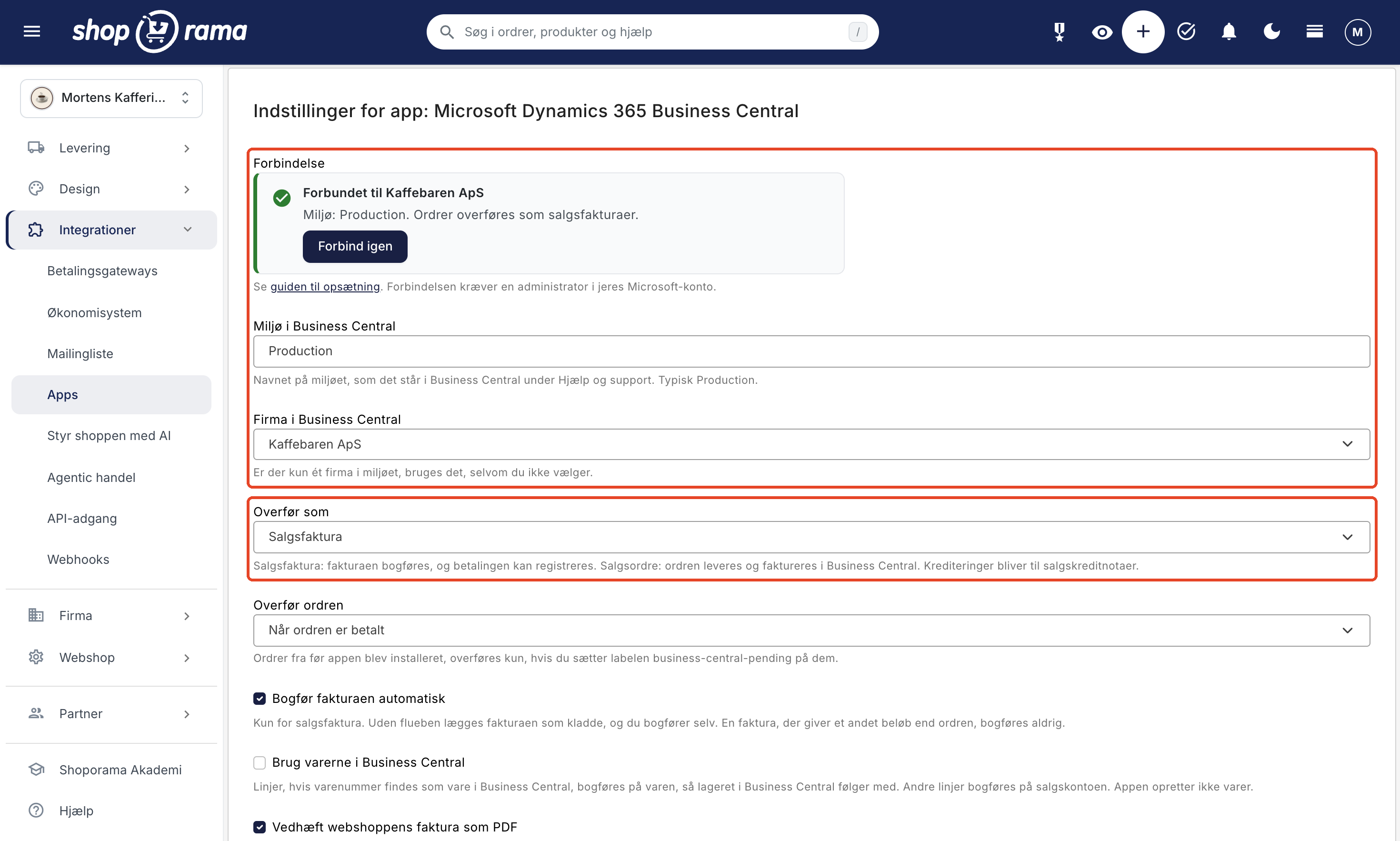
The complete guide covering all fields is available in “Set Up Business Central Integration.” You’ll find a brief overview of the app under “Business Central Integration,” and if you sell to resellers and other businesses, read about the “B2B Web Store with Business Central.”
What You Need to Know
- Business Central Online only. The app does not work with Business Central on-premises, Dynamics NAV, or Navision. If you use Navision, see the Navision Web Store guide.
- The customer template is required as soon as the app creates customers. Business Central does not assign accounting groups to new customers from external sources. If the template is missing, the app will delete the customer and include instructions on the order on what to do.
- Orders are one-way. The app sends orders and credit memos to Business Central but does not retrieve anything back. If you correct the order in Shoporama after the transfer, you must also make the correction in Business Central.
- You handlerefunds and return orders in Business Central.
- You must reconcilepayments and fees from payment providers yourself. The app records the customer’s payment, not the payment from the acquirer.
- OSS and foreign currency. OSS sales with a rate other than 25% are treated as drafts, and payments on invoices in foreign currency are not recorded.
- No automatic retries. If an order fails, correct the error and apply the “business-central-pending” label to the order. How to use labels: Order labels.
- Orders on invoices are transferred with the default setting “When the order is paid” until they are marked as paid in Shoporama. If you want them transferred earlier, select “When the order is shipped” under “Transfer the order.”
- Old orders are not transferred automatically. Orders from before you installed the app will only be included if you apply the “business-central-pending” label to them. Canceled orders are never transferred.
Frequently Asked Questions About the Web Store with Business Central
How much does the Business Central integration cost?
The app is free in Shoporama. You obtain Business Central licenses from Microsoft or your reseller, as usual. The app logs into Business Central as a program and does not use one of your user licenses.
Does the app work with Navision or on-premises Business Central?
No. The app only works with Business Central Online, Microsoft’s cloud version. It cannot be connected to Navision, Dynamics NAV, or Business Central on-premises. If you’re in the process of migrating from Navision to Business Central Online, you can set up the app once the migration is complete.
Are the orders converted to sales invoices or sales orders?
You choose this in the “Transfer as” field. The default is “Sales Invoice,” which is posted immediately and has the payment recorded. If you select “Sales Order,” the order is transferred as a sales order, which you fulfill and invoice in Business Central.
Is the payment recorded in Business Central?
Yes, on sales invoices. The app posts the payment to its own payment journal for the payment method using the contra account you’ve selected and reconciles it with the invoice, so the invoice is marked as paid. Orders on invoices, with EAN numbers, or via bank transfer are not recorded by default. Payments are also not recorded on sales orders, drafts, or invoices in foreign currencies.
Does the app sync inventory, items, and prices?
No. The app sends orders in one direction only. If you enable “Use Items in Business Central,” the sale is posted to the item when the item number is found in Business Central, so the inventory in Business Central is updated accordingly. However, the app does not create items and does not retrieve inventory, items, or prices for the online store.
What happens when I issue a credit memo for an order?
The credit is posted as a sales credit memo for the same customer in Business Central. If the invoice hasn’t been paid yet, the credit memo offsets it. You record the actual refund to the customer in Business Central. If the order was transferred as a sales order, the credit memo is created as a draft so you can post it once the items have been returned.
What do we need to get started?
Business Central Online, an administrator in your Microsoft account who can grant consent, and someone who can set up the app under Microsoft Entra Apps in Business Central and create a customer template. Your Business Central partner can assist with that part. In Shoporama, you’ll need a user with full access to install apps.
What happens if an order can’t be transferred?
The order will be labeled with the red “business-central-failed” label and a note explaining why, such as a missing account or that Business Central rejected the posting. The app won’t retry on its own. Correct the error and apply the “business-central-pending” label to the order. An order that has already been transferred will not be transferred again.
Can multiple online stores post transactions to the same company in Business Central?
Yes. Give each online store its own prefix for external document numbers, such as “A-” and “B-,” so the order numbers can be distinguished in Business Central. Each online store installs the app and connects it separately. Customers are identified by email, so a customer who shops at both online stores will have the same customer record.
Can’t Shopify also be connected to Business Central?
Yes. Microsoft offers a free Shopify Connector that’s built into Business Central Online and requires licenses for both Business Central and Shopify. It imports orders as sales orders or sales invoices and synchronizes products, inventory, and customers. The main difference, therefore, lies in the online store itself: with Shoporama, you get a Danish online store with Danish support and built-in B2B features. See more in the comparison of Shoporama and Shopify.
Ready to connect your online store to Business Central?
If you’re already running Business Central online, the app is the quickest way to turn a web store order into a posted and paid sales invoice. If you have a Shoporama online store, install it under Integrations, Apps. If you’re not a customer yet, you can set up an online store and try it out for yourself, and you can compare it with other platforms in Shoporama vs. Shopify.
If Business Central is more than you need, check out e-conomic vs. Dinero, an online store with Uniconta, or all the accounting software you can use with Shoporama. Need help with setup? Email support@shoporama.dk.