Edit product
Guide to the product editing page in Shoporama. Review of all sections: general, descriptions, images, categories, labels, stock, profiles, variants, quantity discount, bundles, credit, extra fields, search, related products, files, subscription, VAT, environment and price monitoring.
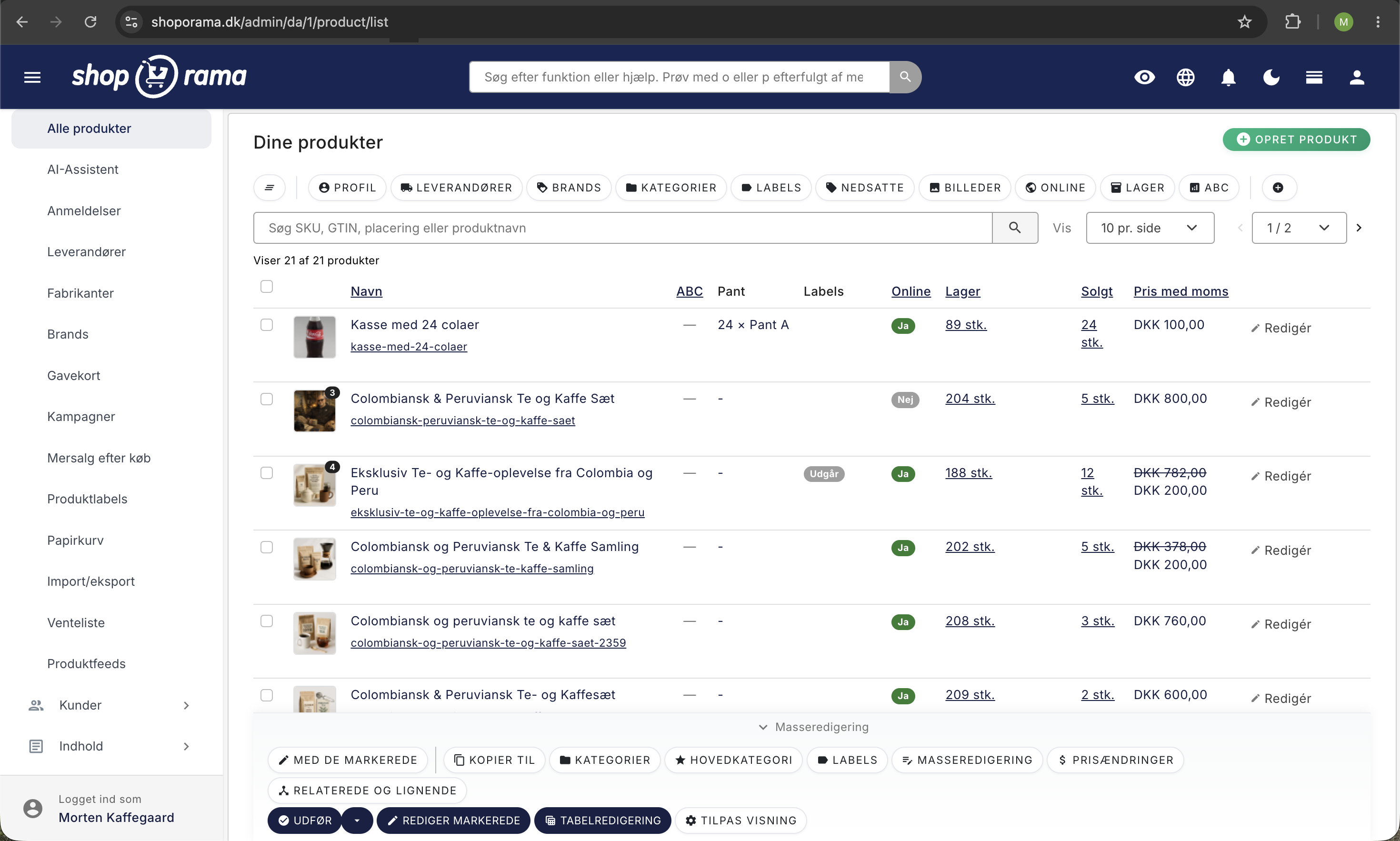
Når du redigerer et produkt i Shoporama, åbner du en side med en lang række sektioner, der tilsammen styrer alt fra priser og billeder til SEO, lager og miljødata. Denne guide gennemgår alle sektioner, så du ved præcis hvad de enkelte felter gør.
Generelt
Den første sektion indeholder de mest grundlæggende produktoplysninger:
- Navn — produktets titel, som vises i shoppen og i søgeresultater.
- Beskrivelse — en richtext-editor med mulighed for at bruge AI-assistenten til at generere eller forbedre teksten.
- Adresse (URL) — produktets URL-slug. En god adresse er kort, beskrivende og bruger kun små bogstaver, tal og bindestreger.
- Vejl. pris — produktets normalpris. Vises enten med eller uden moms afhængigt af din shopindstilling. Der er en lille lommeregner-knap, der kan tilføje eller fjerne moms.
- Tilbudspris — en valgfri nedsat pris. Når denne er udfyldt, vises den som den aktuelle pris, og normalprisen stryges igennem.
- Kostpris — indkøbsprisen uden moms. Bruges til at beregne avance og lagerværdi.
- Leverandør — vælg den leverandør produktet kommer fra.
- Brand — vælg det brand produktet tilhører.
- Online/offline — afgør om produktet er synligt i shoppen.
- Forsendelsespris — en individuel forsendelsespris for produktet, hvis det afviger fra den generelle fragtpris.
- Vægt — produktets vægt, bruges til fragtberegning.
SEO-felter og shortcodes
Produktet har felter til meta-titel og meta-beskrivelse, som bruges af søgemaskiner. Disse felter understøtter dynamiske shortcodes, der automatisk erstattes med aktuelle værdier:
- [PRICE] — prisen inkl. moms
- [PRICE_EX_VAT] — prisen uden moms
- [NAME] — produktnavnet
- [STOCK] — antal på lager
- [SUPPLIER] — leverandørnavnet
- [BRAND] — brandnavnet
- [YEAR] — indeværende år
- [FREESHIPPING] — beløb for fri fragt
Der vises en live Google-preview, der opdateres mens du skriver, så du kan se hvordan produktet vil fremstå i søgeresultater.
Udvidelser (fra temaet)
Hvis dit tema definerer ekstra produktfelter (extensions), vises de her. Det kan fx være felter til at styre layout, badges eller anden tema-specifik funktionalitet.
Billeder
Upload produktbilleder i formatet PNG, JPEG eller WebP. Du kan uploade flere billeder ad gangen, og du kan trække og slippe for at ændre rækkefølgen. Det første billede bruges som hovedbillede.
Kategorier
Vælg hvilke kategorier produktet skal vises i. Du kan vælge flere kategorier, og du kan markere én kategori som den primære (bruges til breadcrumbs og canonical URL).
Labels
Tildel produktlabels til produktet. Labels kan bruges til at filtrere og gruppere produkter i administrationen, og de kan vises som badges i shoppen.
Lagerstyring
Her styrer du lagerrelaterede oplysninger:
- SKU — dit eget varenummer. Systemet advarer, hvis samme SKU bruges på flere produkter.
- Sekundært SKU — et alternativt varenummer.
- GTIN — stregkode (EAN/UPC). Vigtigt for Google Shopping.
- MPN — producentens varenummer.
- Placering på lager — en fritekst til at angive, hvor varen befinder sig fysisk.
- Leveringstid — fx "1-2 dage".
- Leveringstid når ikke på lager — alternativ leveringstid, der vises når lagerbeholdningen er 0.
Profil og varianter
Hvert produkt er knyttet til en profil. Profilen definerer, hvilke varianter (fx størrelse, farve) produktet har. Du kan:
- Se og redigere priser pr. variant
- Tilføje nye varianter direkte fra produktsiden
- Skifte profil (advarsel: dette fjerner lagerposteringer, hvis profiler har varianter)
Mængderabat
Opsæt prisreduktion baseret på antal. Fx "Køb 5 eller flere og spar 10%". Priserne sættes pr. variant, hvis produktet har varianter med priser.
Samlepakker
Opret en samlepakke (bundle) ved at tilknytte andre produkter. Når kunden køber samlepakken, trækkes lager fra de tilknyttede produkter. Du kan søge efter produkter og tilføje dem til pakken.
Kredit m.m.
Denne sektion vises kun, hvis profilen er markeret som finansiel. Her kan du:
- Kredit til dato — udsæt capture af betaling til en bestemt dato i måneden.
- Kredit i dage — udsæt capture et bestemt antal dage.
- Kredit til specifik dato — udsæt capture til en fast dato.
- Tilgodebevis — gør produktet til et gavekort, der opretter en unik rabatkode ved køb.
Ekstrafelter
Ekstrafelter defineres på produktprofilen og kan bruges til alt fra Google Shopping-attributter til brugerdefinerede data. Du kan fx oprette felter til materiale, farve, køn eller lignende.
Intern søgning
Tilføj valgfrie søgeord, der hjælper kunderne med at finde produktet via shoppens søgefunktion. Skriv ét ord pr. linje. Du kan også vælge at ignorere produktet helt i søgningen.
Relaterede produkter
Tilknyt relaterede produkter, der vises på produktsiden ("Andre kunder købte også" o.lign.). Du kan søge efter produkter og tilføje dem. Der er også en sektion for lignende produkter og omvendt relaterede produkter (produkter der har dette produkt som relateret).
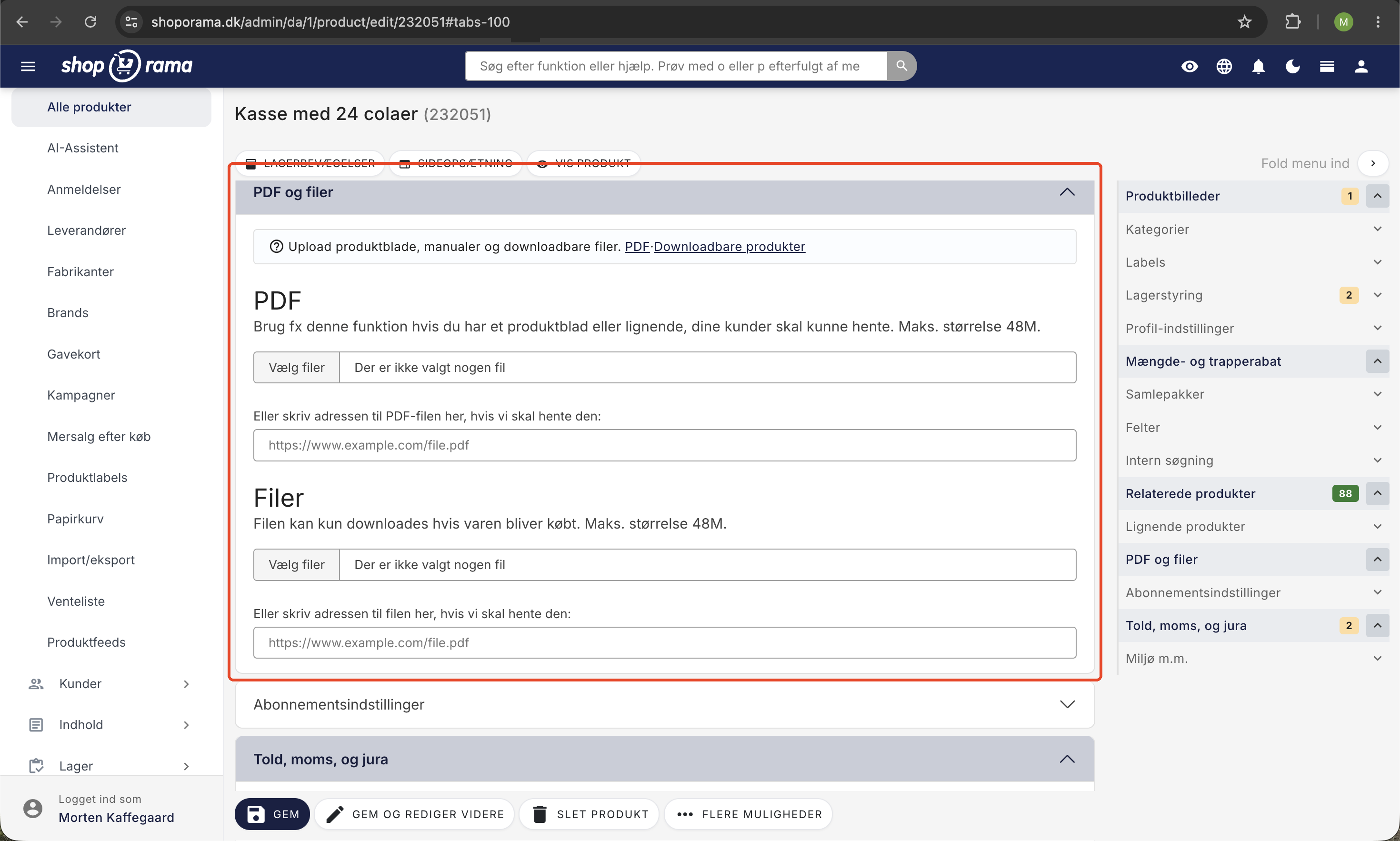
Filer
Upload filer (fx brugermanualer, datasheets) til produktet. Filerne kan gøres tilgængelige for kunderne på produktsiden.
Abonnementsindstillinger
Hvis din shop understøtter abonnementer, kan du her sætte en særlig abonnementspris og angive minimumstimer fra bestilling til levering.
Moms
Angiv en specifik momsgruppe for produktet, hvis det afviger fra standardmomsen (fx fødevarer med reduceret moms).
Miljø m.m. (EPR / GPSR)
Registrer miljødata for produktet, der kan bruges til EPR-indberetning:
- Emballage — angiv vægt i gram pr. materiale (papir/pap, plast, metal, glas, træ, andet).
- WEEE (elektronik) — kategori, vægt og producentoplysninger for elektronikaffald.
- Batterier — type, vægt og kemisk sammensætning.
Se også artiklen Sikkerhedsprofiler (GPSR) for mere om produktsikkerhed.
Prisovervågning
Hvis du har opsat prisovervågning, kan du her automatisk tilpasse produktets pris baseret på konkurrenternes priser. Angiv et beløb at trække fra den laveste pris, og sæt en minimum- og maksimumpris.
Gemme-muligheder
I bunden af siden finder du flere måder at gemme produktet på:
- Gem — gemmer og går tilbage til produktlisten.
- Gem og rediger videre — gemmer og bliver på redigeringssiden.
- Slet produkt — sletter produktet (kræver bekræftelse).
- Gem og vis — gemmer og åbner produktet i shoppen (under "Flere muligheder").
- Gem og tilføj varer — gemmer og går til lagertilføjelse (under "Flere muligheder").
- Gem og tilføj nyt produkt — gemmer og opretter et nyt produkt (under "Flere muligheder").
Tip
Brug tastaturgenvejen Cmd+S (Mac) eller Ctrl+S (Windows) for hurtigt at gemme produktet uden at klikke.
Navigation
I toppen af siden finder du links til lagerbevægelser, sideopsætning (hvis din shop har sidedesigner) og vis produkt i shoppen. I højre side er der en sidebar med genveje til de forskellige sektioner.
Har du brug for hjælp? Kontakt os på support@shoporama.dk.